Google Sheets Lesson Plan Template: A Practical Guide
Create a reusable google sheets lesson plan template to organize objectives, activities, materials, and assessments. This step-by-step guide, with templates and examples, helps educators plan efficiently, share materials, and track student progress across subjects.


With this guide, you’ll create a reusable google sheets lesson plan template that standardizes weekly objectives, activities, materials, assessments, and reflection. You’ll design a starter sheet, add sections for standards, learning goals, and rubrics, and customize templates for different subjects. Required tools: a Google account and access to Google Sheets; use the provided structure to save time.
Why a Google Sheets Lesson Plan Template Transforms Teaching in 2026
A google sheets lesson plan template helps teachers organize thinking and execution across weekly units. By consolidating objectives, activities, materials, and assessments in one place, educators can stay aligned with standards while freeing time for in-class instruction. The term google sheets lesson plan template signals a reusable framework that scales from elementary to higher grades, across STEM and humanities. This approach reduces missing components and ensures every lesson has clear goals, aligned tasks, and a method to monitor progress. In practice, teachers report fewer last-minute changes and more predictable pacing when using a consistent template. For administrators, it offers a simple way to audit pacing and ensure equitable access to quality lessons. The template also supports remote or hybrid learning by providing a stable planning artifact students can access. In this guide, you’ll learn to design a template that scales from small groups to full classes.
Core components of a high-quality template
A robust google sheets lesson plan template should include sections for standards alignment, learning objectives, instructional activities, materials and resources, assessment criteria, and a reflection area. It should be organized with clean headers, consistent color-coding, and built-in validation to reduce errors. Use one sheet for weekly plans and optional sub-sheets for units, rubrics, and student data. The goal is to keep all planning elements accessible in a single file while preserving flexibility for different subjects and grade levels. A well-structured template also supports collaboration by clearly delineating who updates objectives, activities, and assessments. Think of the template as a modular toolbox: you can add or remove modules depending on your course and teaching style, without rewriting the entire plan each week.
Designing for reusability: structure and layout choices
Design for consistency by using the same header names across weeks and units. Use named ranges for key sections like Objectives, Activities, and Assessments so formulas remain stable when you copy templates between weeks. Include dropdown menus for standards and week numbers to minimize manual typing and errors. Freeze the top rows to keep headers visible, and apply conditional formatting to highlight late activities or missing materials. A grid-friendly layout that fits on standard screen sizes makes it easy for teachers to edit during planning and students to view it on tablets or laptops during class.
Aligning with standards and outcomes
A practical template maps learning objectives to classroom standards, then links each activity to those standards. Include a column for the standard code, a separate column for the learning goal, and a rubric section to assess mastery. By keeping standards visible, teachers can audit coverage at a glance and adjust pacing accordingly. If you teach multiple subjects, consider subject-specific sections or tabs with a shared core structure so that you preserve consistency while allowing for domain-specific language and examples. This alignment also helps administrators review curriculum coverage quickly.
Practical examples: Week 1 sample template filled
Week 1 focuses on an introduction to Google Sheets. The Week/Unit field reads "Week 1: Introduction to Sheets". Standards alignment includes a general statement like "CCSS.ELA-LITERACY.RI.5.2 (compare arguments)" replaced with a domain-appropriate standard for the subject. Objectives emphasize navigation, data entry, and basic formula use. Activities include a guided practice, partner task, and independent exercise, each with required materials such as Chromebooks and printable handouts. Materials section lists links to templates, datasets, and sample projects. The assessment rubric provides criteria for accuracy, alignment with objectives, and the ability to explain steps aloud. This example demonstrates how a single sheet can translate across weeks while maintaining a consistent structure.
Collaboration, sharing, and version control
Sharing a template via Google Drive enables collaboration among teachers, teaching assistants, and administrators. Use view-only access for students and edit access for collaborators, with protected ranges to prevent accidental changes to formulas. Enable version history to track changes over time and revert when necessary. If you rely on shared datasets, consider linking to a central data source and restricting edits to a data team. Clear ownership and a well-documented change log reduce confusion during school-wide rollouts.
Testing and iterating your template
A successful rollout involves a short pilot period with one or two classes. Collect feedback on what sections are helpful, what sections feel redundant, and whether the template supports both remote and in-person planning. Use this feedback to refine headers, adjust dropdown options, and standardize language. After the pilot, run a second iteration that consolidates suggestions into a refined master template. Regularly schedule a quarterly review to keep the template aligned with evolving standards and teaching practices.
Authoritative sources and further reading
For writers and educators seeking best practices in lesson planning, consult authoritative resources such as the U.S. Department of Education's guidelines (https://www.ed.gov), Purdue's Writing Lab for clear instructional design language (https://owl.purdue.edu), and reputable reference works (https://www.britannica.com). These sources provide structure, clarity, and credibility that you can apply when designing a Google Sheets lesson plan template for your classroom.
Tools & Materials
- Computer or tablet with internet access(Ensure browser is updated and can access Google Drive)
- Google account(Google Drive access for templates and sharing)
- Google Sheets(Preinstalled in Google Workspace; verify permissions)
- Starter lesson plan template(A prebuilt Google Sheet with sections for standards, objectives, activities, materials, and assessment)
- Sample dataset or activities list(Used for filling in Week 1 or practice units)
- Export option (CSV/Excel)(Useful for offline archiving or sharing with non-Google users)
Steps
Estimated time: 60-90 minutes
- 1
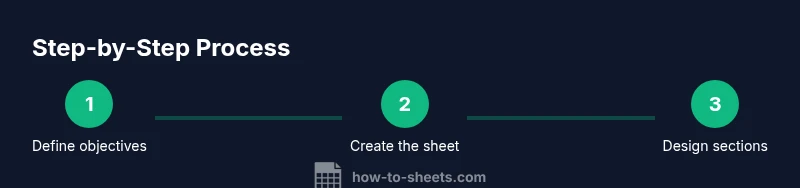
Define learning objectives
Identify clear, measurable goals for the lesson, aligned to your standards. Write 2–4 student outcomes that describe what students should know or be able to do by the end of the lesson.
Tip: Use action verbs from Bloom's taxonomy to keep objectives observable and testable. - 2
Create a new Google Sheet template
Open Google Sheets and create a new file that will serve as your master lesson plan template. Name it with the course, unit, and week for easy searching.
Tip: Keep a single master sheet and duplicate it for each unit to preserve the original structure. - 3
Set up weekly sections
Create consistent sections such as Week/Unit, Standards, Objectives, Activities, Materials, Assessment, and Reflection. Use headers with clear formatting to aid readability.
Tip: Apply a color scheme to distinguish sections and use frozen headers for easy navigation. - 4
Add standard alignment and outcomes
Attach each objective to a standard code or description. Include a separate rubric or criteria for success that you can reuse across weeks.
Tip: Use data validation dropdowns for standards to minimize typos and ensure consistent alignment. - 5
Populate activities and materials
Fill in a week’s activities with step-by-step tasks and the required materials. Include timings, roles (teacher/student), and any tech needs.
Tip: Keep activities modular so you can reuse components in future weeks without rewriting content. - 6
Incorporate assessment and reflection
Add a simple rubric for each activity and a reflection section for students or teachers to note what worked and what needs improvement.
Tip: Link assessment outcomes to the standards and objectives to maintain traceability. - 7
Set sharing and permissions
Configure sharing settings so collaborators can edit while students can view. Protect critical formulas and data ranges.
Tip: Create a version history snapshot before major updates to preserve a record of changes. - 8
Pilot, solicit feedback, and iterate
Run a short pilot, gather feedback from colleagues and students, adjust the template accordingly, and publish an updated master version.
Tip: Plan for quarterly reviews to keep the template aligned with evolving curriculum needs.
FAQ
What is a Google Sheets lesson plan template?
A Google Sheets lesson plan template is a predefined sheet that captures learning objectives, activities, materials, and assessments in one place. It helps teachers plan consistently across subjects and classes.
It's a ready-made plan you can reuse, keep consistent across weeks.
How do I customize the template for different grades or subjects?
Customize by adding subject-specific standards, adjusting activity blocks, and using named ranges to keep formulas intact when copying the template.
Customize by subject, adjust blocks, and keep formulas intact.
Can I share the template with my students or co-teachers?
Yes. Share via Google Drive with appropriate permissions (view for students, edit for collaborators). Use protected ranges to guard formulas.
Yes—share with collaborators and protect critical cells.
What if I need to track student progress within the template?
Include a progress column or rubric scores per student, and consider linking to a separate grade sheet or using conditional formatting to flag gaps.
Add a progress column and use conditional formatting to flag gaps.
Which features are essential in a good template?
Learning objectives, standards alignment, activities, materials, assessment rubrics, and a simple sharing workflow.
Core features include objectives, activities, materials, and assessment.
Where can I find a starter template?
Start with a basic template and customize. The guide provides a starter file and walkthrough.
Start with the template in this guide and customize.
Watch Video
The Essentials
- Define measurable objectives at the start.
- Use a consistent, modular template structure.
- Leverage dropdowns and protections to streamline collaboration.
- Test with a pilot class and iterate based on feedback.
- Document changes for ongoing improvement.