Convert Yen to USD in Google Sheets: Step-by-Step Guide
Learn to convert Japanese Yen to US Dollars in Google Sheets using live rates with GOOGLEFINANCE, plus tips for static rates, formatting, and budgeting.


With Google Sheets, you can convert yen to USD by pulling a live rate and applying a simple multiplication. Use GOOGLEFINANCE("CURRENCY:JPYUSD") to fetch the current rate, multiply it by your JPY amount, and format the result as USD. Rates update during market hours and may lag on weekends; for fixed-budget needs, lock in a static rate.
Why currency conversion matters in Google Sheets
Converting google sheets yen to usd is a common task for students, professionals, and small business owners who manage international expenses. When you track travel costs, vendor invoices, or cross-border budgeting, having an accurate, repeatable conversion process saves time and reduces errors. This block explains the why and the when, so you understand the value of a reliable currency workflow inside Google Sheets. You’ll learn how live rates compare to fixed rates, and how to document your methodology for audits or shared reports.
Core methods for google sheets yen to usd conversions
There are two main approaches: live-rate conversion using Google Finance, and a static-rate method that freezes a rate for a given period. The live method ensures near real-time updates but can be delayed on weekends or during market holidays. The static method provides consistency for monthly budgets and historical snapshots. Throughout this guide, we’ll provide concrete formulas and templates for both options so you can choose what fits your workflow.
Using GOOGLEFINANCE to fetch the current rate
The most common approach is to pull the current JPY-to-USD rate with GOOGLEFINANCE. In Google Sheets, enter =GOOGLEFINANCE("CURRENCY:JPYUSD") in a cell to retrieve the rate (USD per 1 JPY). Then multiply your yen amount by that rate (e.g., =A2*B2 where A2 contains the JPY amount and B2 the rate). You can also pair this with ARRAYFORMULA to apply it to a whole column. Remember to format the result as USD to reflect the currency change.
Example: converting a single amount
Suppose A2 contains 10000 (JPY). In B2 you place =GOOGLEFINANCE("CURRENCY:JPYUSD"). In C2, compute =A2*B2. Finally, format C2 as currency (USD). This pattern scales to longer lists by dragging the fill handle or using ARRAYFORMULA. For example, =ARRAYFORMULA(A2:A * GOOGLEFINANCE("CURRENCY:JPYUSD")) would convert an entire column of JPY values in one go.
Handling weekends and rate delays
Exchange rates from GOOGLEFINANCE may lag on weekends or market holidays. If you need stability for budgeting or accounting, consider using a fixed rate for the period. You can place the fixed rate in a separate cell (e.g., B2) and compute =A2*$B$2 for all rows. Document the rate source and date, so readers understand the basis for the converted values.
Using a static rate for budgeting
For monthly budgeting or historical reporting, a fixed rate is often preferable. Create a static rate cell (for example, B2) and use a calculation like =A2*$B$2. This ensures your budget isn’t fluctuating with intraday market moves, while still producing a clear dollar value from yen totals. Include a note in the sheet explaining the rate’s validity period.
Formatting and locale considerations
Format your USD results with the appropriate currency format (Format > Number > Currency). Pay attention to locale settings because decimal and thousands separators can differ. If your team uses commas for thousands and periods for decimals, ensure Sheets uses the correct locale in File > Settings. This consistency matters for reports, exports, and dashboards.
Building a reusable conversion template
Turn this into a reusable template by placing inputs (JPY amounts) in a named range, then using a dynamic rate cell that you update when needed. A template can include a summary row, a historical-rate note, and a small dashboard showing total yen, converted USD, and percentage change across periods. Saving a version history improves transparency for stakeholders.
Real-world budgeting scenario: monthly expenses in JPY to USD
Imagine a monthly expense sheet where JPY amounts are logged in column A. The live rate is in B2 and the USD equivalents in column C using =A2*$B$2. Add a summary in the top of the sheet showing total JPY, total USD, and the average rate. This setup is practical for international travelers, exporters, or teams dealing with currency risk and cross-border pricing.
Extending the workflow: automation and data validation
To reduce manual errors, add data validation to ensure JPY amounts are numeric and positive. You can also use a simple Apps Script to refresh exchanges at a fixed time daily and set email alerts if the rate crosses a threshold. For transparency, include a small glossary of currency terms and a date stamp showing when the rate was last updated.
Considerations for tax, accounting, and regional settings
Currency conversions can affect tax calculations and reporting. Always record the rate source, date, and any rounding rules you apply. If your organization uses a different currency presentation, adjust your number formats accordingly. Finally, test your sheet with a few sample values to confirm that all formulas behavior remains correct after locale or sheet updates.
Tools & Materials
- Google Sheets(Ensure you have edit access to the target spreadsheet.)
- Internet access(Needed to fetch live rates via GOOGLEFINANCE.)
- JPY amount data(Column with amounts in Japanese Yen to convert.)
- Cell for rate(Dedicated cell to hold GOOGLEFINANCE output or a static rate.)
- Currency formatting(Apply USD currency format to results.)
Steps
Estimated time: 10-15 minutes for a basic setup; 20-30 minutes for a full reusable template with validation
- 1
Prepare your data
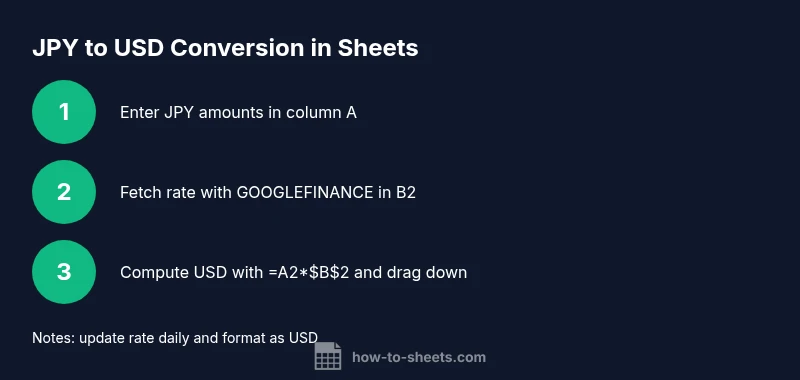
Enter your Yen amounts in column A (e.g., A2:A). Decide whether you will pull a live rate or use a fixed rate. Label rate and result columns for clarity.
Tip: Use headers like 'JPY', 'Rate (USD/JPY)', and 'USD' to keep your sheet readable. - 2
Pull the current rate (live method)
In a separate cell, enter =GOOGLEFINANCE("CURRENCY:JPYUSD"). This returns the current USD per 1 JPY rate.
Tip: If the rate cell is blank, check your internet connection or the Google Finance service status. - 3
Compute the USD value
In the USD column, multiply the yen amount by the rate: =A2*$B$2 or using an ARRAYFORMULA for bulk conversion.
Tip: Lock the rate cell with absolute references when copying formulas down the column. - 4
Format as USD currency
Apply currency formatting to the USD column (Format > Number > Currency) and choose USD. This improves readability in dashboards.
Tip: Check that negative values are not produced due to data errors. - 5
Option: static rate for budgeting
If you prefer a fixed rate, place it in a separate cell, e.g., B2, and use =A2*$B$2 for all conversions.
Tip: Document the rate date so readers know the context of your budgeting period. - 6
Create a reusable template
Turn the formulas into a template with named ranges for inputs, rate, and outputs. Add a small dashboard summary to show totals and changes over time.
Tip: Use named ranges like jpyAmounts, usdRate, and usdTotals for clarity. - 7
Handle rate-delays and weekends
If you need stability, switch to a static rate on weekends or holidays. Document the policy in a notes cell.
Tip: Consider adding a note or tooltip explaining rate source and update frequency. - 8
Extend with validation and automation
Add data validation for input ranges and consider a simple Apps Script to update rates at a set time or alert you when data is out of range.
Tip: Keep a changelog within the sheet to track rate-date and formula changes.
FAQ
How do I convert yen to USD in Google Sheets using GOOGLEFINANCE?
Enter =GOOGLEFINANCE("CURRENCY:JPYUSD") to fetch the rate and multiply by the JPY amount (e.g., =A2*$B$2). Format the result as USD to reflect the currency change.
Use the GOOGLEFINANCE function to pull the rate and multiply your yen amount by that rate, then format as USD.
Can I get historical yen-to-usd rates in Sheets?
Yes. GOOGLEFINANCE supports historical data via a date range, e.g., =GOOGLEFINANCE("CURRENCY:JPYUSD", "price", DATE(2026,1,1), DATE(2026,1,31)).
You can fetch historical rates using a date range with GOOGLEFINANCE.
What if GOOGLEFINANCE returns an error?
Check your syntax, ensure the currency pair is correct, and verify your sheet's data connectivity. Sometimes service outages require retrying or using a static rate temporarily.
If GOOGLEFINANCE fails, verify the formula and try again, or switch to a fixed rate until the service is back.
How do I format the result as USD currency?
Select the USD cells, then go to Format > Number > Currency and choose USD. Ensure your locale matches the expected decimal separators.
Format the converted values as USD currency to improve readability.
Is it safe to rely on live rates for budgeting?
Live rates fluctuate during the day. For stable budgets, use a fixed rate within a defined period and note the date of the rate.
Live rates vary; use a fixed rate for budgets and document the date.
Can I automate yen-to-USD conversions with Apps Script?
Yes. A simple Apps Script can refresh the rate daily and populate a target sheet. This keeps data current without manual updates.
You can automate rate updates with Apps Script for ongoing use.
Watch Video
The Essentials
- Use GOOGLEFINANCE for live yen-to-usd rates in Sheets
- Decide between live vs static rate based on budgeting needs
- Format results consistently as USD for readability
- Create a reusable template to scale conversions
- Document rate source and update timing for transparency