A Practical Guide to Building a Sample Google Sheets Template
Learn to build a reusable sample google sheets template for budgeting, project tracking, and inventories. Step-by-step setup, formatting, data validation, and sharing tips to help students, professionals, and small businesses.


Create a reusable sample google sheets template you can adapt for budgets, projects, or inventories. This quick guide walks you through designing a clean structure, adding headers, applying consistent formatting, data validation, and sharing with teammates. By the end, you'll have a ready-to-use sample google sheets file you can customize for any workflow.
What is a sample google sheets template?
A sample google sheets template is a pre-built workbook designed to be reused across projects. According to How To Sheets, templates accelerate learning and reduce repetitive setup by providing a consistent layout, headers, and built-in calculations. For students, professionals, and small business owners, templates save time by offering a proven starting point rather than building from scratch each time. In this guide, we focus on practical, real-world templates you can customize quickly. By using a sample google sheets approach, you can standardize data entry, reporting, and collaboration across teams. We'll cover budgeting templates, project trackers, and inventory logs so you can adapt the structure to your needs.
Why start with a clean structure?
A strong template starts with a defined purpose and a predictable layout. When you map out what you want to measure, who will use the sheet, and how data will flow between sections, you reduce confusion and mistakes later. The How To Sheets team found that templates with clearly named headers, consistent data types, and minimal merge conflicts are easier to audit and share. A good structure also makes it simpler to scale from a single project to a portfolio of related templates, saving time as your needs grow.
Core elements of a template
A solid sample google sheets template typically includes: a clear header row with descriptive column names, a data entry area with validated fields, a calculation zone for totals and metrics, and a dashboard or summary sheet that pulls insights from the data. Named ranges, drop-down menus, and conditional formatting help enforce consistency and highlight outliers. Embedding documentation within the sheet (e.g., a hidden “How to Use” tab) ensures new users can quickly understand the template’s purpose and rules.
Step-by-step: Set up your sheet
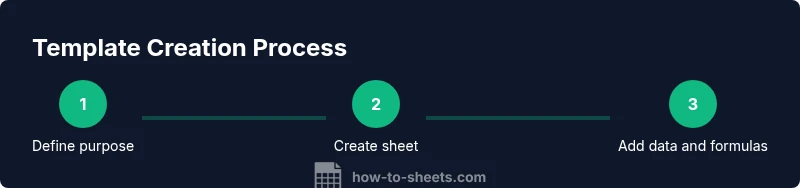
This section guides you through creating a template from scratch. Start by naming the workbook and deciding its primary use (budgeting, project tracking, inventory, etc.). Create a header row with consistent data types, add a data entry area, and set up simple calculations (totals, averages). Include a separate sheet for metadata and instructions. Finally, establish sharing settings and a version history plan so collaborators can contribute without overwriting core formulas.
Formatting and data validation best practices
Consistency is key. Use a single font family, a restrained color palette, and borders to delineate sections. Apply data validation to limit entries (e.g., dates in a date column, select lists for categories). Conditional formatting can highlight overdue tasks or negative budgets. Document any assumptions in a dedicated sheet or a small legend. These practices prevent data quality issues and make your template robust across use cases.
Organizing data with tables, headers, and naming
Organize related data in tabbed sections: a data sheet for raw entries, a calculation sheet for metrics, and a dashboard for visual summaries. Use clean header names like Date, Category, Item, Amount, and Status. Create named ranges for frequently used ranges to make formulas easier to read. When you standardize naming conventions, it’s easier to duplicate templates for new projects while preserving the core logic.
Sharing and collaboration tips
Decide who can edit the template and who can only view. Use Google Sheets’ sharing permissions to restrict access and enable comment threads for questions. Keep a change log on a hidden tab so users know what was modified. If you distribute a template link, consider linking to a copy rather than the original to avoid accidental overwrites. Regularly back up templates to protect against data loss.
Real-world example: a budgets template
Imagine a budgets template with columns for Date, Item, Category, Amount, Department, and Month. A totals line uses SUMIF to aggregate expenses by category, while a simple pivot table provides quarterly insights. The template includes a dedicated dashboard with an expense trend chart and a status indicator showing whether actuals meet the forecast. This example demonstrates how the core structure translates into a practical financial tracker.
Common mistakes and how to avoid them
Avoid overcomplicating the template with too many hard-coded values. Rely on formulas that reference dynamic ranges and protect critical cells from accidental edits. Don’t forget to document usage instructions—new users will benefit from a quick-start guide embedded in the file. Finally, test the template with sample data to ensure calculations hold under different scenarios.
Turning your sheet into a reusable template
To turn a sheet into a reusable template, remove sensitive data, lock critical formulas, and add a usage guide tab. Save a copy titled with a clear template name (e.g., Budget Template v1). If you use Google Workspace, you can publish it to your Template Gallery for easy access by your team. Keep an updated changelog so future users understand improvements across versions.
Next steps and resources
After building your sample google sheets template, practice adapting it to a new project. Copy the template for different departments, adjust the categories, and test sheets in scenarios that mirror real tasks. Explore official Google Sheets help resources and template galleries for inspiration, while leveraging practical tips from How To Sheets to optimize your workflow.
Tools & Materials
- Google account(Needed to access Google Sheets and save templates)
- Stable internet connection(Essential for real-time collaboration and saving changes)
- Web browser (Chrome recommended)(Best compatibility with Google Sheets features)
- Access to Google Drive/Sheets(Where templates are created and stored)
- Sample dataset (optional)(Used to test calculations and flows)
- Notes or documentation template(Inline usage guidelines or a help tab)
Steps
Estimated time: 60-90 minutes
- 1
Define the purpose
Clarify the primary use of the template (budgeting, project tracking, inventory). This helps shape headers, columns, and calculations from the outset.
Tip: Write a one-sentence use-case for quick reference. - 2
Create a new Google Sheet
Open Google Sheets, create a new blank workbook, and rename it to a descriptive template name.
Tip: Keep the file name consistent with other templates for easy search. - 3
Set up header row
Add descriptive headers in the first row. Use consistent data types and avoid merging cells in headers.
Tip: Prefer simple, lowercase names with underscores. - 4
Create data entry area
Designate a clear data entry range that can be expanded. Use drop-down lists for categorical fields where appropriate.
Tip: Anchor drop-down sources to a single list for easy updates. - 5
Add calculations
Insert essential formulas (sum, average, min/max) and consider inserting a separate summary sheet.
Tip: Test formulas with sample data to catch edge cases. - 6
Apply formatting and validation
Format fonts, borders, and colors; apply data validation to enforce correct data entry.
Tip: Use conditional formatting to draw attention to anomalies. - 7
Create a dashboard tab
Summarize key metrics on a single dashboard to provide quick insights without scrolling.
Tip: Link charts to the underlying data with clear labels. - 8
Protect critical areas
Lock cells with formulas and protect sheets to prevent accidental edits by collaborators.
Tip: Trim the protected area to the minimum necessary.
FAQ
What is a sample google sheets template and why should I use one?
A template is a pre-built workbook with a proven structure that you can reuse for multiple projects. It saves time, enforces consistency, and reduces setup errors by providing ready-made headers, formulas, and formatting. It’s especially useful for budgeting, project tracking, and inventory management.
A template is a ready-made workbook you reuse for different tasks. It saves time and keeps your data consistent, especially for budgets and projects.
Can I reuse a sample google sheets template across different teams or projects?
Yes. Templates are designed to be shared and adapted. Create a copy for each project, update the data lists as needed, and keep the core structure intact to ensure consistency.
Yes. You can copy the template for each project or team and adjust data lists as needed while keeping the core structure.
How do I protect critical formulas in a template?
Lock the cells that contain formulas and protect the sheet to prevent accidental edits. Use a separate 'Instructions' tab to guide users on what can be edited.
Lock key cells that have formulas and protect the sheet. Provide clear instructions for allowed edits.
What should be included on a template’s dashboard?
A dashboard should summarize key metrics with charts or summarized tables. Link visuals to underlying data and provide quick-filter controls for different views.
Include charts and quick filters so you can see the big picture at a glance.
How do I share a template securely with others?
Share with appropriate permissions (viewer or editor) and consider distributing a copy rather than the original. Use comments for questions and track changes when possible.
Share copies with the right permissions and use comments to coordinate changes.
Can a Google Sheets template be exported to other formats?
Yes. Google Sheets templates can be exported as Excel files or PDFs, allowing use outside Google ecosystem while preserving formulas and formatting.
You can export the template to Excel or PDF while keeping most formulas and formatting.
Watch Video
The Essentials
- Design with reuse in mind and a clear purpose.
- Keep headers consistent and data types standardized.
- Use data validation and conditional formatting to protect data quality.
- Document usage guidelines within the template.
- Save and version your template to facilitate updates.