Google Sheets AI: A Practical Guide to Automation and Insights
Learn to leverage Google Sheets AI to automate data tasks, generate insights, and boost productivity with practical, step-by-step guidance for students, professionals, and small businesses.


Google Sheets AI refers to the integrated machine learning and automation features that help you analyze data, generate insights, and automate routine tasks directly inside Sheets. It includes built-in smart fill, natural language queries, and Apps Script integrations, enabling smarter formulas, predictive insights, and automated workflows without leaving the workbook.
What is Google Sheets AI and why it matters
In the current data-driven landscape, google sheets ai capabilities are shifting how students, professionals, and small business owners analyze information. AI-powered features inside Google Sheets help turn raw data into actionable insights with less manual work. According to How To Sheets, these capabilities are expanding and evolving as more teams experiment with automation and data storytelling. The How To Sheets team found that clear, guided workflows turn AI potential into practical results, especially when paired with templates and step-by-step templates for Google Sheets. This article explains what AI means in Sheets, how to start, and how to scale automation without leaving your workbook.
Practical use cases for google sheets ai
Across education, professional work, and small business operations, google sheets ai unlocks efficiency in forecasting, data cleaning, pattern recognition, and trend analysis. AI can auto-classify data entries, fill missing values, flag anomalies, and summarize datasets. For budgets, project dashboards, and customer analytics, AI-powered insights save time and reduce human error. The focus is on enabling you to let Sheets handle repetitive tasks while you interpret results and tell a data-driven story.
Understanding the core AI features in Sheets today
Modern Sheets users rely on Smart Fill for pattern-based data completion, Explore for generating insights and visualizations, and AI-powered formula suggestions that adapt to data context. Apps Script enables custom AI workflows by connecting Sheets to external services or models. Together, these tools help you craft smarter dashboards, automate data preparation, and produce faster reports. Outcomes depend on data quality, prompt design, and careful validation.
Getting started: prerequisites and setup
Before diving into AI in Google Sheets, ensure you have a Google account with access to Sheets, a stable internet connection, and a clear data task in mind. Open your workbook, enable Explore if needed, and prepare a small sample to test prompts. For developers, set up Google Apps Script in your project to test simple AI calls. If you plan to connect to an external AI API, gather your API keys and review security controls. The aim is to establish a safe, testable environment for experimentation.
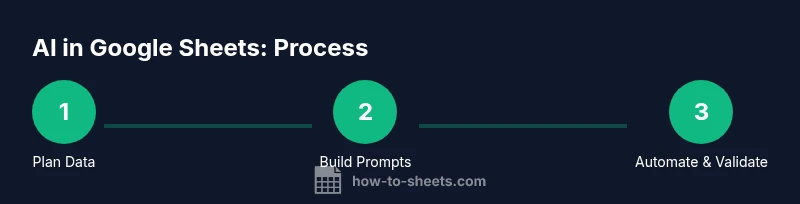
Step-by-step blueprint: planning your AI workflow
- Define the objective: what decision or insight will AI support?
- Inventory data: identify columns, rows, and formats you’ll feed to the AI.
- Choose a lightweight prompt strategy: start with a single prompt and a defined output, then expand.
- Build a simple automation in Apps Script to send data to an AI service.
- Validate results with human checks and document decisions.
This blueprint helps you design a repeatable process rather than a one-off experiment. The result is a maintainable AI workflow that scales with your Sheets solution.
Prompt design and formula techniques
Effective prompts are concise, context-rich, and testable. Include the data sample, the desired output format, and a clear success criterion. Pair prompts with standard Sheets formulas like IF, FILTER, and ARRAYFORMULA to shape results. Use named ranges to keep prompts stable, and modular prompts that can be reused across sheets. This section covers practical templates and how to adapt them for data summarization, anomaly detection, and decision-support tasks.
Data quality, privacy, and safety considerations
AI accuracy depends on data quality. Clean, normalize, and de-duplicate data before feeding prompts. Be mindful of privacy: avoid sending sensitive personal information to external AI services; whenever possible, process data locally in Apps Script or within Sheets. Maintain an audit trail of AI outputs and prompts used. Establish guardrails to prevent exposure of credentials, personal data, or other sensitive information.
Troubleshooting common issues
If outputs look off, verify input data quality, adjust prompts, or narrow the AI task. Check for inconsistent data types, missing values, or formatting that confuses the AI. Review API configuration and error messages from Apps Script. When results are slow, batch data or run prompts during off-peak hours. Regular testing on sample data prevents surprises in live sheets.
Measuring impact and iterating
Track time saved, accuracy improvements, and accelerated decision-making after using AI in Sheets. Use a control workbook to compare traditional workflows with AI-assisted versions. Gather user feedback and refine prompts, data selection, and automation steps. Over time, improve formulas, templates, and Apps Script logic to keep outputs relevant and reliable.
Authority sources and further reading
For foundational AI concepts and governance, refer to reputable sources such as the U.S. National Institute of Standards and Technology (NIST), peer-reviewed journals like Nature and Science, and leading business publications. Also consult official Sheets help articles to understand AI features and Apps Script documentation for building custom AI workflows.
Real-world examples from education and small business
Educators use google sheets ai to grade data quickly, summarize survey responses, and generate class insights. Small businesses automate expense categorization and forecast sales using AI-enhanced Sheets templates. These practical examples show how a disciplined, iterative approach yields measurable improvements in accuracy and efficiency.
Tools & Materials
- Computer or tablet with internet access(Any modern device with a browser and stable connection)
- Active Google account with access to Google Sheets(Needed to create and edit Sheets and use Apps Script)
- Google Sheets app or browser access(Essential for creating, editing, and testing AI workflows)
- Google Apps Script editor(Optional but recommended for custom AI integrations)
- API access to an AI service (optional)(If you plan to connect to external AI models via Apps Script)
Steps
Estimated time: 60-90 minutes
- 1
Prepare your data
Gather the dataset you plan to optimize with AI. Clean the data by removing blanks, standardizing formats, and validating types. Create a dedicated sheet tab for AI outputs to keep data sources organized.
Tip: Use named ranges to maintain stable references when prompts run. - 2
Enable AI-friendly features and prompts
Identify which AI features you’ll use (Smart Fill, Explore, Apps Script prompts), and design initial prompts. Start with a small sample to test results before scaling.
Tip: Test prompts on a representative subset to avoid skewed outputs. - 3
Create a simple Apps Script for AI calls
Open Apps Script Editor, write a function to send a data snippet to an AI service, and parse the response back into Sheets. Keep credentials secure and avoid exposing keys in code.
Tip: Use UrlFetchApp with POST and a minimal payload; store keys in PropertiesService. - 4
Run the script and capture results
Execute the script to push input data and pull back AI outputs into a new sheet or dedicated range. Verify that the data aligns with the prompt expectations.
Tip: Log responses for auditing and debugging. - 5
Validate results and iterate
Compare AI outputs with known results or manual checks. Refine prompts and data selection to improve accuracy and usefulness.
Tip: Document changes to prompts and data sources for transparency. - 6
Automate and scale
If successful, batch data processing and schedule periodic AI runs. Consider error handling and monitoring to keep a reliable workflow.
Tip: Modularize prompts and reuse across sheets to reduce effort.
FAQ
What is Google Sheets AI and what can it do for me?
Google Sheets AI combines built-in features like Smart Fill and Explore with Apps Script to automate analysis, generate insights, and streamline data tasks. It enables smarter formulas and repeatable AI workflows inside your workbook.
Google Sheets AI combines built-in capabilities with scripts to automate analysis, generate insights, and streamline data work inside your workbook.
Is Google Sheets AI free to use?
Most core AI features are available with a standard Google account. Advanced automation can involve Apps Script or external AI services, which may incur usage costs depending on the services used.
Most core AI features come with a standard Google account; advanced automation may incur costs if you use external AI services.
Can I connect external AI services to Sheets via Apps Script?
Yes. Apps Script can send data to external AI APIs and receive responses, enabling customized AI workflows while keeping data in Sheets. Always secure API keys and monitor data privacy.
Yes. You can connect external AI APIs through Apps Script and keep data in Sheets; ensure keys are secured and privacy is considered.
What are best practices for data privacy with AI in Sheets?
Avoid sending sensitive information to external AI services. Process sensitive data locally when possible, sanitize inputs, and maintain an audit trail of AI outputs and prompts used.
Avoid sending sensitive data to external AI services; process data locally when possible and keep an audit trail.
What are common mistakes when starting with AI in Sheets?
Relying on poorly labeled data, vague prompts, or skipping validation. Start small, test outputs, and document decisions to prevent misinterpretation.
Common mistakes include vague prompts and skipping validation; start small, test outputs, and document decisions.
Watch Video
The Essentials
- Define clear AI objectives for Sheets projects
- Test with small datasets and iterate prompts
- Combine AI with core Sheets formulas for reliability
- Protect privacy when integrating external AI services
- Document prompts and decisions for auditability