Google Sheets and Other Apps: A Practical Comparison
A rigorous, analytical comparison of Google Sheets integrations with other apps, covering native features, Apps Script, and third-party connectors for smarter automation and safer data flows.


TL;DR: If you need google sheets and other apps to work together, start with native imports for simple data moves, add Apps Script for custom automation, and then layer in third-party connectors for scalable workflows. This comparison outlines when to use each approach and how to avoid common pitfalls.
Why integration between Google Sheets and other apps matters
According to How To Sheets, the real value of google sheets and other apps emerges when data can move fluidly between systems rather than being copied by hand. In practice, teams connect Sheets with CRMs, ERPs, form tools, and project-management apps to automate repetitive tasks, eliminate manual data entry, and create live dashboards. When these connections are used intentionally, they reduce error rates, shorten reporting cycles, and empower decision-makers with up-to-date insight.
Common integration patterns include:
- Importing customer or lead data from a form tool into Sheets and then pushing updates to a CRM
- Exporting monthly revenue from an accounting system into a shared sheet for forecasting
- Consolidating marketing metrics from ad platforms into a single dashboard for quick checks
This article compares approaches—native Sheets features, Apps Script, and third-party connectors—and offers practical guidance for students, professionals, and small business owners seeking practical, step-by-step instructions.
Brand note: The How To Sheets team emphasizes starting with a measurable use case to demonstrate value before expanding.
Integration patterns: native features, Apps Script, and external connectors
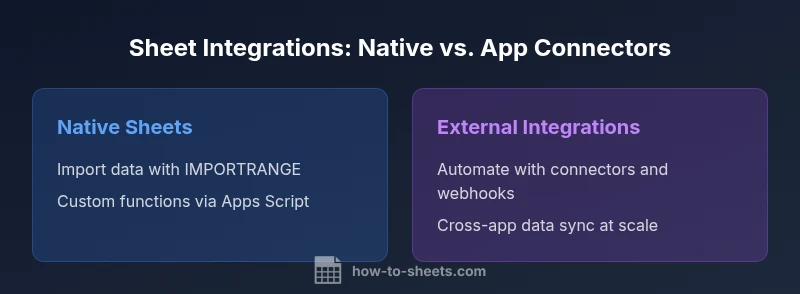
Google Sheets ships with built-in bridge capabilities that cover common needs. IMPORTRANGE lets you pull data from another sheet, while IMPORTDATA, IMPORTXML, and the built-in connectors help pull structured data from web sources. These features are great for lightweight data sharing or quick one-off imports. For longer-term automation, Apps Script opens a full programming environment inside Google Sheets. You can write custom functions, set time-driven or on-edit triggers, and deploy small web apps that receive data from other apps and return results to Sheets.
Beyond scripts, many teams rely on external connectors offered by automation platforms like Zapier or Make (formerly Integromat) and, increasingly, low-code tools built for Google Workspace. These tools minimize code, providing drag-and-drop workflows that pass data between Sheets and hundreds of apps such as CRMs, marketing platforms, and filing systems. You’ll typically choose this path for rapid deployment and when you want to prototype a workflow before building a custom script. The best approach blends native features for reliability, Apps Script for customization, and external connectors for scale.
Data flow models: real-time sync vs scheduled imports
In practice, most teams use a mix of real-time-ish and scheduled data flows. Real-time updates are often achieved with Apps Script triggers or webhook-based connections that push changes to Sheets or pull data from an API as it becomes available. However, truly instant, bi-directional syncing across many apps is rare without investing in a robust middleware layer. Real-time threads are usually limited by quota and latency, so many projects opt for near real-time updates every few minutes, while more stable processes run on scheduled intervals—hourly, daily, or on event completion. When designing flows, map critical data points (e.g., customer status, inventory level, or invoice totals) and decide whether a delay is acceptable for each. The decision affects both user experience and data accuracy.
Performance and reliability considerations
All cross-app data flows in Sheets rely on quotas and network reliability. Reading or writing large datasets frequently can trigger Google’s quotas or cause rate-limiting on external APIs. Script runtimes and automation platform plans also define how many tasks can run per minute. To maximize reliability, design idempotent operations (safe to run repeatedly), implement retries with backoff, and log errors for later auditing. Use versioned templates, keep a clear separation between data input sheets and derived dashboards, and test end-to-end flows with small datasets before rolling out to a broader audience. If an automation fails, keep a watchful eye on error emails from Apps Script or the automation platform, and have a rollback plan to restore previous data when needed.
Security, governance, and privacy when connecting Sheets to apps
Connecting Sheets to other apps expands the surface area for data access. Follow least-privilege principles: grant only the permissions you need, and avoid broad domain-wide access. Regularly review OAuth scopes, share settings, and data-access logs. Use dedicated service accounts for automated tasks, segregate production data from testing environments, and implement data retention rules. For enterprise environments, document all integrations, establish ownership, and create runbooks for incident response. As a reminder, avoid embedding API keys or credentials directly in scripts; instead, use Google Cloud Secret Manager or the platform-provided secret storage. When in doubt, start with a small pilot that demonstrates value while preserving governance.
Practical use-case templates: timesheets, budgets, CRM imports
Timesheet automation: collect hours in Sheets and push totals to payroll or project accounting. This flow keeps teams honest about time and reduces manual entry. Budget templates: link Sheets to your accounting system to pull actuals, compare them to planned budgets, and flag variances automatically. Lead and contact tracking: import new leads from forms or marketing platforms into Sheets and push updates back to your CRM. Each template can be started as a simple, repeatable workflow and then expanded with Apps Script or a connector for deeper integration. Real-world templates help teams validate ideas quickly and scale gradually.
Step-by-step starter guide: quick-start checklist
- Define the objective: what data needs to move and why? 2) Choose a pattern: native features, Apps Script, or a connector. 3) Create a minimal sheet that mirrors the data structure you need. 4) Establish a data source and test read/write with a small sample. 5) Implement authentication with the least privileges necessary. 6) Add basic error handling and logging. 7) Schedule or trigger updates and monitor results for 1–2 weeks. 8) Document the workflow and plan for governance and scaling.
Cost, licensing, and value considerations
Cost and licensing vary by approach. Native features are free with Google Sheets, while Apps Script is included in Workspace plans and can require more developer time. Third-party connectors typically offer free tiers with limited runs, followed by paid tiers that unlock more tasks or higher quotas. For teams with modest automation needs, a lightweight setup using Apps Script plus a couple of essential connectors can deliver a strong return on investment. For heavy, enterprise-grade workflows, evaluate middleware platforms, security controls, and support SLAs as part of the total cost of ownership. Always compare the incremental value against the price, and consider whether in-house development or a managed solution provides better long-term outcomes.
Common pitfalls and best practices
Avoid oversized one-off integrations: start small with a measurable use case and scale. Don’t leak sensitive credentials into sheets or scripts. Document data schemas and mapping logic, so new team members can maintain flows. Test failures in a staging environment, not in production. Finally, plan for governance from day one: assign owners, set access rules, and implement periodic reviews to ensure data integrity and compliance.
Feature Comparison
| Feature | Native Sheets | Apps Script | External Integrations |
|---|---|---|---|
| Data syncing speed | Near real-time for simple imports | Near real-time via triggers; depends on quota | Variable; depends on connector and plan |
| Automation capabilities | Basic imports and formulas | Custom functions, triggers, and web apps | Drag-and-drop workflows and webhook support |
| Cost range | $0 (within Sheets) | Low-to-moderate (Workspace plan often required for full features) | Medium-to-high (depends on tool and usage) |
| Best for | Lightweight data sharing and dashboards | Tailored automation with strong control | Scale across apps with minimal code |
| Security controls | Sheet-level sharing and basic access rules | Granular OAuth scopes and script permissions | Enterprise-grade controls with middleware and audits |
The Good
- Faster data consolidation across apps
- Reduced manual data entry and errors
- Flexible options: native, scripts, and connectors
- Templates support repeatable workflows
- Centralized governance improves compliance
The Bad
- Security risks from OAuth scopes
- Setup complexity for multi-app flows
- Potential costs with paid connectors
- Reliance on external services can cause outages
A layered approach—native features for reliability, Apps Script for customization, and vetted connectors for scale—offers the best balance of control, speed, and governance.
Native Sheets cover basic needs, scripting unlocks tailored automation, and third-party connectors handle cross-app data flows at scale. Start with a concrete use case, validate reliability, and then expand gradually with governance in place.
FAQ
What is the easiest way to connect Google Sheets with other apps?
Start with native imports like IMPORTRANGE for simple data pulls, then add Apps Script triggers for automation. For quick wins, use a reputable third-party automation tool to prototype.
Start with native imports, then add scripts or a connector to automate. A quick win is using a trusted automation tool to prototype your workflow.
Is Apps Script sufficient for enterprise-grade integrations?
Apps Script handles many tasks, but enterprise environments often require additional security, monitoring, and scalability that middleware offers.
Apps Script is powerful, but enterprise-scale integrations typically need additional security and scalability from middleware.
What are the main security risks when linking Sheets to other apps?
The main risks are broad access granted by OAuth scopes and exposed credentials. Use least-privilege permissions, review access regularly, and monitor audit logs.
Security risks include excessive access and exposed credentials; keep permissions tight and monitor activity.
Do I need to pay for automation tools to get reliable results?
Free tiers work for light use, but higher volumes and advanced features usually require paid plans. Evaluate total cost against the automation value.
Free plans can work, but you may need paid tiers for reliability and scale.
How do I troubleshoot data not syncing between Sheets and apps?
Check API quotas, review logs, verify data mapping, and test with small datasets. Reproduce failures in a staging sheet before applying fixes in production.
Check quotas and logs, test with small data, and fix mapping if needed.
What is the best practice for governance in sheet integrations?
Define owners, document flows, restrict access, and schedule regular audits. Governance reduces risk and makes scaling safer.
Assign owners, document flows, and review access regularly.
The Essentials
- Define clear data-flow objectives before connecting apps
- Use native features for reliability, then Apps Script for customization
- Prototype with a connector before full automation
- Prioritize security and governance from day one
- Test end-to-end with small data before scaling