excel google sheets: A Practical 2026 Comparison
A data-driven comparison of Excel and Google Sheets for students, professionals, and small businesses—collaboration, features, pricing, and workflows to help you choose the right tool.


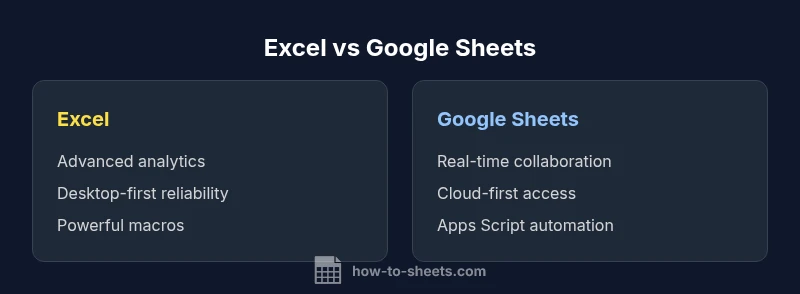
Google Sheets shines in real-time collaboration and cloud access, while Excel offers deeper analytics and offline power. This quick comparison highlights core differences in features, pricing, and workflows so students, professionals, and small businesses can decide confidently. It also signals when a hybrid approach (using Excel for analysis and Sheets for sharing) is appropriate.
Why excel google sheets matter in modern workflows
The choice between Excel and Google Sheets shapes how teams collect, analyze, and share data across devices. For many learners and professionals, the decision hinges on collaboration needs, data complexity, and licensing. In this guide, we dissect the differences in platform, features, and workflows to help you decide which tool best fits your daily tasks. The keyword excel google sheets reflects a practical reality: most users will encounter both tools at some stage, and understanding their strengths helps you streamline work, reduce errors, and choose an efficient data strategy. According to How To Sheets, aligning tool selection with your team’s collaboration patterns and offline requirements yields the strongest returns for most projects. This discussion targets students, professionals, and small business owners aiming to optimize spreadsheets, budgeting, dashboards, and reporting.
Quick landscape: Desktop Excel vs Cloud-based Sheets
Excel, as a longstanding desktop staple, offers deep data modeling capabilities, extensive formatting options, and robust macros. Google Sheets, built for cloud-first workstreams, emphasizes real-time collaboration, accessibility from any device, and seamless integration with other Google Workspace apps. The tension between desktop software and a cloud platform drives many decisions: do you need to work offline with maximum speed, or do you require multi-user editing with every change visible instantly? In practice, teams often adopt a hybrid approach: use Excel for heavy analysis and Sheets for sharing results, while maintaining consistent data sources through standardized imports and exports. This section lays out the core platform differences you’ll weigh when you evaluate excel google sheets for your own use case.
Collaboration and sharing: real-time editing, permissions, and version history
Google Sheets excels at real-time collaboration. Multiple people can edit simultaneously, changes appear live, and comments can be threaded with context. Sheets manages permissions at the file level and across folders, making it straightforward to grant editors, viewers, or commenters. Excel offers similar capabilities primarily through Excel Online and SharePoint/OneDrive ecosystems. Version history in Sheets is granular, and restoring prior versions is quick. In contrast, Excel’s version history in a Microsoft 365 environment is powerful but can be more complex to navigate for non-IT users. The practical takeaway: choose Sheets if collaboration speed matters; opt for Excel when you need tight control within a corporate ecosystem.
Data size, performance, and analytics
Data modeling in Excel shines when you work with large, interrelated datasets, pivot tables, and advanced analytics. Power features such as Power Query and Power Pivot support complex transformations. Google Sheets handles most day-to-day analytics well, with built-in functions, charts, and basic pivot tables. When datasets grow, Sheets can feel slower, and functions may recalculate more slowly across many users. The performance reality is influenced by internet connectivity, browser efficiency, and the complexity of formulas. For teams dealing with dashboards, scenario analysis, or statistical modeling, you’ll likely lean toward Excel for the heavy lifting, while Sheets serves as an excellent sharing and lightweight analysis tool. Based on How To Sheets analysis, performance is highly contingent on data structure and collaboration needs rather than tool name alone.
Formulas, functions, and compatibility
Each tool has its own ecosystem of formulas. Excel has a long-standing library of functions, including advanced statistical and financial functions, with newer functions like XLOOKUP, FILTER, and dynamic arrays expanding capabilities. Google Sheets offers a broad set of equivalent functions along with unique functions tailored to web-based workflows. Cross-compatibility is good for basic formulas, but deep features and macro languages diverge. When migrating between platforms, expect occasional syntax differences and some function behavior changes. A practical approach is to standardize on core functions you use across both tools and maintain a shared data model to minimize translation work.
Automation and workflows: Macros, scripts, and automation
Excel executes powerful automation through VBA, legacy macros, and add-ins. Office scripts in Excel Online provide web-based automation with some limitations compared to VBA. Google Sheets relies on Apps Script to automate tasks, build custom functions, and integrate with external services. If your team needs heavy automation that runs in a desktop environment, Excel remains strong; if you want lightweight automation that travels with your data in the cloud, Sheets and Apps Script are a natural fit. Mindful version control and testing should accompany any automation project to prevent workflow breakages when teams collaborate.
Pricing, licensing, and value: what you pay
Excel is typically bundled with Microsoft 365 subscriptions or licensed as part of a larger desktop suite; pricing varies by plan and employer. Google Sheets offers a free tier with a Google account, plus paid business tiers through Google Workspace. For many small teams and students, Sheets provides immediate value without upfront costs, while Excel offers a more expansive feature set for power users who need robust modeling and offline capabilities. When evaluating value, consider not just sticker price but total cost of ownership, including training time, data migration, and license management.
Migration tips: moving data between Excel and Google Sheets
Moving data between Excel and Google Sheets is common as teams shift between collaboration needs and offline work. Start by exporting or saving spreadsheets in compatible formats (CSV, XLSX) and then use Sheets or Excel to import. Expect minor formatting shifts, especially with conditional formatting, data validation, and macros. For a smooth transition, document your core formulas, test with a sample dataset, and create a small cross-functional migration plan that includes stakeholders. If you keep a shared data source, establish a consistent naming convention and a single source of truth to reduce drift.
Practical starter guide: template-driven workflow
Begin with a lightweight template that covers your common tasks: data entry forms, a validated data sheet, a dashboard, and a what-if analysis section. For teams using both tools, maintain a shared master dataset and use controlled import/export processes. A practical workflow is to create a Google Sheets dashboard for real-time monitoring and an Excel workbook for deep analysis, with a documented data pipeline connecting both. Use templates to save time and reduce errors, and consider training resources to minimize ramp-up time for new users.
Comparison
| Feature | Excel | Google Sheets |
|---|---|---|
| Platform accessibility | Desktop and mobile apps with offline options | Web-based with offline mode on mobile/desktop |
| Real-time collaboration | Strong in collaboration mainly via Office 365/OneDrive | Excellent real-time collaboration with concurrent editing |
| Offline access | Robust offline capability in desktop Excel | Offline mode available via Google Sheets app |
| Automation | VBA/macros; Add-ins; Power Query/Power Pivot | Apps Script automation and custom functions |
| Formulas & analytics | Advanced analytics ecosystem; dynamic arrays; XLOOKUP | Broad formula set with Sheets-specific functions; cross-compatibility varies |
| File compatibility | Native XLSX format; strong interoperability with CSV | Supports XLSX/CSV imports & exports; seamless cloud storage |
| Pricing/licensing | Microsoft 365 subscription or perpetual licensing options | Free tier with Google account; Workspace adds features |
| Best for | Deep data modeling, offline workflows, and enterprise-grade analytics | Lightweight data sharing, collaboration, and cloud-first dashboards |
The Good
- Excellent real-time collaboration and cloud accessibility
- Powerful data modeling and offline capabilities in Excel
- Vibrant ecosystems of templates, add-ins, and automation options
- Strong support for complex calculations and large datasets in Excel
The Bad
- Pricing/licensing can be a barrier for some teams
- Deep automation and macro language diverge between tools
- Cross-platform compatibility may require translation work for advanced features
Excel is best for deep analytics and offline work; Sheets is best for collaboration and cloud-first workflows
The How To Sheets team emphasizes matching the tool to data complexity and collaboration needs. For teams prioritizing analysis and offline access, Excel wins; for teamwork and accessibility, Sheets leads. A hybrid approach often delivers the best overall value.
FAQ
Which is better for real-time collaboration: Excel or Google Sheets?
Google Sheets generally provides stronger real-time collaboration and cloud-first access, making it ideal for teams that edit documents together. Excel Online offers solid collaboration within the Microsoft ecosystem but can be more configuration-heavy for large teams.
Sheets is the go-to for real-time teamwork; Excel Online is capable too, especially if you’re already in the Microsoft ecosystem.
Can Excel files be opened in Google Sheets without losing formulas?
Google Sheets can open many Excel files and preserve many formulas, but some advanced functions and macros may not translate perfectly. Always test critical workbooks after import and adjust formulas as needed.
You can open Excel files in Sheets, but some advanced formulas may need tweaks after import.
Is Google Sheets suitable for very large datasets?
Sheets handles typical business datasets well, but performance can decline with very large datasets or complex formulas. For extensive analytics, Excel often provides more scalable performance.
Sheets works for many datasets, but Excel scales better for very large analyses.
Do Excel macros work in Google Sheets?
Excel macros use VBA, which does not run in Sheets. Sheets uses Apps Script for automation. You can recreate essential macros in Apps Script, but there is no direct VBA cross-compatibility.
Macros from Excel don’t run in Sheets; use Apps Script instead.
What are the licensing considerations for Excel vs Sheets?
Excel generally requires a Microsoft 365 subscription or license, with ongoing costs. Google Sheets offers a free tier and paid Workspace options. Your decision may hinge on existing licenses and collaboration needs.
Excel often involves a license; Sheets can be free or Workspace-based.
How do I migrate from Excel to Google Sheets?
Start with exporting the workbook to a compatible format (CSV or XLSX) and then import into Sheets. Expect some formatting shifts and plan a small pilot migration to catch issues early.
Export to a compatible format, import to Sheets, and test with a small sample first.
The Essentials
- Assess collaboration needs before choosing a tool
- Match data complexity to the right analytics platform
- Plan for licensing costs and data migration
- Test cross-platform compatibility early in projects
- Consider hybrid workflows to leverage strengths of both tools