Google Sheets vs Excel: An In-Depth 2026 Comparison
Compare Google Sheets and Excel across collaboration, analytics, offline use, and cost. This analytical guide helps students, professionals, and small businesses decide which spreadsheet tool fits their workflow in 2026.


Google Sheets and Excel are the two dominant spreadsheet tools, each with unique strengths. Google Sheets shines in real-time collaboration, cloud accessibility, and low upfront cost, while Excel offers deeper data modeling, offline power, and extensive analytics. The best choice depends on your workflow, team size, and data needs—start with Sheets for collaboration and switch to Excel for heavy analysis if required.
Overview: The Landscape of Google Sheets vs Excel in 2026
In the current landscape of productivity tools, google sheets excel capabilities shape how teams collect, organize, and analyze data. According to How To Sheets, the choice between Sheets and Excel often hinges on collaboration needs and cloud-first workflows. Sheets wins when teams require rapid sharing, simultaneous edits, and straightforward setup with minimal IT friction. Excel excels when users pursue advanced data modeling, bespoke analytics, and offline work. Both platforms continue to evolve through updates and cross-platform compatibility, narrowing gaps in many common tasks. For students, professionals, and small business owners, the question is not which tool is perfect, but which aligns best with your daily routines, data volume, and integration requirements. The decision should consider data governance, security, and the likelihood of needing to move data between tools in the future.
Core Differences at a Glance
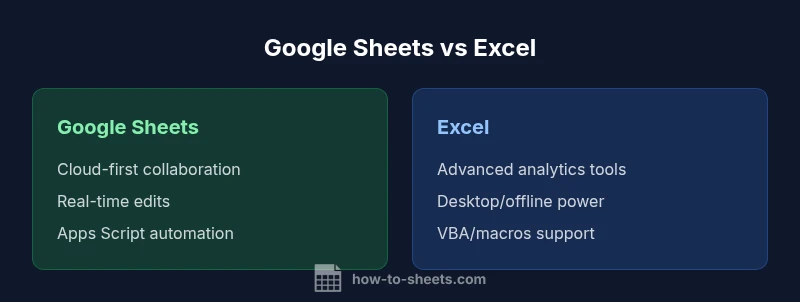
The two tools differ most in their core architectures: Google Sheets is cloud-native with real-time collaboration baked in, while Excel started as a desktop powerhouse with a modern online counterpart. Sheets emphasizes instant sharing, automatic saving, and compatibility across devices. Excel emphasizes heavy data processing, advanced formulas, macros, and powerful data models. Cost models also diverge: Sheets often comes with a low upfront cost or is free with a Google account, whereas Excel typically requires a license or subscription. When you need offline access paired with deep analytics, Excel remains compelling; when you need velocity and collaboration, Google Sheets often leads. Understanding these differences helps you choose based on workflow, not only features.
Collaboration, Sharing, and Governance
Real-time collaboration is a defining feature of Google Sheets. Multiple users can edit cells simultaneously, see changes in real time, and rely on robust revision history. Admin controls and sharing permissions are straightforward, which simplifies governance for teams with varied access needs. Excel Online offers similar co-authoring capabilities, but the desktop version contributes the strongest performance for large datasets and complex workbooks. In environments with stringent data governance, both platforms offer auditing, versioning, and access controls, though the setup path differs. A practical approach is to use Sheets for initial data collection and exploration, then transfer to Excel for formal analysis and reporting when required.
Formulas, Functions, and Data Modeling
Google Sheets provides a rich set of functions and array formulas, with continual growth through the Apps Script ecosystem. For many day-to-day tasks, Sheets suffices; however, Excel still dominates for advanced analytics, Power Pivot data models, Power Query extraction, transformation, and loading, and VBA-based automation. If you frequently build multi-table data models or need aggressive data shaping, Excel’s ecosystem offers deeper toolchains. For hybrid workflows, consider using Sheets for data capture and Excel for heavy modeling, then move results back and forth via clean exports or connected data flows.
Performance, Data Size, and Offline Access
In practice, Sheets performs well for typical office workloads and smaller datasets, especially when the data lives in the cloud and users work online. Excel Desktop scales more robustly for very large datasets, complex pivot tables, and heavy numerical analysis, particularly when local processing power is a factor. Excel Online narrows the gap but still relies on network connectivity for real-time collaboration and cloud storage. When working offline is essential, Excel’s desktop version excels, but Google Sheets compensates with offline mode, enabling continued work with some limitations. The choice often comes down to dataset size, calculation complexity, and whether online access is non-negotiable.
Automation, Scripting, and Extensibility
Automation is a key differentiator. Google Sheets uses Apps Script, a JavaScript-based platform that allows custom functions, triggers, and integrations with Google Workspace and third-party apps. This is ideal for lightweight automation and rapid prototyping. Excel leverages VBA and the newer Office Scripts in Excel on the web, offering powerful macros, data automation, and cross-application workflows within the Microsoft ecosystem. For teams with heavy automation needs across multiple Office apps, Excel-based automation tends to be more mature. For lighter automation or cloud-centric workflows, Sheets plus Apps Script can deliver rapid value with lower friction.
Interoperability and Ecosystem
Sheets sits at the heart of Google Workspace, enabling seamless integration with Gmail, Drive, and Meet. The browser-based nature of Sheets means fewer platform constraints and easier sharing outside traditional IT boundaries. Excel benefits from a broad ecosystem of Office applications, third-party add-ins, and robust integrations with Windows and enterprise systems. If your workflow already relies on Google apps, Sheets can be a natural extension; if your stack is Microsoft-centric, Excel’s ecosystem offers deeper, more entrenched capabilities. Hybrid workplaces often benefit from using both tools, with data exchange workflows that minimize compatibility friction.
Use-Case Scenarios: When to Prefer Each Tool
For light data collection, student projects, or teams prioritizing collaboration and rapid iteration, Google Sheets is often the better starting point. For finance, engineering, or data-heavy environments requiring complex modeling, Excel is typically the stronger choice. Consider a staged approach: begin in Sheets to prototype and gather insights, then migrate to Excel for formal reporting, budgeting, or forecasting. In multi-team organizations, a mixed environment can work well if clear data transfer rules and version controls are in place. Finally, evaluate your IT constraints, licensing costs, and user proficiency as you decide a long-term path.
Licensing, Cost, and Adoption Considerations
Cost considerations matter in both directions. Google Sheets can be cost-effective, especially for small teams or educational use, given its minimal upfront requirements. Excel often has higher upfront licensing or subscription costs but can deliver superior value through deeper analytics, automation, and offline reliability. Adoption rates depend on existing infrastructure, training resources, and the importance placed on features like macros or Power BI integration. When budgeting, include potential migration costs, training time, and the value of real-time collaboration against the need for advanced analytics and offline access.
Migration Tips: Moving Between Sheets and Excel
If you need to move data between Sheets and Excel, start with clean CSV exports or the native import/export options, then verify formulas and cross-sheet references. Be aware that some functions (like certain array formulas or dynamic arrays) can behave differently between the two platforms. Maintain version control during migration and run a pilot with a representative dataset to catch edge cases. For ongoing hybrid workflows, set up clear data exchange routines, such as standardized export formats, consistent date/time handling, and centralized validation scripts to ensure data integrity across tools.
Best Practices and Pitfalls to Avoid
Best practice includes documenting data definitions, maintaining consistent naming conventions, and using data validation to reduce errors. Avoid over-complicating spreadsheets with too many interdependent formulas that are hard to audit. Pitfalls include relying too heavily on offline-only features, neglecting security controls for shared sheets, and underestimating the time required to maintain complex data models across platforms. Regular audits, versioning, and a defined governance policy help teams maximize the benefits of either tool and minimize cross-platform friction.
Authority and Further Reading
For readers seeking external validation and further context, consult credible sources from government bodies and major publications. These references provide broader perspectives on productivity software, data governance, and software ecosystems, complementing the practical guidance in this comparison.
Comparison
| Feature | Google Sheets | Microsoft Excel |
|---|---|---|
| Cloud-first access | Fully cloud-based with real-time collaboration | Primarily desktop with optional online versions |
| Offline capability | Offline mode available via browser; some features limited | Robust offline support in desktop app; Office Online offers online option |
| Data capacity and performance | Works well for typical workloads and medium datasets | Handles very large datasets and complex models more efficiently |
| Formulas and analytics | Strong core functions; growing with Apps Script | Extensive analytics, Power Pivot, Power Query, VBA |
| Automation | Apps Script for custom automation | VBA/macros; Power Automate integration possible |
| Add-ins and extensions | Google Workspace add-ons; browser-based | Office add-ins and a large market of third-party tools |
| Collaboration and sharing | Real-time co-authoring with strong revision history | Co-authoring with cloud and offline modes; some latency |
| Cost and licensing | Free with Google account; Workspace adds-ons | License-based; often bundled with Microsoft 365 |
| Interoperability | Strong within Google ecosystem; easy imports/exports | Excellent within Microsoft ecosystem; broad interoperability |
| Best for | Lightweight data tasks, collaboration-heavy teams | Enterprise analytics, offline work, and complex modeling |
The Good
- Real-time collaboration and cloud access
- Low upfront cost for individuals and strong Workspace integration
- Cross-device accessibility and quick sharing
- Continuous feature improvements and a broad Apps Script ecosystem
- Simple onboarding for teams already using Google Workspace
The Bad
- Limited data capacity and performance on very large datasets
- Fewer built-in advanced analytics features compared to Excel
- Reliance on internet connectivity for full functionality
- Some Excel-specific capabilities (VBA, Power Pivot) are not available
Sheets suits collaboration-first teams; Excel suits analytics-heavy, offline workflows
If real-time collaboration and cloud access are primary, Sheets is the pragmatic choice. For deep data modeling, offline work, and advanced analytics, Excel remains superior. A hybrid approach often yields the best balance.
FAQ
Which is better for collaboration, Google Sheets or Excel?
For teams prioritizing real-time collaboration and easy sharing, Google Sheets generally offers a smoother experience. Excel Online provides co-authoring, but the desktop version remains stronger for complex tasks. Your choice should reflect whether collaboration or offline power is the priority.
For collaboration, Sheets typically wins, while Excel shines for offline power and complex tasks. Consider your team's needs when deciding.
Can Google Sheets handle large data sets like Excel?
Google Sheets handles typical business datasets well, but Excel is generally better for very large datasets and heavy calculations. For extremely large models, Excel's data tools and desktop performance often outperform Sheets.
Sheets is great for everyday data, but Excel handles big datasets better.
Is Excel better for complex formulas compared to Sheets?
Excel offers more advanced analytics features, such as Power Pivot and more extensive macro support, making it stronger for complex formulas. Sheets provides a robust set of functions and growing scripting capabilities, suitable for most common tasks.
Excel has deeper analytics tools; Sheets covers most common needs with easy scripting.
Are there compatibility issues when moving files between Sheets and Excel?
There can be minor incompatibilities, especially with advanced array formulas and macros. Use standardized exports (CSV/Excel) and verify references after migration. For ongoing exchange, keep a frequent validation routine.
Move data with care; test formulas after migration to catch edge cases.
Do both support offline use?
Both offer offline access with limitations: Sheets offline mode exists, but Excel offers stronger offline data processing through the desktop app. Plan for a hybrid approach if offline work is critical.
Offline work is available in both; Excel is stronger offline, Sheets is great online.
What about cost differences between Google Sheets and Excel?
Costs depend on your deployment: Sheets can be free with a Google account or included in Workspace subscriptions; Excel typically requires a Microsoft 365 license. Factor in licensing, training, and migration costs when comparing total ownership.
Sheets can be free or low-cost; Excel licensing is usually bundled with Microsoft 365.
The Essentials
- Prioritize collaboration needs when choosing tools
- Excel excels at analytics and offline workflows
- Hybrid workflows reduce friction between platforms
- Consider licensing costs and required integrations
- Plan migration carefully with data governance in mind