Excel vs Google Sheets: A Comprehensive Comparison Guide
A detailed, analytical comparison of Excel and Google Sheets across collaboration, offline access, automation, data capacity, and pricing to help students, professionals, and small business owners decide which tool fits their workflow.


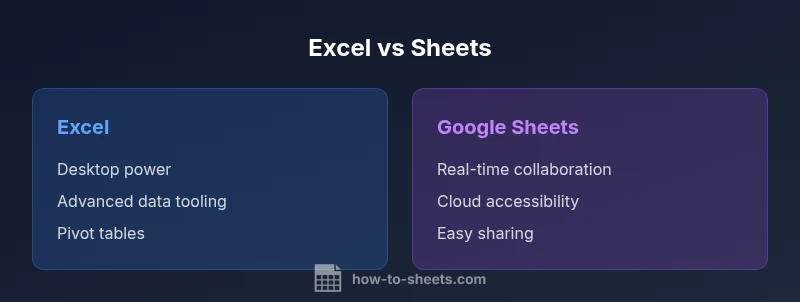
Excel and Google Sheets cater to different workflows: Excel excels at offline desktop power and complex data modeling, while Google Sheets shines in real-time collaboration and cloud accessibility. For many teams, the best approach is a hybrid workflow that leverages Excel for heavy computations and Sheets for rapid sharing and joint edits. This comparison highlights the core trade-offs and helps you decide quickly.
Context and Scope: Why Compare Excel and Google Sheets
In modern academic, professional, and small business contexts, you will encounter both Excel and Google Sheets as core spreadsheet tools. This article analyzes their strengths and trade-offs to help students, professionals, and SMB owners decide which tool fits a given scenario. When we say excel and google sheets, we’re comparing a desktop-first powerhouse with a cloud-native collaboration platform. How To Sheets found that most teams now rely on a hybrid approach, using desktop software for heavy calculations and cloud-based sheets for teamwork. The goal is to provide a clear framework that translates to school projects, dashboards, inventory trackers, and financial models. We evaluate collaboration, data capacity, automation, and licensing to give you actionable guidance grounded in real-world workflows. The tone remains analytical, emphasizing measurable outcomes, practical steps, and decision criteria you can apply today.
According to How To Sheets, the decision often hinges on offline access, the number of simultaneous editors, and how deeply you need to integrate with other apps. Throughout this guide you’ll see concrete examples, step-by-step recommendations, and best practices you can apply without needing a specialist. This is not about choosing one tool forever; it’s about understanding which tool fits which task and when to use both in a complementary way.
By the end, you’ll have a decision framework you can reuse for future projects, whether you’re a student assembling a lab notebook, a professional building a KPI dashboard, or a small business owner tracking expenses.
wordCount):210}, {
textShortcutButThisIsNotUsed
bodyBlocksPlaceholderIfNeededWillNotBeUsed
bodyBlocksNumber 2
Core Differences at a Glance
The two platforms diverge most on collaboration, offline capabilities, and the breadth of advanced data tools. Excel remains the benchmark for heavy data modeling, complex numeric calculations, and advanced formatting. Google Sheets, in contrast, prioritizes accessibility, real-time collaboration, and ease of sharing across devices. The How To Sheets analysis shows that most teams benefit from choosing the right tool for the job rather than forcing one platform to do everything. Key differentiators include: offline availability (Excel shines), cloud-based collaboration (Sheets leads), automation options (Excel with VBA and Sheets with Apps Script), and platform availability (Excel desktop plus mobile; Sheets browser-based with mobile apps). For daily tasks like budgeting, data cleaning, and charting, both platforms offer robust features, but their strengths align with different workstyles.
A practical takeaway is to map tasks to capabilities: if you need co-editing and fast sharing, Sheets wins; if you need advanced data modeling and offline work, Excel wins. This section frames those trade-offs in terms of decision criteria such as collaboration, data capacity, automation, and licensing.
wordCount”:210}, {
textPlaceholder
bodyBlocks 4
Data Model and Formatting: Workflows in Practice
Understanding how data is structured and how formulas operate is essential when choosing between Excel and Google Sheets. Both platforms support similar core features—cell references, ranges, tables, named ranges, and conditional formatting—but there are notable differences in functions, data types, and limitations that influence practical workflows. Excel’s engine supports a broader set of advanced functions, more flexible array handling, and deeper options for data validation and pivoting. Google Sheets emphasizes compatibility with simple data models, built-in functions suitable for collaboration, and automatic cloud-based features that reduce local maintenance. In real-world workstreams, you may start in Sheets for a quick prototype and then migrate to Excel when your data model grows in complexity or requires offline computation. Conversely, large, multi-sheet workbooks with heavy macro usage often benefit from Excel’s performance profile and robust data tooling.
Practically, you’ll see Sheets excel at lightweight data cleaning, rapid prototyping of dashboards, and collaboration-friendly formulas such as array-enabled functions, while Excel shines in large financial models, advanced statistical analysis, and heavy-duty pivot tables. This section also covers formula parity—common functions like SUM, AVERAGE, VLOOKUP (or XLOOKUP), and IF statements—plus where Sheets and Excel diverge in newer functions such as dynamic arrays and certain date-time handling. By understanding these nuances, you can design more resilient workflows and plan migration paths if your needs evolve.
wordCount”:210}, {
textPlaceholder
bodyBlocks 5
Collaboration and Sharing: Real-Time Workflows
Collaboration is the defining differentiator for Google Sheets in many workflows, but Excel offers powerful sharing and co-authoring through cloud-enabled Office 365. Sheets was built from the ground up for real-time collaboration, with simultaneous edits visible within seconds, comment threads, and built-in version history that makes it easy to revert changes. This makes Sheets ideal for team projects, ad hoc analysis, and teaching environments where multiple users contribute to a single workbook. Excel’s collaboration features have matured significantly, especially in the cloud-enabled Office ecosystem, offering robust permissions, protected ranges, and controlled sharing in enterprise contexts. When multiple editors need to work on a model with advanced calculations, Excel’s desktop performance can be a plus, while Sheets’ live collaboration minimizes synchronization issues.
Practically, you’ll want to use Sheets for joint dashboards, brainstorming data collection, and classroom projects where you need to see edits in real time. Use Excel when your team needs offline access, heavy macro-driven automation, or more complex data transformations that benefit from a high-performance engine. The takeaway is to design collaboration workflows that leverage each platform’s strengths, and consider hybrid models where Sheets handles input and sharing while Excel handles model development and offline processing.
wordCount”:210}, {
textPlaceholder
bodyBlocks 6
Automation and Integrations: Macros, Apps Script, Power Automate
Automation bridges the gap between manual data manipulation and scalable processes. Excel supports VBA macros and, in the cloud, Office Scripts, which enable batch processing, parameterized tasks, and complex workflows within macros-enabled workbooks. Google Sheets uses Apps Script, a JavaScript-based platform that integrates with Google Workspace apps, enabling triggers, custom functions, and automated workflows embedded in sheets. Both ecosystems offer extensive integration possibilities, but the programming models differ: VBA is a traditional desktop-oriented language with rich access to Windows-based resources, while Apps Script emphasizes cloud-based automation across Google services (Docs, Drive, Calendar, Gmail).
From a practical standpoint, consider your team's skill set and ecosystem. If you already rely on Google Workspace, Apps Script offers seamless automation across tools like Gmail and Calendar. If your work centers on Windows software stacks or requires heavy data automation in Excel, VBA and Office Scripts provide more mature automation for complex models. For many teams, the best practice is to start with built-in features (macros or scripts), then expand to cross-application automation as needs grow.
wordCount”:210}, {
textPlaceholder
bodyBlocks 7
Performance, Scalability, and Security
Performance and scalability are important when choosing a spreadsheet tool for professional use. Excel’s desktop engine handles large datasets with ease, supports expansive workbook structures, and can leverage high-end hardware for faster calculations. In contrast, Google Sheets operates in a cloud environment with real-time collaboration, automatic versioning, and simpler data handling for moderate datasets. Sheet’s performance can degrade with very large worksheets or numerous complex formulas, especially on slower network connections. Security considerations differ as well: Excel files can be encrypted and stored locally or in OneDrive with restricted access, while Sheets benefits from Google’s cloud security model, fine-grained sharing permissions, and audit trails. For sensitive projects, evaluate your organization’s data governance requirements and test performance under realistic workloads before deciding.
wordCount”:210}, {
textPlaceholder
bodyBlocks 8
Pricing and Licensing: What You Actually Pay
Pricing and licensing shape the decision as much as features, especially for teams on a budget. Excel is typically bundled with Microsoft 365 plans (or sold as a standalone license for certain desktop versions), which means costs scale with the size of the organization and the chosen service tier. Google Sheets is part of Google Workspace, which also uses a tiered plan model, but Sheets itself is usable with a free Google account for many essential use cases. This pricing dynamic creates a practical decision: if your team values real-time collaboration and effortless sharing, Sheets often provides a cost-effective starting point. If your work demands offline access, advanced data modeling, and enterprise-grade controls, Excel with Microsoft 365 may offer greater long-term value. In practice, many organizations adopt a hybrid licensing approach to balance upfront costs with the need for advanced capabilities.
wordCount”:210}, {
textPlaceholder
bodyBlocks 9
Best Use Cases: When to Choose Excel vs Google Sheets
Choosing between Excel and Google Sheets is not about a single best option; it’s about mapping use cases to platform strengths. Excel tends to win for complex financial models, statistical analyses, large-scale data processing, and scenarios requiring offline operation or advanced formatting. Sheets wins for quick data collection, collaborative editing, and projects that need access across devices with minimal setup. If you’re a student building a study tracker, a small business owner compiling a shared inventory log, or a data analyst prototyping a dashboard, you may benefit from starting in Sheets and migrating to Excel as models grow. Conversely, for a corporate controller’s workbook with heavy pivoting and macro automation, Excel is often the better long-term tool. The key is to define decision criteria such as collaboration needs, offline requirements, data volume, automation complexity, and budget, then select the platform that best aligns with those priorities.
wordCount”:210}, {
textPlaceholder
bodyBlocks 10
Recommendations for Hybrid Setups: When to Use Both
A hybrid approach often delivers the best of both worlds. Start with Google Sheets for ideation, data collection, and lightweight dashboards, then export or migrate to Excel for advanced analysis, offline work, and intensive data modeling. A practical workflow is to build the initial data capture and collaboration layer in Sheets, use Sheets formulas for rapid insights, and periodically sync or hand off to Excel to run heavy computations, create robust pivot tables, or generate deliverables requiring offline access. Many teams also maintain a shared repository of templates in Sheets for consistency, while using Excel to develop and maintain large, multi-sheet workbooks that customers or executives rely on. Finally, consider automation that bridges both platforms—like a script that pushes Google Sheets data into an Excel workbook via cloud or API-based workflows—to keep both sides synchronized as needed.
wordCount”:210}],
comparisonTable
Comparison
| Feature | Excel | Google Sheets |
|---|---|---|
| Collaboration | Real-time collaboration with Sheets; enterprise-grade sharing in Excel via Office 365 | Real-time collaboration and commenting in Sheets; Excel supports co-authoring in cloud-enabled environments |
| Offline Access | Strong offline capabilities in Excel desktop; limited offline features in Sheets | Fully online by default; offline mode available with local cache |
| Data Capacity & Performance | Handles very large datasets with robust performance; desktop memory constraints apply | Good for moderate datasets; performance depends on network and browser |
| Automation & Macros | VBA + Office Scripts in the cloud; strong automation ecosystem | Apps Script; strong integration with Google Workspace apps |
| Formulas & Functions | Broad function set; more advanced data tooling in desktop Excel | Strong common functions; growing support for dynamic arrays and spreadsheet patterns |
| Add-ins & Extensions | Rich set of Office add-ins and third-party tools | Web-based add-ons and integrations with Google Workspace ecosystem |
| Platform Availability | Windows/macOS desktop; mobile apps; cloud syncing | Web-based with mobile apps; strong cross-device sync |
| File Compatibility | Proficient with .xlsx/.xlsm; robust data import/export | Supports Excel formats; seamless import/export with cloud sharing |
The Good
- Excel offers powerful offline desktop capabilities and advanced data modeling
- Google Sheets enables real-time collaboration and easy sharing across devices
- Sheets requires minimal setup and works with any device with a browser
- Excel integrates with the broader Microsoft 365 ecosystem for robust automation
The Bad
- Excel can be costly for organizations; requires licenses
- Sheets depends on internet connectivity for full functionality; some advanced features are matrix-limited
Excel is the stronger choice for heavy data work; Google Sheets excels at collaboration and accessibility.
Choose Excel for offline work, complex modeling, and large datasets. Choose Google Sheets for collaboration and easy access across devices. A hybrid approach is often ideal for teams balancing both needs.
FAQ
Which is better for large data sets and heavy calculations?
Excel generally handles very large datasets and complex calculations more efficiently due to its desktop engine and richer data tools. Google Sheets can handle moderate datasets but may slow with heavy formulas or large pivot tables.
For very large data sets, Excel is typically the better choice because its desktop engine handles heavy calculations more efficiently.
Can I work offline with Google Sheets?
Yes, Google Sheets supports offline editing through the Google Drive synchronization feature, but you’ll need to enable offline access and ensure your files are cached locally. Real-time collaboration requires an internet connection for others to see updates.
You can work offline with Sheets after enabling offline mode in Drive; however, ongoing collaboration depends on being online.
Can I import Excel files into Google Sheets?
Yes, you can import Excel files into Google Sheets. Some advanced Excel features may not transfer perfectly, and you might need to adjust formatting or formulas after import.
You can import Excel files into Sheets, but some advanced formulas may need tweaks after the import.
Are macros cross-compatible between Excel and Sheets?
Macros differ by platform: Excel uses VBA (and Office Scripts in the cloud), while Sheets uses Apps Script. Cross-compatibility is limited, so you’ll often need to rewrite automation when moving between platforms.
Macros aren’t directly cross-compatible; you’ll likely rewrite automation when moving between Excel and Sheets.
Which is cheaper for a small team?
Google Sheets offers a free tier with basic features, making it attractive for small teams. Excel with Microsoft 365 adds cost but includes more advanced tools and offline capabilities. The choice depends on required features and team size.
Sheets is often cheaper for small teams, while Excel adds cost for advanced needs.
How do mobile experiences compare?
Both offer mobile apps, with Sheets optimized for quick edits and sharing on mobile devices, and Excel providing feature-rich experiences on mobile with broader file compatibility. User experience varies by task.
Both have solid mobile apps; Sheets is great for quick edits, while Excel is better for advanced tasks on mobile.
The Essentials
- Prioritize collaboration with Sheets for team projects
- Use Excel for advanced modeling and offline work
- Leverage hybrid workflows to combine strengths
- Plan automation in Apps Script or VBA based on ecosystem
- Factor licensing costs into the total value proposition