Google Sheets vs Excel: A Comprehensive Comparison for 2026
An objective, in-depth comparison of Google Sheets and Excel, covering features, collaboration, offline access, automation, and data interoperability to help students, professionals, and small business owners decide which tool fits their workflow.


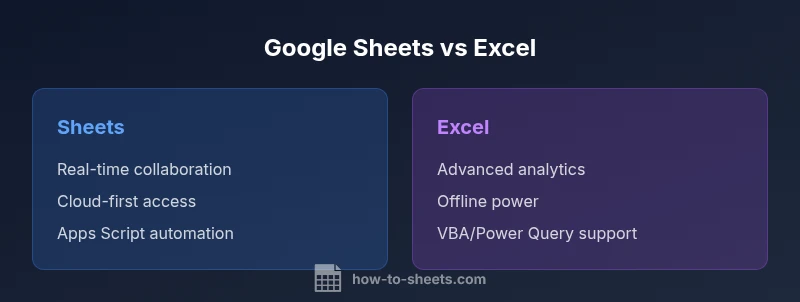
In the comparison of google sheets versus excel, each tool targets different workflows. Google Sheets shines in real-time collaboration, cloud access, and seamless sharing across teams, while Excel excels at deep data analysis, offline work, and advanced modeling. The right choice depends on your workflow, team size, and data requirements, with many teams using both tools in hybrid environments.
Why google sheets versus excel matters in modern work
In today’s mixed environments, teams often need a versatile spreadsheet solution that supports both collaboration and rigorous data work. The choice between google sheets versus excel shapes how you structure workflows, manage versions, and scale across devices. The How To Sheets team found that many organizations adopt a hybrid approach, using Sheets for quick collaboration and sharing, while preserving Excel for heavy analytics and offline tasks. This section lays the groundwork for understanding where each tool shines, and why the decision matters for students, professionals, and small business owners who rely on precise data handling and timely decision-making. By framing the comparison around real-world use cases—team projects, budgeting, dashboards, and data migration—we can map features to practical outcomes.
Core differences at a glance
The table stakes are collaboration speed, offline capabilities, and advanced data features. Google Sheets is built for cloud-first teams with real-time co-editing and straightforward sharing. Excel offers deeper analytics, stronger offline power, and more mature data modeling tools. Differences in scripting, add-ons, and ecosystem integration further tilt the balance depending on whether your priority is agile teamwork or robust, enterprise-grade analysis. Consider data volume, required automation, and downstream interoperability when choosing between the two. In practice, many workflows pair Sheets for collaboration during ideation and data collection, then import into Excel for advanced modeling and reporting.
Functionality and formulas: Sheets vs Excel
Both tools provide a rich set of functions, but their ecosystems diverge. Google Sheets relies on a JavaScript-based Apps Script for automation, which makes it approachable for developers and teams already embedded in the Google Workspace ecosystem. Excel, by contrast, leverages VBA and the newer JavaScript APIs in Office Scripts, offering deep customization and compatibility with extensive data modeling features like Power Query and Power Pivot. Users should compare the availability of core functions, array formulas, and data analysis tools relevant to their work. For routine tasks and lightweight calculations, Sheets suffices; for intricate modeling and large-scale data manipulation, Excel typically provides more robust capabilities.
Collaboration and ecosystem: real-time editing and native integrations
Collaboration is where Sheets often leads: simultaneous editing, live presence indicators, and effortless sharing are built into the core experience. Excel Online improves collaboration but historically lagged behind Sheets in real-time responsiveness; however, it has narrowed the gap with Microsoft 365. The broader ecosystems also matter: Sheets integrates with Google Drive, Forms, and Chat, while Excel integrates deeply with Windows-based tools, Power BI, and SharePoint. The decision hinges on your team’s existing toolset, preferred platforms, and whether quick sharing or structured enterprise governance is paramount. A practical approach is to map collaboration needs to the respective platform’s sharing, version history, and access controls.
Data handling and scalability: capacity, performance, and data integrity
Data handling in Sheets is optimized for cloud-based workflows and smaller to moderate datasets, with performance tied to network access and browser efficiency. Excel’s desktop environment shines with larger datasets, more complex calculations, and offline capabilities, albeit at the cost of higher upfront software requirements. Pivot tables, advanced filters, and data modeling features in Excel often outperform Sheets in heavy analytics scenarios. Users should assess expected data volume, update velocities, and whether offline access is crucial when evaluating scalability between the two tools.
Automation and scripting: Apps Script vs VBA
Automation is a powerful differentiator. Google Apps Script offers a JavaScript-based platform that’s easy to learn for developers familiar with web technologies and Google services. It enables custom functions, add-ons, and automated workflows that travel across Google Workspace. Excel’s VBA has decades of investment in enterprise automation and now Office Scripts bring JavaScript-based automation to the web version as well. If your automation needs are heavy and enterprise-grade, Excel’s ecosystem may win; if you want rapid, web-friendly scripting and cross-service automation, Sheets offers a compelling path.
Data interchange and interoperability: import, export, and format fidelity
Interoperability is a practical consideration for teams that share files with partners or migrate data between platforms. Both Sheets and Excel support common formats such as XLSX and CSV, but fidelity can vary—especially for advanced formatting, macros, and pivot configurations. Google Sheets makes exports and imports straightforward within the cloud, but Excel remains the gold standard for macro-enabled workbooks. Organizations should plan for round-trip data integrity, validate key formulas after migration, and communicate any feature gaps to stakeholders to minimize disruption.
Offline access and mobile experience: consistency across devices
Offline access is a critical factor for fieldwork or regions with unreliable connectivity. Sheets offers offline mode through Google Chrome and offline-capable apps, which is great for light editing on mobile devices. Excel provides more mature offline capabilities through the desktop application and OneDrive synchronization. The mobile experience for both platforms continues to improve, but the experience quality often tracks with how deeply a user relies on offline edits and complex features. For teams with frequent travel or fieldwork, testing both platforms in offline mode is essential.
Security, governance, and auditing: control, compliance, and governance
Security models differ. Google Sheets emphasizes cloud-based access controls, identity management via Google Workspace, and audit trails integrated with Drive. Excel relies on Microsoft 365 security features, role-based access, and governance capabilities across SharePoint and Azure Active Directory. If your organization requires rigorous compliance, document retention policies, and detailed auditing, evaluate how each platform aligns with your security posture, data residency requirements, and incident response plans. A practical step is to implement a formal data governance framework that defines who can edit what, and how changes are tracked across systems.
Pricing, licensing, and total cost of ownership: upfront vs ongoing costs
Pricing is a practical driver in many decisions. Google Sheets offers a free tier with Google Account access and paid Workspace plans for teams, providing predictable per-user costs at scale. Excel’s cost model typically involves Office licenses or Microsoft 365 subscriptions, which can be more expensive but include Power BI, advanced analytics tools, and enterprise governance features. When evaluating total cost of ownership, consider not only license fees but also training time, migration costs, and the potential need for third-party tools to bridge workflows between Sheets and Excel. A balanced approach is to quantify value via use-case-based cost estimates.
Practical decision framework: deciding when to use Sheets, Excel, or both
A practical framework starts with mapping use cases to capabilities. For lightweight collaboration, rapid prototyping, and cloud-based sharing, Sheets often wins. For heavy data modeling, offline work, and advanced analytics, Excel tends to outperform. In many organizations, a hybrid approach is optimal: collect data and brainstorm in Sheets, then migrate to Excel for in-depth analysis and reporting. Establish a migration playbook, sample templates, and a consistent naming convention to reduce friction during transitions. Regularly review usage patterns and adjust licenses to optimize value.
AUTHORITY SOURCES
- How To Sheets Analysis, 2026: Practical guidance on choosing between cloud-first and desktop-based spreadsheet tools.
- Harvard Business Review: The role of collaboration tools in modern teams and decision-making workflows.
- The New York Times Technology Section: Trends in productivity software and enterprise adoption of cloud-based solutions.
Comparison
| Feature | Google Sheets | Excel |
|---|---|---|
| Real-time collaboration | Excellent for cloud-based co-editing | Improving with Excel Online but historically stronger in Sheets |
| Offline access | Strong offline mode via desktop apps and browser cache | Desktop Excel offers robust offline work |
| Automation & scripting | Apps Script (JavaScript) for automation | VBA and Office Scripts (JavaScript) for modern automation |
| Advanced analytics & modeling | Good for standard analyses and lightweight modeling | Rich analytics capabilities (Power Query, Power Pivot) |
| Pivot tables | Capable pivots with cloud sync | Robust pivot table features and data modeling |
| Charts & dashboards | Solid charts with live data | Advanced charting and dashboard options |
| Data capacity & performance | Strong for smaller/moderate datasets | Better handling of large datasets and complex calculations |
| Interoperability & formats | Seamless with Google Workspace and web formats | Excellent Excel format compatibility and interoperability |
| Pricing & licensing | Free tier plus Workspace plans | Office license or Microsoft 365 subscription |
| Security & governance | Cloud-first controls and shared responsibility model | Granular enterprise security with Azure/Microsoft 365 |
The Good
- Excellent real-time collaboration and cloud access
- Zero upfront software cost for Sheets (free tier available)
- Strong cross-device syncing and automatic updates
- Tight integration within Google Workspace
The Bad
- Limited offline power and advanced analytics compared to desktop Excel
- Less mature data modeling and enterprise governance features
- Some Excel-specific macros and advanced VBA functionality won’t run natively in Sheets
- Pivot and charting capabilities can be less robust for ultra-heavy workloads
Excel is the stronger choice for heavy data work; Google Sheets wins for collaboration and cloud-first workflows.
If your team prioritizes real-time collaboration and web-based access, Sheets is the practical option. For complex analytics, offline work, and enterprise-scale data tasks, Excel provides the deeper toolset. Many teams benefit from a hybrid approach, using Sheets for planning and data collection and Excel for analysis and reporting.
FAQ
Is Google Sheets suitable for enterprise-scale data analysis?
Google Sheets can support many business tasks, but Excel remains preferred for very large datasets and complex modeling. For enterprise-scale analytics, consider governance, data pipelines, and potential hybrid workflows that combine both tools.
Sheets handles everyday analysis well, but Excel is typically better for large, complex datasets.
Can I use macros in Google Sheets?
Sheets uses Apps Script for automation rather than VBA. You can recreate Excel macro logic in Apps Script, but direct VBA macros won’t run in Sheets without rewriting.
Sheets relies on Apps Script, not VBA.
How easy is it to migrate data from Excel to Google Sheets?
You can import XLSX files into Sheets with most formatting preserved, but complex macros or PivotTable configurations may require adaptation. Test critical sheets during migration.
Importing Excel files into Sheets is straightforward, but some features may need tweaks.
Which is cheaper to maintain long-term?
Google Sheets offers a free tier with a range of Workspace options; Excel costs depend on licenses and subscriptions, which can add up with larger teams. Consider total cost of ownership including training and migration.
Sheets can be cheaper upfront; Excel licenses can be more expensive but come with enterprise features.
How do Sheets and Excel compare for charts and dashboards?
Excel often provides more advanced charting and dashboard capabilities, while Sheets offers shareable, live dashboards that are easy to distribute. Both platforms cover essential visualization needs.
Excel usually has richer charts; Sheets makes quick, shareable dashboards.
What about interoperability with other tools?
Excel integrates deeply with Windows tools and Power BI, whereas Sheets integrates tightly with Google Workspace and web apps. Consider your existing toolchain and data flows when deciding.
Sheets fits Google apps; Excel fits Windows and Power BI.
The Essentials
- Prioritize collaboration when choosing Sheets; opt for Excel for analytics.
- Hybrid workflows are common and effective for many teams.
- Plan migration and training to minimize feature gaps.
- Assess offline needs before locking into a single tool.
- Benchmark data scale andAutomation requirements early.
- Governance and security should drive long-term licensing decisions.