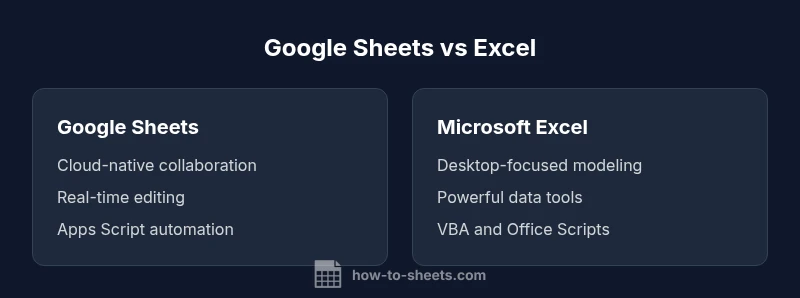
Google Sheets vs Excel: A Practical, Analytics-Driven Comparison
Analytical comparison of Google Sheets vs Excel, covering collaboration, features, data handling, offline access, automation, and interoperability to help you choose the right tool for your workflow.


For most teams, Google Sheets wins on collaboration and cloud accessibility, while Excel remains stronger for advanced modeling and offline work. The difference between Google Sheets and Excel is most evident in real-time teamwork, feature depth, and how data scales across devices and environments.
Why the Difference Matters
Understanding the difference between Google Sheets and Excel helps teams tailor their tool choices to specific work patterns, data needs, and collaboration workflows. According to How To Sheets, the decision often hinges on whether your priorities are cloud-based teamwork or powerful offline data processing. This article unfolds the comparison across collaboration, features, data handling, automation, and interoperability, with practical scenarios for budgeting, scheduling, analytics, and project tracking. The core takeaway is that Google Sheets excels in real-time cooperation and accessibility, while Excel shines in advanced modeling, formatting fidelity, and offline resilience. The goal is to provide a decision framework that maps to your team’s cadence and data complexity.
Core Differences at a Glance
At a high level, the difference between Google Sheets and Excel centers on cloud-first collaboration versus desktop-leaning power. Sheets is designed around multi-user editing, automatic saving, and cross-device access, making it ideal for teams that continuously update shared datasets. Excel, traditionally desktop-based, offers deep data tooling, extensive formatting options, and robust performance for large models. While both support modern cloud workflows, Sheets integrates tightly with other Google Workspace apps, whereas Excel integrates with the broader Microsoft 365 ecosystem. The practical implication is simple: choose Sheets for collaborative projects and lightweight data tasks; choose Excel for heavy analysis, complex modeling, and scenarios demanding offline work with maximum control over formatting.
Data Structures and Formula Capabilities
The two platforms approach data modeling with different philosophies. Google Sheets uses a web-optimized formula language, streamlined arrays, and a broad suite of built-in functions designed for quick, collaborative calculations. Excel offers a richer, more expansive function library, with powerful pivot tables, advanced data analysis tools, and extensive data transformation capabilities. In Sheets, you’ll often rely on functions that are familiar to general users and leverage Google Apps Script for automation. In Excel, you’ll find deeper support for complex modeling, VBA scripting, and highly customizable data workflows. Expect smoother cross-file references in Sheets and more sophisticated analytical capabilities in Excel, especially for multi-step analyses and large data studies.
Collaboration and Distribution Workflows
Cloud-based collaboration defines Sheets’s strength. Multiple users can edit a sheet in real time, see changes instantly, and comment inline, which reduces version confusion and accelerates iteration cycles. Excel’s collaboration has improved with cloud-enabled workbooks, but its strengths still tend to show in structured, governance-heavy environments where offline access and rigorous version control are required. In practice, teams often use Sheets for early ideation and lightweight dashboards, moving to Excel when the dataset matures or when a formal, offline workflow is needed. The integration with collaboration tools and permission controls shapes how work gets done in each ecosystem.
Offline Access and Platform Availability
Offline capabilities reflect a core platform distinction. Google Sheets shines when you are consistently online, with automatic syncing and cross-device accessibility. Its offline mode exists but requires setup and can be less fluid than desktop apps. Excel’s desktop application is designed for robust offline work with full feature parity in many cases, making it the preferred choice for users who operate without reliable internet or who need intensive data processing without latency. The choice often comes down to how critical uninterrupted access is for your daily tasks and where your team tends to work from.
Add-ons, Scripting, and Automation
Automation ecosystems differ between the two platforms. Google Sheets relies on Apps Script and a wide array of add-ons that extend functionality with cloud-friendly automation and integration with other Google services. Excel uses VBA and Office Scripts (in modern Office plans) to automate repetitive tasks and build custom workflows, with a long-established ecosystem of macros and add-ins. If your team prioritizes rapid, cloud-first automation and seamless integration with Google Workspace, Sheets has a compelling advantage. If you need deep, document-centric automation and compatibility with existing VBA assets, Excel remains a strong choice.
Data Size, Performance, and Scalability
Performance and scalability follow a cloud vs desktop pattern. Sheets handles many concurrent users and rapid sharing scenarios well, but very large datasets or complex computations can introduce latency and formula recalculation delays. Excel, when used on a high-spec desktop or through robust server-based deployments, often delivers faster computation for heavy workloads and very large data models. In practice, choose Sheets for collaborative dashboards with moderate data volumes, and Excel for large, computation-heavy workbooks that demand strong performance and offline reliability.
Import, Export, and Interoperability
Interoperability matters when moving data between environments. Google Sheets offers straightforward import/export with common formats (CSV, XLSX), and it preserves most data and formulas, though some sheet-specific features may require adjustments. Excel provides excellent compatibility with XLSX and can handle complex workbook features, but certain cross-platform quirks can arise during conversion. Teams that frequently exchange files between Sheets and Excel should budget for an interoperability check phase, test data integrity after transfer, and consider using neutral formats for critical data pipelines.
Security, Compliance, and Governance
Security and governance are shaped by deployment choices. Sheets emphasizes cloud-based controls, shared access, and version history that support audit trails within Google Workspace. Excel’s security posture depends on whether you rely on on-premises deployments or cloud-based Microsoft 365, with governance features tied to organizational policies, permissions, and data loss prevention controls. For regulated environments, it’s essential to align tool selection with your compliance requirements and establish a consistent data-handling policy across platforms.
Cost, Licensing, and Accessibility
Cost considerations vary with your organization’s licensing. Google Sheets is free for personal use and included in Google Workspace for business contexts, offering a low entry barrier for teams starting from scratch. Excel typically requires a subscription or license for Office 365, which provides comprehensive desktop and cloud capabilities. While Sheets offers broad accessibility across devices at a lower upfront cost, Excel’s licensing includes powerful data tools and offline capabilities that may justify the investment for data-intensive teams. Evaluate total cost of ownership based on collaboration needs, offline requirements, and the scale of data work.
Migration Tips and Best Practices for Teams
When teams migrate between Sheets and Excel, establish a clear data-muarization plan: define critical sheets, map formulas, and set expectations for version control. Use neutral file formats for interoperability, run side-by-side pilots with representative datasets, and document any feature gaps or conversion notes. Training is essential; provide quick-start guides for common tasks (import/export, basic formulas, and automation) and set up a shared glossary of functions to reduce friction. The key is to adopt a workflow that minimizes disruption while maximizing the strengths of each platform. How To Sheets’s recommended approach is to pilot a joint workflow before fully retiring one environment.
Decision Framework: When to Choose Sheets vs Excel
The decision framework centers on collaboration needs, data complexity, and offline requirements. If your team operates in a highly collaborative, cloud-based environment with frequent sharing and cross-device access, Google Sheets is often the better starting point. If your work involves complex data modeling, offline reliability, advanced formatting, and extensive automation via macros, Excel tends to be the superior choice. In many organizations, the optimal path is a hybrid approach: use Sheets for rapid collaboration and lightweight dashboards, and use Excel for deep analysis and heavy data tasks. The framework below can guide your choice: map tasks to collaboration, offline needs, automation, data size, and interoperability, then select the platform that aligns with the majority of your requirements.
Comparison
| Feature | Google Sheets | Microsoft Excel |
|---|---|---|
| Real-time collaboration | Excellent cloud-based collaboration with simultaneous editing | Solid collaboration via sharing and co-authoring; performance depends on network and concurrent users |
| Formula depth and data tools | Rich functions with strong array support and easy sharing | Extensive function library and advanced data tools (PivotTables, Power Query) |
| Automation and scripting | Apps Script and many cloud add-ons | VBA/macros and Office Scripts with strong automation options |
| Offline access | Offline mode available but less seamless | Full offline capability with desktop app and strong offline parity |
| Data size and performance | Good for moderate datasets and collaborative work | Excellent for large datasets and complex modeling |
| Import/Export compatibility | Easy XLSX/CSV import; some feature gaps on conversion | Excellent compatibility with XLSX; robust data transfer |
The Good
- Seamless real-time collaboration across devices
- No software installation required; access from anywhere
- Automatic saving and straightforward sharing controls
- Good integration with Google Workspace apps
- Low entry cost for teams starting from scratch
The Bad
- Excel is stronger for heavy data modeling and analytics
- Offline capabilities in Sheets are weaker and sometimes limited
- Formatting fidelity and some advanced features may differ in interop
- Macros and scripting ecosystems differ; cross-platform migration can require adjustments
Sheets is best for collaboration-first environments; Excel remains superior for advanced modeling and offline workflows.
If your team prioritizes real-time collaboration and cloud access, start with Sheets. For teams that demand deep data analysis, offline reliability, and robust macros, Excel is the stronger choice. In practice, a hybrid approach often yields the best balance across tasks.
FAQ
What is the primary difference between Google Sheets and Excel?
The primary difference is that Google Sheets is cloud-first with strong real-time collaboration, while Excel is desktop-first with powerful data analysis tools and robust offline capabilities. Each platform has its own strengths depending on whether your priority is collaboration or advanced data modeling.
Sheets is great for teamwork online; Excel is better for heavy analysis offline.
Can Google Sheets handle large datasets and complex analytics like Excel?
Sheets works well for many datasets and dashboards, but Excel generally handles very large datasets and complex analytics with greater performance and tooling. You can often use a hybrid approach to balance collaboration with deep analysis.
Sheets handles many tasks, but Excel excels at heavy data modeling.
Do Sheets and Excel support macros or automation scripting?
Sheets uses Apps Script for automation, while Excel relies on VBA and Office Scripts for automation. Both ecosystems offer powerful automation, but each requires learning their respective scripting environments.
Apps Script in Sheets; VBA and Office Scripts in Excel.
Is it easy to move files between Sheets and Excel without losing data?
Interoperability is generally good, with import/export in common formats like XLSX and CSV. Some advanced features or formatting may not map perfectly, so test conversions and adjust formulas as needed.
Moving files works, but check for any feature gaps.
Which tool is better for offline work?
Excel’s desktop application provides strong offline performance and reliability for complex tasks. Google Sheets can work offline through the browser but relies more on internet access for optimal syncing and collaboration.
Excel is your go-to for offline work; Sheets shines online.
The Essentials
- Assess collaboration needs to choose Sheets vs Excel
- Use Apps Script in Sheets for lightweight automation; VBA/Office Scripts in Excel for heavy automation
- Plan interoperability when moving files between formats and test conversions
- Prioritize offline requirements when selecting the platform
- Adopt a hybrid approach to leverage strengths of both tools