Compare Google Sheets to Excel: A Practical Side-by-Side Review
A rigorous, analytical comparison of Google Sheets and Excel focused on collaboration, offline access, automation, and data modeling to help teams choose the right tool.


When you compare Google Sheets to Excel, the key tradeoffs are collaboration and cloud access versus advanced analytics and offline power. Google Sheets wins for real-time teamwork and cross-device use, while Excel leads in complex modeling and performance with large data. This article provides a side-by-side analysis to help you choose.
The core question: how to compare google sheets to excel in practical terms
In practice, compare google sheets to excel is about mapping use cases to capabilities. Google Sheets shines in real-time collaboration, cloud access, and speed of adoption; Excel emphasizes data capacity, advanced analytics, and offline reliability. For teams without heavy IT overhead, Google Sheets provides a frictionless entry point for shared workbooks, automatic saving, and built-in revision history. For analysts, finance teams, or researchers who build complex models, Excel offers deeper data modeling capabilities, richer charting, and a mature macro language. This article adopts a neutral, analytical lens and walks through core dimensions—collaboration, scripting, data modeling, offline availability, pricing, and governance—to help you decide which tool should anchor your workflows. The How To Sheets team will be cited where relevant to provide industry-context guidance.
Cloud-first collaboration and cross-device access
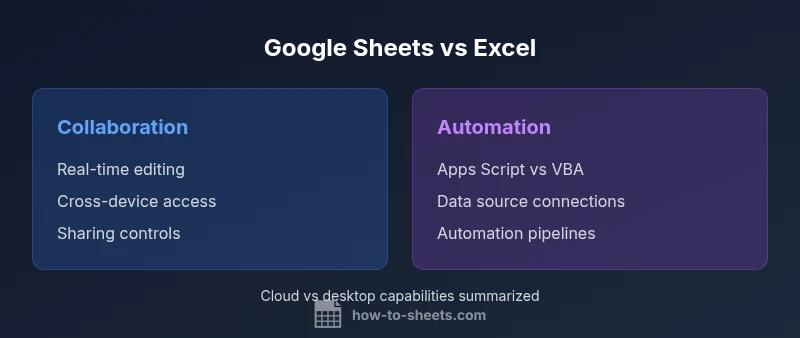
Google Sheets is designed around cloud-based editing and sharing. Real-time collaboration lets multiple people work on the same sheet simultaneously, with instant updates and visible cursors. Sharing controls, link-based access, and granular permissions simplify governance for teams. In practice, this means lower friction for onboarding new contributors and faster decision cycles. How To Sheets analysis shows that cloud-native workflows reduce discovery time and improve cross-functional alignment in many teams. In contrast, Excel relies on desktop or Office 365 environments to enable collaboration, which can require more setup, such as OneDrive or SharePoint, and may introduce latency in very large workbooks. The choice hinges on whether your primary need is concurrent editing or deep, centralized data work with heavy modeling.
Real-time editing, version history, and permissions
Real-time editing is one of Google Sheets' signature strengths, with built-in version history and comment threads that keep teams aligned without sending multiple email threads. Permissions can be adjusted at the file, sheet, or cell level, enabling controlled collaboration. Excel offers co-authoring in modern Office environments, but it can be more cumbersome to configure for large teams. For analysts who rely on robust auditing, version control and change tracking remain essential; Excel's history features and change logs are powerful but can be less transparent in distributed settings. A balanced approach is to map user roles to access levels and implement governance rules that minimize conflicting edits.
Scripting, automation, and extensibility
Automation is a core differentiator. Google Sheets uses Google Apps Script, a JavaScript-based environment that lives in the cloud and integrates naturally with other Google Workspace apps. This makes it straightforward to automate repetitive tasks, build custom functions, and connect to external data sources. Excel supports VBA and, increasingly, Office Scripts (TypeScript-based) for automation. VBA remains deeply entrenched in legacy workflows, offering mature libraries but a steeper learning curve; Office Scripts, when used in conjunction with Power Automate, can create modern, cloud-friendly routines. Teams should weigh the availability of skills and the need for cross-platform automation when deciding which platform to adopt.
Data modeling, analytics, and reporting capabilities
For heavy data modeling, Excel has a long-standing advantage: richer data modeling features, dedicated data tools, and advanced analytics. Power Query and the Data Model (Data Model in Excel) support sophisticated ETL and relationships, enabling complex dashboards. Google Sheets offers many functions and streaming data options, along with basic pivot tables and charts; however, it lacks a unified, enterprise-grade data model and the same depth of data shaping capabilities. This gap matters for teams that routinely perform multi-table joins or rely on large, interconnected datasets. Still, Sheets can be extended with add-ons and connected data sources to deliver meaningful insights with less setup.
Visualization, charts, and dashboards
Both tools offer strong charting capabilities, but Excel’s chart library tends to be deeper, with more customization and options for advanced visual analysis. Google Sheets provides a solid set of charts, sparklines, and conditional formatting that suit standard dashboards and quick explorations. When UIs must scale across departments, Excel’s native charts and PivotChart functionality often win for formal reporting. If your team depends on automated dashboards, consider how each platform integrates with your BI stack and how easily charts can be embedded in reports or slide decks.
Data import/export, file formats, and interoperability
Data interoperability is a practical hurdle many teams face. Google Sheets stores data in its native cloud format and exports to CSV or Excel, among other formats. Excel natively uploads and manipulates Excel workbooks, and it handles a broad range of file types and legacy formats with ease. When migrating data from Sheets to Excel or vice versa, plan for potential formatting issues, macro compatibility, and differences in function availability. Automated pipelines that push data from Sheets to Excel—via Apps Script, Office Scripts, or third-party connectors—help preserve business continuity.
Offline access and reliability
Offline access is a critical consideration for many users. Google Sheets offers offline editing through browser-based or mobile app settings; changes sync when connectivity returns. This is ideal for on-the-go teams or environments with intermittent internet. Excel, by contrast, has long supported full offline work via desktop installations, with immediate local performance and robust offline calculation. If offline reliability and speed are non-negotiable, Excel's desktop experience often provides the most predictable behavior, while Sheets remains strong for distributed teams relying on the cloud.
Performance, capacity, and scaling considerations
As datasets grow, performance and usability become the central questions. Google Sheets handles typical business-sized datasets well, but extremely large spreadsheets can slow down due to cloud-based recalculation and network latency. Excel scales more predictably for complex models, large tables, and advanced formulas, especially when deployed on powerful desktops or strong servers. For organizations that require multi-terabyte-scale data processing, Excel plus Power Pivot and related tools is generally more capable, though it requires more sophisticated hardware and IT governance.
Pricing, licensing, and deployment considerations
Pricing and licensing shape adoption, and the right choice depends on organizational needs. Google Sheets is included at no extra cost with Google accounts and Google Workspace subscriptions, which reduces upfront expenditure for many small teams. Excel is typically accessed via Microsoft 365 subscriptions or standalone licenses, which can incur ongoing costs but unlocks a broader ecosystem of tools and enterprise features. Consider total cost of ownership, including training, integration, storage, and the cost of potential migrations when evaluating the long-term value of each platform.
Security, governance, and enterprise readiness
Security and governance requirements vary by industry and compliance needs. Google Sheets emphasizes cloud-based controls, sharing policies, and centralized administration within Google Workspace, with strong emphasis on collaboration-enabled governance. Excel, especially in enterprise deployments, benefits from mature identity-management, on-premises or hybrid deployment options, and more granular control over data modeling tools and macros. When deciding, map regulatory requirements (data retention, access controls, audit trails) to the platform strengths and align with your organization’s risk profile.
Decision framework and next steps
To operationalize the comparison, build a small decision framework: enumerate your must-have features (collaboration, offline work, macros, PIVOT support), estimate your data volume, and identify your preferred deployment model (cloud vs desktop). Try pilot projects with both tools in parallel, capture user feedback, and track measurable outcomes (time saving, error reduction, onboarding speed). If your team spans multiple specialties, consider a blended approach—start with Sheets for lightweight, collaborative tasks and escalate to Excel for heavy analysis. The How To Sheets team recommends documenting migration paths and ensuring compatibility with existing templates and workflows. This approach minimizes risk and accelerates value realization.
Comparison
| Feature | Google Sheets | Excel |
|---|---|---|
| Collaboration experience | Excellent real-time collaboration and cloud-based editing | Co-authoring with Office 365; real-time collaboration exists but can be slower with large teams |
| Offline access | Offline editing available with proper setup; works best with internet | Desktop Excel offers robust offline access; cloud co-authoring available with Office 365 |
| Automation & scripting | Apps Script (JavaScript-based), strong cloud integrations | VBA and Office Scripts; mature macro ecosystem; Power Automate integration |
| Data modeling & analytics | Pivot tables and basic data tools; basic modeling | Power Query, Data Model, advanced analytics; deeper data shaping |
| Charts & visualization | Solid charts and dashboards; quick visualizations | Extensive charting library; advanced visuals and dashboards |
| File formats & interoperability | Exports to CSV/Excel; native cloud format | Native Excel formats; broad interoperability |
| Pricing & licensing | Free with Google accounts; Workspace upgrades | Microsoft 365 licenses; broader ecosystem |
| Performance & scale | Strong for typical datasets; potential latency with large sheets | Handles large datasets better with Power Tools and desktop resources |
The Good
- Real-time collaboration across devices
- Low barrier to adoption and easy sharing
- Automatic saving and revision history
- Strong integration with other cloud apps
- Accessible from any device with internet
The Bad
- Fewer advanced data modeling tools compared to Excel
- Potential performance issues with very large datasets
- Edge-case interoperability challenges with legacy templates
- Offline features require setup and may lag behind desktop Excel
- Limited macro ecosystem compared to Excel
Excel is the stronger choice for heavy data tasks; Google Sheets excels for collaboration and cloud access.
Choose Excel when your workflows require robust data modeling, offline reliability, and advanced macros. Choose Google Sheets for distributed teams and rapid collaboration. In many organizations, a blended approach—Sheets for collaboration and Excel for heavy analytics—delivers the best overall value.
FAQ
What is the primary difference between Google Sheets and Excel?
Google Sheets prioritizes collaboration and cloud access, while Excel emphasizes offline power and advanced data modeling. Each tool suits different workflows and team structures.
Google Sheets shines for teamwork in the cloud, while Excel is better for complex analytics and offline work.
Is Google Sheets suitable for large datasets?
Sheets handles typical business datasets well, but performance can degrade with very large, complex spreadsheets. For heavy analytics, Excel often performs more reliably.
Sheets is great for standard datasets, but Excel handles larger, more complex data better.
Can I automate tasks in Excel and Sheets?
Yes. Sheets uses Apps Script; Excel supports VBA and Office Scripts. Both platforms support automation, though the ecosystems differ.
Both have robust automation options, with Sheets leaning on Apps Script and Excel on VBA and Office Scripts.
Which tool is better for offline work?
Excel desktop excels at offline work with robust local calculations. Google Sheets offline is possible but depends on setup and may involve syncing delays.
Excel is the go-to for offline work; Sheets can work offline but requires setup and syncing.
How do I migrate data between Sheets and Excel?
Export from Sheets to Excel or import Excel data into Sheets, paying attention to formatting, formulas availability, and macros compatibility.
Export or import, and test formulas and macros to avoid surprises after migration.
The Essentials
- Evaluate collaboration needs before selecting a tool.
- Assess data volume and offline requirements early.
- Plan migration paths and template compatibility.
- Consider a blended workflow to maximize strengths.