Is Google Sheets Excel? A Practical Side-by-Side Review
Compare Google Sheets and Excel across collaboration, formulas, offline access, and integration. Learn which tool suits real-time teamwork and large datasets best.


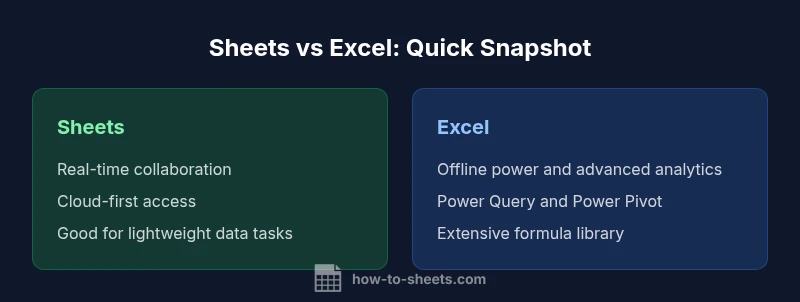
Is google sheets excel? The short answer is that Google Sheets and Excel share core spreadsheet capabilities, but each serves different workflows. Sheets excels in real-time collaboration and easy cloud access, while Excel shines in offline power and advanced data modeling. For most teams, Sheets is the practical default; Excel is preferred for heavy analytics.
Conceptual foundations: is google sheets excel distinctions
According to How To Sheets, Google Sheets and Microsoft Excel are both powerful spreadsheet tools, but they were built with different priorities in mind. Sheets emphasizes cloud-based collaboration, simple sharing permissions, and seamless cross-device use. Excel prioritizes advanced analytics, offline power, and a mature ecosystem of data modeling and automation. Understanding these foundations helps teams decide which tool best fits their workflows, especially when you consider the question of is google sheets excel in real-world applications. How To Sheets' analysis shows that most students, professionals, and small business owners work best when using Sheets for lightweight tasks and rapid collaboration, while turning to Excel for intricate data analyses and heavy modeling tasks.
Core capabilities: formulas, functions, and compatibility
Both tools offer a robust set of formulas and functions, and many common operations work in parallel. Google Sheets provides ARRAYFORMULA and a broad suite of functions designed for live collaboration and online data sources. Excel offers an expansive function library, Power Query, and dynamic arrays that support complex data transformations. When migrating or integrating, expect some function differences and syntax nuances; simple lookups and arithmetic generally translate well, while advanced data modeling often requires tweaking or alternative approaches. From the How To Sheets perspective, consistency in shared templates matters more than the exact function names.
Collaboration, accessibility, and offline workflows
One of the clearest differentiators is how teams work together. Google Sheets excels at real-time multi-user editing, built-in comments, and straightforward sharing controls. This makes it ideal for teams with distributed members who need to co-edit budgets, schedules, or project trackers. Excel, though capable of co-authoring via Office 365, remains stronger in local editing scenarios and large, formula-heavy workbooks that require powerful data connections. If you need offline access, Sheets supports offline editing in a browser or mobile app, but Excel's desktop environment often yields more reliable performance for complex tasks when offline.
Interchange, formats, and integration
Exporting and importing between Sheets and Excel is common in many workplaces. Both tools support XLSX, CSV, and other standard formats, but fidelity can vary for charts, conditional formatting, and macros. Sheets relies on Google Drive for storage and collaboration, while Excel uses OneDrive or SharePoint, depending on the organization. Automations differ as well: Sheets uses Google Apps Script, while Excel uses VBA with Office Scripts as a modern alternative. When planning cross-platform work, map out which automations and data connections you rely on and plan for equivalents in the other ecosystem.
Pivot tables, charts, and data visualization
Pivot tables and charts are central to data analysis in both tools, but the experience differs. Sheets provides interactive pivot tables and charts that refresh automatically when the source data changes, with tight integration to other Google services. Excel offers more sophisticated data modeling capabilities, richer chart types, and deeper customization options. For dashboards that demand high-end visuals or complex aggregations, Excel often provides a more mature toolset, while Sheets is perfect for lightweight dashboards and quick insights.
Scripting, automation, and extensibility
Automation choices align with each platform's underlying scripting language. Google Apps Script enables powerful automation across Google Workspace apps, including Sheets, Docs, and Drive. Excel's VBA has long been the automation workhorse, and Office Scripts offers a modern, JavaScript-based alternative in Excel on the web. If your team relies on server-side automation, consider how each environment interacts with your existing systems, data sources, and deployment processes.
Data governance, security, and versioning
Security and governance revolve around how files are stored and shared. Sheets uses Google Drive’s permissions framework, which emphasizes rapid sharing and collaboration. Excel documents stored in OneDrive or SharePoint inherit their own access controls. Version history exists in both ecosystems, but the capacity and audit features differ. For regulated industries or projects requiring strict versioning, outline your governance requirements and test how each tool preserves history and enforces permissions.
Real-world usage scenarios: when to choose each tool
Consider a small marketing team running a live budget in Sheets for cross-functional visibility. They need quick edits, comment threads, and easy sharing. A data analyst at a midsize company, however, might rely on Excel for complex financial models, data modeling, and integration with business intelligence pipelines. The best practice is to use Sheets for collaboration-heavy processes and use Excel for end-of-cycle reporting and heavy data manipulation. Treat this as a spectrum rather than a binary choice, and align tool use with the task at hand.
Migration strategies: moving between Sheets and Excel
If you’re transitioning a workbook from Excel to Sheets, start with a test copy and validate formulas, named ranges, and macros. Replace VBA automation with Apps Script equivalents when possible, and adjust advanced formatting as needed. Conversely, when exporting Sheets workbooks to Excel, verify data types, charts, and conditional formatting rules. Maintain a change log and involve stakeholders to ensure a smooth migration from is google sheets excel to a shared platform that supports your team’s workflow.
Practical decision framework and next steps
To decide whether to lean on Sheets or Excel, create a task-oriented checklist: who edits, how often, whether real-time collaboration is essential, how large datasets are, and which automation tasks exist. Run a pilot with a representative dataset to compare performance and user experience. Finally, establish standards for templates, naming conventions, and access controls, and document the rationale to help teams adopt the chosen tool consistently.
Comparison
| Feature | Google Sheets | Excel |
|---|---|---|
| Platform access | Cloud-based with offline mode | Desktop-first with online options |
| Real-time collaboration | Excellent multi-user editing | Co-authoring via Office 365/Excel for the web |
| Formula compatibility | Broad common formulas; some differences in advanced functions | Extensive library; Power Query and dynamic arrays for complex tasks |
| Macros and scripting | Apps Script automation; no VBA compatibility | VBA-based automation; Office Scripts in web |
| Pivot tables | Pivot tables with live data refresh | Advanced pivot options with data model (Power Pivot) |
| Data modeling/BI | Good data operations; simple data modeling | Power Pivot/Power Query support; advanced analytics |
| Import/export formats | XLSX/CSV/ODS imports; seamless Drive integration | Natively supports XLSX; strong format fidelity |
| Collaboration controls | Share links, granular permissions; comments | Share, permissions, versioning; integrated with OneDrive/SharePoint |
| Offline accessibility | Offline mode in browser/mobile; sync when online | Solid offline performance in desktop; online with web app |
| Cost/licensing | Free personal use; Google Workspace for teams | Office 365 subscription; desktop licenses |
| Best for | Collaboration-first, lightweight datasets | Heavy analytics, offline power, complex modeling |
The Good
- Real-time collaboration is native and seamless
- Zero software installation required for basic use
- Excellent cross-device accessibility and auto-saving
- Tight integration with other Google Workspace apps and data sources
The Bad
- Advanced analytics can be less capable than Excel
- Offline features are strong but not as robust as desktop Excel
- Some complex workflows require add-ons or workarounds
- Macro and scripting options differ from traditional VBA
Sheets is the go-to for collaboration; Excel remains superior for advanced analytics
Choose Sheets for real-time teamwork and lightweight data tasks. Choose Excel for in-depth data modeling, offline work, and advanced automation.
FAQ
Can I open Excel files in Google Sheets without losing formatting?
Yes, you can open XLSX files in Google Sheets, though some advanced formatting, charts, or macros may not translate perfectly. It’s best to test critical workbooks and adjust as needed.
You can open Excel files in Google Sheets, but check for formatting and macro differences after import.
Are formulas compatible across Sheets and Excel?
Many common formulas transfer between the two, but some functions differ in syntax or availability. For critical models, verify results by cross-checking calculations in both environments.
Most formulas work in both, but verify the results for complex functions.
Does Google Sheets support pivot tables like Excel?
Google Sheets has pivot tables, but Excel provides more advanced data modeling options. For quick summaries, Sheets is ample; for in-depth analysis, Excel is preferred.
Sheets has pivot tables; Excel offers deeper data modeling.
Can I automate tasks in Sheets and Excel?
Yes. Sheets uses Apps Script; Excel uses VBA and Office Scripts. The choice depends on your existing codebase and automation needs.
Automation exists in both: Apps Script for Sheets, VBA for Excel.
Is Google Sheets free to use?
Google Sheets has a free tier, with additional features available through Google Workspace subscriptions. Evaluate your team’s needs to decide on the right plan.
Sheets has a free tier; advanced features come with Google Workspace.
When should I migrate from Sheets to Excel?
If your work relies heavily on advanced analytics, Power Pivot, or offline processing, consider Excel. For collaboration-heavy tasks, Sheets remains ideal.
Move to Excel for heavy analytics; keep Sheets for collaboration.
Can Excel work with Google Drive files?
Excel can access Google Drive files via web interfaces and conversions, but native Drive integration is stronger in Sheets. Cross-platform workflows require careful planning.
Excel can access Drive files through conversions, but Sheets integrates Drive more tightly.
The Essentials
- Prioritize Sheets for team collaboration and cloud workflows
- Reserve Excel for complex analytics and offline scenarios
- Plan cross-platform migrations with formula and macro considerations
- Use templates and governance to maintain consistency