Benefits of Google Sheets vs Excel: An Analytical Comparison
Analytical comparison of Google Sheets and Excel, focusing on collaboration, features, data handling, offline access, and licensing to help teams decide which tool fits their workflow.


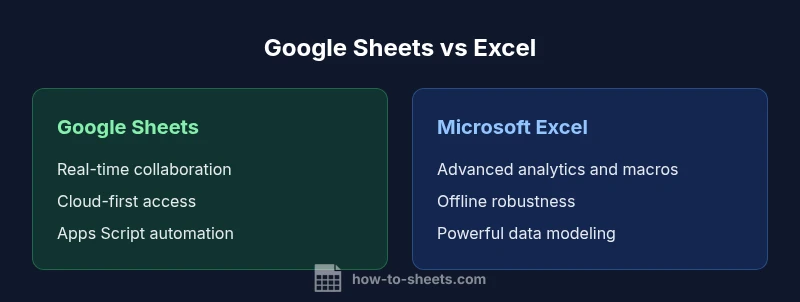
Google Sheets vs Excel each serve different workflows. The benefits of google sheets vs excel center on real-time collaboration, cloud accessibility, and low upfront cost, while Excel excels in deep analytics, offline power, and advanced data manipulation. For teams prioritizing speed and teamwork, Sheets often wins; for heavy data modeling and enterprise needs, Excel remains the stronger choice. The best pick depends on your priorities.
Why the Debate? Benefits of google sheets vs excel
The choice between Google Sheets and Microsoft Excel is more than a feature checklist. It reflects how teams work in the modern era: distributed, collaborative, and increasingly cloud-native. This article examines the benefits of google sheets vs excel through the lens of real-world requirements—speed of iteration, data integrity, and governance. According to How To Sheets, cloud-first tools that enable simultaneous editing tend to reduce version conflicts and streamline onboarding for new members. Meanwhile, Excel’s depth, offline power, and mature analytics toolkit remain essential for heavier data modeling and enterprise workflows. By weighing collaboration, data handling, and licensing, you can identify which tool best aligns with your team’s processes and goals.
Collaboration and Accessibility: Cloud vs Desktop
Real-time collaboration is where Google Sheets shines. Multiple people can edit a single document at once, with live cursors, comments, and instant updates across devices. This cloud-centric approach reduces email trails and enables faster decision-making in distributed teams. How To Sheets notes that cloud access lowers onboarding friction and simplifies sharing with stakeholders who don’t use the software every day. Excel, while offering co-authoring and cloud features in its modern incarnations, still emphasizes desktop reliability and structured workflows for teams that require strict governance and offline access. The choice often hinges on how frequently teams need simultaneous edits and how important constant connectivity is to their workflow.
Core Features: Formulas, Functions, and Data Handling
Google Sheets provides a robust set of functions suitable for most day-to-day analyses, with strong compatibility to common spreadsheet tasks. Its formula language is user-friendly and benefits from rapid updates through the cloud. Excel, by contrast, has a longer history of advanced formulas, powerful data modeling capabilities, and deeper macro support. For many analysts, Excel’s breadth in statistical and financial functions, coupled with powerful PivotTables, remains unmatched. The How To Sheets team emphasizes that choosing between these tools should consider not only current needs but also how often teams must extend analyses into more complex modeling or automation.
Real-World Use Cases: When Sheets Wins and When Excel Wins
Sheets often wins in scenarios that demand speed, collaboration, and cross-functional access. Project tracking, lightweight budgeting, and live dashboards benefit from immediate sharing and instant updates. On the other hand, Excel is preferred for sophisticated data modeling, complex financial projections, and large datasets that hinge on advanced analytics and macro automation. For many organizations, a blended approach works best: Sheets for collaborative planning and Excel for deep dives and formal reports. The How To Sheets guidance suggests starting with a pilot project to map who needs what features and where data must flow across tools.
Data Management and Compliance Considerations
Data governance becomes more critical as teams scale. Sheets makes it easy to control access through share settings and version history, which supports transparent collaboration and rapid rollback. Excel’s governance features—especially in enterprise licenses—offer rigorous controls, auditing, and integration with broader IT policies. When choosing, teams should assess how data is created, edited, and stored, and whether regulatory requirements demand stricter access controls, formal approvals, or centralized data lineage. For many users, Sheets provides straightforward governance for everyday work, while Excel suits environments with formal IT oversight.
Automation and Integrations: Apps Script vs VBA
Automation is a differentiator in both ecosystems. Google Sheets leverages Apps Script to automate workflows, extend functionality, and connect with other Google Workspace tools and third-party services. This makes repetitive tasks more efficient and reduces manual errors. Excel relies on VBA and, increasingly, Power Automate, to enable complex automation, data pipelines, and enterprise-scale integrations. Teams should evaluate the maturity of their automation needs: lightweight task automation works well in Sheets, while mission-critical processes with external data sources often land in Excel for its established automation and integration options.
Performance and Scale: Data Limits and Speed
Performance in Sheets hinges on network conditions, browser capabilities, and the size of the dataset. It remains highly responsive for typical business tasks when datasets are modest and well-structured. Excel tends to handle larger, more complex workbooks with established performance optimization paths, particularly when data is heavily structured and macros drive processing. Both tools benefit from disciplined data modeling, clean sheet organization, and pruning of unnecessary formulas. The overarching takeaway is that scale matters more in planning than in the tool chosen.
Pricing, Licensing, and Access: Cost Implications for Teams
Pricing models influence adoption and long-term value. Google Sheets is included with Google accounts, and team licensing through Google Workspace offers predictable costs and easy provisioning. Excel's licensing varies by plan and organization, often tied to Office 365 or Microsoft 365 subscriptions, with additional costs for advanced analytics and server-based features. For small teams or students, Sheets presents an attractive entry point with low upfront costs, while larger organizations may evaluate Excel as part of a broader enterprise licensing strategy.
Migration and Interoperability: Moving Between Tools
Interoperability between Sheets and Excel is a common concern for teams transitioning or maintaining hybrid workflows. Import/export options exist, but fidelity can vary for advanced formulas, macros, and data validation rules. A pragmatic approach is to map critical pipelines and automation to the tool that handles the majority of the work, then implement explicit migration steps for the edge cases. The How To Sheets team recommends documenting data schemas, sharing conventions, and testing migrations in a controlled environment to minimize disruption.
Practical Tips for Choosing Your Tool Today
Begin with a needs assessment: list collaboration requirements, data complexity, and automation goals. Run a small pilot to compare how each tool handles your top use cases, then gather feedback from both end users and IT stakeholders. Consider a hybrid approach: use Sheets for collaborative planning and Excel for formal analysis where necessary. Establish governance policies, training plans, and a clear migration path if you decide to shift a portion of workflows between tools. In all steps, prioritize actionable outcomes over feature parity.
Comparison
| Feature | Google Sheets | Microsoft Excel |
|---|---|---|
| Collaboration model | Real-time cloud-based editing across devices | Co-authoring with sharing and version history in desktop/cloud environments |
| Platform availability | Web, iOS, Android with offline modes | Desktop (Windows/macOS) plus web and mobile apps |
| Offline access | Strong offline mode in mobile/web apps | Robust offline support in desktop and cloud-enabled environments |
| Formulas and functions | Broad function library with live cloud updates | Extensive formulas, advanced data tools, macros (VBA) |
| Data capacity and performance | Great for typical business datasets with cloud optimization | Handles very large datasets with mature performance features |
| Automation and extensibility | Apps Script integration for automation and workflows | VBA + Power Automate for enterprise automation |
| Pricing and licensing | Free with Google account; additional workspace costs for teams | Office/Microsoft 365 licenses with tiered pricing |
| Version history and recovery | Automatic version history with easy restore | Comprehensive versioning and auditing options |
| Security and governance | Granular sharing controls and cloud security | Enterprise-grade security and governance tooling |
The Good
- Real-time, cloud-based collaboration improves team productivity
- Low upfront cost and easy provisioning for new users
- Flexible cross-device access and automatic saving
- Strong ecosystem of add-ons and integrations
The Bad
- Excel offers deeper analytics and offline power not always matched by Sheets
- Sheets can struggle with very large datasets and complex modeling
- Excel licensing can be more complex for some organizations
Sheets is the better choice for collaborative, cloud-first teams; Excel remains essential for advanced analytics and offline work.
For teams prioritizing collaboration, accessibility, and rapid iteration, Sheets typically provides the best fit. For heavy data modeling, offline work, and enterprise analytics, Excel offers unmatched depth. How To Sheets Team notes that the decision should hinge on workflow priorities, data needs, and licensing considerations.
FAQ
Is Google Sheets better for collaboration than Excel?
Yes, Sheets generally excels at real-time collaboration across devices, with live editing and instant updates. Excel offers collaboration features too, but Sheets often provides a smoother cloud-first experience for teams working remotely.
Yes—Sheets makes live collaboration seamless across devices, which is ideal for teams working together in real time.
Can Excel formulas be used in Google Sheets?
Many common Excel formulas translate to Sheets, but some functions differ or aren’t available. You can often find equivalents or adjust logic, and there are import tools to ease transitions.
Most Excel formulas have equivalents in Sheets, but some functions don’t map one-to-one.
How does offline access compare between Sheets and Excel?
Excel generally offers strong offline capabilities, especially in desktop mode. Sheets supports offline work when configured, but its offline experience is typically optimized for web and mobile with occasional limitations.
Excel tends to have the strongest offline support, while Sheets offers offline use with some constraints.
What are the data limits I should expect?
Both tools handle typical business datasets well, but Excel often scales better for very large data volumes and complex models. Sheets remains efficient for most standard spreadsheets.
Excel usually handles larger datasets more robustly, while Sheets covers common needs effectively.
Which is cheaper for a small business?
Sheets can be cheaper upfront since it’s included with Google accounts, especially for small teams. Excel costs vary by plan and organization size, potentially increasing with add-ons and licenses.
Sheets tends to be more cost-effective to start with, whereas Excel costs depend on the chosen license.
The Essentials
- Prioritize collaboration needs to choose Sheets over Excel
- Evaluate offline requirements for your team’s workflow
- Assess data complexity before selecting a tool
- Consider licensing implications in budgeting
- Plan a phased migration to minimize disruption