Google Sheets advantages over Excel: A practical comparison
An objective, practical comparison of Google Sheets vs Excel, focusing on collaboration, cloud access, automation, and licensing to help students, professionals, and small business owners decide which tool fits their workflow.


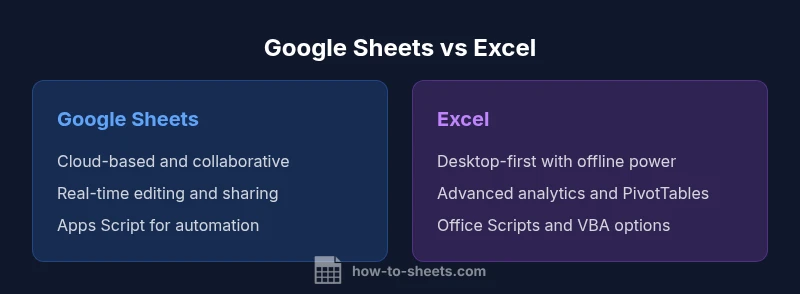
Google Sheets advantages over Excel center on collaboration, cloud-first access, and cost efficiency for teams. In practice, Sheets enables real-time multi-user editing, seamless sharing, and automatic version history in a web-based workspace. However, Excel remains strong for advanced data modeling and offline-heavy workflows. This quick verdict helps you choose based on teamwork and scale needs.
The core premise: google sheets advantages over excel in collaborative environments
When teams evaluate google sheets advantages over excel, the emphasis often lands on cloud-native collaboration, real-time editing, and seamless sharing. The How To Sheets team found that Sheets accelerates collective decision-making because multiple people can work simultaneously, leave comments, and track changes without sending multiple email attachments. The browser-based nature of Sheets reduces version-control headaches and makes it easier to implement standardized templates across departments. In practice, you’ll notice quicker onboarding for new teammates who only need a Google account, straightforward access controls, and a built-in audit trail. That said, the advantages are strongest when concurrent editing and cross-device access matter most; for heavy data modeling or offline-first workflows, Excel remains a compelling alternative. The takeaway is that google sheets advantages over excel are most pronounced in collaborative, cloud-first settings where speed and accessibility trump offline depth. (According to How To Sheets, these collaboration-centric benefits are a core differentiator for teams adopting a shared, browser-based workflow.)
Accessibility and reach: cloud-first vs desktop-first
Accessibility is a defining factor in choosing between Sheets and Excel. Google Sheets is designed to be accessible from any device with an internet connection and a modern browser, plus mobile apps that mirror desktop capabilities. This cloud-first approach means teammates can open, edit, and review documents from laptops, tablets, or phones without installing software. Real-time collaboration is smoother when everyone is viewing a single, dynamically updating sheet. Google’s ecosystem also enables quick sharing with granular permissions and easy link-based access. Offline editing is possible in Sheets, but it requires explicit setup and works best when users have previously opened the file while online. Excel, by contrast, has long been a desktop-first tool with a polished online counterpart. The result is a split: Sheets lures users with frictionless access, while Excel provides a familiar offline desktop experience with robust local processing. The choice depends on whether cloud availability or offline control is the priority for your team.
Cost and licensing considerations
Cost is a practical lens through which many teams assess google sheets advantages over excel. Google Sheets is included with Google accounts and Google Workspace plans, which makes it effectively free for many individual users and small teams. That baseline reduces upfront spending and simplifies procurement for organizations already invested in Google Workspace. Excel, on the other hand, typically requires a Microsoft 365 subscription or a one-time license for the desktop app, plus potential add-ons for cloud features. This can become a meaningful budget line for larger teams or enterprises, especially when considering licensing across dozens or hundreds of seats. In short, Sheets tends to be more affordable for teams prioritizing collaboration and cloud access, while Excel’s cost is justified by deeper data tools and offline capabilities within a managed Microsoft stack.
Features and functionality: parity and gaps
Both tools offer powerful spreadsheet capabilities, yet the feature set emphasizes different strengths. Google Sheets provides a robust set of built-in functions, powerful querying with QUERY, array formulas, and the ability to connect to other Google Workspace apps. It shines with ready-made templates, real-time collaboration workflows, and easy sharing. Excel offers deeper data modeling features, advanced pivoting, Power Query for data shaping, and VBA (or Office Scripts) for automation, which are unmatched for complex analytics. The practical takeaway: Sheets covers everyday to moderately complex analyses with excellent collaboration and integration. Excel remains the go-to when you need advanced modeling, offline computations, and an extensive automation toolset in a tightly controlled environment.
Data management and formula capabilities
When you compare data management and formula capabilities, Sheets emphasizes flexible, formula-driven workflows suited for rapid iteration. You’ll find powerful functions like FILTER, ARRAYFORMULA, IMPORTRANGE, and QUERY that enable dynamic data shaping. Excel’s formula ecosystem includes sophisticated lookup options, PivotTables with extensive data modeling, and more mature data analysis tools. For teams, Sheets makes it easier to maintain single sources of truth and to propagate changes across linked ranges, while Excel provides more precise control for large, sophisticated data models. This section highlights a core decision point: choose Sheets for collaborative data exploration and Quick Insights; choose Excel when you require heavy-duty analysis and enterprise-grade data tooling.
Automation and scripting: native automation in Sheets vs Excel
Automation is a critical factor in productivity, and both tools offer scripting options, though the ecosystems differ. Google Sheets relies on Apps Script, a JavaScript-based platform that lets you automate workflows, build custom functions, and integrate with other Google services. This approach is approachable for teams already using Google Workspace and facilitates rapid prototyping. Excel uses VBA for legacy automation and Office Scripts (in the web version) as a more modern alternative. Office Scripts integrate with the broader Microsoft 365 environment and Power Automate workflows. The practical takeaway is that Sheets excels at lightweight, cloud-based automation with minimal setup, while Excel is favored for more formal, enterprise-grade automation patterns with deeper integration to the Microsoft stack.
Integration and automation ecosystems
The integration story is a differentiator. Google Sheets slots neatly into the Google Workspace ecosystem, enabling seamless links with Gmail, Drive, Calendar, and the broader cloud suite. Third-party add-ons are plentiful, and custom Apps Script projects can extend capabilities without leaving the workspace. Excel integrates smoothly with the broader Microsoft ecosystem, including Teams, SharePoint, Power BI, and SQL Server, enabling advanced data pipelines and enterprise-grade governance. For teams choosing between the two, alignment with existing workflows matters: Google-centric teams gain leverage from Sheets’ cloud-native integration; Microsoft-centric teams benefit from Excel’s proven analytics and enterprise integrations.
Performance and scalability: when sheets hit the limit
Performance considerations often steer decisions around large spreadsheets. Google Sheets performs well for most mid-size projects, with collaborative features remaining responsive as you add collaborators. However, extremely large datasets or highly complex calculations can slow down performance and lead to longer recalculation times. Excel tends to offer stronger performance for very large datasets and heavy computations, thanks to its desktop engine and more mature data processing capabilities. The practical implication is to plan data organization with Sheets for smaller to mid-sized analyses, and to reserve Excel for data-heavy, offline, server-backed, or governance-heavy scenarios where scale and performance are non-negotiable.
Security, privacy, and compliance considerations
Security and privacy shape the long-term viability of any spreadsheet solution. Sheets provides robust sharing controls, audit trails, and centralized admin settings as part of Google Workspace, which helps organizations manage data access across teams and devices. Excel's security model benefits from a mature governance footprint within enterprise Microsoft environments, including granular RBAC, data loss prevention, and advanced encryption options depending on deployment. The choice often hinges on organizational policy and the level of control required over data residency, access, and retention. In both cases, careful configuration of sharing permissions, version history, and data classification is essential to maintain compliance and minimize risk.
Practical decision guide: when to pick Sheets vs Excel
A practical decision framework can help you choose quickly. If collaboration across many users, cloud access, cross-device use, and rapid template deployment are your top priorities, Google Sheets often provides the best balance of cost and capability. If your needs center on offline reliability, deep data modeling, complex analytics, and enterprise-wide governance within a Microsoft environment, Excel is typically the stronger option. Consider a hybrid approach if your organization relies on both collaboration and sophisticated analytics: use Sheets for data collection and initial exploration, then export or migrate to Excel for advanced modeling and reporting. The How To Sheets team recommends mapping your core workflows before committing to a single tool, ensuring you don’t lose critical capabilities in translation.
Real-world deployment tips and migration considerations
Moving from Excel to Sheets requires practical planning. Start by inventorying your most-used features and formulas to determine parity and gaps. Build a shared template library in Sheets with clear naming conventions, protected ranges, and data validation rules to minimize conflicts during migration. Leverage Import features to bring existing Excel data into Sheets, then validate results with sample datasets to surface any formula incompatibilities. Finally, establish governance: assign owners for shared sheets, define access permissions, and set up change management processes that align with your organization’s security and compliance policies. These steps can smooth transitions and maximize the proportion of cloud-based, collaborative work across your teams.
Comparison
| Feature | Google Sheets | Microsoft Excel |
|---|---|---|
| Platform and access | Cloud-first, browser-based with mobile apps | Desktop-first with online option (Excel Online available) |
| Real-time collaboration | Excellent real-time editing with comments and version history | Strong collaboration in Online mode; desktop editing requires sharing |
| Cost structure | Free with Google account; Workspace adds features | Licensing via Microsoft 365 or standalone license |
| Automation and scripting | Apps Script for automation and custom functions | VBA for desktop; Office Scripts for web with Power Automate |
| Advanced analytics | Solid, with QUERY, FILTER, and array functionality | Richer PivotTables, Power Query, and deeper analytics tooling |
| Offline capabilities | Offline editing supported with setup; sync later | Strong offline support via desktop app |
| Data capacity and performance | Efficient for mid-size datasets; performance depends on browser | Robust performance for large datasets with desktop engine |
The Good
- Real-time collaboration accelerates teamwork
- Cloud-native access across devices and platforms
- Low upfront cost for teams using Google Workspace
- Seamless integration with Google Workspace apps
The Bad
- Fewer advanced data modeling features vs Excel
- Performance can suffer with very large datasets
- Some Excel-only features require workarounds or are unavailable
- Offline reliance is less consistent than desktop Excel in some setups
Sheets excels for collaboration; Excel excels for advanced analytics
If teamwork and cloud access drive your workflow, start with Sheets. For complex analytics and offline-heavy use, Excel remains the stronger foundation.
FAQ
Is Google Sheets free to use for individuals?
Yes. Google Sheets is free for personal use with a Google account and is included in many Google Workspace plans for organizations. For larger teams, Workspace subscriptions add collaboration and security features.
Yes, Sheets is free for individuals with a Google account, and Workspace adds more team features.
Can I open and edit Excel files in Google Sheets?
You can import Excel files into Sheets and work with them, but some advanced Excel formulas or features may not translate exactly. You can save back to Excel if needed.
You can open Excel files in Sheets, but some features might not translate perfectly.
How can I automate tasks in Sheets?
Automation in Sheets is powered by Apps Script, a JavaScript-based platform. You can create custom functions, triggers, and integrate with other Google services or third-party apps.
Sheet automation uses Apps Script to automate workflows and custom tasks.
How does Sheets perform with very large datasets?
Sheets performs well for typical team-sized projects, but very large datasets can strain performance. Consider segmenting data or moving heavy analytics to Excel if needed.
For very large datasets, performance can become an issue; plan data architecture accordingly.
Can I export Sheets back to Excel?
Yes. You can download Sheets files as Excel (.xlsx) or OpenDocument formats. Some formatting may not translate perfectly, so verify critical sheets after export.
You can export Sheets to Excel, though some formatting might need adjustments.
Is offline access available in Google Sheets?
Offline editing is available in Sheets with appropriate setup. Changes synchronize when you reconnect to the internet, ensuring consistency across devices.
Yes, you can work offline in Sheets with setup; changes sync when online.
The Essentials
- Choose Sheets for real-time collaboration and cloud ease
- Opt Excel for advanced analytics and offline reliability
- Leverage Apps Script to automate Sheets workflows
- Plan migration with a feature parity check and governance
- Align tool choice with existing ecosystems and licensing