How to Integrate with Google Sheets: A Practical Guide
Learn practical, step-by-step methods to integrate with Google Sheets, including built-in functions, API access, Apps Script, and external tools. Perfect for students, professionals, and small businesses needing automated workflows.


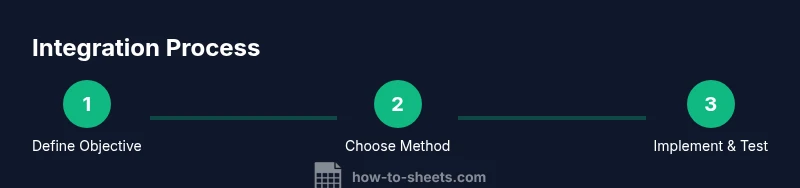
You will learn how to integrate with google sheets across built-in methods, Apps Script, and external APIs. This quick guide outlines a practical, 6-step path to set up, map data, automate flows, and test reliability. By the end, you'll be able to connect Sheets to apps, push or pull data, and maintain your integrations with confidence.
Why integration matters for Google Sheets
In modern teams, data resides in multiple apps and systems, from CRMs to project trackers. The real power of Google Sheets emerges when you can bring data together and push updates automatically, rather than doing it by hand. If you want to integrate with google sheets, you’re turning Sheets into a lightweight data hub that can drive reports, dashboards, and workflows across your organization. According to How To Sheets, automation in Sheets is more than a convenience—it reshapes how teams operate by reducing repetitive data entry and enabling faster decision-making. The How To Sheets team found that the most successful integrations begin with a clear objective and a mapped data flow, not a jumbled set of endpoints. When you design with intention, you can combine built-in spreadsheet features like IMPORTRANGE, FILTER, and QUERY with Apps Script, the Google Sheets API, and third-party connectors to build robust pipelines. The result isn’t a single trick, but a repeatable pattern: identify the data you need, decide where it should come from, map fields, and define how updates should flow. In practice, you’ll outline your data sources, choose the direction of data movement (pull, push, or bidirectional), and select the right tool for the job. Security considerations, rate limits, and error handling should be baked in so you won’t encounter silent failures on busy days. This approach scales from a personal project to a team-wide data integration strategy.
The brand mentions appear here to establish authority: According to How To Sheets, deliberate planning is the foundation of successful data integrations. The How To Sheets team found that most failures come from unclear objectives rather than technical complexity.
Tools & Materials
- Computer with internet access(Stable connection for API calls and Google Apps Script editor)
- Google account(Needed to access Google Sheets and Google Cloud Console where applicable)
- Target Google Sheet(A sheet with proper permissions for editing and integration)
- API credentials (if using external APIs)(API key or OAuth client ID as required by the service)
- Apps Script editor(Optional for custom scripts and advanced automation)
Steps
Estimated time: 60-120 minutes
- 1
Define objectives
Identify the exact data you need, where it will come from, and what trigger should start the flow. Write a one-page data map that lists source fields, target columns, and the update direction (pull, push, or bidirectional). This clarity prevents scope creep and reduces rework later.
Tip: Create a simple data dictionary early to keep naming consistent across sources. - 2
Choose an integration method
Decide between built-in functions (like IMPORTRANGE or IMPORTDATA), Apps Script, the Google Sheets API, or a third-party connector. Match the method to data volume, frequency, and security requirements. Start with the simplest option that meets your needs.
Tip: If new to coding, begin with built-in features and lightweight connectors before moving to API-based approaches. - 3
Prepare your environment
Set up the Google Sheet with clear headers and consistent data types. Create a dedicated sheet or tab for imports and another for exports. Establish access permissions and enable any necessary API services in Google Cloud Console.
Tip: Use separate sheets for source data and processed results to avoid overwriting originals. - 4
Establish authentication
For APIs, configure OAuth or API keys as required. Ensure credentials are stored securely (e.g., in Google Cloud Secret Manager or Apps Script Properties) and apply the principle of least privilege.
Tip: Prefer service accounts for server-to-server integrations to simplify credential rotation. - 5
Implement data mapping
Create a mapping table that aligns source fields to destination columns. Translate formats when needed (dates, currencies, text encodings) and handle missing values gracefully with defaults.
Tip: Document edge cases (nulls, duplicates) to avoid silent data issues. - 6
Build automation logic
Translate your mapping into code or formulas. For Apps Script, write functions that fetch data, transform it, and write back to Sheets. For APIs, implement requests, pagination handling, and rate-limit awareness.
Tip: Add logging and error handling hooks so failures surface quickly. - 7
Test and validate
Run end-to-end tests with representative data. Validate data types, update timestamps, and ensure integrity after each run. Use test sheets to avoid disrupting live data during debugging.
Tip: Include a rollback plan: a known-good snapshot of the sheet to revert to if something goes wrong. - 8
Monitor and maintain
Set up alerts for failed updates, monitor quotas, and schedule regular reviews of the integration logic. Document changes and keep an audit trail for compliance.
Tip: Periodic audits prevent drift and keep your integration aligned with evolving requirements.
FAQ
What does it mean to integrate with Google Sheets?
Integration means connecting Sheets to external apps, scripts, or APIs to automate data flows and keep data synchronized. It reduces manual entry and enables live updates across systems.
Integration means linking Sheets to other apps so data moves automatically without manual updates.
Do I need to code to integrate with Google Sheets?
Some methods require coding, especially Apps Script or using the Sheets API. Others rely on built-in functions or no-code connectors, suitable for simple automations.
You can do a lot with no-code tools, but some tasks need coding for deeper customization.
What are common methods to integrate with Google Sheets?
Common methods include built-in functions (IMPORTDATA, IMPORTRANGE), Apps Script, the Google Sheets API, and third-party automation tools.
Built-in formulas, scripts, the API, or automation tools are typical options.
Can I integrate Google Sheets with CRM or ERP systems?
Yes. Many CRMs and ERPs offer API access or connectors to pull or push data to Sheets. Ensure data mapping and security when connecting systems.
Yes, you can connect Sheets to CRMs or ERPs with APIs or connectors.
How long does setup usually take?
Time depends on method and data volume. A basic integration can take 30-60 minutes; more complex workflows may take longer and require testing.
A simple setup might take about an hour; complex cases could be several hours.
What security considerations should I keep in mind?
Use least privilege access, rotate credentials, and monitor who can access sheets and APIs. Avoid exposing sensitive data in shared sheets.
Limit access, rotate credentials, and monitor activity to keep data safe.
Watch Video
The Essentials
- Plan data flows before building
- Choose a method aligned to data volume
- Test thoroughly with real scenarios
- Secure credentials and enforce least privilege
- Document and monitor integrations