Google Sheets and Python: A Practical Comparison
A detailed comparison of Google Sheets and Python for data tasks, automation, and workflows. Learn when to use Sheets vs Python, how to integrate them, and best practices for scalable, collaborative data work.


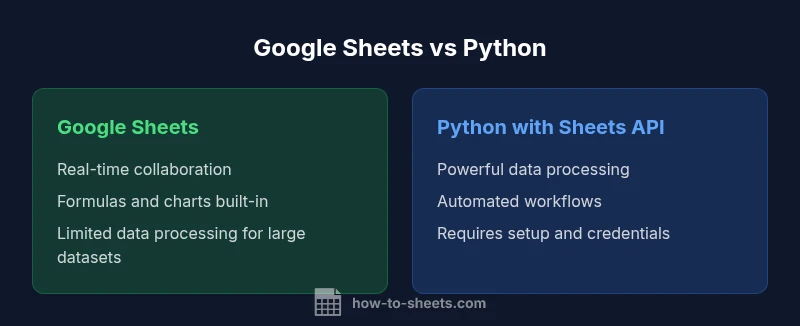
Google Sheets and Python serve distinct roles in data workflows. Sheets shines for quick data entry, collaboration, and built-in calculations, while Python enables scalable data processing, API-driven updates, and repeatable automation. In practice, many teams pair Sheets with Python via the Sheets API or libraries like gspread to extend capabilities without sacrificing collaboration.
Synergy: Why Google Sheets and Python Are Not Competitors
According to How To Sheets, modern data work often hinges on combining lightweight spreadsheet tools with powerful programming languages. Google Sheets provides a familiar interface for data entry, quick calculations, and real-time collaboration, while Python offers a robust environment for data manipulation, automation, and integration with external systems. The How To Sheets team has observed that teams frequently start with Sheets for intake and lightweight analysis and then layer Python to scale their workflows. This blended approach preserves the strengths of both tools: the accessibility and visibility of Sheets, and the reproducibility and performance of Python. As organizations adopt more automated data pipelines, knowing how to connect these tools becomes a practical skill rather than a theoretical ideal. In this guide, we’ll explore how to leverage both tools in harmony and avoid common missteps so you can design reliable, scalable data workflows.
Core Differences: Formulas vs Full Programming
The core difference between Google Sheets and Python lies in scope and capability. Sheets provides a rich set of built-in formulas, charts, and pivot tables that are instantly accessible to collaborators. It excels at small-to-moderate datasets and cases where humans need to review data in real time. Python, on the other hand, is a general-purpose programming language with libraries like pandas, NumPy, and SciPy that perform complex transformations, statistical analysis, and machine learning tasks at scale. Python can automate repetitive tasks, handle large datasets, and interface with APIs and databases beyond what a single spreadsheet can manage. The trade-off is a steeper learning curve and the need to maintain scripts and authentication flows. When you align the strengths of both—Sheets for data capture and quick QA, Python for processing and automation—you create a robust, end-to-end workflow.
Data Landscape: What Each Tool Excels At
Google Sheets shines when teams need quick data capture, lightweight data cleaning, and immediate feedback from collaborators. It supports real-time editing, commenting, and built-in visualization, making it ideal for exploratory analysis and shared planning. However, Sheets has practical limits for data volume, computational complexity, and reproducibility across teams with large datasets. Python, conversely, handles more substantial data processing, batch transformations, and integration with external systems. It’s well suited for ETL-like pipelines, automated reporting, and model training that extends beyond a single workbook. The key is to design data storage and flow so that Sheets acts as front-end input and reporting surface, while Python manages heavy lifting and orchestration through the Sheets API or Python-based workflows.
Integration Techniques: APIs, Libraries, and App Script
There are several viable paths to connect Google Sheets with Python. The most common is using the Sheets API with a Python client library (such as gspread or pygsheets) to read and write data programmatically. This approach requires setting up credentials and handling OAuth2 flows, but it scales to routine, automated tasks. An alternative is Google Apps Script, which runs in the cloud and can trigger Python workflows via webhooks. For lightweight users, manual exports (CSV) and imports can work, but this approach breaks the automation chain. Practically, a blended approach—Sheets as the data surface, Python as the processing engine, and a secure credential management strategy—delivers the best balance of accessibility and power.
Practical Workflows: A Step-by-Step Example
Consider a scenario where a team collects raw survey responses in a Google Sheet and needs cleaned, aggregated results delivered back to the sheet and into a dashboard. A practical workflow might look like this:
- Collect data in Google Sheets with clear column headers and validation rules to reduce erroneous input.
- Use Python with the Sheets API to fetch the data into a pandas DataFrame.
- Apply cleaning steps (trim whitespace, handle missing values, standardize categorical labels).
- Compute aggregates (averages, counts by category, trend lines) and generate summary tables.
- Write the transformed data back to a separate sheet or to a dashboard-ready location.
- Set up a scheduled task (cron, Cloud Scheduler, or GitHub Actions) to refresh data automatically.
This pattern preserves the human-friendly interface of Sheets for data entry while leveraging Python’s reproducibility and scalability for processing and automation. Some teams additionally maintain a small schema document describing data types, allowed values, and update cadence to minimize drift between sheets and pipelines.
Practical Setup Guide: Environment, Authentication, and Security
Getting started requires careful planning around environment setup and credentials. Start by deciding which integration path fits your team: (a) Python scripts using gspread/pygsheets with a service account, (b) Sheets API directly with OAuth2 for user-based access, or (c) Apps Script that triggers remote Python services. Install Python, set up a virtual environment, and add the necessary libraries (gspread/pygsheets, requests, or google-auth). For authentication, a service account is common for automated tasks; store the JSON key securely, and restrict access to only what the script needs. When using OAuth2, implement token refresh handling and secure storage. Finally, establish a basic logging mechanism to capture API quotas, errors, and data transformation steps. This foundation reduces surprises when running pipelines and supports auditability and compliance requirements.
Performance, Cost, and Maintenance Considerations
From a cost perspective, Google Sheets is free to use with a Google account, though there are limits on sheets, cells, and API quotas. Python itself is free and open source, but running large pipelines may incur infrastructure costs if you host on cloud platforms. When designing hybrid workflows, consider the trade-offs between local development and hosted runtimes. Regular maintenance tasks include updating libraries, rotating credentials, monitoring quota usage, and validating that API results remain consistent after API updates. A well-documented workflow with version control for both the Sheets layout and Python scripts helps prevent drift and makes onboarding and troubleshooting faster.
Best Practices and Common Pitfalls
Best practices include treating Sheets as the data entry surface and Python as the processing engine, avoiding large, deeply nested formulas as the sole logic layer, and maintaining a clear data contract between the two tools. Guard against common pitfalls such as stale data due to asynchronous updates, inconsistent timestamp formats, and partial updates that leave the sheet in an inconsistent state. Use idempotent operations in Python scripts, implement retries with exponential backoff for API calls, and log each step of the data flow. Document dependencies and runbooks so new team members can reproduce the pipeline. Finally, design dashboards or reports that reflect the latest data and provide a clear path to revert changes if a script runs into errors.
Future-Proofing Your Data Workflows
As data tasks evolve, teams should consider modular designs that separate data collection, processing, and presentation. A forward-looking approach includes adopting a formal data schema, versioned sheets, and a centralized repository for scripts and credentials with proper access controls. Exploring event-driven patterns, such as triggering Python processes in response to sheet changes via webhooks, helps keep pipelines responsive. Finally, stay aware of updates to the Sheets API and Python libraries, and plan periodic reviews of quotas, security practices, and compliance requirements to ensure your workflows remain reliable and scalable over time.
mainTopicQuery":"google sheets python"],
comparisonTable
Comparison
| Feature | Google Sheets (manual) | Python-powered workflow with Google Sheets API |
|---|---|---|
| Automation potential | Low; manual tasks | High; scripted updates and automated pipelines |
| Data processing power | Strong for small datasets and formulas | Powerful for large datasets and complex transforms |
| Data volume suitability | Better for limited scopes | Scales with external storage and streaming data |
| Setup complexity | Low; no coding required | Medium; requires setup and credentials |
| Collaboration and sharing | Real-time collaboration via Sheets | Collaboration via shared results and API-driven updates |
| Error handling and logging | Limited, manual checks | Programmable logging and robust error handling |
| Cost/hosted resources | Free with Google account; local scripts | Free tooling; potential cloud hosting costs |
The Good
- Low upfront cost and fast setup for small teams
- Excellent real-time collaboration and sharing
- Built-in formulas and charting without coding
- When paired with Python, scalability and automation grow
- Access to a vast ecosystem of add-ons and integrations
The Bad
- Limited data processing power for very large datasets in Sheets
- Formula errors can propagate easily in shared sheets
- Coding requires extra setup and maintenance
- API usage introduces authentication and quota considerations
A blended approach wins: use Sheets for collaboration and data entry, and Python for scalable processing and automation.
If your workflow involves frequent updates and larger datasets, Python with the Sheets API offers automation and scalability. For day-to-day data entry and lightweight analysis, Sheets remains essential. The How To Sheets team's recommendation is a hybrid strategy that maximizes speed, accuracy, and collaboration.
FAQ
What is the difference between using Google Sheets alone and using Python with Sheets?
Sheets provides built-in formulas, real-time collaboration, and simple visualization. Python adds scalability, automation, and API-based data manipulation. The two can complement each other in a well-designed workflow.
Sheets handles quick data tasks; Python handles heavy processing and automation.
Can I update Google Sheets from Python without exposing credentials?
Yes, by using a service account or OAuth2 with restricted scopes. Store credentials securely (e.g., secret manager) and limit permissions to what's required for the task.
You can securely connect Python to Sheets using service accounts.
Which library should I use to connect Python to Sheets?
Two popular options are gspread and pygsheets. Both provide convenient APIs to read and write data with the Sheets API.
Two common libraries are gspread and pygsheets.
Is Python faster than Sheets formulas for data cleanup?
For large datasets and complex transformations, Python typically outperforms spreadsheet formulas due to more efficient data structures and processing options.
Python often beats formulas for big data tasks.
What are common use cases for combining Sheets and Python?
Automated data collection, batch transformations, dashboard updates, and scheduled reporting are common use cases.
Use it for automating data feeds and dashboards.
Do I need a Google Cloud project to use Sheets API with Python?
Usually yes: enable the Sheets API in a Google Cloud project and create credentials, then securely store the keys or tokens.
Usually you need a Google Cloud project and credentials.
The Essentials
- Treat Sheets as data entry and collaboration surface
- Use Python for large-scale processing and automation
- Connect via Sheets API or libraries like gspread
- Secure credentials from the start and document data contracts
- Design end-to-end pipelines with clear data flow