Google Sheets vs Excel: A Practical, Data-Driven Comparison
Compare Google Sheets and Excel: collaboration, offline access, formulas, pricing. How To Sheets guides when to choose Sheets or Excel for teams and individuals.


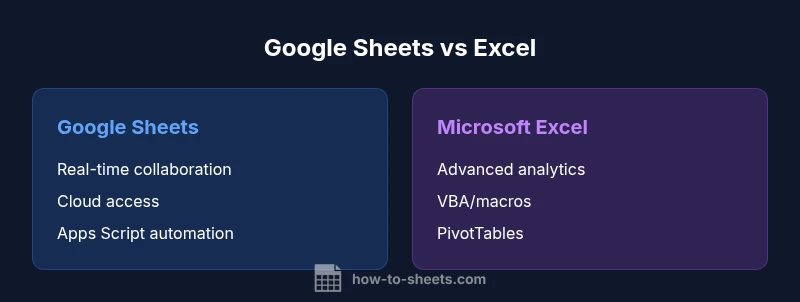
Google Sheets and Excel offer similar core spreadsheet capabilities, but they differ in collaboration, offline access, and advanced analytics. For teams prioritizing real-time collaboration and cloud access, Sheets often wins. For heavy data modeling, complex formulas, and offline work, Excel remains the stronger choice, especially when working with large datasets and built-in BI features.
google excel: Core Differences in Practice
The term google excel often surfaces in discussions about how Google Sheets and Microsoft Excel compare in everyday work. In this section we examine the core differences that influence decision-making for students, professionals, and small businesses. While both tools provide familiar spreadsheet capabilities, they diverge in how they are accessed, shared, and extended through automation. For many teams, the deciding factor is whether collaboration and cloud access trump raw power, or whether advanced analytics and offline stability take priority. By mapping needs to concrete tasks—data collection, budgeting, forecasting, or dashboards—you can establish a clear preference between google excel workflows and traditional Excel workflows.
Collaboration and Real-Time Editing
Google Sheets was designed around cloud-first collaboration. Multiple users can edit at the same time, see changes in real time, and comment inline without sending multiple versions. This makes Sheets especially appealing for project teams, classrooms, or startups that rely on quick feedback and fast iteration. Excel also supports co-authoring, particularly within the Office 365 ecosystem, but real-time collaboration across devices tends to be smoother in Sheets when participants are dispersed geographically. If your workflow requires concurrent editing with minimal friction, google excel flows lean toward Sheets; if you rely on shared documents within a centralized Office workspace, Excel can still fit well.
Offline Access and Reliability
Offline access is a practical factor for many users. Google Sheets offers offline editing when enabled, syncing changes once a connection is restored. This is convenient for users with limited or unreliable internet. Excel, particularly the desktop application, has long offered robust offline capabilities, with local workbooks that sync later when online. The choice depends on how critical uninterrupted access is in your environment, whether you travel, or work in environments with sporadic connectivity. The google excel distinction here highlights a trade-off between seamless cloud use and dependable local work.
Formulas, Functions, and Interoperability
Both tools provide extensive formulas, but they differ in emphasis. Sheets emphasizes functions that work well with real-time data streams, scripts, and array calculations, while Excel provides a broader suite of traditional math, statistical, and financial formulas, plus VBA-based automation. Transitioning between the two can be straightforward for many common tasks, yet some functions do not map one-to-one. For teams that require cross-platform work, prioritize features you rely on most: if you depend on specialized Excel formulas or proprietary add-ins, Excel may be preferable; if you need flexible data connections and easy sharing, Sheets wins in the google excel sense.
Data Capacity and Performance Considerations
Practical experience shows both platforms handle typical business datasets well. Google Sheets scales with the requirements of everyday tasks, prototyping, and small-team analytics, while Excel has long been favored for exceptionally large datasets and heavy computations. The performance difference is most evident when you apply numerous complex formulas, advanced charting, or large pivot tables. Because both products live in different environments (cloud vs desktop), performance can vary depending on hardware, network conditions, and how data is structured. In many cases, the decision hinges on the size and complexity of data rather than theoretical limits.
Pivot Tables, Data Modeling, and BI Readiness
Pivot tables are a cornerstone of data analysis. Excel offers mature pivot table capabilities and tight integration with Power BI and other BI tools, making it a natural choice for analytics-heavy work. Google Sheets also supports Pivot Tables, though its data modeling and data connectivity features are typically less extensive than Excel's. For teams building dashboards and reporting pipelines, consider how you plan to share insights. If your BI stack centers on Excel-native workflows, Excel remains the better fit; if you want lightweight, cloud-based dashboards accessible from anywhere, Sheets can be sufficient.
Charts, Visualization Options, and Dashboards
Both products offer a range of charts and visualization options. Excel showcases a broad array of chart types, customization options, and advanced charting capabilities, with strong integration into Power BI for dashboards. Sheets provides accessible, shareable charts and simple dashboards that update in real time for collaborative contexts. If your output requires sophisticated visuals for executive presentations and offline delivery, Excel has the edge; for live collaboration, quick distribution, and web-based sharing, Sheets fits google excel expectations.
Automation and Scripting: Macros vs Apps Script
Automation differentiates the two platforms in meaningful ways. Google Sheets relies on Apps Script, which ties into Google Workspace and cloud services. This makes automation easy to deploy across teams and devices, with built-in triggers and web app capabilities. Excel uses VBA and the broader Office automations to create powerful macros and desktop-centric workflows. If your team prefers cloud-based automation and cross-application integration, Sheets is a natural choice; if you require heavy, enterprise-grade automation built into a desktop environment, Excel is often preferred (for a good reason).
Real-World Scenarios: When to Pick Sheets vs Excel
In practice, teams lean on Sheets for lightweight budgeting, collaborative data gathering, and rapid prototyping where multiple contributors participate simultaneously. Excel shines for financial modeling, large-scale data analysis, and heavy data cleaning where performance and offline access are paramount. Classroom use, non-profit projects, and marketing experiments may benefit from Sheets' simplicity and shareability. Conversely, engineering reports, scientific data work, and enterprise analytics often call for Excel's advanced analytical features and established reporting ecosystem. The google excel perspective is to align tool choice with task type and team dynamics.
Licensing, Pricing, and Accessibility
Google Sheets is available at no upfront cost to anyone with a Google account, which lowers the barrier for students and small teams. Excel often requires a license or subscription as part of Microsoft 365, with additional enterprise options. While both platforms offer free trials or educational licenses in some cases, the ongoing cost is a practical factor in deciding which to standardize. In budgets where software procurement matters, Sheets can deliver immediate value; Excel can justify its cost through its feature depth and integration with other Office products.
Interoperability: Importing, Exporting, and Migration
A key practical concern is how easily data can move between Google Sheets and Excel. Sheets can import and export to compatible formats like .xlsx and .csv, and Excel can open Sheets-compatible files, though some formatting or advanced features may not translate perfectly. For teams migrating from one platform to another, plan a staged approach: begin with critical spreadsheets, test conversions, and verify formulas and scripts. This ensures continuity of work and reduces downtime during transitions. This google excel question becomes one of workflow continuity as much as feature parity.
Decision Framework: A Practical Checklist
If you are deciding between google excel tools for a project, use this quick checklist: identify the primary workflow (collaboration vs heavy analytics), assess offline needs, list essential formulas and automation requirements, evaluate data scale, and consider BI or dashboard needs. For cloud-first, multiple-contributor environments, Sheets often wins; for deep analytics, offline work, and Office ecosystem alignment, Excel is usually preferable. Use a blended approach when appropriate, exporting or importing data as needed to fit the task at hand.
Pitfalls to Avoid and Best Practices
Beware of assuming feature parity between Sheets and Excel; some formulas and scripts do not translate perfectly between platforms. Always test critical workbooks across both tools before migration, and establish a standard naming convention for shared files to minimize confusion. When collaborating, enable version history and set clear permissions to avoid accidental changes. Finally, document key steps for cross-team users to ensure consistent outcomes regardless of the chosen tool.
Practical Implementation Checklist for Teams
- Map tasks to the most appropriate tool based on collaboration needs and data complexity
- Create a pilot project to validate workflows before full rollout
- Establish export/import protocols and shareable templates
- Leverage Apps Script for Sheets to automate routine tasks; use VBA for Excel when offline or Office integration matters
- Build dashboards and reports with consistent visuals across platforms
- Monitor licensing, storage, and access controls to maintain security
Authority and Further Reading
For authoritative guidance, consult official documentation and scholarly sources. The following sources provide broader context on spreadsheet design, data management, and organizational use of cloud versus desktop tools. Consider reviewing each to understand how industry practices align with your specific workflows.
Comparison
| Feature | Google Sheets | Microsoft Excel |
|---|---|---|
| Accessibility and collaboration | Real-time collaboration and cloud access | Desktop-first collaboration with sharing controls |
| Offline access | Offline mode with synced changes | Robust offline functionality in desktop app |
| Formulas and functions | Wide set of functions with live data connections | Expanded and advanced formula options, including VBA |
| Data capacity and performance | Strong for typical team datasets | Better handling of very large datasets and complex calculations |
| Charts and dashboards | Cloud-friendly charts and quick dashboards | Rich charting, PivotTables, and dashboards |
| Automation and scripting | Apps Script for automation in the cloud | VBA and macro support in desktop Excel |
| Pricing and licensing | Free with a Google account for Sheets | Licensed per Microsoft 365 or Office purchase |
| Interoperability and import/export | Seamless sharing via links; supports import/export to .xlsx, .csv | Best-in-class compatibility with other Office formats |
The Good
- Real-time collaboration is built into Sheets from the ground up
- Cloud-based access enables work from any device
- Sheets is free for most users with a Google account
- Excel offers a broader feature set for advanced analytics
- Strong ecosystem with Office compatibility
The Bad
- Sheets can struggle with extremely large datasets or complex modeling
- Excel can be less friendly for real-time collaboration and cloud sharing
- Offline readiness in Sheets depends on setup and permissions
Sheets for collaboration-first work; Excel for advanced data analytics and offline power
If collaboration and cloud access are your priorities, Sheets is the sensible default. If your work involves heavy analytics, large data models, or offline access, Excel provides the deeper toolset.
FAQ
Which is better for collaboration: Google Sheets or Excel?
In most cases, Google Sheets offers superior real-time collaboration and easy sharing via links. Excel supports collaboration through the Office suite, but Sheets excels in live co-authoring in the cloud. Your choice depends on whether you need seamless teamwork or offline work.
Sheets shines for collaboration and easy sharing; Excel supports teamwork across Office apps, but Sheets often handles live editing more smoothly.
Can Google Sheets handle large datasets like Excel?
Google Sheets handles typical team datasets well, but Excel often performs better with very large datasets and heavy calculations due to its desktop engine. Plan capacity around your data complexity and performance needs.
Excel handles bigger datasets more reliably; Sheets is great for everyday tasks and sharing.
Do Google Sheets and Excel share the same formulas?
Many core formulas exist in both tools, but some functions differ. Sheets supports unique functions like QUERY and ARRAYFORMULA, while Excel offers advanced functions and VBA-based automation.
Core formulas exist in both, but there are unique functions in each tool.
Is Excel better for data visualization?
Excel provides strong charting and dashboard capabilities, including PivotCharts and Power BI integration. Sheets offers solid charts but with fewer native advanced visualization options.
Excel often has the edge for advanced charts and dashboards.
Does Google Sheets support macros?
Sheets uses Apps Script for automation rather than VBA. Macros can be recorded in Sheets, but more extensive automation is typically achieved with Apps Script.
Sheets uses Apps Script for automation, with macro support available.
Can I work offline with Google Sheets?
Yes, Google Sheets supports offline editing when enabled, syncing changes once you reconnect. Excel’s offline mode is robust by default, especially with desktop installations.
Sheets can work offline with setup; Excel is strong offline by default.
The Essentials
- Choose Sheets for real-time collaboration
- Prefer Excel for large datasets and offline work
- Leverage both tools by exporting/importing as needed
- Use Apps Script for Sheets automation and VBA for Excel
- Evaluate licensing implications for your team