Is Google Sheets Better Than Excel? A Practical Comparison
A data-driven, side-by-side analysis of Google Sheets vs Excel, focusing on collaboration, features, automation, and scalability to help teams decide the right spreadsheet tool in 2026.


For most everyday tasks and collaborative work, Google Sheets often edges Excel thanks to real-time collaboration, simple sharing controls, and seamless cloud access. Excel remains stronger for advanced data modeling, heavy macros, and offline work on large datasets. The best choice depends on your team's needs, data size, and whether you prioritize collaboration or complex analysis.
Framing the Showdown: Sheets vs Excel in 2026
The question is not simply which spreadsheet is ‘better’; it is which tool best supports your typical work patterns. This comparison weighs collaboration, data handling, automation, offline capacity, and governance in a structured way. According to How To Sheets, the evaluation should be anchored in real-world workflows and user roles, not abstract features. In practice, Google Sheets shines when teams must edit a living document simultaneously, access it from multiple devices, or integrate with other cloud apps. Excel, by contrast, remains the preferred choice for large-scale data modeling, advanced analytics, and offline-heavy tasks. The verdict often hinges on whether you prioritize speed and openness of access or depth, control, and established enterprise processes.
This opening section establishes the lens for the rest of the article and frames the decision as a trade-off between cloud collaboration and desktop-grade capabilities. The goal is to help you map your workload to the tool that minimizes friction while maximizing accuracy and governance. The How To Sheets team emphasizes that no one-size-fits-all answer exists; instead, you should create a small criteria checklist tailored to your team’s data size, collaboration needs, and compliance requirements.
Comparison
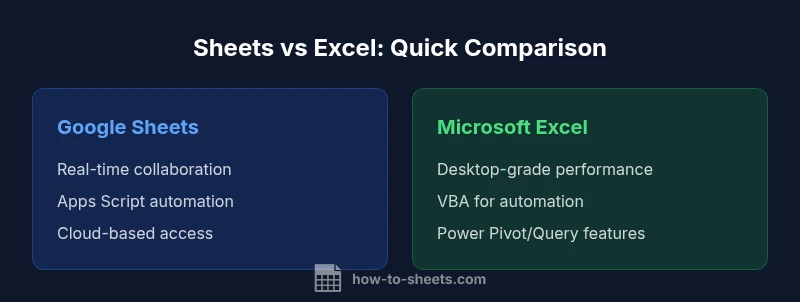
| Feature | Google Sheets | Microsoft Excel |
|---|---|---|
| Collaboration and sharing | Real-time multi-user editing, cloud-first, simple sharing controls | Co-authoring via Office 365 with versioning; strong offline handling in desktop |
| Automation and scripting | Apps Script (JavaScript-based), wide add-on ecosystem, cloud-native | VBA for desktop, Office Script for web; robust automation but steeper onboarding for some teams |
| Formulas and functions | Broad parity with Excel; strong cloud-native functions (FILTER, MAP, QUERY) | Extensive formula library, deep data modeling, and pivot capabilities |
| Data size and performance | Excellent for mid-sized, cloud-based datasets; latency can appear with very large scripts | Can handle very large, complex datasets with desktop-grade performance; optimized for offline analysis |
| Offline access | Offline available via browser/mobile apps with syncing | Full offline desktop functionality; reliable when network is unavailable |
| Platform ecosystem | Tightly integrated with Google Workspace (Docs, Drive, Calendar) | Deep integration with Microsoft 365 tools (Power BI, Teams, SharePoint) |
The Good
- Excellent real-time collaboration and cloud accessibility
- Low-cost or free entry for many teams and individuals
- Fast onboarding for teams already using Google Workspace
- Strong cross-application integration within the Google ecosystem
The Bad
- Limited offline capabilities for heavy data tasks compared to desktop Excel
- VBA is absent in Sheets; Apps Script requires adaptation for complex automation
- Pivot tables and some advanced modeling tools are more mature in Excel
Choose Sheets for collaboration-first environments; choose Excel for data-heavy, offline, and enterprise-grade modeling.
Sheets wins when real-time collaboration and cloud access are the priority. Excel remains superior for large-scale analytics, offline work, and advanced data modeling. If your team values governance and existing Microsoft workflows, Excel may be the safer default; otherwise, Sheets often covers most practical needs with better simultaneity and ease of sharing.
FAQ
Is Google Sheets better for collaboration than Excel in 2026?
For teams that require simultaneous editing and cloud-based access, Sheets generally offers stronger real-time collaboration and simpler sharing controls. Excel provides co-authoring through Office 365, but Sheets remains more seamless for multi-user, cross-device workflows. Your choice depends on how central collaboration is to your daily tasks.
Sheets shines for real-time collaboration, while Excel also supports co-authoring with Office 365. The best pick depends on how central collaboration is to your work.
Can I do advanced analytics in Google Sheets?
Sheets supports a broad set of functions and the powerful QUERY feature, plus Apps Script for automation. For very complex analytics, Excel’s Power Pivot and Power Query ecosystems are often more capable. Start with Sheets for lightweight modeling and move to Excel when your needs grow.
Yes, Sheets can handle many analytics tasks, but for very deep analytics, Excel has more built-in advanced features.
Which is better for macros and automation?
Excel relies on VBA for desktop automation, with Office Script for the web as a newer option. Sheets uses Apps Script (JavaScript-based) and a broad add-on ecosystem. If you have a library of VBA macros, Excel is usually easier to port; if you want cloud-native automation, Sheets is typically more approachable.
Excel uses VBA; Sheets uses Apps Script. If you have lots of VBA macros, Excel is usually easier to adapt, while Sheets is great for cloud-based automation.
How do offline capabilities compare?
Excel’s desktop app offers robust offline functionality with local processing. Sheets supports offline mode in the browser and mobile apps, syncing when online. For users who must work without internet, Excel is typically more reliable.
Excel is strong offline; Sheets can work offline but relies on syncing when you go back online.
Is it easy to migrate data between Sheets and Excel?
Interoperability has improved; common steps include exporting/importing CSVs, translating some formulas, and validating references. Pitch the migration as a staged process with a pilot group to catch edge cases early. Both platforms provide guidance for cross-platform workflows.
Migration is feasible with CSV exports and careful formula checks; run a pilot to ensure accuracy.
When should I choose Sheets over Excel for a student project?
For group projects requiring easy sharing and co-editing across devices, Sheets is often ideal. If the project demands heavy calculation or offline analysis, Excel may better support those needs. Start with Sheets for collaboration; graduate to Excel if data complexity grows.
Sheets is great for student collaboration; switch to Excel if the project scales in complexity or offline work is essential.
The Essentials
- Prioritize collaboration to favor Sheets in most teams
- Evaluate data size and offline needs before deciding
- Leverage Apps Script in Sheets for automation and customization
- Use Excel for heavy data modeling and offline workflows
- Test a pilot with your typical tasks to validate the fit