Google Sheets vs Excel: Is Google Sheets Better Than Excel?
Explore whether google sheets is better than excel for collaboration and cloud-based work. This in-depth comparison covers features, cost, compatibility, and practical use cases.


Google Sheets is often the better choice for teams prioritizing collaboration and cloud access. The quick answer: google sheets is better than excel for real-time editing, instant sharing, and cross‑device updates, while Excel remains strong for offline work and advanced data modeling. Your choice should hinge on team workflow, data size, and integration needs.
Collaborative DNA: real-time editing and sharing in practice
In modern teams, the ability to edit a spreadsheet at the same time from different locations is a mission-critical feature. Google Sheets was designed from the ground up for cloud-based collaboration, and its real-time editing model helps reduce version confusion. When you share a sheet, you can set access levels instantly, see who is viewing or editing, and comment inline. In practice, this means a product team can iterate on a budget template during a sprint without sending files back and forth. The phrase google sheets is better than excel often applies here because the cloud-first model aligns with remote work, client-facing dashboards, and lightweight data collection. Of course, Excel also offers collaboration features in its cloud-enabled variants, but Sheets tends to excel at simultaneous edits, live chat style comments, and automatic version history. For most small teams and students, this collaborative foundation reduces friction and accelerates decision cycles. In this block we explore how real-time collaboration shapes daily workflows and where it fits into the broader decision framework.
Feature parity and formulas: where Sheets shines and where Excel dominates
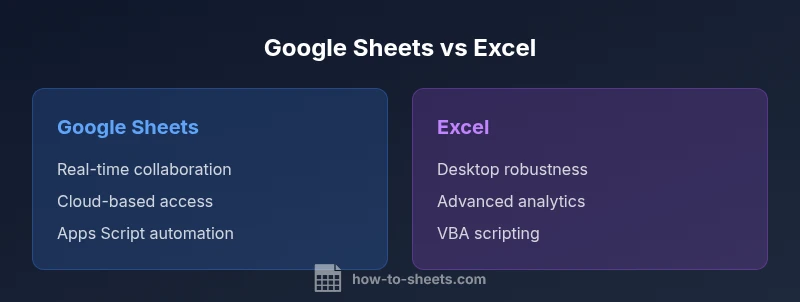
Both Google Sheets and Excel cover the core spreadsheet needs—summaries, filters, and a large set of functions. Sheets is strong for lightweight data work and rapid sharing: you’ll find functions like ARRAYFORMULA and IMPORTRANGE useful for building dynamic pipelines across sheets and even across documents. Excel, on the other hand, remains a powerhouse for deep analytics, complex modeling, and desktop-driven workflows, with advanced features like PivotTables, Power Query, and robust macro support via VBA. Apps Script provides a modern, JavaScript-based automation path in Sheets, paralleling VBA’s long-standing role in Excel. In practice, many teams use Sheets for day-to-day data collection and lightweight analysis, while reserving Excel for heavy data modeling and traditional reporting—especially when working with large, enterprise-grade datasets.
Data handling, performance, and scalability
Data scale and performance often drive the choice between Sheets and Excel. Google Sheets excels in quick, shared work across devices with automatic cloud synchronization. It remains highly usable for multi-user editing, dashboards, and small-to-midsize datasets. Excel generally handles extremely large datasets and complex data models more robustly on a desktop or in a tightly controlled cloud environment, thanks to its powerful calculation engine and offline capabilities. Practically, if your workbook sits in a single team workflow with frequent updates, Sheets keeps the process smooth. If you’re running a large warehouse of data with heavy pivot tables and custom analytics, Excel’s performance profile tends to be more predictable. The trade-off is that Sheets favors accessibility and collaboration, while Excel prioritizes raw data crunching power.
Automation, scripting, and add-ons
Automation is a central differentiator. Google Sheets uses Apps Script, a lightweight, cloud-friendly scripting environment that integrates tightly with other Google Workspace tools. Excel uses VBA (and more recent integrations with JavaScript-based Office Scripts) for automation and customization. For teams already embedded in Google Workspace, Sheets + Apps Script offers a seamless automation stack: trigger-based workflows, custom functions, and cross‑document data flows. In contrast, Excel’s automation ecosystem is deep and mature, especially for enterprises relying on macro-heavy processes and legacy spreadsheets. When deciding, map your routine tasks—data cleaning, repetitive formatting, and report generation—and choose the platform that minimizes manual steps in your preferred environment.
Offline access and reliability
Offline capabilities shape how a spreadsheet tool fits your daily routine. Google Sheets is primarily cloud-first, and while it supports offline editing, the experience hinges on browser caching and connectivity. In a team setting, that can be enough for on-the-go edits, but it may introduce occasional delays when re‑synchronizing. Excel’s desktop application offers robust offline reliability, full feature parity in many cases, and predictable performance without an internet connection. If your team often works in environments with spotty connectivity, Excel’s offline strength can be a decisive advantage. For remote or hybrid teams, Sheets works best when paired with a reliable internet connection and a well-defined offline plan.
Interoperability: import, export, and cross-platform workflows
Interoperability matters when teams share files across platforms. Google Sheets can import and export XLSX, CSV, and other common formats, and it integrates well with Google Drive, Docs, and Slides. Excel supports XLSX, CSV, and a broad range of Office formats, with powerful data exchange through Office 365 and OneDrive. The ability to move between Sheets and Excel is smoother when you plan upfront: standardize on common formats, test formula compatibility, and validate macros if you rely on automated processes. For teams migrating flows, Sheets serves well for initial data capture and lightweight analysis, while Excel remains the go-to for advanced transformation and pivoting on large datasets.
Cost, deployment, and ecosystem fit for teams
Cost considerations often tip the balance. Google Sheets is included with Google Workspace, so teams already paying for a cloud productivity suite may incur lower marginal costs, especially for collaboration-heavy workloads. Excel typically comes with Office 365 subscriptions or standalone licenses, which can be more expensive for some small teams but include deeper desktop analytics capabilities. Ecosystem fit matters too: if your broader workflow hinges on Google apps (Gmail, Drive, Meet), Sheets integrates smoothly. Conversely, if your organization relies on Windows-based software stacks and VBA-driven workflows, Excel’s ecosystem provides a familiar environment with extensive enterprise tooling. In short, choose Sheets for collaborative, cloud-first teams and Excel for data-intensive, offline-focused environments.
Practical decision framework: when google sheets is better than excel
A practical rule of thumb: choose google sheets is better than excel when collaboration, cross-device access, and quick sharing are your top priorities. If your work involves complex data modeling, heavy VBA automation, or offline-only tasks, Excel remains the stronger option. Consider a hybrid approach: use Sheets for data collection and early-stage analysis, then migrate critical work to Excel for heavy computation and formalized reporting. In real-world scenarios, most teams benefit from evaluating both tools across a few representative tasks before committing to a single platform. The goal is to minimize friction and maximize throughput without sacrificing accuracy.
Migration tips: moving from Excel to Google Sheets
When migrating from Excel to Google Sheets, start with a small pilot workbook to identify function compatibility and formula adjustments. Validate critical formulas, Conditional Formatting rules, and macros (if you rely on Apps Script equivalents). Use Import tools to bring data into Sheets and test edge cases in a sandbox environment. Educate users on Sheets-specific features, such as real-time collaboration, sharing permissions, and version history, to set expectations. Plan a staged rollout: begin with non-sensitive, non-mission-critical workstreams, then expand to broader datasets as confidence grows. A thoughtful migration minimizes disruption while unlocking cloud-based collaboration advantages.
Comparison
| Feature | Google Sheets | Excel |
|---|---|---|
| Real-time collaboration | Excellent cloud-based editing with live updates | Good but more desktop-centric; improved with Office 365 |
| Offline access | Strong online-first experience; offline supported | Robust offline capability with desktop app |
| Scripting and automation | Apps Script; JS-based automation in the cloud | VBA and Office Scripts; mature macro support |
| Formulas and functions | Broad set of functions; strong for lightweight workflows | Extensive suite of advanced analytics and data modeling |
| Data capacity and performance | Excellent for typical team datasets; performance scales with data size | Handles very large datasets with predictable performance |
| Add-ons and ecosystem | Integrates with Google Workspace and many add-ons | Rich Office ecosystem; thousands of plugins and integrations |
| Import/export compatibility | Import from and export to XLSX/CSV; good cross-platform flow | Native support for XLSX/CSV; seamless import/export |
| Cost and deployment | Often lower cost for cloud-centric teams; part of Google Workspace | Licensing varies; desktop and cloud options; potential higher upfront for some teams |
The Good
- Seamless real-time collaboration and sharing
- Cloud-first access from any device
- Lower upfront costs for many teams
- Tight integration with Google Workspace apps
- Simple distribution and automatic updates
The Bad
- Limited support for very large datasets compared to Excel
- Offline reliability can lag behind desktop Excel for heavy tasks
- Advanced analytics and modeling features can be shallower
- Macro and scripting maturity vary by use case
Google Sheets dominates in collaboration and cloud-first workflows; Excel remains superior for offline work and advanced analytics.
For teams prioritizing collaboration and rapid iteration, Sheets is the practical choice. If your work hinges on offline access or complex, enterprise-grade data modeling, Excel offers stronger capabilities. The best decision balances workflow needs with data requirements.
FAQ
Is google sheets better than excel for collaboration?
For collaboration-heavy work, Google Sheets generally offers a smoother, cloud-first experience with real-time editing and straightforward sharing. Excel has catching up with cloud features, but Sheets remains the more fluid option for multi-user scenarios.
Yes, for teamwork and real-time editing, Google Sheets is typically the better choice; Excel is improving but Sheets leads in collaboration.
Can Google Sheets handle complex data models like Excel?
Google Sheets can handle many complex models, but Excel still holds an edge for very large datasets and advanced analytics. Use Sheets for lightweight modeling and data gathering, and switch to Excel for heavy computation when needed.
Sheets works well for most complex tasks, but Excel shines with heavy analytics.
What about offline usage?
Excel’s desktop application offers robust offline performance with full feature parity for many tasks. Google Sheets offline mode exists but relies on caching and network reliability, which can affect performance.
Excel is typically stronger offline; Sheets offline is good, but depends on connectivity.
Does Excel offer real-time collaboration?
Yes, Excel offers real-time collaboration through Office 365, but the experience can be less seamless than Google Sheets for concurrent edits across devices. Real-time features are growing in parity.
Excel now supports real-time collaboration, though Sheets often feels smoother for multi-user work.
Which should a student start with?
Students often benefit from Google Sheets for sharing and quick projects, but Excel can be useful for learning traditional analytics skills and coursework that require desktop-grade tools.
If you value collaboration and accessibility, start with Sheets; for deep analytics, try Excel too.
Can data migration be seamless between the two?
Migration can be straightforward for many tasks by exporting/importing XLSX or CSV files. Some formulas and macros may require adaptation, so test key workflows during a pilot run.
Migration is doable, but test your formulas and scripts first.
The Essentials
- Adopt Sheets for teams needing real-time collaboration
- Use Excel when offline work and advanced analytics are essential
- Plan migration with careful compatibility testing
- Leverage scripting: Apps Script vs VBA for automation