Google Sheets Mail Merge: A Practical Guide
Learn how to perform a mail merge in Google Sheets using Gmail templates, with a complete step-by-step guide, templates, and best practices for safe, scalable outreach.


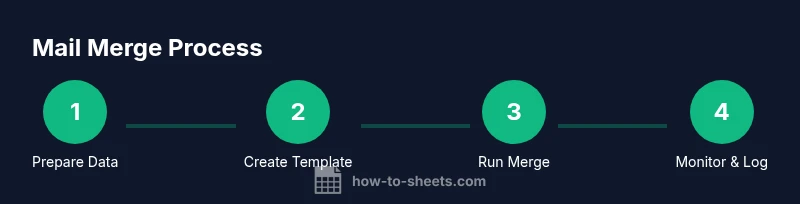
By the end you will be able to run a mail merge in Google Sheets to send personalized emails. You’ll prepare your data, craft a Gmail template, and automate the send with Google Apps Script or a trusted add-on. This guide covers testing, error handling, and scalable practices for professional outreach.
What is Google Sheets mail merge?
Google Sheets mail merge is a process that combines data from a spreadsheet with a Gmail draft to produce individualized emails for many recipients. It enables you to personalize each message using placeholders tied to your data columns, such as first name, company name, or order number. According to How To Sheets, the approach blends data organization with automation to save time while maintaining a human touch. This article explains how to design a reliable, scalable workflow that respects privacy and best practices for outreach.
Why use mail merge in Sheets?
A mail merge in Google Sheets can dramatically increase the efficiency of outreach, fundraising campaigns, event invitations, or customer communications. Personalization typically improves engagement, opening rates, and response quality because each recipient receives content tailored to their context. The combination of Sheets for data and Gmail for delivery creates a flexible system that teams can adjust as needs evolve. The How To Sheets team notes that a well-structured merge reduces manual sending and minimizes human error, making it ideal for students, professionals, and small business owners who rely on practical, repeatable templates.
Prerequisites and setup overview
Before you start, ensure you have a Google account with Gmail access and permission to contact recipients. You’ll need a Google Sheet that contains the data you want to merge (names, emails, and any personalized fields) and a Gmail draft or template with placeholder tokens. It’s important to confirm consent and comply with privacy rules when sending bulk communications. This section outlines the high-level steps and sets expectations for data cleanliness, template design, and automation options that fit your risk tolerance and scale.
Data structure and template design
Organize your data with clearly labeled columns (e.g., Email, FirstName, LastName, Company, EventDate). Use a consistent placeholder syntax in your template, such as {{FirstName}} or {{Company}}, and ensure there are no stray spaces in your data. Placeholders should exactly match your column headers to avoid misreplacement. Build a Gmail draft that includes a subject line and body with placeholders, and consider adding a confirmation line or unsubscribe option to meet best practices.
The send flow and automation options
There are two common paths for Google Sheets mail merges: using Google Apps Script to script the merge and send, or using an add-on that handles the merging workflow through a user-friendly interface. Apps Script provides maximum control and customization, including error handling and logging. Add-ons offer quick setup with guided wizards but may introduce dependency on external tools. Both approaches require proper authorization scopes and attention to Gmail sending limits and quota guidance.
Safety, privacy, and compliance considerations
Respect recipient privacy by obtaining consent and providing an easy opt-out method. Never share sensitive data beyond what is necessary for the message, and keep a secure record of who has received what. When storing data in Sheets, restrict access to authorized users and enable protection on critical cells or sheets. Following these practices helps you stay compliant and reduces the risk of data breaches or misdelivery.
Troubleshooting common issues
Common problems include placeholders not matching data headers, invalid email addresses, or permission prompts that block the script from sending. Verification steps such as data cleaning (trim spaces, standardize emails), testing with a small batch, and logging results can help you pinpoint failures quickly. If you hit Gmail sending limits, pause the campaign, and stagger your sends. Always review error messages from Apps Script or the add-on logs for actionable insights.
Best practices for reliable mail merges
Adopt a repeatable, documented workflow: color-code data columns, maintain a master template, and test in a dedicated sandbox sheet before production. Use a testing pass with a subset of recipients to verify replacements and links. Keep a record of what was sent and when, so you can monitor outcomes and optimize future campaigns. The How To Sheets team recommends building in checkpoints and safeguarding personal data at every step.
Real-world use cases and templates
Educational institutions can invite students to events with personalized invitations, small businesses can send order confirmations with personalized details, and nonprofits can send donation acknowledgments that reference donor names. Build templates that map each placeholder to its corresponding column, then reuse the same data structure across campaigns to reduce setup time. Reusable templates save effort and ensure consistency across communications.
Tools & Materials
- Google account with Gmail access(Ensure you have permission to email recipients and access to Gmail from the account.)
- Google Sheets data sheet(Columns for Email, FirstName, LastName, and any personalized fields.)
- Gmail draft/template with placeholders(Placeholders should match sheet headers (e.g., {{FirstName}}).)
- Google Apps Script or an add-on(Apps Script offers full control; add-ons provide quicker setup (e.g., Yet Another Mail Merge).)
- Test recipient list(Use a small, controlled group to validate the merge before broader send.)
Steps
Estimated time: 60-90 minutes
- 1
Prepare data in Google Sheets
Create a clean data sheet with headers for each field you will insert into the email. Remove duplicates, validate emails, and ensure placeholders in your template will map exactly to header names.
Tip: Use data validation rules to prevent invalid emails from being saved. - 2
Create Gmail draft with placeholders
Draft the email body and subject, inserting placeholders like {{FirstName}} and {{Company}} wherever personalization is desired. Save as a draft for easy access by the merge script.
Tip: Keep placeholders consistent and test with a sample row. - 3
Open Apps Script or choose an add-on
In Sheets, open Apps Script or install a merge add-on. Authorize access to Gmail and Sheets so the script can read data and send messages.
Tip: If using Apps Script, enable the Gmail service in your project. - 4
Write or configure the merge function
Implement a function to read each row, replace placeholders with data, and send or queue the email. Include error handling to skip bad rows and log failures.
Tip: Test replacement with a row containing all fields filled. - 5
Run a test merge on a small batch
Execute the merge using a limited recipient list to verify placeholder substitution, subject accuracy, and link validity. Confirm delivery and content alignment.
Tip: Check sent mail folder or label to confirm activity. - 6
Review logs and adjust
Inspect logs for failed rows, rate-limit messages, and any permission prompts. Correct data or code where necessary before proceeding.
Tip: Add logging for key fields to simplify troubleshooting. - 7
Run the full merge with safeguards
Execute the full campaign in phases if possible, monitor progress, and pause if unexpected errors occur. Maintain a back-up of the data.
Tip: Never run a full blast without a staged rollout. - 8
Post-send verification and follow-up
Confirm that emails were received, trackers opened, and links worked. Plan a follow-up in a separate message if needed.
Tip: Use analytics to decide on follow-up timing. - 9
Document the process for future use
Create a reproducible template and notes on any tweaks you made. Share a guide with teammates to streamline future campaigns.
Tip: Version your script and templates.
FAQ
What is Google Sheets mail merge?
Google Sheets mail merge personalizes bulk emails by pulling recipient data from a sheet and injecting it into a Gmail draft. It combines data management with message templating to scale outreach while keeping each email individualized.
Mail merge personalizes bulk emails by pulling data from your sheet into a Gmail draft.
Do I need Google Apps Script to perform a mail merge?
Apps Script provides a flexible, programmable way to perform merges and sends. You can also use dedicated merge add-ons that offer guided setup and built-in error handling.
Apps Script is often used, but add-ons can simplify setup.
Is it safe to send many emails with this setup?
Yes, when you have recipient consent, a clean data set, and proper error handling. Always test first and monitor deliverability to avoid spam flags.
Yes, with consent, testing, and careful monitoring.
Which add-ons work well for mail merge in Sheets?
Popular options include merge-focused add-ons that provide templates and scheduling. Evaluate features like personalization tokens, sending limits, and logging before choosing.
There are several popular add-ons that help with templates and sending.
What are common errors in Sheets mail merge?
Mismatched placeholders, invalid emails, or permission prompts can halt a merge. Check data headers, validate addresses, and ensure script permissions are granted.
Common issues include placeholder mismatches and permission prompts.
How can I test a mail merge safely?
Run a test with a small set of verified emails and review the final content before you scale. Use a separate label or folder to track test sends.
Test with a small, verified list and review the results.
Watch Video
The Essentials
- Plan data structure before merging.
- Test thoroughly before sending any emails.
- Respect privacy and obtain consent.
- Choose Apps Script for control or a trusted add-on for speed.
- Monitor results and iterate for improvements.