Mail Merge on Google Sheets: A Practical Step-by-Step Guide
Learn how to perform a mail merge using Google Sheets and Gmail. This guide covers data prep, template design, and safe sending with Apps Script or add-ons.


You will learn how to run a mail merge using Google Sheets and Gmail to send personalized emails. This guide covers data setup, template creation, and safe sending practices. We’ll show options with Apps Script and popular add-ons so you can choose the right path. We’ll also discuss limits, privacy considerations, and how to test before sending.
What is mail merge on Google Sheets and why use it?
Mail merge on Google Sheets is the process of sending personalized emails to many recipients by pulling data from a spreadsheet into an email template. When you combine a data source with a draft message, each recipient receives a message that includes their name, company, or other fields. According to How To Sheets, this approach scales outreach while keeping your messages personal, which improves engagement and response rates. A typical workflow uses Google Sheets as the data source and Gmail as the sending channel, optionally aided by Apps Script or a merge add-on. This method is ideal for student project outreach, client communications, or team updates where personalization matters but manual sending would be impractical.
In the context of mail merge on google sheets, you combine fields like First Name, Last Name, Email, and Company with a single email template. You can design both the data and the message to maintain consistency while enabling individualized touches. The key is planning your data model first and validating email addresses to minimize bounces. By understanding the data you’re merging and the channels you’ll use, you set up a scalable process that saves time and reduces manual effort.
For learners and professionals, the concept is straightforward: data-driven personalization at scale. The How To Sheets approach emphasizes a clean data source, a reusable template, and a safe sending strategy that respects user privacy and Gmail limits. Whether you’re a student reaching out for a class project, a freelancer sending proposals, or a small business emailing customers, a well-structured mail merge on google sheets can be a powerful productivity tool.
Tools & Materials
- Computer with internet access(Stable connection for editing Sheets and running scripts)
- Google account with access to Gmail(Needed to send emails and access Gmail/Sheets)
- Google Sheets document(Prepare a data sheet with recipient fields (Email, FirstName, etc.))
- Email template (HTML or plain text)(Include placeholders like {{FirstName}} or {{Company}})
- Optional: Mail merge add-on or Apps Script environment(Choose if you prefer a no-code add-on or a custom script)
Steps
Estimated time: 45-60 minutes
- 1
Prepare data and template
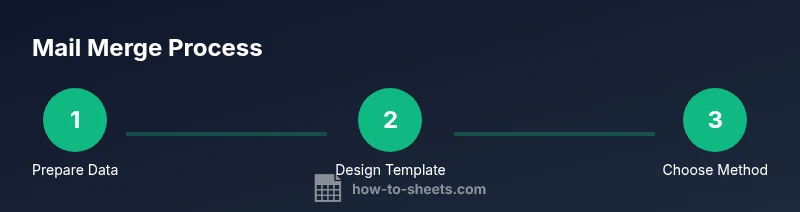
Create a clean data sheet with required fields such as Email, FirstName, LastName, and any custom fields you want to merge. Design an email template that uses placeholders for those fields, using either double curly braces or a simple tag system. Validate a few sample rows to ensure names and emails render correctly.
Tip: Keep column headers exact and avoid special characters that could break placeholders. - 2
Create the merge template
Draft your email message in HTML or plain text. Include dynamic placeholders corresponding to your data columns (e.g., {{FirstName}}, {{Company}}). If you plan to attach documents, decide where to reference them and ensure permissions are set for recipients.
Tip: Test placeholders with your own data to confirm they render as expected. - 3
Choose sending method
Decide between a Google Apps Script approach (custom, flexible) or a merge add-on (simpler, quicker). Apps Script provides full control and is ideal for complex logic; add-ons offer guided interfaces and built-in safety checks.
Tip: If you’re new to scripting, start with an add-on and migrate to Apps Script later. - 4
Map data fields to placeholders
Connect each data column to its corresponding placeholder in the template. Ensure all required fields are present for every recipient to avoid incomplete messages. Use a test row to verify mapping before running the full merge.
Tip: Use a dry-run with a small subset to confirm correctness before sending widely. - 5
Run a test email
Send a test email to yourself or a dedicated test address. Check the rendering, spacing, and any attachments. Confirm that personalization appears correctly and that the subject line is clear and relevant.
Tip: Verify that unsubscribe or opt-out links function if included. - 6
Send and monitor
Execute the mail merge to send all emails. Monitor delivery, bounces, and replies. Consider adding a delay or batching to respect sending limits and reduce throttling.
Tip: Review activity dashboards if using an add-on; with Apps Script, implement logging to track failures.
FAQ
What is mail merge on Google Sheets?
Mail merge on Google Sheets personalizes emails by pulling recipient data from a sheet into a Gmail draft or HTML email. It scales outreach while keeping each message one-to-one.
Mail merge on Google Sheets personalizes emails by pulling data from a sheet into a message, letting you send many customized emails efficiently.
Do I need to know how to code to do this?
Not necessarily. You can use a no-code mail merge add-on, which provides guided steps. If you need more control, Google Apps Script offers a powerful option with programmable logic.
You don’t have to code to start; you can use an add-on, and only code if you need extra customization.
Can I attach files with mail merge?
Yes, mail merge workflows can include attachments by referencing a file from Google Drive or embedding a link to the attachment within the email template. Check the sending method for attachment support.
Yes, you can attach files by linking them in your email, depending on the method you choose.
Are there limits to how many emails I can send?
Gmail imposes sending limits that vary by account type. Plan bursts and batching to respect these limits and reduce the chance of throttling or flags.
There are sending limits; space out sends to avoid issues.
How do I test the merge safely?
Use a test row and a test email address to verify rendering, placeholders, and subject lines before sending to the full list. Review any unsubscribe links and privacy notices.
Always test with a small group before the full rollout.
What about data privacy and consent?
Ensure you have consent from recipients, store data securely, and provide an easy opt-out. Avoid sharing sensitive data beyond what’s necessary for personalization.
Respect privacy and provide an opt-out option in every message.
Watch Video
The Essentials
- Plan data and template before merging
- Choose the right sending method (Apps Script vs add-on)
- Test thoroughly and monitor deliverability
- Follow privacy and compliance guidelines