How to Manually Refresh Google Sheets Data: A Practical Guide
Learn how to manually refresh data in Google Sheets. This practical guide covers refreshing imports, recalculating formulas, and validating results to keep shared sheets accurate.


By the end, you'll be able to refresh data in Google Sheets manually, including re-evaluating formulas, re-imported ranges (like IMPORTRANGE), and recalculating pivot data. You'll learn when to refresh, how to spot stale results, and best practices to avoid disrupting collaborators.
Why manual refresh matters in Google Sheets
Manual refresh is essential in collaborative environments where multiple people edit a sheet and data sources update at irregular intervals. Without timely refresh, team decisions may be based on stale numbers, leading to misinformed actions or missed opportunities. The How To Sheets team found that teams that implement a deliberate refresh routine tend to maintain data integrity and reduce miscommunication. In practice, a well-timed refresh helps ensure everyone works from a single, up-to-date view, which improves trust and workflow efficiency. This section explains why you should treat data refresh as an intentional, repeatable step rather than a passive background process. By embracing a structured refresh habit, you keep key metrics reliable even as sources shift.
Understanding data sources that require refresh in Google Sheets
Links to external data in Sheets come from several sources, each with its own refresh behavior. IMPORTRANGE pulls data from another Google Sheet and may need reauthorization if permissions change. Functions like IMPORTDATA, IMPORTXML, or QUERY with external endpoints may recalculate when the source data updates or when the sheet is opened again. Pivot tables and charts derived from these ranges can also reflect refreshed values once their underlying data is updated. Understanding which formulas pull from live sources helps you plan when and how to refresh. In practice, you should document the data connections in your sheet so teammates know what needs reloading and when.
Common refresh scenarios and what to expect in Google Sheets
External refresh scenarios occur most often with shared data sources and imported ranges. When a source changes, the dependent cells may recalculate automatically, but not always instantly for all users. If you see stale totals in a shared sheet, a manual refresh is usually required. Some users encounter prompts asking for permission to access data again after changes in permissions. In those cases, reauthorizing the connection restores data flow. It’s also common to see caching delays; refreshing the browser or re-entering formulas can help force an update. This section prepares you for the typical patterns you’ll encounter.
Step-by-step workflow for manual refresh (high-level overview)
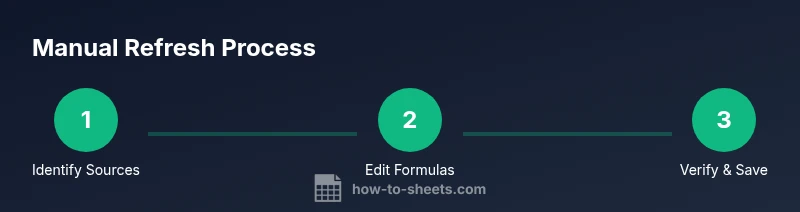
To refresh data manually, start by identifying all sources that fetch external data. Then, for each source, re-enter or edit the formula to trigger a recalculation, reauthorize connections if prompted, and verify updated values. If you rely on a script or add-on for refreshing, ensure it runs without disturbing other collaborators. Finally, communicate the refresh to your team and note any data changes. The following steps provide a concrete, repeatable process you can follow in any shared sheet.
Troubleshooting common refresh issues and how to prevent them
If data remains stale after a refresh, inspect permissions and data source availability. A misconfigured range or a broken link can prevent an update from propagating. Network issues can also delay refresh, particularly for large ranges or external endpoints. When problems persist, check for conflicting edits, and consider performing the refresh during a designated maintenance window to minimize disruption. Proactive monitoring—such as a simple change log—helps you catch issues early and reduce downtime for your stakeholders.
Best practices to minimize manual refresh needs in Google Sheets
Build reliability by minimizing dependencies on slow external sources, keeping data requests efficient, and documenting every refresh step. Where possible, consolidate imports into a single data source and set expectations with teammates about refresh timing. Use named ranges and clear formulas so others can understand and reproduce the refresh. Finally, consider scheduled refresh agreements and versioning for critical sheets to avoid last-minute surprises.
Tools & Materials
- Stable internet connection(A reliable connection reduces mid-refresh interruptions.)
- Google account with access to the sheet(Needed to authorize and refresh data sources.)
- Target Google Sheet with external data connections(Identify IMPORTRANGE/IMPORT* data ranges in use.)
- Notes or data map of sources(Helpful for tracking which formulas pull from where.)
- Optional: Google Apps Script editor(Useful for bulk refresh scripts if needed.)
Steps
Estimated time: 20-40 minutes
- 1
Identify external data sources
Open the Google Sheet and scan for cells that pull data from other sheets or external endpoints (IMPORTRANGE, IMPORTDATA, IMPORTXML, or QUERY with external references). Mark these ranges so you know what to refresh. This step is about building awareness, not executing changes yet.
Tip: Tip: use the Find tool to locate formulas containing IMPORTRANGE or IMPORT. - 2
Edit and re-enter a refreshing formula
For each external data formula, double-click the cell, make a minor edit (e.g., add a space or a +0), and press Enter to re-enter. This triggers a recalculation and fetches the latest data from the source.
Tip: Tip: avoid large edits that overwrite your data; keep changes minimal to force recalculation. - 3
Re-authorize connections if prompted
If Google Sheets prompts for permission to access a data source, grant the authorization. Without approval, the refresh cannot complete and data will not update.
Tip: Tip: keep the authorization permissions documented so teammates understand why access was granted. - 4
Optionally run a bulk refresh via Apps Script
If you maintain multiple external sources, you can run a simple Apps Script to refresh all at once. This is an optional step for power users who need consistent, repeatable refresh behavior.
Tip: Tip: test scripts on a copy of the sheet before running in production. - 5
Validate refreshed data
Spot-check key cells to ensure values update as expected. Compare a few results against the source data or a trusted report to confirm accuracy.
Tip: Tip: create a small reconciliation table to automate checks next time. - 6
Communicate the refresh to collaborators
Add a comment or note in the sheet describing what was refreshed and when. This helps teammates understand the data's current state and reduces confusion during collaboration.
Tip: Tip: reference the changes in a changelog tab or sheet notes.
FAQ
What is manual refresh in Google Sheets?
Manual refresh means actively triggering data updates in a sheet, rather than relying on automatic refresh cycles. It typically involves re-entering formulas, reauthorizing data sources, or running a script to pull fresh data.
Manual refresh means you actively trigger data updates by re-entering formulas or reauthorizing connections.
How do I refresh IMPORTRANGE data manually?
IMPORTRANGE data updates when the source sheet changes or when you re-authorize the connection. To force a refresh, edit the formula or re-enter the cell contents, then re-authorize if prompted.
For IMPORTRANGE, re-enter the formula or edit the cell to force an update, and reauthorize if asked.
Does Google Sheets auto-refresh data from external sources?
Google Sheets does refresh external data periodically, but the exact timing isn't guaranteed. If you need up-to-the-minute accuracy, perform a manual refresh.
Sheets refreshes sometimes automatically, but you should perform manual refresh when you need precise up-to-date data.
Can I refresh data when offline?
Manual refresh requires an online connection to fetch new data. If you’re offline, you won’t be able to pull fresh data until you reconnect and refresh again.
You need an online connection to refresh data; offline work won’t update external sources.
What are best practices to avoid stale data in shared sheets?
Limit external dependencies, document data sources, schedule refresh windows, and communicate results to teammates. Use versioning where possible to track changes.
Limit dependencies, document sources, and schedule refresh windows to keep data fresh.
Is there a one-click refresh button in Google Sheets?
There is no universal one-click refresh for all data sources. Depending on the data, you may need to edit formulas, reauthorize, or run a script to refresh multiple ranges.
There isn't a single button for all data—use formulas, scripts, or reauthorization to refresh.
Watch Video
The Essentials
- Refresh external data sources before decisions
- Re-enter formulas to trigger recalculation
- Authorize data connections when prompted
- Validate results with quick checks
- Communicate refresh results to teammates