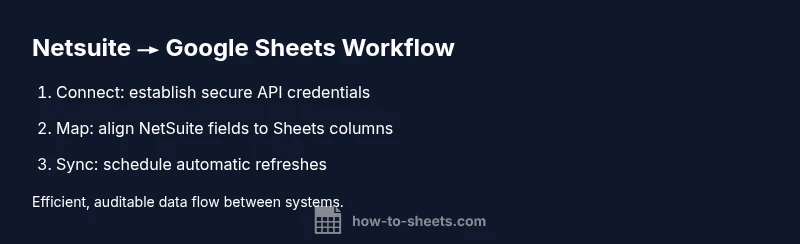
Netsuite Google Sheets Integration: A Practical Step-by-Step Guide
Learn how to securely connect netsuite google sheets integration to Google Sheets with a practical, code-free workflow. This guide covers authentication, data mapping, scheduling, and troubleshooting for SMBs, students, and professionals.


Goal: achieve seamless data flow between netsuite google sheets integration and Google Sheets. This guide shows how to connect NetSuite to Sheets, map fields, schedule automatic refreshes, and handle errors using native options or trusted connectors. You’ll learn when to use each approach and best practices for security and data integrity.
Why netsuite google sheets integration matters
In today’s data-driven environment, teams of students, professionals, and small business owners rely on timely data from NetSuite to inform decisions. A well-implemented netsuite google sheets integration reduces manual exports, minimizes errors from copy-paste workflows, and accelerates financial and operational reporting. According to How To Sheets, establishing a robust integration lowers repetitive tasks and improves data visibility across teams. By linking NetSuite records—such as customers, orders, and invoices—with Google Sheets, you can build live dashboards, run ad hoc analyses, and share insights with stakeholders in real time. When designed correctly, the integration supports audit trails, version control, and role-based access, all of which bolster governance while keeping the process approachable for non-technical users. The focus here is practical, not theoretical: you’ll learn concrete methods that fit common business needs and scale with your organization. The netsuite google sheets integration you implement should align with your data strategy, security posture, and reporting cadence, and it should be easy to maintain as your NetSuite schema evolves. For ongoing guidance, the How To Sheets team recommends starting with a small pilot and gradually expanding to cover core entities like customers, items, and transactions.
Getting started: choose your integration approach
There are several viable paths to connect netsuite google sheets integration with Google Sheets, each with its own trade-offs. You can start with a native export/import workflow, leverage NetSuite RESTlets or SuiteTalk for programmatic access, or use a third-party connector that abstracts the API complexity. Native options are often best for simple, one-way data pulls and environments with strict security controls. RESTlets and SuiteTalk enable more customization and two-way data exchanges, but require more development effort and governance. Third-party tools (such as data integration platforms and Google Workspace add-ons) can dramatically shorten setup time and provide built-in error handling, scheduling, and retries, which is ideal for non-developers. When choosing an approach, consider data volume, refresh frequency, required latency, and whether you need push-back capabilities from Sheets to NetSuite. Based on How To Sheets analysis, many teams favor a phased approach: start with a read-only extract for reporting, then advance to automated updates and, if needed, later add write-back capabilities with proper controls.
Data mapping and schema design
A successful netsuite google sheets integration hinges on consistent data mapping and a well-defined schema. Start by listing the NetSuite fields you need (for example, Customer ID, Customer Name, Order Date, Amount) and decide which Google Sheets columns will receive them. Keep date formats consistent across systems, standardize currency representations, and ensure IDs remain immutable identifiers. Create a master sheet named for your sync (e.g., NetSuite Sync) and a clear header row that matches your mapping. Where possible, favor lean, stable fields over transactional deltas to reduce complexity. For multi-record relationships (like an order with line items), plan whether you’ll pull a summary per row or flatten into multiple rows with a normalized design. Document the mapping rules, including any transformations (e.g., currency conversion, date formatting), so future maintainers can reproduce or adjust the integration without ambiguity.
Security, authentication, and compliance considerations
Security is a core concern in any netsuite google sheets integration. Use secure credentials management, avoid embedding secrets directly in Sheets, and prefer OAuth-based auth or API tokens with restricted scopes. If you use a third-party connector, review its data handling policies, uptime commitments, and audit capabilities. Limit data exposure by adopting least-privilege access for NetSuite users and by implementing row-level permissions in Sheets where feasible. Keep your integration logging enabled for troubleshooting, but avoid exposing sensitive information in logs. Regularly rotate credentials and monitor for unusual activity. A cautious, well-documented approach helps protect sensitive financial data while enabling productive collaboration across teams.
Troubleshooting common issues and best practices
Even well-planned netsuite google sheets integration projects encounter challenges. Common issues include mismatched field types, API rate limits, and authentication timeouts. To minimize disruption, implement incremental tests, start with a small dataset, and verify each mapping as you go. Use versioned templates and maintain a changelog for schema updates. When errors occur, check API quotas, review access permissions, and inspect the transformation logic for data type incompatibilities. Keep a backup of the source data before major changes, and establish a rollback plan so you can revert to a stable state if needed.
Tools & Materials
- NetSuite access with API role(Admin or API-enabled role; ensure RESTlet/SuiteTalk permissions if used)
- Google account with Google Sheets(Create a target workbook and a dedicated sheet for the sync)
- API credentials (OAuth or token-based)(Store securely; restrict scopes to required data only)
- Connector option (optional)(Examples: Coupler.io, Skyvia, Zapier, or native Google Sheets add-ons)
- Data mapping plan(Document mappings, transformations, and validation rules)
- Test dataset(A small subset of records to validate the workflow before full roll-out)
Steps
Estimated time: 1-3 hours (pilot), scalable to longer engagements for full production
- 1
Prepare accounts and permissions
Verify you have admin or API access in NetSuite and a Google account with Sheets permissions. Review the entities you’ll sync (customers, items, invoices) and confirm data sensitivity. This prepares the ground for a secure connection and avoids mid-project access issues.
Tip: Document your access levels and share them with stakeholders before starting. - 2
Choose integration approach
Decide between a native export/import, a RESTlet-based API, or a third-party connector. Consider data volume, need for real-time updates, and whether push-back to NetSuite is required. Start with the simplest option that meets your needs.
Tip: If you’re new to API-based flows, a connector can save time and reduce complexity. - 3
Create credentials for API access
Set up OAuth or token-based credentials in NetSuite, restricting scopes to the necessary resources. Record the client ID, client secret, or token credentials securely for the connector or custom code.
Tip: Use a dedicated credential set for the Sheets integration and rotate credentials periodically. - 4
Configure connection in Google Sheets
Install or configure your chosen connector or set up a custom script/add-on to connect Sheets to NetSuite. Provide the credentials and define the base API endpoint or RESTlet URL. Test the connection with a small data pull.
Tip: Enable logging during initial tests to capture troubleshooting details. - 5
Map fields and design the schema
Create a mapping table that aligns NetSuite fields with Sheets columns. Ensure data types (dates, numbers, currencies) are compatible, and define transformation rules (e.g., date formats). Save this as a reusable schema for future updates.
Tip: Keep a separate sheet for mapping rules to simplify future changes. - 6
Set up data refresh schedule
Configure automatic refresh intervals based on business needs. Decide whether to pull on a schedule or trigger via events. Document the refresh cadence and the expected latency.
Tip: Start with a conservative cadence and adjust after validating stability. - 7
Validate results and monitor
Compare a sample of NetSuite records with the corresponding Sheets rows to confirm accuracy. Monitor for failures, implement alerts, and refine mappings as needed.
Tip: Establish a rollback path and backup plan before full deployment.
FAQ
What is netsuite google sheets integration?
Netsuite Google Sheets integration is the process of connecting NetSuite data to Google Sheets so you can view, analyze, and share live or scheduled data within Sheets. It can be achieved with native exports, API-based connections, or third-party connectors.
Netsuite to Sheets connects NetSuite data to Google Sheets for live viewing and analysis.
Which method is best for beginners?
For beginners, a trusted third-party connector or add-on is often the fastest path, providing guided setup and built-in error handling while preserving security and audit trails.
A trusted connector is usually the easiest way to start.
Can data be pushed from Sheets back to NetSuite?
Yes, with write-back capabilities using RESTlets or connectors that support bidirectional flows, but this requires careful governance, validation rules, and restricted permissions.
Write-back is possible but should be tightly controlled.
How often should data be refreshed?
Refresh frequency depends on business needs and API quotas. Start with a conservative schedule and adjust as you validate accuracy and performance.
Choose a frequency that balances freshness with reliability.
What security considerations are most important?
Use OAuth or tokens with restricted scopes, avoid embedding secrets in Sheets, and monitor access using role-based permissions and audit logs.
Limit access, rotate credentials, and monitor activity.
What if I encounter API rate limits?
If rate limits occur, implement incremental fetches, staggered schedules, or a connector’s built-in throttling and retry features.
Throttle requests and use retries when limits hit.
Is it harder to maintain a 2-way integration?
Two-way integrations are more complex and require stronger data governance, conflict resolution strategies, and robust testing before deployment.
Two-way flows are more complex and require governance.
Watch Video
The Essentials
- Plan data scope before connecting Netsuite and Sheets
- Choose an integration approach that matches your needs
- Map fields precisely and validate data regularly
- Automate safely with authentication, logging, and alerts