Google Sheets with n8n: A Step-by-Step Guide
Learn to connect Google Sheets with n8n to automate data flows, updates, and reporting. This step-by-step guide covers setup, authentication, and practical automation scenarios.


This guide shows how to connect Google Sheets with n8n to automate data flows, updates, and notifications. You’ll need a Google account, an active n8n instance, and proper API access. By the end, you’ll have a repeatable workflow to pull data from Sheets, push updates, and trigger actions across apps without manual clicks.
Prerequisites and setup basics
Getting started with google sheets with n8n requires careful planning and the right accounts. Before you build, verify you have access to Google Sheets and to an n8n instance (cloud or self-hosted). You’ll also need to create a Google Cloud project and enable the Sheets API, plus configure OAuth credentials for secure access. According to How To Sheets, a successful integration starts with a clear data model and permission levels. Define which sheets, ranges, and operators your workflow will touch to minimize risk and simplify debugging. Finally, prepare a test sheet with a few rows of sample data to experiment safely. This foundation helps you avoid common misconfigurations and speeds up troubleshooting when you deploy automation into production.
How n8n connects to Google Sheets
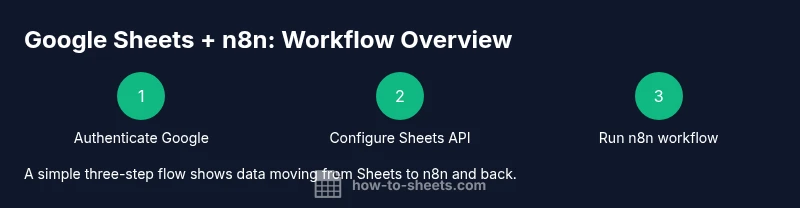
To connect Google Sheets with n8n, you first set up credentials in Google Cloud and then configure a credential in n8n. In Google Cloud, enable the Sheets API and create OAuth 2.0 credentials. Copy the client ID and secret to use in n8n and complete the OAuth authorization flow. In your n8n instance, choose Google Sheets API as the credential type and authenticate. With credentials in place, you can select the Sheets action you need (read, write, append) and map fields from your sheet to workflow inputs. This connection is the backbone of reliable automation and scales with your sheet data.
Build your first workflow: pull and push data
Start a new workflow in n8n and add a Google Sheets node connected to a trigger (for example, webhook or schedule) to pull data. Then add a second Google Sheets node to push updated rows or append new ones. Configure the range, sheet name, and fields to map between Sheets and your other apps. A simple end-to-end example is importing form responses into a master sheet and sending a notification if a row meets a threshold. Testing the flow on a small dataset will help you catch mapping errors early. As you expand, you can add filters, transforms, and conditional steps to tailor outputs.
Use cases and templates for automating common tasks
Common automation scenarios for google sheets with n8n include syncing form responses to a central sheet, updating dashboards in real time, and notifying teammates when data crosses predefined thresholds. You can craft templates for popular workflows such as: (1) auto-fill sheet cells from an API, (2) export rows to a CSV and email them on schedule, (3) create or update records in a CRM when a row changes, and (4) build approvals where a webhook triggers a status update in Sheets. By starting from a template, you reduce setup time and ensure consistent data handling. How To Sheets analysis shows that templated patterns accelerate adoption and reduce errors when teams scale automations.
Best practices, security, and reliability
Security starts with least privilege: only request the Google Sheets scopes you truly need, and keep credentials secret in your n8n credentials store. Use versioned workflows and maintain a changelog so changes don’t break existing automations. Implement error handling with retries, and log failed runs with enough context to diagnose issues quickly. When dealing with sensitive data, consider masking or encrypting where possible, and review access controls on the Google Sheet itself. Regularly audit API usage and quotas to prevent disruptions during peak hours. These practices help ensure that your google sheets with n8n workflows remain reliable and compliant over time.
Troubleshooting common issues and gotchas
Common issues include OAuth token expiration, incorrect sheet ranges, and mismatched data types between Sheets and your target apps. If a run fails, inspect the n8n node logs for the exact Google API error and verify that the sheet name, range, and columns exist. Ensure your Google Cloud OAuth redirect URI matches your n8n instance. If updates don’t appear, check whether the Sheets API quota has been exceeded and whether the correct credentials are being used in the workflow. Finally, test with a small sample sheet to isolate whether the problem is data-related or configuration-based.
},
Tools & Materials
- n8n instance (cloud or self-hosted)(Ensure your n8n URL is reachable from your network)
- Google account with Sheets access(Used for OAuth and sheet access)
- Google Cloud project with Sheets API enabled(Enable APIs and create credentials)
- OAuth 2.0 client ID and secret(Redirect URI must point to your n8n instance)
- Target Google Sheet(s)(Prepare test sheet with sample data)
- Browser and internet access(For OAuth flows and testing)
Steps
Estimated time: 60-90 minutes
- 1
Set up Google Cloud credentials
Open Google Cloud Console, create a new project, and enable the Google Sheets API. Generate OAuth 2.0 client credentials and note the client ID and client secret. This step establishes the secure authorization path used by n8n.
Tip: Record the OAuth credentials in a secure place and double-check redirect URI matches your n8n host. - 2
Create Google Sheets credential in n8n
In your n8n instance, navigate to Credentials and create a new Google Sheets API credential. Select OAuth 2.0, paste the client ID and secret, and complete the authorization flow. This binds Google Sheets access to your automation workspace.
Tip: Ensure the OAuth consent screen is configured with minimal scope required by your workflow. - 3
Create a new workflow and add Google Sheets nodes
Start a new n8n workflow and add a Google Sheets node to read or write data. Add a second node to perform the complementary action (e.g., read then update). Wire the nodes to reflect your data flow.
Tip: Test with a small sheet and a narrow range before scaling. - 4
Configure triggers and data mapping
Choose a trigger (Webhooks or Schedule) and map sheet columns to workflow inputs. Define the sheet name, range, and operation (read/write/append).
Tip: Use explicit column mappings to avoid data type mismatches. - 5
Test the workflow end-to-end
Run the workflow in a safe test environment, verify data moves correctly between Sheets and any connected apps, and review logs for errors.
Tip: Enable detailed logs during testing to catch subtle mapping issues. - 6
Deploy and monitor
Turn on the workflow for production use and set up alerts for failures or retries. Regularly review run history and adjust scopes as needed.
Tip: Implement retries and clear error paths to maintain reliability.
FAQ
Do I need to code to integrate google sheets with n8n?
No coding is required. n8n provides a graphical interface to assemble nodes and map data between Google Sheets and other apps. Some basic understanding of data formats helps, but most users can build workflows with drag-and-drop configuration.
You don’t need to write code. Use the n8n GUI to connect Google Sheets nodes and map data—it's drag-and-drop with configuration.
Can I trigger workflows from a Google Sheet event?
Yes. You can trigger n8n workflows using webhooks or scheduled checks that respond to changes in Sheets. This enables real-time or near-real-time automation when data is updated.
Yes. Use a webhook or schedule-based trigger tied to your Google Sheet updates.
Are there Google Sheets API quotas I should worry about in n8n?
Google Sheets API quotas apply regardless of tool. Plan for typical daily limits and implement error handling and retries in your workflow to avoid dropped actions.
Google has quotas you should plan for. Build retries into your workflow to handle limits gracefully.
What common errors occur during authentication, and how to fix them?
Common errors include redirect URI mismatches and invalid credentials. Verify the OAuth client ID/secret, ensure the redirect URI matches your n8n instance, and re-run the OAuth flow to reauthorize.
Most auth errors are due to mismatched redirect URIs or credentials. Recheck settings and reauthorize if needed.
Can I run Google Sheets integrations on a self-hosted n8n setup?
Yes. Self-hosted installations support Google Sheets integrations with the same credential types. Ensure your host can reach Google services and that OAuth tokens refresh properly.
Self-hosted supports Google Sheets via OAuth; just ensure network access and token refresh work.
Watch Video
The Essentials
- Automate Google Sheets data flows with a reproducible n8n workflow
- Securely authorize and connect Google Sheets in n8n with OAuth 2.0
- Test with small datasets before scaling to production
- Monitor and iterate on workflows to maintain reliability