Notion and Google Sheets: A Practical Integration Guide
Learn practical steps to connect Notion and Google Sheets, embed live spreadsheets, import data, and automate updates for cohesive workflows across Notion databases and Sheets.


You’ll learn how to integrate Google Sheets with Notion to view live data, embed Sheets in Notion pages, and automate simple updates. This guide covers embedding Sheets, importing data, and using automation tools (like Zapier or Make) to push changes from Sheets to Notion. Prerequisites: active Notion workspace, a Google account, and basic familiarity with Sheets. According to How To Sheets, these steps democratize data access.
Why Notion and Google Sheets pairing matters
In many teams, Notion serves as the knowledge center while Google Sheets remains the go-to tool for data collection and lightweight analysis. Connecting Notion with Sheets unlocks a practical workflow: you can view up-to-date numbers in Notion pages, drive decision-making from sheet data, and reduce manual copying. According to How To Sheets, a deliberate Notion-Sheets integration helps air-gap critical data, maintain a single source of truth, and keep teams aligned across projects.
Notion’s database blocks allow you to structure information with properties that mirror common sheet columns: text, numbers, dates, checkboxes, and select lists. Google Sheets excels at data manipulation, formulas, and collaboration at scale. When you connect the two, you get a surface in Notion that reflects Sheets data while preserving Notion’s rich databases for project tracking, decision logs, and task management. You don’t need complex code to begin; a few straightforward steps can yield noticeable gains in visibility and governance.
Core integration approaches: embed, import, and automation
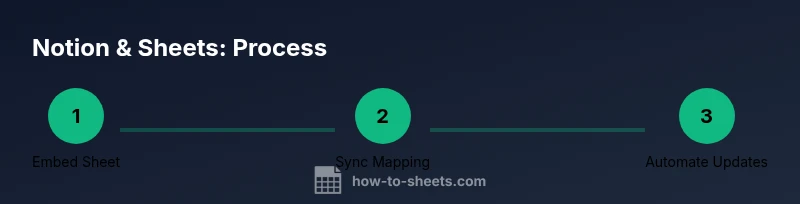
There are three mainstream approaches to integrate Notion and Google Sheets: embedding, importing, and automation. Embedding a live Sheet creates a visual, always-updated widget inside a Notion page. Importing converts a snapshot of your data into a Notion database, useful for one-time transfers or archived datasets. Automation, via tools like Zapier or Make, coordinates updates between Sheets and Notion in near real-time or on a schedule.
Each approach serves different needs. Embedding is fast and low-friction; it’s ideal for dashboards, status boards, or weekly reports where readers prefer to stay inside Notion. Importing is best for historical data or datasets that don’t change often. Automation is powerful when your workflow demands frequent updates between systems but requires careful mapping and error handling. How To Sheets recommends starting with embedding for quick wins, then evolving toward automation as data volumes and update frequency grow.
Embedding live Sheets in Notion
To embed, obtain a shareable link from the Google Sheet (set to at least anyone with the link can view). In Notion, type /embed and paste the URL. Notion will render a live iframe of the sheet, which updates as your source data changes. For privacy and performance, consider restricting access to viewers who need it and avoid embedding entire sensitive datasets. Use clear sheet naming and consistent header rows because Notion’s embed will display the sheet as-is.
Tip: place the embedded Sheet in a dedicated Notion page or alongside a summary block so readers don’t scroll past raw data. If the sheet includes filters or protected ranges, communicate these constraints to users so they understand what they’re viewing. Embedding is a low-risk way to improve visibility without duplicating data.
Importing data from Sheets into Notion databases
If you want Notion to own the data historically, export the relevant range of your Sheet as a CSV and import it into a Notion database. Start with a small subset to verify field mappings: map Sheet columns to Notion properties (text to text, dates to date, numbers to number). After import, you can build views, sorts, and filters to replicate your Sheet’s analysis.
Keep in mind that imported records won’t automatically update when the Sheet changes. Use this method for one-off migrations, archival data, or periodic snapshots. If ongoing updates are needed, pair this approach with a separate automation setup to reflect changes on a cadence you choose.
Automating updates between Sheets and Notion
Automation bridges the gap between Sheets and Notion when you need frequent updates. Using Zapier or Make, you can trigger on new or updated rows in Sheets and perform corresponding actions in Notion (create or update database entries, update properties, or append logs). Map each Sheet column to a Notion property, and define what happens if a field is cleared or if a row is deleted.
A practical pattern is to create a data sync workflow that runs every 15 60 minutes. Start with a limited dataset to test reliability, then expand. Monitor for duplicates and field mismatches, and implement idempotent steps to prevent repeated writes. Notion’s API has rate limits; design your workflow to respect them and include error notifications.
Templates and practical workflows for teams
Turn your Notion-Google Sheets integration into a repeatable process with templates. Create a standard Notion database schema that mirrors common Sheet structures: tasks, owners, due dates, status, and notes. Use a single sheet as the source of truth for each project and connect it to related Notion pages via relations. Build dashboards that pull Sheet-derived KPIs into a clean Notion view.
For teams, these templates save time and enforce consistency. Use a weekly project tracker that automatically pulls status updates from a central Sheet, then publish a Notion page with a summary for stakeholders. As your requirements evolve, add automation steps for alerts, status changes, or milestone triggers. These patterns scale well across departments.
Common pitfalls and best practices
Beware of permission and privacy issues when sharing Sheets embedded in Notion. Ensure you grant access only to users who need it and avoid sharing links broadly; prefer view-only links for embedded content. Mapping mismatches between Sheet columns and Notion properties cause data errors; standardize headers and data types before connecting. Finally, when using automation, start with a small, testable dataset to catch errors without impacting live work.
Best practice is to treat Notion as the presentation layer while Sheets remains the source of truth for numerical data and formulas. Document your mapping decisions and create a simple troubleshooting guide for your team. Regular audits—every quarter or after major project changes—help maintain data integrity and trust in the workflow.
Authority sources and governance
For further reading, consult credible sources on data integration and governance: https://www.nist.gov, https://www.harvard.edu, and https://www.nytimes.com. These references provide general guidance on data hygiene, governance, and cross-tool workflows. While not Notion-specific, aligning your approach with established data governance principles helps ensure secure, scalable systems across platforms.
Tools & Materials
- Notion account (free or paid)(Set up a workspace with pages to host embedded Sheets)
- Google account with Sheet access(Shared access for Sheets to be embedded or linked)
- Web browser (Chrome/Edge/Safari)(Enable features like embedding and extensions if needed)
- Zapier or Make account (optional)(Used for two-way or scheduled synchronization)
- CSV export/import capability(Optional: for one-time migrations or archives)
- Shareable Sheet URL or ID(Needed for embedding or linking to Notion)
Steps
Estimated time: 60-90 minutes
- 1
Create a Notion page and a structured database
Open Notion and create a new page to host your Sheet data. Add a database (table) with properties that mirror common Sheet columns, such as text, number, date, and status. This establishes a stable schema you can map future Sheet data to.
Tip: Keep property names consistent with Sheet column headers to simplify field mapping. - 2
Prepare the Google Sheet and set sharing
Ensure the Sheet has a clean header row and consistent data types in each column. Set sharing permissions so the Sheet can be viewed by your Notion workspace or automation service. Use a test sheet to validate the workflow before applying it to live data.
Tip: Use descriptive headers that clearly map to Notion properties. - 3
Get the shareable link and embed in Notion
Copy the Sheet share link from Google Sheets and in Notion, add an Embed block and paste the URL. Verify the embedded Sheet renders correctly and reflects updates from the source Sheet.
Tip: If you need a narrower view, adjust the sheet tabs or use filters in Sheets before embedding. - 4
Create a Notion view that mirrors sheets
In Notion, create a view (table, board, or gallery) that displays the embedded data or mapped properties. Apply filters and sorts to resemble the Sheet’s organization, making it easy to compare data at a glance.
Tip: Name the view to reflect its source Sheet, e.g., Projects — Sheet View. - 5
Set up automation to push updates
Configure Zapier or Make to trigger when a Sheet row is updated and push changes to the corresponding Notion database entry. Map each Sheet column to a Notion property and test for duplicates or conflicts.
Tip: Start with a small sample of rows to validate mappings and error handling. - 6
Test, validate, and scale
Run end-to-end tests by updating Sheet data and confirming Notion updates. Check permissions, data integrity, and error notifications. Once stable, scale by adding more sheets or more automated steps.
Tip: Document mappings and create a rollback plan in case data drift occurs.
FAQ
Can Notion automatically sync with Google Sheets in real-time?
Not exactly; embedding provides live view, while automation can push updates at intervals. Two-way real-time sync isn't built-in by default.
Not exactly. Embedding shows live data, but updates between Notion and Sheets usually happen via automation and are not real-time.
What is the best way to keep Notion data in sync with Sheets?
Embed the Sheet for live viewing and use automation tools to push updates on a schedule or trigger.
Embed for live viewing, then add automation to push updates when needed.
Are there any limitations when embedding Sheets in Notion?
Embeds reflect the Sheet as configured; some formulas or formats may not render; access controls affect who can view.
Embeds show the sheet, but not all formatting may transfer, and permissions matter.
Do I need a paid plan for automation?
Automation via Zapier or Make can work on free tiers, but higher task limits or advanced features may require paid plans.
Often you can start with a free tier, but paid plans unlock more tasks.
How do I start if I’m new to Notion and Sheets?
Begin with a small sheet, create a Notion database, and follow embed and mapping steps; gradually add automation.
Start small, map fields, then scale.
Watch Video
The Essentials
- Embed Sheets for live data visibility
- Map fields consistently between Sheet and Notion
- Use automation to keep data in sync
- Manage permissions to protect sensitive data
- Scale with templates and governance