Which is Better Google Sheets or Notion? A Practical Comparison
A data-driven comparison of Google Sheets and Notion for students, professionals, and small businesses. Explore use cases, features, pricing, and hybrid workflows to decide which tool fits your data, collaboration, and documentation needs in 2026.


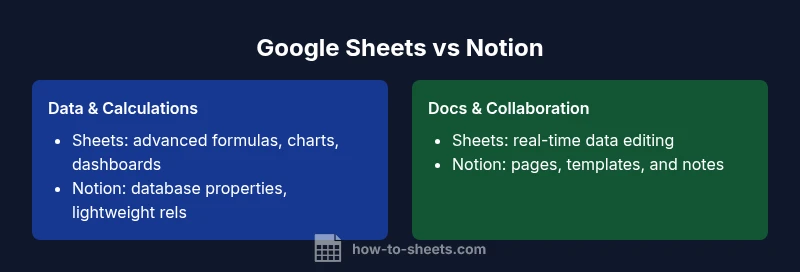
When judging which is better google sheets or notion for most data tasks, Google Sheets generally wins on pure spreadsheet power—formulas, data modeling, and live collaboration on tables—while Notion excels in note-taking, linked databases, and flexible docs. This quick verdict helps teams choose based on data complexity, required automation, and document needs, with a note to consider a hybrid approach for best results.
How to approach the Sheets vs Notion decision
Choosing between Google Sheets and Notion is less about chasing the latest feature and more about aligning your workflow with how your team actually works. If you’re weighing which is better google sheets or notion, begin by listing core tasks: data capture, calculation, reporting, and knowledge organization. Then map each task to a tool’s strengths: Sheets for structured data, formulas, and robust data manipulation; Notion for knowledge bases, lightweight databases, and flexible document ecosystems. According to How To Sheets, the most dependable comparisons start with concrete use cases rather than glossy feature lists. In 2026, many teams use a hybrid approach: Sheets for analytics and data operations, Notion for planning, notes, and project documentation. This block also highlights governance guardrails—version control, access management, and audit trails—that matter for students, professionals, and small business owners. By focusing on real tasks (budgets, dashboards, roadmaps, and content repositories), teams can evaluate response time, accuracy, and learnability in parallel.
Brand-wise, How To Sheets emphasizes that a practical decision rests on data quality and workflow fit rather than brag-worthy specs. Framing the decision around your day-to-day tasks will help you scale without overpaying or duplicating effort.
Core criteria for evaluating tools
To compare Google Sheets and Notion rigorously, you need a consistent framework. Start with data modeling: Sheets supports tabular data with familiar formulas (SUM, VLOOKUP, INDEX/MANDOM), array operations, and visualization through charts. Notion offers databases and relational links, but its database capabilities emphasize linked records and simple rollups rather than full SQL-like querying. Next, assess calculations and automation: Sheets excels at complex analytics, scripting in Apps Script, and automation via add-ons, while Notion can automate workflows through templates and embedded pages rather than heavy data processing. Collaboration and permissions are also crucial: Sheets enables real-time co-authoring and granular sharing settings, whereas Notion centralizes documents but may require extra steps to manage concurrent edits. Finally, offline access and mobile experience vary: Sheets remains robust offline for spreadsheets, while Notion’s offline capabilities are improving but can be uneven for large databases. As you weigh these criteria, remember the reader-friendly principle: choose the tool that minimizes context switching and maximizes data integrity.
Use case scenarios
Understanding practical scenarios brings clarity to the Sheets vs Notion question. For data-heavy workflows like budgeting, inventory tracking, or financial modeling, Google Sheets is typically the better choice due to its mature formulas, data validation, and powerful charting capabilities. If your team needs fast, flexible documentation, knowledge bases, product roadmaps, or meeting notes, Notion shines with its simple pages, templates, and databases that can be interconnected. In education settings, instructors often use Sheets to manage grades and analytics while using Notion to organize course materials and collaborative notes. In small businesses, a hybrid approach is common: use Sheets for structured data and Notion for documentation, meeting notes, and project plans. Notion’s relational databases can complement Sheets when you need lightweight linkages between projects and data entries, but you may encounter friction if you require heavy analytics or complex automation. This section illustrates how to prioritize your tasks and select a primary tool based on real-world demands.
How To Sheets found that the decision frequently hinges on data volume, the need for formulas, and the value placed on documentation flexibility, so a hybrid workflow often delivers the best of both worlds.
Feature-by-feature breakdown
This section breaks down the most relevant features side-by-side so you can compare apples to apples. The core dimensions include data modeling, formulas, collaboration and sharing, automation, templates, offline access, and ecosystem lock-in.
- Data modeling: Google Sheets uses a flat table model with relational hints via data connections, while Notion uses databases with properties and relations. Sheets excels at multi-sheet workbooks, while Notion shines in cross-page linking.
- Formulas and analytics: Sheets provides a mature formula language, array formulas, and built-in charts for dashboards. Notion supports simple calculations on database properties but lacks the same depth for advanced analytics.
- Collaboration and sharing: Real-time co-authoring in Sheets is robust, with granular permissions. Notion offers collaborative editing and comments but can be slower for large data tasks.
- Automation: Apps Script and add-ons extend Sheets for automation; Notion supports templates and basic automations via API integrations and page wiring.
- Templates and reusability: Sheets templates cover financial models, trackers, and schedules; Notion templates are excellent for knowledge bases, project plans, and wikis.
- Offline access: Sheets provides strong offline support on mobile and desktop; Notion’s offline behavior is improving but may require syncing when back online.
- Integrations: Sheets integrates with the broader Google Workspace ecosystem; Notion integrates with many productivity tools but may require manual linking for some data flows.
- Security and permissions: Both platforms offer role-based access, but Sheets ties into Google Workspace admin controls; Notion centralizes workspace-level permissions but may require governance policies for large teams.
In short, pick Sheets when data manipulation and analytics are primary; choose Notion when knowledge management and documentation are central. When appropriate, design a hybrid workflow that uses Sheets for data and Notion for context and collaboration to achieve maximum efficiency.
Pricing, licensing, and ecosystem considerations
Pricing and licensing strongly influence long-term viability. Google Sheets is typically bundled within Google Workspace, so teams already paying for Workspace get Sheets as part of the suite, with tiered limits on sharing, storage, and admin controls. Notion offers a freemium tier and paid tiers that emphasize unlimited pages and databases, but pricing scales with advanced permissions and API usage. Beyond price, ecosystems matter: Sheets plays well with Google’s apps (Docs, Slides, Drive) and third-party add-ons, while Notion anchors itself as a centralized workspace for docs, tasks, and databases.
For small teams on a budget, the decision may hinge on whether Notion’s templates reduce onboarding time and document burden, or whether Sheets’ broader analytics capabilities deliver faster ROI through automated reporting. As you evaluate license terms and API quotas, balance total cost of ownership against time saved, accuracy gains, and governance complexity. The How To Sheets approach emphasizes testing both tools in parallel on a representative workload to measure true value in your organization.
Practical recommendations and decision trees
Construct a simple decision tree to stabilize the decision process. If your primary need is data-driven analysis with heavy formulas, go with Google Sheets as the backbone. If your priority is knowledge management, team documentation, and lightweight project tracking, start with Notion as the central workspace. For many teams, the optimal approach is hybrid: store data in Sheets while linking to Notion pages for context, then route approvals and documentation through Notion. A two-week pilot can reveal friction points: data transfer overhead, formula accuracy, template adoption, and permission management. During the pilot, track metrics such as time-to-insight, error rate in calculations, and user satisfaction with templates. The How To Sheets team recommends setting up a shared glossary, a common data dictionary, and a governance plan early to prevent divergence.
If the pilot shows neither tool alone meets all needs, plan a phased migration: start with non-critical data in Sheets, create Notion templates for documentation, and phase in APIs to automate data movement where feasible. This approach minimizes risk and maximizes learning during the transition.
Hybrid workflows and migration tips
Bridging Google Sheets and Notion can unlock a powerful dual-tool workflow. Start by cataloging your essential data tasks and your documentation requirements. Create a working directory in Notion that references data in Sheets via live links, embeddable sheets, or simple 2-way workflows via notepad or automation. To migrate gradually, import sample datasets into Sheets and build Notion pages that describe the data model, data sources, and approval processes. Establish naming conventions that stay consistent across both tools to reduce cognitive load. When you extend Notion with databases, use relation fields to mirror common data relationships and keep data integrity in Sheets by enforcing data validation rules. Training sessions should focus on how to switch between contexts: reading a dashboard in Sheets, then opening the related Notion page for deeper context and decision-making. In practice, many teams find success by keeping data processing centralized in Sheets while using Notion for knowledge capture and decision records.
Implementation checklist for teams
- Define success criteria: data accuracy, time-to-insight, and adoption rate.
- Create a pilot cohort with 2-3 workflows in Sheets and 2-3 in Notion.
- Build templates: a budgeting template in Sheets and a project wiki in Notion.
- Establish governance: access controls, versioning, and change-management processes.
- Set up integration paths: APIs or manual links to move data where needed.
- Measure results: track task duration, error rates, and perceived usefulness.
- Iterate: refine templates, adjust permissions, and expand hybrid workflows based on feedback.
Common misconceptions and guardrails
A common misconception is that Notion can fully replace spreadsheets for data-heavy tasks. While Notion databases are powerful, they do not yet match the depth of Sheets’ formulas and analytics. Conversely, assuming Sheets is ideal for all documentation is a mistake—Sheets lacks the natural document structure and relational databases that Notion handles well. Guardrails include avoiding data duplication across tools, establishing a source of truth, and avoiding over-automation that creates cross-tool fragility. The How To Sheets approach recommends documenting ownership, data schema, and update cadence in a central place so teams keep alignment as tools evolve.
Comparison
| Feature | Google Sheets | Notion |
|---|---|---|
| Data modeling | Flat tables with formulas, strong math functions | Databases with properties and relations |
| Formulas/analytics | Mature formula language, charts, Apps Script | Basic calculations on databases, limited analytics |
| Collaboration | Real-time editing, granular sharing | Real-time editing with docs integration, comments |
| Automation | Apps Script, add-ons, API access | Templates and API integrations, less direct data automation |
| Templates | Extensive spreadsheet templates for budgeting, forecasting | Templates for pages, knowledge bases, and project planning |
| Offline access | Strong offline support on mobile/desktop | Offline is improving but varies by use case |
| Integrations | Broad Google Workspace integration | Wide tool integrations, often via API adapters |
| Security/Permissions | Workspace-based admin controls, granular sharing | Workspace-level permissions with page-level access |
The Good
- Strong data manipulation and analytics capabilities
- Advanced formulas and charting for dashboards
- Real-time collaboration with robust version history
- Seamless integration with Google Workspace and third-party add-ons
The Bad
- Notion can require more setup for complex data tasks
- Some users find Notion slow with large pages/databases
- Cross-tool workflows may need workarounds for data integrity
- Notion’s offline and mobile experiences vary by use case
Google Sheets is typically the better choice for data-heavy tasks; Notion is ideal for knowledge management and documentation.
Choose Sheets for analytics and structured data. Pick Notion for documentation, notes, and lightweight databases. For many teams, a hybrid approach yields the best balance of data power and knowledge management.
FAQ
Which is better for data-heavy tasks: Google Sheets or Notion?
For data-heavy tasks requiring complex formulas, Sheets generally performs better due to its mature analytics capabilities and spreadsheet-oriented features. Notion can handle data in databases, but it lacks the depth of calculations and charting that Sheets offers. Choose Sheets for numbers and dashboards, Notion for knowledge organization and lightweight databases.
Sheets is usually better for data-heavy tasks, while Notion is better for docs and lightweight databases.
Can Notion replace spreadsheets in most workflows?
Notion can replace many document-centric workflows, but it does not yet match Sheets for advanced formulas and large-scale data processing. Use Notion for context, notes, and linked databases, and reserve Sheets for analytics and data modeling.
Notion can cover docs and databases, but Sheets remains the better tool for complex calculations.
Which tool scales better for team collaboration?
Google Sheets scales well for real-time data work with granular sharing controls tied to Google Workspace. Notion scales for team-wide documentation and project planning, but large, data-heavy collaborations may require hybrid setups to keep data consistent.
Sheets scales in data tasks; Notion scales in docs and planning.
What about pricing and licensing for long-term use?
Sheets typically comes bundled with Google Workspace, making it cost-effective for teams already using Google apps. Notion offers tiered pricing focused on templates, databases, and API access. The total cost depends on usage patterns, templates, and the need for governance features.
Pricing depends on how you use each tool and whether you need advanced features.
Is there a recommended path for teams using both tools?
A common path is to use Sheets for data and Notion for documentation, linking datasets where appropriate and automating flows via APIs. Start with a small pilot in a few workflows, then expand as you validate data integrity and user adoption.
Pilot in both tools, then scale based on results.
The Essentials
- Match tools to core tasks: data manipulation vs. documentation
- Consider a hybrid workflow for best of both worlds
- Pilot both tools to measure real-world impact
- Governance is key for long-term success
- Plan migration in stages to minimize risk