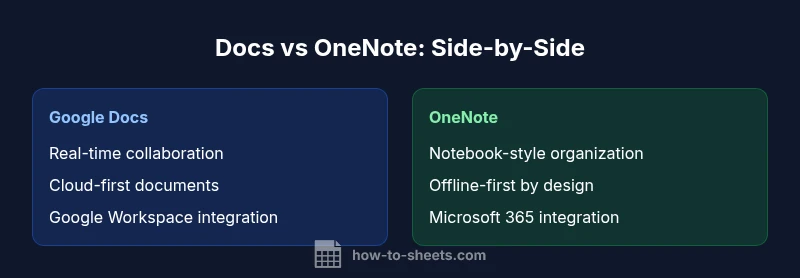
Is Google Docs or OneNote Better? A Practical Comparison
Analytical comparison of Google Docs vs OneNote focusing on collaboration, organization, offline use, and workflows to help students and professionals decide which tool is better.


Is Google Docs or OneNote better for your workflow? If you prioritize real-time collaboration, cloud-based sharing, and cross-device editing, Google Docs is usually the stronger choice. If you value robust note-taking, hierarchical organization with notebooks, and offline access, OneNote often delivers a richer personal workspace. The How To Sheets Team analyzed use cases across students and professionals to help you decide quickly.
is google docs or onenote better? Decision factors
The central question for most teams and individual power users is is google docs or onenote better for their daily work. In practice, the right choice depends on two core axes: collaboration needs and personal organization style. If your team relies on live editing, comments, and a cloud-first workflow, Google Docs offers a streamlined experience where multiple people can work on the same document at once, track changes, and surface updates in real time. For students, instructors, or professionals who publish final documents and need deep integration with Sheets and Slides, Docs often integrates most smoothly into the broader Google Workspace.
On the other hand, if your priority is capturing ideas, research notes, meeting memos, and reference material in a flexible notebook structure, OneNote provides a different kind of power. Its page-and-notebook hierarchy makes it easy to group related notes, embed multimedia, and organize content without forcing it into a single document. According to How To Sheets, the optimal choice is rarely absolute: evaluate your primary tasks, the devices you use, and the ecosystem you rely on. This guide walks you through those decision factors so you can answer is google docs or onenote better for your situation.
Real-time collaboration and sharing
Google Docs shines in multi-user editing. Multiple people can edit simultaneously, see each other's cursors, and comment in real time. This makes it ideal for group projects, joint reports, and classroom assignments. OneNote supports collaboration through shared notebooks, but the experience is less fluid for simultaneous editing and comment threading. For teams that rely on live co-authoring, Docs remains the preferred option; for cross-team note sharing with occasional edits, OneNote can suffice. The choice often depends on whether you expect rapid, ongoing edits or curated, note-centric work that evolves over time.
Organization philosophy: documents vs notebooks
Google Docs organizes content as documents within folders, with simple version history and comments. Files can be linked, embedded, and structured with headings. OneNote takes a notebook-first approach: notebooks consist of sections, pages, and subpages, enabling deep hierarchies and quick navigation. This structure supports research, meeting notes, and knowledge bases where context and navigation between related notes matter more than single-document focus. If you frequently need to cross-reference unrelated notes, OneNote’s layout can be advantageous; if you prefer modular documents that can be shared individually, Docs offers clarity.
Offline access and synchronization
Google Docs offers an offline mode that lets you view and edit documents without internet access, syncing changes when reconnected. The setup is straightforward but depends on browser and device configurations. OneNote has a strong offline model; notebooks are stored locally and synchronized to the cloud when online. For users with unreliable connectivity, OneNote can provide more reliable offline writing and later synchronization. If your workflow requires guaranteed access without internet, plan for local copies and sync thresholds.
Formatting, media, and templates
Docs provides robust formatting options, tables, images, charts, and a growing library of templates. It excels at clean, structured documents, especially for reports, essays, and proposals. OneNote prioritizes free-form note-taking: you can insert text, drawings, audio, video, and clip content across pages with flexible layouts. Templates exist but are less central to OneNote's core workflow. For formal documentation with strict formatting, Docs tends to shine; for brainstorming, quick capture, and multimedia notes, OneNote offers richer freedom.
Integrations and ecosystem
Google Docs integrates deeply with Google Workspace apps (Sheets, Slides, Drive) and many third-party add-ons. This makes it easy to embed data, schedule, and collaborate within a familiar ecosystem. OneNote benefits from Microsoft 365 integrations (Outlook, Word, Excel, Teams) and strong sync with Windows devices. The choice often aligns with whether your organization relies on Google or Microsoft ecosystems. If your team already uses Docs-based processes, sticking with Docs minimizes switching costs; if your organization depends on Microsoft products, OneNote fits more naturally.
Security, privacy, and data controls
Both tools offer enterprise-grade security features, including two-factor authentication, organization-level controls, and admin dashboards. Google’s admin console emphasizes policy enforcement across the Google Workspace suite, while OneNote inherits security from the broader Microsoft 365 security model. Consider your organization’s compliance needs, data residency preferences, and IT maturity when choosing. For regulated environments, align tool selection with your security posture, data loss prevention, and auditing requirements.
Cost and platform considerations
Both Google Docs and OneNote have generous free tiers. Google Docs is often bundled with a free Google account and cloud storage via Drive, while OneNote is included with a Microsoft account and can be used across devices without a paid plan. For deeper features like advanced sharing controls, archival options, or enterprise-grade management, paid plans from Google Workspace or Microsoft 365 are typically required. When evaluating cost, consider total cost of ownership, including training and admin time, not just sticker price.
Practical decision framework for choosing
To decide is google docs or onenote better for you, start by mapping your primary use cases: collaboration vs personal note-taking, need for offline access, and preferred ecosystem. If your team relies on Google apps and real-time editing is critical, Docs wins. If you require structured notebooks, offline work, and strong local organization, OneNote wins. Consider a short pilot with both tools to gauge learning curves and user satisfaction. Establish governance guidelines, set up templates, and define success metrics before a full rollout.
Common pitfalls and best practices
Avoid treating OneNote as a document editor and Google Docs as a notebook. Set clear expectations: use Docs for group writing and Docs-like projects; use OneNote for knowledge capture, research logs, and meeting notes that benefit from a notebook structure. Regularly train users, organize templates, and implement consistent naming conventions to ease search and retrieval. Encourage cross-team feedback to refine your documentation and note-taking standards over time.
Comparison
| Feature | Google Docs | OneNote |
|---|---|---|
| Real-time collaboration | Excellent; live editing | Moderate; sharing but slower for simultaneous edits |
| Organization model | Folder-based documents | Notebook/section/page structure |
| Offline access | Strong offline support via Docs offline | Strong offline with local notebooks |
| Templates | Extensive templates and add-ons | Templates exist but not central |
| Media support | Rich formatting, charts, images | Flexible note content: text, audio, drawings, multimedia |
| Platform integration | Tight with Google Workspace | Ties into Microsoft 365 ecosystem |
| Search capability | Powerful search across Docs content | Search within notebooks; tagging helps retrieval |
| Export/Import options | Docs to Word, PDF, HTML; easy sharing | Export limitations exist for notebook-level exports |
| Best for | Team editing, cloud-first documents | Personal knowledge management, offline-heavy workflows |
The Good
- Excellent collaboration and cloud-first workflows
- Deep integration with each ecosystem (Google or Microsoft)
- Accessible free tiers with broad platform support
- Strong real-time editing for team projects
The Bad
- Offline reliability can depend on setup and connectivity
- OneNote can feel less structured for formal documents
- Migration between tools can be non-trivial for large collections
- Advanced formatting and export options may vary by platform
Docs for collaboration; OneNote for personal knowledge management
Choose Google Docs when real-time teamwork and cloud sharing are priorities. Choose OneNote when you need robust notebook-style organization and offline note-taking, especially within a Microsoft ecosystem.
FAQ
Which tool is better for real-time collaboration, Google Docs or OneNote?
For real-time editing, Google Docs offers a superior collaborative experience with live cursors, comments, and instant updates. OneNote supports sharing notebooks, but the editing flow is not as fluid for multiple simultaneous users.
Docs is best for real-time collaboration; OneNote supports sharing but not as fluid for multiple editors.
Can OneNote replace Google Docs for document editing?
OneNote is not designed as a document editor like Google Docs. If your workflow centers on collaborative writing/editing, Docs is typically a better fit. Use OneNote for capture and organization of notes instead.
OneNote isn’t a full substitute for Docs when you need live document editing.
Which offers better offline access?
Both tools offer offline support, but OneNote tends to provide a more seamless offline experience in practice due to its notebook-based model. Google Docs requires some setup to work offline but is effective once configured.
Offline access is solid in both; OneNote often feels more reliable offline.
Are there cost differences to consider?
Both have free tiers. Google Docs is included with Google accounts; OneNote is free with a Microsoft account. Enterprise features usually require Google Workspace or Microsoft 365 licenses.
Both offer free use, with paid plans for teams.
How easy is it to migrate notes/docs between the two?
Migration options exist but can be non-trivial, especially for large note collections or complex formatting. Plan a stepwise migration and test data integrity before moving everything.
Migration isn’t automatic; plan and test first.
Which has stronger search capabilities?
Google Docs offers strong search across document content. OneNote searches across notebooks and can index text inside images when enabled; tagging can improve retrieval.
Docs search is strong; OneNote search is notebook-focused with tagging.
What should teams consider when choosing?
Consider collaboration needs, ecosystem alignment (Google vs Microsoft), offline requirements, and how note-taking will be used. A short pilot with both tools can reveal user preferences and training needs.
Look at collaboration, ecosystem, offline needs, and training.
The Essentials
- Prioritize collaboration with Docs for team projects
- Use OneNote for structured notes and offline capture
- Align with your organization’s primary ecosystem
- Pilot both tools to gauge user adoption
- Invest in templates and governance to maximize value