Google Docs vs Word: An In-Depth 2026 Comparison
A detailed, objective comparison of Google Docs and Microsoft Word, focusing on collaboration, offline access, formatting, templates, pricing, and migration for students, professionals, and small businesses.


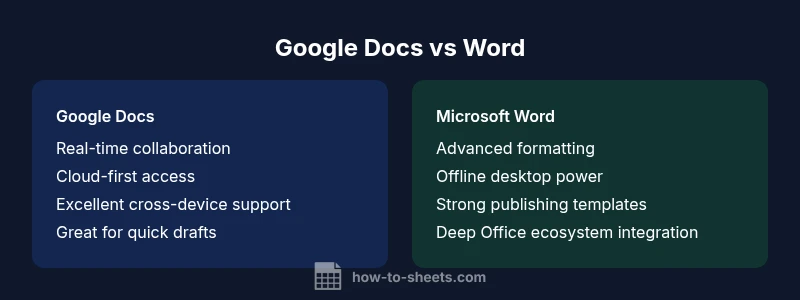
Google Docs and Word each serve different user needs. If your priority is real-time collaboration, cloud access, and cost-efficiency, Google Docs is the strong choice as a flexible, cross‑platform option. If you require advanced formatting, offline productivity, and a feature-rich desktop experience, Microsoft Word remains the more capable tool. In the end, the decision hinges on whether collaboration or formatting depth matters more for your workflow.
What counts in this comparison
When evaluating a tool for word processing, the core dimensions usually include collaboration, offline capabilities, document fidelity, platform reach, and total cost of ownership. The topic google docs similar to word is particularly relevant for groups that operate across devices or rely on cloud-first workflows. According to How To Sheets, readers often weigh online collaboration, ease of access, and integration with other apps more heavily than sheer feature depth. This section lays out the criteria we’ll use: real-time co-authoring, offline reliability, formatting fidelity, template availability, user management for teams, and portability of documents between ecosystems. We’ll also note where each platform shines for different user personas—students, professionals, and small business owners—so readers can map features to their daily tasks.
Key criteria and usage patterns
- Real-time collaboration: How teams edit simultaneously and track changes matters for group projects or client deliverables.
- Offline capability: If internet access is unstable, offline editing performance becomes a deciding factor.
- Document fidelity: The extent to which fonts, margins, headings, and styles render identically across platforms.
- Templates and automation: Availability of templates and AI-assisted features that speed up routine tasks.
- Security and governance: Access controls, version history, and data residency suitable for organizations.
- Migration and interoperability: How easy it is to move documents between Google Docs and Word without losing formatting.
The practical framing
Google Docs is often favored in education and startups due to zero-upfront costs, simple sharing, and cross‑device syncing. Word is typically preferred in professional settings requiring complex formatting, robust desktop features, and deep integration with the Microsoft ecosystem. The How To Sheets analysis highlights that many teams choose based on collaboration needs versus formatting depth, then layer on additional requirements such as offline access and administration in larger organizations. The central question remains: does your team benefit more from cloud-first collaboration or from feature-rich desktop editing? The answer depends on your workflow outside the browser.
Realistic expectations for documents and templates
Document fidelity can differ, especially when moving files between Google Docs and Word. While basic documents convert cleanly, advanced layouts, tables, and footnotes may require tweaks after migration. Both platforms support a broad set of templates, but Word’s catalog tends to be more extensive for formal documents, reports, and print-ready materials. Google Docs excels in rapid creation, commenting, and real-time updates, which can be a decisive advantage for classrooms, project teams, and client reviews. As you plan your template strategy, consider how often you’ll export to PDF or DOCX and what formatting gaps you can tolerate.
Collaboration and device reach
Real-time collaboration is a standout strength of Google Docs. Multiple users can edit a document simultaneously, with live cursors, comments, and suggested edits. Word has made significant strides in collaboration, especially with its online version and OneDrive integration, but the experience can vary by network conditions and license type. For teams with mixed devices, Google Docs remains universally accessible from Chromebooks, Windows PCs, macOS devices, and mobile apps, while Word offers stronger native support on Windows and macOS, with its own cross‑platform options. The practical takeaway: if your team values seamless cross‑device collaboration with minimal friction, Google Docs often delivers a smoother experience.
Offline mode and reliability
Offline access is essential for users who travel or work in areas with unreliable internet. Google Docs provides robust offline capabilities via the Chrome browser, allowing you to view and edit documents without connectivity and sync when back online. Word’s offline mode is mature on desktop platforms, offering full feature parity without an internet connection for most typical editing tasks. In environments where connectivity is a constraint, Word’s offline performance can feel more dependable, whereas Google Docs relies on periodic online syncing. Consider your typical work locations, device availability, and the likelihood of interruptions when weighing offline reliability.
Formatting depth and desktop power
Word has long been praised for its rich formatting options, advanced layout tools, and extensive support for long, complex documents. It offers deep control over typography, styles, tables, sections, and reference features that are essential for professional publishing. Google Docs emphasizes simplicity and speed, providing a solid set of formatting tools that cover most day-to-day needs but may require workarounds for extremely complex layouts. For teams producing legal briefs, academic theses, or print-ready materials, Word often remains the preferred tool. For quick reports, proposals, or collaborative drafts, Google Docs keeps pace with user-friendly templates and accessible styling.
Interoperability, migration, and long-term considerations
Moving documents between Google Docs and Word is generally straightforward for most users, but nuanced formatting can shift in the process. Word’s DOCX format is the de facto standard for professional publishing, while Google Docs emphasizes cloud-native sharing and revision history. If your organization uses Google Workspace, Google Docs integrates with Gmail, Calendar, and Drive, enabling streamlined workflows; if you rely on Microsoft 365, Word integrates with Teams, SharePoint, and Outlook. Planning a migration—whether one-way or two-way—benefits from a staged approach: test conversions, verify styles, adjust templates, and establish a backup strategy. The decision should balance ongoing collaboration needs with lifetime document fidelity across ecosystems.
Security, governance, and admin controls
For schools and businesses, governance matters. Google Docs offers centralized admin controls, data residency options, and easy policy enforcement within Google Workspace. Word-like deployments in enterprise settings emphasize Identity and Access Management (IAM) with Microsoft 365, encryption, and robust auditing. The choice between Google Docs and Word can hinge on your security posture, regulatory requirements, and the IT team's comfort with cloud-based administration. If you need maximum control over approvals, versioning, and access, Word’s enterprise tools may be advantageous; if you prioritize cloud‑native collaboration and centralized policy management, Google Docs is a strong fit.
Practical tips for getting started
If you’re unsure where to begin, start with a small pilot project that mirrors your typical work: a collaborative document with a template, comments, and a few embedded elements. Use this as a baseline to compare how Google Docs and Word handle your standard formatting, citation needs, and export requirements. Maintain a simple file naming and versioning policy to avoid confusion during migration. Remember that both tools offer offline modes and mobile apps, so test across at least two devices to gauge consistency. The How To Sheets framework recommends documenting your team’s findings for future reference and creating a short checklist to guide broader adoption.
Authority sources and best-practice references
For further reading and verification, consult reputable sources on document interoperability and cloud-based productivity. See trusted publications and government/education resources for perspective on choosing tools in academic and organizational settings. How To Sheets emphasizes the importance of aligning tool choice with your collaboration needs, security requirements, and long-term document governance.
Comparison
| Feature | Google Docs | Microsoft Word |
|---|---|---|
| Platform availability | Web-based with mobile apps, strong cross‑device sync | Desktop app plus online/mobile options; strong Windows/macOS focus |
| Collaboration features | Real-time co-authoring, comments, suggested edits | Co-authoring via SharePoint/OneDrive, comments, tracked changes |
| Offline access | Robust offline mode in Chrome, edits sync later | Mature offline editing on desktop; syncs with cloud when online |
| Formatting depth | Solid formatting, easy styles; fewer niche tools | Extensive formatting, advanced layout and references |
| Templates & automation | Growing library; add-ons via Google Workspace Marketplace | Large template catalog; automation via macros and Office Scripts |
| File compatibility | DOCX import/export with good fidelity; native cloud storage | DOCX compatibility; strong PDF/RTF export; legacy formats |
| Pricing model | Free basic access with Google account; premium features in Workspace | Included with Microsoft 365 license; standalone options exist |
| Security & governance | Cloud-first security with admin controls in Workspace | Comprehensive enterprise security with IAM, auditing |
The Good
- Strong, real-time collaboration across devices
- No upfront cost for basic use; easy onboarding
- Automatic saving and cloud backup reduce data loss
- Excellent integration with other cloud apps and workflows
- Consistent cloud-based experience regardless of device
The Bad
- Advanced formatting and long-document features can be limited
- Offline reliability hinges on browser and device state
- Migration can require manual tweaks for complex layouts
- Offline editing can be less intuitive on some devices
- Feature parity varies with ecosystem and license
Word is best for advanced formatting and offline desktop productivity; Google Docs excels in collaboration and cloud-first workflows
If teamwork and accessibility across devices matter most, choose Google Docs. If you need robust desktop features and rigorous document control, select Word. Most teams benefit from a clear migration plan if both tools will be used.
FAQ
Is Google Docs free to use for individuals?
Yes. Google Docs offers a free tier accessible with a Google account, which includes core word-processing features and cloud-based storage. Premium Workspace plans add business-focused controls and storage.
Yes, Google Docs is free for individual use, with optional paid plans for organizations.
Can Google Docs replace Word for professional documents?
For many professional documents, Google Docs is sufficient, especially when collaboration is critical. For complex formatting, long reports, and print-ready materials, Word often provides deeper control and templates.
Docs can replace Word for many uses, but Word still shines for heavy formatting.
How does offline mode work in Google Docs?
Offline mode allows you to access and edit documents without an internet connection. Changes sync automatically when you reconnect. Ensure offline is enabled in settings before you lose connectivity.
You can work offline in Docs and sync later when online.
What are the main differences in formatting and templates?
Word offers deeper formatting control and a larger template library, useful for complex documents. Google Docs focuses on simplicity, collaboration-ready templates, and quick styling consistent across devices.
Word provides deeper formatting; Docs emphasizes speed and collaboration.
Can I import Word documents into Google Docs easily?
Yes, you can import DOCX files into Google Docs. Most content imports successfully, but you may need to adjust advanced layouts, footnotes, and tables after import.
DOCX imports to Docs work well, but some formatting may need tweaking.
Which is better for team collaboration, Google Docs or Word?
For teams prioritizing real-time collaboration and cloud access, Google Docs often performs better. If the team relies on complex formatting and offline editing, Word may offer a more suitable environment.
Docs is ideal for collaboration; Word suits complex documents offline.
Are there security considerations when choosing between these tools?
Both offer enterprise-grade security, governed by your IT policies. Google Docs leverages Google Workspace controls; Word leans on Microsoft 365 governance. Align your choice with your organization's compliance requirements.
Security depends on your IT setup—Google Workspace vs Microsoft 365.
The Essentials
- Assess collaboration needs before choosing.
- Prioritize offline access if you travel often.
- Expect some formatting adjustments when migrating.
- Leverage templates to accelerate document creation.
- Plan governance and security aligned to your IT policy.