Google Docs vs Microsoft Office: A Practical Comparison
Analytical, side-by-side analysis of Google Docs vs Microsoft Office for students, professionals, and small businesses. Covers collaboration, offline use, compatibility, security, pricing, and migration considerations to help decide the best fit in 2026.


Google Docs can be a strong replacement for Microsoft Office in many scenarios, especially for teams prioritizing collaboration, cloud-first workflows, and smooth cross-device access. However, for advanced formatting, offline power usage, and some enterprise controls, Office still holds distinct advantages. This comparison highlights where Docs excels and where Office remains preferable.
Framing the Replacement Question: When is a switch worth it?
The central question a team or individual asks when considering a switch is not just about features, but about how work gets done. If your workflow relies on real-time collaboration, embedded comments, and seamless access across devices, Google Docs—as part of Google Workspace—often proves compelling. If, on the other hand, your documents demand highly specialized formatting, extensive macros, or strict offline work on desktop software, Microsoft Office may still be the better fit. According to How To Sheets, the best path isn’t a blanket replacement but a staged evaluation that aligns with organizational priorities, data handling needs, and security requirements. The goal is a workflow that minimizes disruption while maximizing productivity in 2026 and beyond. This section sets the stage for a nuanced, evidence-based comparison that avoids hype and focuses on practical outcomes for students, professionals, and small business owners.
Core Apps Mapped: What really changes when you swap Word/Excel/PowerPoint for Docs/Sheets/Slides?
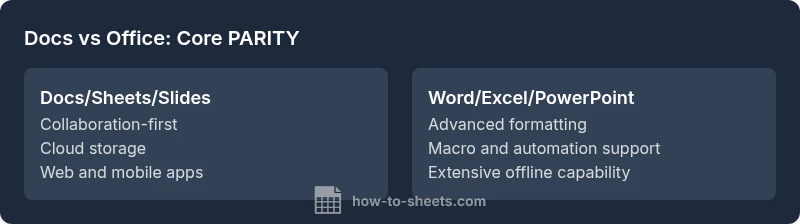
A practical replacement hinges on how your core documents are created and consumed. Word-like formatting in Google Docs has improved, but some long-format documents, extensive macros, and complex tables can behave differently. Excel-like analysis benefits from Sheets, which brings strong collaboration to spreadsheet work, yet power users may miss VBA/macros and certain advanced charting capabilities. PowerPoint-style presentations in Slides have robust features, but the breadth of templates, plugins, and advanced media controls in PowerPoint often outpace Slides. The takeaway: map your typical document types to the closest Google counterpart, then test edge cases with real work samples. The How To Sheets team notes that the alignment of workflows matters more than feature parity alone.
Collaboration and Real-Time Editing: The collaboration advantage of cloud-native tools
One of the most tangible advantages of Google Docs is real-time collaboration across devices and locations. Multiple people can edit simultaneously, see changes live, and rely on built-in comments and action items to streamline review cycles. Microsoft Office has catch-up modes and co-authoring in the cloud, but Google’s approach tends to feel more fluid for teams that rely on rapid iteration and transparent workflows. For teams that frequently document brainstorms, client briefs, or shared templates, Docs can reduce version chaos and speed up decision cycles. Still, if you require granular change tracking, independent file locking, or advanced review workflows, Office may offer a more familiar pipeline that some organizations prefer.
Offline Access and Cross-Platform Availability: Do you lose control offline?
Offline access is critical for environments with limited bandwidth or travel constraints. Google Docs supports offline editing in Chrome-based environments and on mobile devices, but it requires upfront setup and periodic synchronization. Office provides robust offline capability through locally installed Word, Excel, and PowerPoint apps on Windows and macOS, with seamless syncing when connected. For teams that must work offline without compromising formatting fidelity, Office’s desktop suite remains compelling. For distributed teams with intermittent connectivity, Docs’ cloud-first approach delivers superior cross-device continuity when online, while still offering offline modes when configured properly.
File Formats, Migration, and Fidelity: Moving between worlds without fear
File compatibility matters for long-term governance and cross-organization collaboration. Google Docs reads and writes DOCX, XLSX, and PPTX formats with reasonable fidelity, but certain layouts, macros, and advanced features can shift during conversion. Conversely, Word, Excel, and PowerPoint excel at handling Office-native features and complex formatting, but collaboration there often relies on cloud features or versioning that can be slower. Migrating to Google Docs usually requires a small adjustment period for formatting-heavy documents or macro-dependent workbooks. A careful pilot with representative documents helps identify any gaps and informs a staged transition plan. The How To Sheets analysis emphasizes starting with a suite of representative files to gauge conversion quality and identify post-migration tweaks.
Security, Privacy, and Admin Controls: Does the platform meet governance needs?
Security and governance are foundational, particularly in education and small to mid-size business environments. Google Docs benefits from centralized admin controls, data loss prevention (DLP) features, and enterprise-grade sharing permissions within Google Admin Console. Microsoft Office offers a mature control plane for Windows-centric environments, with deep integration into Active Directory and on-premises or hybrid configurations. The decision often hinges on your current identity management, data residency preferences, and compliance requirements. Organizations with stringent regulatory needs may need a closer look at how each platform handles auditing, access controls, and data retention.
Integrations, Extensibility, and Automation: Ecosystem considerations
Both platforms support a broad ecosystem of integrations. Google Docs shines when you already rely on other Google Workspace apps (Sheets, Drive, Forms) and popular third-party add-ons that emphasize collaboration and simplicity. Apps Script enables lightweight automation and custom workflows that are accessible to a broad audience. Microsoft Office offers deep extensibility through VBA, Power Automate, and a vast enterprise app ecosystem, which can be crucial for heavy process automation and complex data workflows. The practical takeaway is to inventory key integrations and automations that your team depends on, and then evaluate how each suite accommodates those needs without excessive rework.
Pricing, Licensing, and Total Cost of Ownership: What does the math look like in practice?
Pricing models differ in structure and incentives. Google Docs is typically part of Google Workspace, which can be attractive for teams seeking a unified cloud-based productivity stack with predictable per-user pricing and a free tier for basic use. Microsoft Office/365 presents a broader portfolio of licenses, including tiered plans that bundle more desktop applications, security features, and enterprise tools. The cost picture often depends on the size of your team, required features, and the extent of cross-application usage. When evaluating total cost, consider license fees, IT overhead for deployment, training time, and potential productivity gains from collaboration capabilities. The How To Sheets guidance recommends scenario-based budgeting to capture real-world value beyond sticker price.
Migration Path: Practical steps to transition with minimal disruption
A successful migration follows a deliberate, staged approach. Start with a pilot group to test representative documents, collaboration patterns, and offline workflows. Create a migration plan that assigns ownership, sets milestones, and defines success metrics aligned with your objectives. Develop templates and standard operating procedures to ensure consistency across teams. Then, gradually expand adoption, provide training resources, and monitor feedback to adjust configurations. Documentation, change management, and ongoing support are essential to avoid workflow fragmentation. The goal is not just moving files, but transforming how teams work together in the new environment.
Use-Case Scenarios and Best Practices: When to choose Google Docs or Microsoft Office
For collaboration-centric teams, schools, or startups that prioritize cloud access and cross-device work, Google Docs often delivers faster onboarding and smoother daily workflows. For organizations with heavy formatting requirements, VBA automation, or strict offline operations, Microsoft Office remains a stronger fit. In mixed environments, a hybrid model can work well—standardize on cloud-native documents where possible, while keeping legacy systems available for specialized tasks. Across all scenarios, invest in templates, training, and governance to maximize efficiency. How To Sheets’ guidance is to tailor the choice to practical needs, not perception, and to document decision criteria for future audits.
Comparison
| Feature | Google Docs (Docs/Sheets/Slides) | Microsoft Office (Word/Excel/PowerPoint) |
|---|---|---|
| Core parity for common documents | Strong parity for standard documents; some advanced formatting nuances | Extensive features with broad compatibility across Office formats |
| Real-time collaboration | Excellent live editing with instant feedback | Robust co-authoring and review workflows, especially in cloud versions |
| Offline access | Offline editing possible with setup on Chrome-based platforms | Strong offline support via desktop apps on Windows/macOS |
| File formats and fidelity | Good fidelity for everyday documents; occasional conversion quirks | Near-perfect fidelity for native Office formats |
| Platform availability | Web-first with mobile apps and offline options | Desktop-first with strong cross-platform support |
| Security and admin controls | Centralized cloud governance and DLP via Admin Console | Mature enterprise controls with identity and access management |
| Extensibility and automation | Apps Script and Google Workspace integrations | VBA, Power Automate, and wide enterprise integration options |
| Migration effort | Lower initial migration friction for standard docs | Greater effort for macro-heavy or legacy documents |
| Best fit | Collaboration-driven teams, education, startups | Power users needing advanced formatting and enterprise controls |
The Good
- Strong real-time collaboration across devices
- Seamless integration with other Google Workspace apps
- Cost-effective for many small teams and education use
- Regular updates with cloud-based feature improvements
- Simple sharing and access controls across the organization
The Bad
- Advanced formatting and macros may lag behind Office
- Offline workflows can require planning and setup
- Complex documents may need additional tweaks after migration
- Some legacy workflows rely on Office-specific features
- Potential vendor lock-in for large organizations
Google Docs is a solid replacement for Microsoft Office for collaboration-focused teams, with cloud-first workflows and easy cross-device access; Office remains preferable for advanced formatting, offline power use, and extensive enterprise controls.
Choose Google Docs when collaboration and cloud access are the priority. Opt for Microsoft Office when your work relies on advanced formatting, macros, or deep enterprise governance. A hybrid approach can cover both needs in larger organizations.
FAQ
Can Google Docs replace Word for formal documents?
For most standard documents, Google Docs provides sufficient formatting and style controls. However, very long documents with complex layouts or advanced Word features may experience formatting drift during conversion. Run a pilot with representative samples before deciding.
Docs can replace Word for most day-to-day documents, but test a few complex files first to be sure formatting is preserved.
Is offline editing fully available in Google Docs?
Offline editing is available but requires setup and enables access when you are not connected. Enabling offline mode ensures you can work on documents on devices with limited connectivity, though some advanced features may have limited functionality offline.
You can work offline, but you’ll want to set it up in advance and be mindful of feature limits when not online.
How seamless is migration from Office to Google Docs?
Migration typically involves converting Office formats to Google formats and adapting workflows. Some complex macros or advanced formats may need manual adjustments. Start with a pilot project to understand the conversion quality and plan remediation steps.
Migration is usually straightforward for standard files; test a few macro-heavy files to anticipate tweaks.
What about security and compliance in Google Docs?
Google Docs offers enterprise-grade security features and admin controls, but organizations should map their compliance requirements to platform capabilities, including data residency and access auditing. Consult governance teams to align settings with policy.
Security is strong, but verify your compliance needs with policy teams before migrating.
Are there cost advantages to choosing Google Docs?
Cost can be favorable for teams already using Google Workspace, especially with bundled cloud services. Microsoft Office offers more licensing tiers and may be cost-effective for certain organizations depending on feature needs and existing licensing.
Costs vary by plan and usage; evaluate total cost of ownership for your setup.
Is Google Docs better for education and small teams?
Education and small teams often benefit from Google Docs' simplicity, real-time collaboration, and easy sharing. It typically reduces friction for onboarding, but you should still assess feature needs and privacy requirements.
Great for classrooms and small teams where collaboration and simplicity matter.
The Essentials
- Assess collaboration needs before migrating.
- Map document types to the closest Google counterpart and test edge cases.
- Plan offline requirements and platform availability upfront.
- Inventory required integrations and automations.
- Pilot migration with representative files to identify gaps.