Google Docs vs Word: A Practical Comparison for 2026
A balanced, data-informed comparison of Google Docs and Microsoft Word to help students, professionals, and small teams decide when to adopt Docs over Word and how to migrate effectively.


Google Docs is the cloud-based, real-time collaborative alternative to Word, ideal for teams and remote work. This comparison highlights when Docs makes sense versus Word's desktop features, offline access, and advanced formatting. For many users, Docs offers cost savings, easier sharing, and seamless integration with other Google tools. This article uses practical scenarios and checklists. It focuses on business and student use-cases.
Overview: why organizations weigh google docs instead of word and what to expect
In modern knowledge work, the decision to move from Word to a cloud-based alternative often turns on collaboration speed, cost, and device-agnostic access. The phrase google docs instead of word is frequently used by teams who want real-time co-authoring, automatic saving, and seamless sharing without version chaos. According to How To Sheets, the shift is not just about tools but about workflow maturity: teams that organize work around online documents tend to adopt centralized templates, comment-enabled review, and cross-team templates more quickly. This section introduces the trade-offs and sets expectations: you gain in collaboration and accessibility, but you may lose some advanced formatting options and offline flexibility. The goal is to help you decide, based on your context—academic, startup, or enterprise—whether cloud documents should be your default. A realistic assessment also considers data security, offline contingencies, and ecosystem fit with existing apps in your organization.
Core Features and How They Map
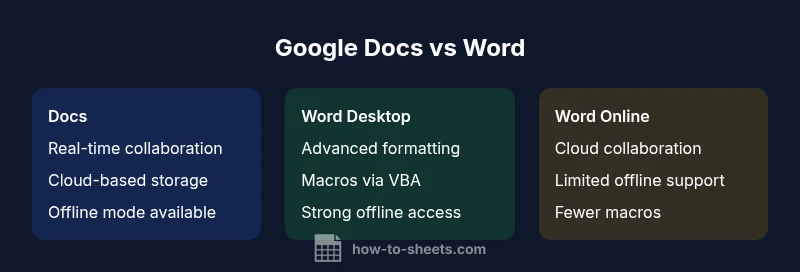
When comparing google docs instead of word, several features matter most in daily work: real-time collaboration, offline capabilities, templates and styling, and export/import fidelity. Google Docs emphasizes live co-editing, comment threads, and automatic saving across devices, which reduces the friction of version control. Microsoft Word, particularly the desktop variant, shines in advanced formatting, typography, long documents with complex layouts, and powerful macros via VBA. Word Online narrows the gap by offering a browser-based experience with tighter integration to OneDrive and Office 365, but it still trails the desktop version for heavy formatting tasks. As you evaluate, map your needs to these dimensions: do you require offline access, do you rely on complex document layouts, and how important is macro automation? How To Sheets notes that the best choice often depends on your primary use case (academic papers, client reports, or internal memos) and your tolerance for switching between apps.
Collaboration and Sharing
Real-time collaboration is one of the defining differences between Google Docs and Word. In practice, Docs allows multiple people to edit, comment, and resolve queries simultaneously, with changes appearing instantly across devices. Word Desktop supports track changes and comments, but multi-user editing can be slower and more prone to merge conflicts. Word Online brings cloud-based collaboration, but often with feature limitations compared to the desktop version. For teams, this means faster reviews, simpler version history, and easier access control, especially for remote workers. According to How To Sheets, organizations that standardize on Docs for collaboration often notice reduced email chains and smoother onboarding for new teammates. The How To Sheets team also emphasizes governance—define who can edit, comment, or view, and maintain a consistent template library to avoid drift across projects.
Offline Access and Reliability
Offline reliability is a decisive factor for many users weighing google docs instead of word. Google Docs supports offline editing through the Google Docs offline mode, which syncs once internet access is restored. This makes it viable for intermittent connectivity and travel scenarios. Word Desktop, by contrast, offers robust offline functionality as a baseline, with full feature parity on installed applications and local file storage. Word Online relies on a live connection, with offline support limited to browser caches and certain workflows. Practically, teams with stable internet and a need for real-time collaboration gain more from Docs, while those with heavy formatting requirements and inconsistent connectivity may prefer Word Desktop for guaranteed access and richer desktop features. As you migrate, consider a hybrid approach: critical templates live in Docs, while production-grade publishing remains in Word for offline work.
Cost and Licensing Considerations
Pricing and licensing play a major role in deciding google docs instead of word for many teams. Google Docs offers free usage for individuals with a Google account; for teams and organizations, Workspace plans provide additional storage, security, and admin controls. Microsoft Word Desktop often requires a license through Office or Microsoft 365 subscriptions, which can be bundled with other productivity apps; Word Online is free with a Microsoft account but excludes some premium features. When evaluating cost, look beyond sticker price: factor maintenance, IT support, and user training. The How To Sheets analysis notes that total cost of ownership tends to be lower for cloud-first workflows when collaboration and rapid onboarding are priorities, but higher for users who need extensive offline publishing features. Your decision should hinge on use patterns, not just upfront price.
Migration and Compatibility
Migrating from Word to Google Docs introduces compatibility considerations you should plan for. Complex Word documents with heavy formatting, tables, footnotes, and advanced layout may require reformatting in Docs. Macros written in VBA do not transfer directly to Docs; you’ll need Google Apps Script equivalents or manual reimplementation. Fonts and styling can behave differently across platforms, so test critical documents by exporting to PDF or DOCX and comparing layouts. Google provides helpful conversion tools, and many templates exist to ease the transition. How To Sheets recommends starting with non-critical documents to pilot the change, then scale up while monitoring feedback from editors and reviewers. A staged approach minimizes accidental drift and keeps teams productive during the switch.
Use-case Profiles: Students, Professionals, and Small Teams
Students often value Docs for ease of sharing, comment-enabled feedback, and seamless collaboration on group projects. Professionals may prefer Word Desktop for complex documents, formatted reports, and offline access when traveling. Small teams tend to benefit from Docs when coordinating across departments, running quick revisions, and adopting consistent templates. The choice should align with your primary activities: group projects and lightweight reports favor Docs; formal proposals and publishing tasks lean toward Word. The decision is not binary—many teams maintain a hybrid setup: Docs for early drafts and brainstorming, Word for final production and archival copies. The key is to define a clear workflow and ensure both environments interoperate through reliable export/import processes.
Security, Governance, and Compliance
Security and governance considerations influence the decision to adopt google docs instead of word at the organizational level. Docs relies on cloud-based sharing controls, admin console policies, and Google Workspace security features to manage access and data classifications. Word, especially in the desktop ecosystem, depends on local storage and organizational licensing for security features, with Office 365 offering cloud-based protections as well. For sensitive information, implement strict sharing rules, enable two-factor authentication, and regularly review access logs. The How To Sheets team emphasizes aligning document governance with your internal data policies, incident response plans, and regulatory requirements. When in doubt, consult your IT and compliance teams to map risk, control access, and enforce retention policies across both platforms.
Practical Implementation Checklist
- Define your primary use case: collaboration vs. publishing and offline work.
- Pilot with a small group using Google Docs as the default editor for a month, tracking feedback.
- Create standardized templates in Docs and Word that reflect your brand and formatting needs.
- Develop a migration plan for critical documents, including a mapping of macros and formatting gaps.
- Establish governance: permissions, sharing rules, data retention, and audit trails.
- Train users on offline capabilities if you rely on Word Desktop or need to work without internet.
- Set up a parallel export protocol to ensure documents can be moved between platforms when required.
- Review security settings in your workspace and enforce multi-factor authentication.
- Monitor performance and user satisfaction, adjusting templates and workflows as needed.
Authority Sources
- Authority sources you can consult for guidance on document tools and workflows include reputable public sector and educational domains such as https://ed.gov and https://nih.gov, which discuss productivity, collaboration, and information management. For broader industry perspectives, major publications like https://nytimes.com offer insights into workplace technology adoption and policy implications. Finally, remember that How To Sheets Analysis, 2026 provides our internal benchmark for evaluating changes in tools and workflows.
Feature Comparison
| Feature | Google Docs | Microsoft Word Desktop | Microsoft Word Online |
|---|---|---|---|
| Collaboration and co-authoring | Real-time collaboration with simultaneous edits, comments, and chat | Desktop Word lacks true real-time multi-user editing; relies on saving and merging | Real-time collaboration via Word Online; limited offline features |
| Offline access | Full offline support via offline mode in Docs and mobile apps | Robust offline support on desktop; online features require license | Limited offline capabilities; relies on browser cache |
| Formatting and templates | Cloud-first formatting; simpler templates; consistent across devices | Advanced typography, layout control, and macros; rich templates | Online version with many features; fewer macros than desktop |
| Export/Import fidelity | Exports to .docx and .pdf; native cloud editing | High fidelity to .docx; full feature set on desktop | Exports to .docx and .pdf; some complex features may vary online |
| Cost and licensing | Free for personal use; Workspace adds team features | License required for desktop use; bundled with Office subscriptions | Free with a Microsoft account; paid plans unlock additional features |
| Best for | Collaboration, quick drafts, and cloud workflows | Advanced publishing, heavy formatting, and offline production | Cloud-based editing with real-time collaboration and lighter feature set |
The Good
- Strong collaboration and cloud access across devices
- Automatic saving reduces version conflicts
- Low upfront cost and easy onboarding for teams
- Seamless integration with other Google apps for workflows
The Bad
- Fewer advanced desktop publishing features and macros
- Offline reliability depends on platform and setup
- Export/import fidelity can vary for complex documents
- Migration may require reformatting and template adjustments
Google Docs generally wins for collaboration-first, cloud-native workflows; Word remains superior for offline work and advanced formatting.
If collaboration and accessibility are your top priorities, choose Docs. If you rely on offline capabilities and intricate formatting, Word is a strong alternative.
FAQ
Is Google Docs suitable for professional publishing and client-ready documents?
Google Docs can handle most professional needs, especially for draft creation, collaboration, and review. However, Word Desktop remains preferable for high-end publishing, complex formatting, and macro-rich workflows. Consider your publication standards and whether you need advanced typography or macros.
Yes, Docs works well for drafts and collaboration, but for advanced publishing, Word Desktop is often better.
Can I migrate documents from Word to Google Docs easily?
Most Word documents can be imported into Google Docs with automatic conversion. Complex layouts, fonts, or macros may require reformatting or rewriting. Start with non-critical documents to test the conversion and identify any adjustments needed.
You can import Word files into Docs, but check formatting and macros after import.
Does Google Docs support macros like Word VBA?
Docs uses Google Apps Script rather than Word VBA, so existing Word macros won't transfer directly. You can recreate automation with Apps Script, but it requires some development effort and testing.
Docs uses Apps Script for automation instead of VBA.
Is Google Docs secure for sensitive documents in an organization?
Docs offers robust sharing controls and admin settings when used with Google Workspace. For highly sensitive data, enforce strict access policies, enable multi-factor authentication, and use retention and audit features to monitor activity.
Use admin controls and MFA to secure sensitive documents.
Can I work offline with Google Docs, and how reliable is it?
Yes, Docs supports offline editing via the offline mode, but you must enable this in advance. Changes sync automatically when you reconnect. For teams with unreliable internet, Word Desktop may provide more reliable offline workflows.
Yes, offline mode lets you edit and sync later; plan for offline contingencies.
The Essentials
- Evaluate collaboration needs before choosing a editor
- Consider offline requirements and device access
- Weigh total cost of ownership for team workflows
- Plan migration with templates and macro gaps in mind