Notion vs Google Sheets for Budgeting: A Practical Comparison
An analytical comparison of budgeting in Notion vs Google Sheets, with templates, workflows, and practical guidance for students, professionals, and small businesses seeking efficient budgeting.


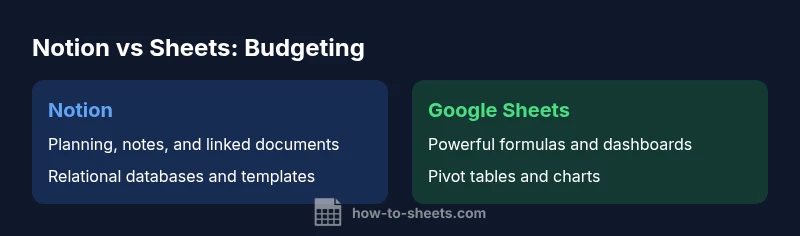
Notion and Google Sheets both support budgeting, but they serve different roles. For precise numbers, formulas, and data modeling, Google Sheets is usually the better choice. Notion shines for planning, context, and team collaboration, making it ideal for budgeting workflows that involve notes, tasks, and linked documents. If you need both, use Sheets for calculations and Notion for context and project management.
Notion vs Google Sheets for Budgeting: Why the comparison matters
Budgeting is not a one-tool chore; it relies on both structure and numbers. Notion offers flexible databases, linking, and collaboration, while Google Sheets delivers robust formulas and data modeling. According to How To Sheets, the optimal approach depends on your workflow: treat Notion as the planning and context hub, and Sheets as the calculation engine. The following sections explore when to lean on each tool, and how to design a budgeting process that fits teams of students, professionals, and small businesses.
Core budgeting workflows: when to use Notion, when to use Sheets
In practice, budgeting workflows span planning, tracking, reviewing, and reporting. For planning and contextual records, Notion shines: you can attach receipts, link project briefs, and create checklists alongside budgets. For tracking numbers, formulas, and what-if scenarios, Sheets is superior due to its grid structure and built-in functions. Teams often use a hybrid approach: Notion for scoped budgets, goals, and notes; Sheets for expense calculations and dashboards. For individuals, Notion is useful for personal finance planning with linked goals; for analysts, Sheets is the backbone of detailed budgets.
Notion's budgeting strengths and limitations
Strengths
- Flexible databases and linked pages let you model budgets around categories, projects, and teams.
- Built-in templates and relational fields enable quick setup of planning dashboards.
- Strong collaboration and comment threads keep context attached to numbers.
Limitations
- Advanced math and forecasting are weaker than dedicated spreadsheet software.
- Complex budgeting models can become hard to maintain inside a Notion database.
- Export options are improving but may require extra steps to move data to spreadsheets for analysis.
Google Sheets budgeting strengths and limitations
Strengths
- Rich formula support (SUMIF, VLOOKUP/XLOOKUP, ARRAY formulas), pivot tables, and charts for budgets.
- Real-time collaboration on numerical data with automatic version history.
- Easy data validation and scenario analysis to test budget assumptions.
Limitations
- Context and narrative around numbers can be scattered without a planning layer.
- Managing large budgets with many linked documents can get unwieldy in a single sheet.
Hybrid budgeting workflows: combining Notion and Sheets
A practical hybrid workflow keeps Notion as the planning and context layer while Sheets handles calculations. Create a Notion budget page with sections for goals, approvals, and notes, and embed a live Google Sheet that drives the numeric totals. Use automation (Zapier/Make) to sync status changes between Notion and Sheets, so stakeholders see the latest numbers and context in one place.
Designing a budgeting template in Notion
- Create a master Budget page with sections for Income, Expenses, and Forecast. 2) Add a Budget table with properties for Category, Amount, Variance, and Status. 3) Link expenses via a Relation property to keep context. 4) Build views for Monthly, Quarterly, and Annual budgets. 5) Attach receipts, links, and notes to each budget row for full traceability.
Building a budgeting model in Google Sheets
- Set up separate sheets for Revenue, Expenses, and Summary. 2) Create a central Budget table with Category, Planned, Actual, and Variance columns. 3) Use SUMIFS and conditional formatting to highlight overages. 4) Build dynamic dashboards with charts and sparklines. 5) Add scenario controls with data validation to compare best-, worst-, and baseline cases.
Data integration and automation options
Connect Notion and Google Sheets through integrations like Notion API and Google Apps Script, or use automation platforms such as Zapier or Make. Consider data governance: define who can edit budgets, where calculations happen, and how changes are logged. When syncing, keep one source of truth and schedule regular reconciliations.
Scaling budgets for teams and projects
As teams grow, establish clear ownership: assign Notion budget owners for context and approvals, and Sheets owners for the numbers. Use shared workspaces with role-based permissions and documented processes. Central dashboards in Sheets can feed Notion pages to keep everyone aligned on status, trends, and forecasts.
Common pitfalls and how to avoid
Avoid overcomplicating budgets with too many nested Notion databases or an overbuilt Sheets model. Define a single source of truth and prevent data duplication by linking rather than duplicating data. Regularly review templates and prune outdated views to keep budgets usable.
Quick-start templates you can adapt
Start with a simple Notion Budget page: a budget table, a linked expenses database, and a monthly view. In Sheets, duplicate a basic budgeting template with Revenue, Expenses, and Summary sections, plus a dashboard view. Customize labels to fit your organization and import related documents as needed.
Practical decision guide: choosing the right tool or hybrid approach
If your priority is planning, context, and collaboration, Notion is the better platform. If your priority is precise calculations, dashboards, and scenario analysis, Google Sheets wins. For many teams, a hybrid approach delivers the best balance: use Sheets for numbers and Notion for narrative and planning, with clear handoffs and governance.
Comparison
| Feature | Notion | Google Sheets |
|---|---|---|
| Budgeting focus | Context-rich budgeting with planning links | Numeric budgeting with formulas and charts |
| Core strengths | Relational databases, tasks, and notes in Notion | Formulas, charts, and data modeling in Sheets |
| Collaboration | Live collaboration with context in Notion | Concurrent editing of cells and formula-driven changes in Sheets |
| Offline access | Partial offline access in Notion apps | Strong offline support in Sheets offline mode |
| Data modeling | Linked databases and rollups in Notion | Tabular data with arrays, ranges, and pivot opportunities in Sheets |
| Automation | API-based automations and templates in Notion | Scripts and add-ons in Sheets |
| Best for | Planning, notes, and workflows with budgeting context | Math-heavy budgets, dashboards, and scenario analysis |
The Good
- Notion offers a flexible, context-rich budgeting workflow and easy linking to related documents
- Google Sheets provides powerful formulas, charts, and data analysis for budgets
- A hybrid approach can maximize both structure and precision
- Templates in both tools can accelerate setup and adoption
The Bad
- Notion can lack advanced numeric capabilities and heavy budget modeling
- Google Sheets can be less intuitive for planning, notes, and collaborative context
Adopt a hybrid approach: use Sheets for calculations and Notion for context and collaboration.
For teams needing both precision and planning, Sheets handles numbers; Notion handles organization. The How To Sheets team recommends a balanced workflow.
FAQ
Can Notion handle budgeting comprehensively?
Notion supports budgeting context and lightweight tracking, but it is not a full replacement for dedicated budgeting calculations. You can model budgets with tables, relations, and notes, yet complex financial modeling is easier in Sheets. For many teams, a hybrid approach works best.
Notion works well for planning and notes; but for heavy budgeting calculations, Sheets is preferable.
Is Google Sheets better for budgeting than Notion?
For pure budgeting math, Sheets generally offers stronger formulas, dashboards, and data analysis. Notion excels at context and collaboration but lacks the same depth of numeric tooling. Decide based on whether your primary need is numbers or planning.
Sheets is stronger for the numbers; Notion is stronger for planning.
Can I sync Notion with Google Sheets?
Yes, you can connect Notion and Sheets using APIs or automation platforms like Zapier or Make. Data flow can be one-way or two-way depending on your setup. Plan for governance to avoid mismatched data.
You can connect Notion and Sheets via APIs or automation tools.
What is the best approach for small teams?
A hybrid approach often works best: Notion handles planning and notes; Sheets handles budgeting calculations and dashboards. Establish clear ownership, templates, and a shared workflow to keep everyone aligned.
Use Notion for planning and Sheets for numbers with a clear handoff.
Are templates available for budgeting in Notion or Sheets?
Yes. Both Notion and Google Sheets offer budgeting templates that you can customize. Start with a simple template and adapt as your budget grows in scope.
There are ready-made templates you can tailor to your needs.
How do I start a budgeting workflow quickly?
Begin with a Notion budgeting page for context and a linked Sheets budget for calculations. Add simple views and a weekly review cadence to keep budgets current.
Start with a Notion page and a linked Sheets sheet for quick momentum.
The Essentials
- Choose Sheets for math-heavy budgets and analytics.
- Choose Notion for budgeting context and team collaboration.
- Hybrid workflows offer best of both worlds.
- Embed Sheets in Notion for live data.
- Start with a simple template and scale.