How to Build a Google Sheets Dashboard: A Practical Guide
Learn to create a scalable google sheets dashboard with clear visuals, interactivity, and reliable data sources. This step-by-step guide covers data prep, visuals, layout, and maintenance to help students, professionals, and small business owners.


Create a functional Google Sheets dashboard that updates from your data sources. You'll map data, design a clean layout, add charts and KPI cards, and implement slicers for interactivity. This guide covers data prep, visualization choices, and best practices to keep dashboards fast and clear. It highlights layout patterns, data validity checks, and sharing controls.
What is a google sheets dashboard and why you should build one
A google sheets dashboard is a visual, at-a-glance summary of the most important metrics pulled from your data. It sits between raw data tables and executive reports, offering interactivity and quick insights. The goal is to turn scattered numbers into a narrative: what happened, where it happened, and what to do next. A well-crafted dashboard helps students, professionals, and small business owners make faster decisions without leaving Sheets. You can create dashboards that update automatically as data changes, keeping teams aligned in real time. In practice, a dashboard usually centers on a few KPI cards, a handful of charts, and a layout that guides the eye from inputs to insights. The How To Sheets framework emphasizes clarity, minimal visual clutter, and predictable behavior. Before you begin, define your audience and the decisions your dashboard should support. This ensures you select the right visuals and data sources from the outset. According to How To Sheets, a strong google sheets dashboard starts with a clear purpose and a single source of truth.
Core design principles for dashboards
Designing an effective dashboard in Google Sheets hinges on clarity, consistency, and purpose. Start with a restrained color palette and generous white space to avoid visual noise. Use a grid-based layout so you can align charts, KPI cards, and filters in predictable rows and columns. Typography should be legible at a glance: use one or two font sizes for headings and body text, with bold for emphasis. Keep scales consistent across charts to prevent misinterpretation, and position the most important metrics near the top left where the eye naturally lands. Performance matters: limit volatile formulas, avoid excessive conditional formatting, and minimize the number of sheets recalculated during interaction. Remember that dashboards are for decision-making, not for showcasing every data point. The How To Sheets team finds that user-friendly dashboards rely on a handful of high-impact visuals and a clean, repeatable pattern you can apply to new data without redoing the entire layout.
Data structure and preparation for dashboards
A successful dashboard begins with clean, well-structured data. Start by collecting data in a single source of truth, then normalize formats (dates, currencies, decimals) to a consistent standard. Name key ranges so formulas stay readable and portable, and avoid merging cells in the data layer to prevent misalignment in charts. Implement data validation to catch input errors early, and create a separate “dashboard” sheet that pulls from the data source via named ranges or simple queries. If you need to pull data from external sources, use safe integration approaches like IMPORTRANGE or built-in connected data features, and document each source with a brief note. How To Sheets emphasizes maintaining a data dictionary: define column names, data types, and update rules so teammates know how to extend the dashboard later without breaking formulas.
Visual toolkit: charts, tables, and scorecards
Your dashboard should emphasize clarity over complexity. Use charts sparingly but purposefully: a line chart for trends, a bar chart for comparisons, and a pie or donut chart for composition when appropriate. KPI cards or scorecards provide at-a-glance metrics such as total sales, average order value, or completion rate. Combine visuals with compact tables or sparklines to show context without overwhelming the viewer. Conditional formatting can highlight anomalies or targets, but apply it only where it adds meaning. Pivot tables in Sheets are powerful for summarizing data on the fly, especially when used alongside slicers. Always label axes and provide concise legends. The goal is to enable quick decisions, not to dazzle with every available chart type.
Layout and UI patterns for dashboards
A well-organized dashboard follows a predictable structure: a header with title and filters, a left-hand column for controls, and a right-hand area for primary visuals. Use a consistent card-like separation (borders or background shading) to group related items. Place the most critical visuals above the fold and ensure filters apply globally where needed. Maintain consistent margins and align elements with a common baseline grid. For mobile usability, design with simplified layouts and larger tap targets. Throughout the layout, add short captions or tooltips to explain what each visual represents and how to interpret it. This consistency reduces cognitive load and makes the dashboard scalable as new data streams arrive.
Interactivity: filters, slicers, and dynamic ranges
Interactivity elevates a dashboard from a static report to a decision-support tool. Use filters or slicers to let users focus on time periods, regions, or product lines. Slicers in Google Sheets provide direct, visual filtering controls that update multiple visuals in real time. Prefer dynamic ranges or named ranges that grow as data expands rather than hard-coded ranges, so dashboards stay up-to-date automatically. Create view-only filters for stakeholders who should not modify data. When you introduce interactivity, test every filter combination to ensure visuals update consistently and no chart shows misleading gaps or duplicated data.
Validation, testing, and maintenance
Treat dashboards as living documents. Validate data by cross-checking summaries against source tables and performing sanity checks on totals and averages. Maintain a changelog of dashboard updates, and use named ranges to simplify rollback if a formula breaks. Schedule regular checks to ensure external data connections (like IMPORTRANGE) are still valid, and back up key dashboards before major changes. Invite peer reviews from teammates to catch edge cases you might miss. Finally, document behavior: how filters interact, which visuals are dependent on which data sources, and how to refresh data if the source format changes. How To Sheets recommends a quarterly audit to keep dashboards reliable and trustworthy.
Common mistakes and how to avoid them
Dashboards fail when visuals contradict each other or when data sources drift over time. Avoid crowding the canvas with too many visuals or exotic color schemes that hinder readability. Keep the data model simple: fewer formulas scattered across sheets, clear named ranges, and consistent date formats. Don’t rely on one-off charts for critical decisions; provide at least one alternative visualization to verify insights. Test dashboards under real-world scenarios, including incomplete data and slow connections, to ensure performance stays acceptable. Finally, plan for sharing and permissions early: decide who can view, edit, or reshape the dashboard, and provide a brief onboarding note so new users can understand the layout quickly.
Tools & Materials
- Google Sheets(Active account with access to Google Sheets (web or mobile).)
- Data sources(Source data in Sheets, CSV, or connected feeds.)
- Named ranges(Create named ranges for inputs and data blocks to simplify formulas.)
- Dashboard sheet(A dedicated sheet with a clean grid and headers.)
- Charts and tables(Plan charts (bar, line, pie) and compact tables for context.)
- Color palette and typography(Choose accessible colors and readable fonts.)
- Backups/version control(Regular backups help revert changes safely.)
Steps
Estimated time: 60-90 minutes
- 1
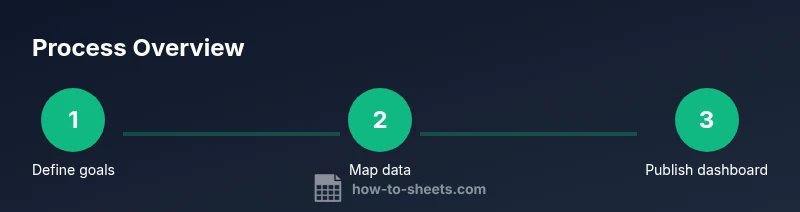
Define dashboard goals
Clarify decisions the dashboard should support and list the key questions it must answer. Align with stakeholders to set success criteria and metrics to track.
Tip: Write 2-3 decision questions and map them to visuals you will build. - 2
Map data sources
Identify where data lives, how it will flow into Sheets, and which fields are essential for the visuals.
Tip: Document source names and refresh cadence to avoid disconnects. - 3
Clean and normalize data
Standardize formats, remove duplicates, and ensure consistent data types across sources.
Tip: Use named ranges for consistency and future-proofing. - 4
Create a dedicated dashboard sheet
Set up a separate sheet with a clean grid, labeled sections, and a clear header.
Tip: Lock or protect header rows to prevent accidental edits. - 5
Build KPI cards
Create concise KPI cards that summarize core metrics with clear labels.
Tip: Keep totals and targets visible at the top for quick assessment. - 6
Add visuals
Insert charts and tables that directly address the decision questions and support quick comparisons.
Tip: Label axes and include short captions to enhance understanding. - 7
Enable interactivity
Add slicers and filters to allow users to refine data by time, category, or region.
Tip: Test all filter combinations for consistent updates. - 8
Validate and publish
Cross-check data with sources, document assumptions, and share with the right permissions.
Tip: Provide a brief onboarding note to new viewers.
FAQ
What is a Google Sheets dashboard and why should I use one?
A Google Sheets dashboard is a visual, interactive summary of data designed to support quick decisions. It consolidates key metrics, trends, and filters in a single view, reducing the time spent searching through raw data.
A Google Sheets dashboard is a visual, interactive summary of data designed to help you decide faster.
How do I ensure dashboards stay up to date?
Connect data sources with dynamic ranges or simple queries and avoid hard-coded ranges. Regularly validate sources and schedule refreshes where possible to keep visuals current.
Keep data fresh by linking sources with dynamic ranges and validating connections.
Can I share dashboards with colleagues?
Yes. Set appropriate permissions and provide a short guide on how to interact with filters. Use protected ranges to prevent accidental edits to critical data.
You can share with controlled access and a quick how-to guide.
What visuals work best for dashboards?
Combine KPI cards for at-a-glance metrics with line charts for trends and bar charts for comparisons. Use sparingly and ensure each visual answers a specific question.
KPIs plus a few clear charts for trends and comparisons.
Do I need scripting for advanced dashboards?
Most dashboards can be built with built-in features like charts, slicers, and named ranges. Scripting is only required for automation beyond native capabilities.
Scripting is optional; most dashboards can be built with built-in tools.
Is there a limit to the number of charts I can have?
There is no hard chart limit in Google Sheets, but performance can degrade with too many visuals. Prioritize essential charts and optimize data ranges.
No strict limit, but keep performance in mind and use essential visuals.
Watch Video
The Essentials
- Define purpose before visuals.
- Structure data for reliable updates.
- Choose a small set of impactful visuals.
- Plan for interactivity and maintenance.