Google Sheets Pixel Art: A Practical Step-by-Step Guide
Learn how to create pixel art inside Google Sheets with a practical, step-by-step approach. Plan your grid, build a palette, color pixels, and export for sharing.


In Google Sheets, you can create pixel art by converting cells into individual pixels, then coloring them with a defined palette to form an image. The setup requires a clean, square grid, a small color palette, and deliberate coloring. This guide gives practical, step-by-step methods to design, color, and export pixel art directly inside Sheets.
What pixel art in Google Sheets teaches you
Pixel art in Google Sheets is more than a playful hobby; it is a practical exercise in grid-based design, color theory, and disciplined planning. By turning each cell into a pixel, you force yourself to consider scale, contrast, and composition at a micro level. Working inside Sheets also teaches you how to optimize space, maintain alignment, and reuse templates for future projects. The process reinforces the idea that good art starts with a plan, then translates that plan into small, repeatable actions. As you build skill, you will notice that consistent cell sizes, deliberate color choices, and a simple palette lead to sharper, more recognizable images. For students and professionals, this is a vivid, hands on way to explore visual storytelling within a familiar tool. The How To Sheets team has found that incremental practice yields faster results and greater confidence in improvisation.
Planning your pixel art project: size, subject, and palette
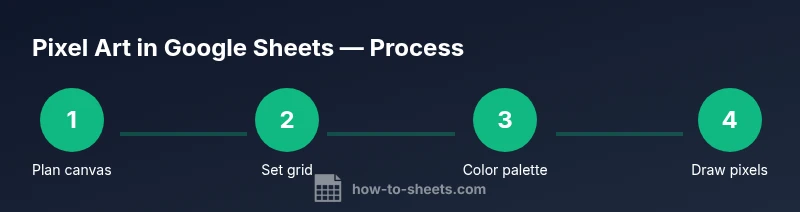
Before you touch a cell, decide the scope of your piece. Choose a canvas size that matches your intent: a tiny 8x8 for icons or a larger 32x32 for more detail. Pick a subject that translates well to pixel form, such as a smiley, a tiny sprite, or a simple object. Select a restrained color palette (5–8 colors) to preserve the retro pixel aesthetic and keep shading manageable. Document the plan in a note or a separate sheet tab, including the grid dimensions, the color codes, and a rough sketch mapping. This upfront planning reduces reruns and makes it easier to share a consistent look with teammates or classmates.
Preparing the Sheets canvas: grid size, cell dimensions, alignment
Open a new sheet or tab and set up your grid. Adjust column width and row height to uniform pixels (for example, 20–25 px per cell). Freeze the top row and first column to keep the palette visible while you draw. Use borders or alternating colors to visualize pixel boundaries. Label the edges with coordinates or numbers to help you track positions when planning patterns. A clean, consistent grid is the foundation of clean pixel art.
Building a color palette in Google Sheets
Create a dedicated palette area on the sheet and fill swatches with your chosen colors. Limit yourself to a small set of colors and assign each swatch a label. Use named ranges or a small legend so you can quickly reference the palette while painting. Consider adding neutral grays for shading and a black or dark color for outlines. Keeping the palette in a single, clearly labeled block reduces color mistakes and makes it easier to reuse across multiple drawings.
Pixel art drawing techniques: tracing, symmetry, shading
Begin by outlining the basic shapes with a neutral color and then fill in the major color blocks. Symmetry can dramatically speed up work: draw one half and mirror it to the other, adjusting as needed. Use shading to suggest depth: place lighter colors toward the light source and darker colors in shadowed areas. For small canvases, plan edge handling by reserving single-pixel borders. If you need a more complex effect, employ dithering by alternating two colors to simulate intermediate tones. Reference simple guidelines or a pre-drawn grid to keep proportions accurate.
Practical workflow: templates, layers, and reuse
Develop a repeatable workflow by building a template with a ready-to-use canvas and color palette. Treat your drawing as layers: start with a base silhouette, add color blocks, then apply shading. Save multiple versions of the same art with small variations to compare looks. Use a separate tab for templates so you can clone canvases quickly without interfering with your main artwork.
Exporting, sharing, and preserving your pixel art
Sheets does not export the canvas as an image directly, so plan to capture it with a screen grab or a third party tool. For a crisp result, zoom in to the pixel level before capturing and crop tightly to avoid blurring. Save your work frequently and share the Google Sheet URL with collaborators. If you want a static image for portfolios, export the canvas as a PNG by taking a high resolution screenshot and then resizing as needed.
Authority sources and further reading
For broad background on grid based design and color theory, refer to Britannica's color theory overview and the article on pixel art at https://www.britannica.com/art/pixel-art. The How To Sheets analysis (2026) provides practical insights into using familiar tools for creative tasks. See related tutorials and official Google Docs support articles for working with color in Sheets.
A simple 8-bit example: smiley face
A classic beginner project is a tiny smiley face on an 8x8 canvas. Plan a simple design using bright yellow for the face, black for the eyes and mouth, and optional white highlights. Create the grid, fill the face block, then place the two eyes and a mouth using your selected palette. This compact exercise teaches you how to translate a recognizable icon into pixel blocks, while demonstrating how shading and edge handling affect readability at small sizes.
Tools & Materials
- Google account with access to Google Sheets(Needed to create and save your project)
- Google Sheets document(Create a new sheet for the pixel canvas)
- Color palette reference (swatches or palette image)(Predefine 6–8 colors)
- Grid template or ruler (optional)(Useful to maintain proportion)
- Screen capture tool or screenshot utility(For exporting pixel art as an image)
Steps
Estimated time: 45-90 minutes
- 1
Create a new Google Sheet and name the project
Open Google Sheets and start a new blank spreadsheet. Name it clearly, for example Pixel Art Studio, so you can reuse the template later. This first step sets your workspace and helps with version control.
Tip: Tip: Use a descriptive project name to avoid confusion when you create multiple art sheets. - 2
Set up a square pixel grid by adjusting cell sizes
Select a square block that matches your preferred pixel size and set both column width and row height to equal dimensions, such as 20–25 pixels. This ensures each cell behaves like a single pixel.
Tip: Tip: Lock the grid by freezing the top row and leftmost column so your color palette stays visible as you draw. - 3
Define a color palette and label swatches
Create a dedicated palette area on the sheet and fill swatches with your chosen colors. Label each swatch to avoid color mislabeling during coloring.
Tip: Tip: Limit yourself to 6–8 colors to maintain the retro aesthetic and simplify shading. - 4
Designate a drawing area (your canvas)
Clear a rectangular region where you will paint pixels. Consider leaving a margin to keep the artwork tidy and easy to select.
Tip: Tip: Name the canvas range for easy reuse as a template. - 5
Start coloring pixels using the color palette
Click a cell and choose Fill color to apply a color. Build your image row by row, preserving symmetry and alignment with the grid.
Tip: Tip: Plan a rough sketch first in light colors, then add darker tones for depth. - 6
Refine edges and add shading
Add subtle shading by using lighter and darker variants of palette colors. This creates the illusion of depth in flat sheets.
Tip: Tip: Use a small 1–2 pixel border around important shapes for crisp edges. - 7
Capture or export your pixel art
Sheets does not export the canvas as an image directly, so use a screenshot or screen-capture tool to save a clean image of your canvas.
Tip: Tip: Use a high-resolution capture and crop tightly to preserve pixel clarity. - 8
Reuse as a template or iterate on new designs
Save the file as a template and reuse the canvas for future projects. You can swap palettes to explore new looks without redoing the grid.
Tip: Tip: Create a separate templates tab for different canvas sizes. - 9
Share and gather feedback
Publish the sheet or share the URL with colleagues or classmates. Gather feedback to improve your pixel art workflow and palette choices.
Tip: Tip: Use comments to annotate color choices and design decisions for collaborators.
FAQ
What is Google Sheets pixel art and why use Sheets for it?
Pixel art in Sheets uses colored cells as pixels to form images. It offers a low cost, accessible way to practice color theory and grid based design without specialized software.
Pixel art in Sheets uses colored cells to form images and teaches grid based design.
How large should the pixel grid be for a simple image?
Start with a small grid such as 8 by 8 or 16 by 16 to learn the workflow. Increase the size gradually for more detail.
Begin with an 8 by 8 or 16 by 16 grid to learn, then grow for more detail.
Can I export or share my pixel art from Sheets?
Google Sheets does not export the canvas as an image directly. Use a high quality screenshot and crop to preserve pixel sharpness.
Export by taking a high quality screenshot and cropping to preserve pixels.
What if I want shading or depth in my artwork?
Add lighter and darker palette colors to create depth. Keep shading subtle on small canvases to avoid losing pixel clarity.
Use light and dark colors to add depth without blurring edges.
Are there ready-made templates for pixel art in Sheets?
Yes. Save canvases as templates and reuse them for new designs. Maintain a templates tab with standard grid settings.
You can save canvases as templates and reuse them for new designs.
What are common mistakes to avoid?
Avoid using too many colors, uneven cell sizes, and failing to save templates. These issues reduce pixel precision and consistency.
Common mistakes include too many colors and inconsistent cell sizes that ruin pixels.
Watch Video
The Essentials
- Plan your canvas size and color palette first.
- Treat each cell as a pixel for precise control.
- Use screenshots to export pixel art from Sheets.
- Save templates to reuse your workflow.
- Keep the palette small for sharp, retro aesthetics.