Google Sheets Standard Deviation: Step-by-Step Guide
Learn to calculate and interpret google sheets standard deviation with STDEV.P and STDEV.S. This step-by-step guide covers data preparation, formulas, examples, and templates for dashboards.


According to How To Sheets, you can calculate google sheets standard deviation with STDEV.P or STDEV.S. This step-by-step guide covers when to use each, includes practical formulas, and offers templates for dashboards. You'll learn how to interpret results, compare groups, and create meaningful charts that communicate data variability. The approach suits students, professionals, and small businesses seeking actionable insights.
What google sheets standard deviation is and why it matters
The concept of standard deviation measures how spread out the values in a data set are around the mean. In the context of google sheets standard deviation, you quantify dispersion to understand risk, variability, or consistency across groups. For students, professionals, and small business owners, SD helps answer questions like: Are sales figures consistent month-to-month, or do outliers skew the average? By computing SD in Sheets, you turn raw numbers into a tangible measure of reliability, enabling clearer comparisons and better decision-making. This metric sits at the core of dashboards, reports, and analytical templates, making it a foundational skill for any data-driven task. As you work through this guide, you’ll see how to apply SD in practical scenarios and how it links with the mean, variance, and data visualization. In short, google sheets standard deviation is the tool that reveals how far data points stray from the center across your dataset.
Population vs. sample: STDEV.P vs STDEV.S in practice
In Sheets, standard deviation is implemented via two main functions: STDEV.P for the entire population and STDEV.S for samples. The choice changes the divisor: STDEV.P divides by n, while STDEV.S divides by n-1. This distinction matters when your data represent the full group (population) or a subset (sample). If you’re analyzing a complete dataset from a controlled experiment, STDEV.P is appropriate. If you’re inferring variability from a subset, STDEV.S provides an unbiased estimate. Understanding this difference helps prevent common misinterpretations of variability and ensures your conclusions reflect the right statistical assumption.
How to calculate standard deviation in Google Sheets
Google Sheets exposes two primary functions for standard deviation: STDEV.P(value1, [value2, ...]) and STDEV.S(value1, [value2, ...]). The simplest usage is to reference a range, e.g., =STDEV.P(A2:A7) or =STDEV.S(A2:A7). If your data includes empty cells, non-numeric values, or text, Sheets will ignore non-numeric entries, but you should still clean the data to avoid misleading results. For large datasets, using a dynamic range like A2:INDEX(A:A, COUNTA(A:A)) can help automate range sizing as data grows. Additional checks, such as using IFERROR to handle errors, can keep your sheet tidy.
Cleaning data and handling non-numeric values before SD
Before computing standard deviation, ensure the data column contains only numbers or blanks. Non-numeric values can produce errors or incorrect results. Use a helper column with =IF(ISNUMBER(A2), A2, NA()) to mark invalid entries, or filter clean data with =STDEV.P(FILTER(A2:A100, ISNUMBER(A2:A100))). This practice helps produce robust SD calculations and prevents misinterpretation caused by stray text or errors. If your dataset includes zeros or negative values, SD will still reflect dispersion, so interpret results within the data’s context.
Step-by-step example: a small dataset
Imagine a simple dataset in A2:A7: 4, 6, 6, 8, 5, 9. The mean is 6.33. The population standard deviation (STDEV.P) is about 1.70, while the sample standard deviation (STDEV.S) is about 1.86. In Sheets, you’d enter =STDEV.P(A2:A7) for the population view and =STDEV.S(A2:A7) for the sample. This concrete example shows how SD values quantify spread and how they differ when treating the data as a full population versus a sample.
Visualizing SD in dashboards and charts
SD is most actionable when paired with the mean in a dashboard. Create a summary table with the mean and SD, then use a chart to display bars for each group and annotate the error bars as mean ± SD. While Sheets doesn’t natively draw error bars on all chart types, you can approximate them by adding additional series and using data labels. This approach makes variability easy to perceive and communicates variability at a glance in reports and presentations.
Common pitfalls and how to avoid them
Relying on SD alone without context can mislead readers. Always specify whether you’re using STDEV.P or STDEV.S and explain the data source (population vs sample). Mixing data types within a single range, including text, can produce errors. If you detect outliers, consider robust alternatives or separate analyses. Finally, remember that SD assumes the data are roughly normally distributed; for skewed data, interpret SD alongside other metrics like the median and IQR.
Quick templates and formulas you can copy
Copy these starter formulas into Google Sheets:
- Population SD: =STDEV.P(A2:A7)
- Sample SD: =STDEV.S(A2:A7)
To analyze a subset by a group (e.g., Group column in B2:B7): =STDEV.P(FILTER(A2:A7, B2:B7="Group1")) For continuous data with blanks: =STDEV.P(FILTER(A2:A7, A2:A7<>"")) Document assumptions in a separate notes cell to improve reproducibility.
Next steps: extending SD to more advanced analyses
Beyond basic SD, you can incorporate SD into confidence intervals, control charts, or anomaly detection workflows. Explore how SD interacts with the normal distribution assumptions and use SD to set plausible ranges around the mean. If you’re comfortable with arrays, you can compute SD across multiple columns with array formulas and then summarize results in a compact dashboard. As you gain familiarity, you’ll be able to tailor SD analyses to different datasets and decision contexts.
Tools & Materials
- Computer with internet access(Access to Google Sheets and a browser)
- Google account(Needed to sign in to Google Sheets)
- Sample numeric dataset(Column of numbers in a Google Sheet (e.g., A2:A100))
- Data cleaning helper(Optional column to flag non-numeric entries)
Steps
Estimated time: 15-25 minutes
- 1
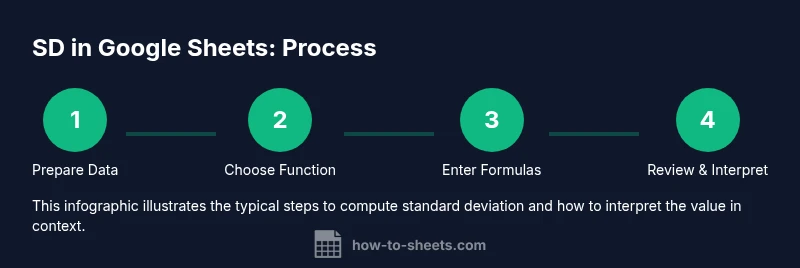
Prepare Data
Identify the numeric column and ensure all values are numeric or blank. Remove text or convert non-numeric values to blanks to avoid miscalculations.
Tip: Keep data in a single numeric column with a clear header. - 2
Decide which SD function to use
Determine if you’re analyzing a full population or a sample. Use STDEV.P for population data and STDEV.S for samples to get an unbiased estimate of dispersion.
Tip: If in doubt, assume a sample and start with STDEV.S. - 3
Enter STDEV.P formula
In a new cell, type =STDEV.P(A2:A7) to compute population standard deviation for the range. Adjust the range to match your data.
Tip: Double-check the range and ensure there are numeric values only. - 4
Enter STDEV.S formula
In another cell, type =STDEV.S(A2:A7) to compute sample standard deviation. Compare results to the population SD to understand data variability.
Tip: Use both outputs to interpret dispersion under different assumptions. - 5
Handle non-numeric values
If non-numeric entries exist, clean or filter them before calculation. You can use FILTER or a helper column to ensure numeric data only.
Tip: Consider =STDEV.P(FILTER(A2:A7, ISNUMBER(A2:A7))) for clean inputs. - 6
Apply to subsets with FILTER
To compare groups, compute SD for each subset: =STDEV.P(FILTER(A2:A7, B2:B7="Group1"))
Tip: Label each group clearly to avoid mix-ups when reporting. - 7
Visualize the SD on a dashboard
Create a small card with mean and SD and optionally add a chart. Mean ± SD can be displayed as bounds on a bar or line chart.
Tip: Use a separate cell to calculate the mean for reference. - 8
Document your method
Write a short note outlining data sources, assumptions (population vs sample), and formulas used. This improves reproducibility.
Tip: Include the data range and function names in your notes.
FAQ
What is standard deviation in Google Sheets?
Standard deviation measures data dispersion around the mean. In Google Sheets you compute it with STDEV.P for population data or STDEV.S for samples, helping you assess variability in datasets.
Standard deviation shows how spread out your data is around the mean. Use STDEV.P for populations and STDEV.S for samples.
When should I use STDEV.P vs STDEV.S?
Use STDEV.P when your data represent the entire population. Use STDEV.S when you’re dealing with a sample from a larger population. This choice affects how variance is estimated.
STDEV.P for populations, STDEV.S for samples. Pick based on whether your data covers the full group or just a subset.
Can I calculate SD for a filtered subset of data?
Yes. Use FILTER to select the subset, then apply STDEV.P or STDEV.S to the result, for example: =STDEV.P(FILTER(A2:A100, B2:B100="Group1")).
You can compute SD on a subset by combining FILTER with the SD function.
How do I handle non-numeric values in the range?
Non-numeric values are ignored by the SD functions, but they can complicate analysis. Clean the data or use FILTER with ISNUMBER to ensure numeric inputs.
If there are non-numeric values, clean them or filter them out before calculating SD.
Is SD the same as variance?
Standard deviation is the square root of the variance. SD is in the same units as the data, while variance is in squared units, so SD is usually easier to interpret.
SD is the square root of variance and is easier to interpret since it’s in the same units as your data.
Can I compute SD for multiple columns at once?
You can apply SD functions to each column separately or use array formulas to summarize multiple ranges, but Google Sheets may require individual calculations per column.
You generally compute SD per column, or use array formulas to aggregate results.
What should I include in a quick SD dashboard?
Include the mean, standard deviation, and a simple interpretation note. Consider showing a mean ± SD band for quick risk or dispersion assessment.
In a dashboard, show Mean and SD with a short interpretation note.
Watch Video
The Essentials
- Use STDEV.P for population data to get total dispersion.
- Use STDEV.S for samples to avoid bias in estimation.
- Clean data to avoid non-numeric values skewing results.
- Compute mean and SD together for meaningful dashboards.
- Document assumptions and data sources for reproducibility.