Find Standard Deviation in Google Sheets: Step-by-Step
Learn how to find standard deviation in Google Sheets using STDEV.S and STDEV.P. This practical guide covers when to use each function, with examples and tips to ensure accurate variability measurements in your datasets.


How to find standard deviation in google sheets is a common task for analyzing data dispersion. In this quick guide, you’ll learn when to use STDEV.S vs STDEV.P, how to apply them to your data, and how to interpret the results with practical examples. By the end, you’ll confidently compute and compare variability directly in Sheets.
What standard deviation means in Google Sheets
Standard deviation measures how spread out numbers are around the mean, a core concept in data analysis. If you’re learning how to find standard deviation in google sheets, you’re measuring variability, not just the average. In practical terms, a small standard deviation indicates data points cluster near the mean, while a large value signals wide dispersion across your dataset. This metric helps you compare consistency across groups, assess risk, and validate forecasting models. According to How To Sheets, understanding this metric enables you to explain variability to teammates and justify decisions based on data quality. When you present results in Sheets, pair the standard deviation with the mean and count to give a complete picture of your dataset.
STDEV.S vs STDEV.P: when to use each
Google Sheets provides two standard deviation functions: STDEV.S for samples and STDEV.P for populations. The choice changes how variance is calculated (denominator n-1 for samples vs n for populations). Use STDEV.S when your data are a sample of a larger group; use STDEV.P when you want the variability of the entire population you observed. The difference can affect interpretation, especially in smaller datasets where the discrepancy between denominators is more pronounced. Always document which assumption you made so others understand your results.
Quick-start: computing standard deviation with STDEV.S
If your data sits in A2:A10 as numeric values, you can compute a sample standard deviation quickly with =STDEV.S(A2:A10). The function ignores non-numeric cells, so blanks won’t distort the result. You can place the formula in any empty cell and copy it to adjacent columns if you’re comparing multiple data ranges. A simple check is to verify the result against a mental estimate of spread, especially for small datasets.
Computing population standard deviation with STDEV.P
For the whole dataset treated as a population, use =STDEV.P(A2:A10). This calculation divides by n, not n-1, which produces a slightly smaller value when data are truly representative of the entire set. Like STDEV.S, STDEV.P ignores non-numeric cells and automatic range expansion can be used by dragging the formula. Compare STDEV.P and STDEV.S on the same data to see how much the assumption changes the outcome.
Understanding sample vs population in real datasets
In practice, most datasets are samples drawn from a larger group. Treating them as a full population can bias the variability you report. If you’re unsure, start with STDEV.S and note your sampling assumption. This mindset aligns with common statistical practice and helps you communicate uncertainty clearly. How To Sheets emphasizes documenting your scope so stakeholders know whether results reflect a sample or the entire population.
Practical examples: small dataset, large dataset
Example dataset (synthetic): A2:A7 contains 2, 4, 4, 4, 5, 5. For a sample, STDEV.S(A2:A7) = approximately 1.095; for a population, STDEV.P(A2:A7) = 1.0. These numbers illustrate how the denominator affects the result. When you scale to larger datasets, the absolute difference remains, but the relative impact may shrink as the sample better represents the population.
common pitfalls and how to verify results
Be careful with text in numeric ranges, blanks, or headers. If a header row is included, make sure it’s excluded from the range or use a dynamic range that starts below the header. According to How To Sheets analysis, non-numeric values can skew your SD if not filtered out. Always validate with a quick manual check on a small subset to ensure the function is behaving as expected.
Using standard deviation in charts and dashboards
You can augment your SD results with a bar or line chart showing means and error bars representing standard deviation. In Sheets, keep your data organized in a clean table, and generate a chart that highlights variability. This visual approach makes it easier for teammates to grasp dispersion at a glance and supports data storytelling in dashboards.
Best practices and quick tips for Google Sheets
- Use named ranges to simplify formulas and reduce errors.
- If data includes non-numeric entries, clean or filter before computing SD.
- Always specify whether you’re using samples or populations and document your choice.
- Compare STDEV.S and STDEV.P side-by-side to understand how your assumption affects results.
- Cross-validate with a manual calculation on a small subset for accuracy.
Tools & Materials
- Google Sheets access (Google account)(Open in a web browser or mobile app with an active internet connection.)
- Sample numeric dataset prepared in a column (e.g., A2:A20)(Ensure all values are numeric and remove non-numeric data.)
- Optional: Named ranges to simplify formulas(Helpful for large datasets and repeated calculations.)
- Basic calculator or mental math for quick cross-checks(Optional but useful for spot-checks on small samples.)
Steps
Estimated time: 20-30 minutes
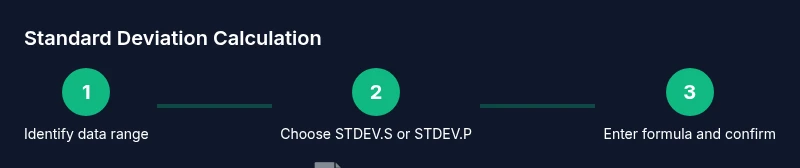
- 1
Prepare your data range
Identify the column or row with numeric data. Exclude headers and non-numeric values, creating a clean range (for example, A2:A20). This ensures the SD calculation reflects actual data dispersion, not incidental text or headers.
Tip: If you must include headers, exclude them from the formula by adjusting the range (e.g., A2:A20). - 2
Decide whether you have a sample or a population
Ask yourself if your data represents a sample from a larger population or the entire population you’re studying. The choice dictates whether you should use STDEV.S (sample) or STDEV.P (population).
Tip: When in doubt, document the assumption and start with STDEV.S. - 3
Enter the STDEV.S formula for a sample
In a blank cell, type =STDEV.S(A2:A20) and press Enter. This computes the standard deviation assuming a sample. You can adjust the range to fit your data.
Tip: If you will apply to other columns, consider anchoring the range with $ (e.g., $A$2:$A$20). - 4
Enter the STDEV.P formula for a population
In another cell, type =STDEV.P(A2:A20) to compute the population standard deviation. Compare this value with STDEV.S to understand the impact of the denominator.
Tip: Use consistent ranges across both formulas for a fair comparison. - 5
Copy formulas to additional ranges
Drag the fill handle to apply the formulas to adjacent columns or rows if you need SD for multiple datasets. Ensure you adjust or lock references as needed.
Tip: Consider using named ranges to avoid misalignment when copying. - 6
Interpret results and compare datasets
Interpret the SD value in context: lower values indicate tighter clustering around the mean; higher values indicate more spread. Pair SD with the mean and count for a complete summary.
Tip: For comparison, also compute the coefficient of variation (CV = SD/mean) if appropriate.
FAQ
What is standard deviation and why is it important in Sheets?
Standard deviation measures how spread out numbers are around the mean. In Sheets, it helps quantify variability in your data, which is essential for comparing groups or assessing risk.
Standard deviation shows how much data varies from the average, which helps you compare datasets more reliably.
STDEV.S vs STDEV.P: when should I use each?
STDEV.S is used for samples, while STDEV.P is used when you have the entire population. The choice affects the divisor and the result.
Use STDEV.S for samples and STDEV.P for populations.
Do STDEV functions ignore text or blanks?
Yes. STDEV.S and STDEV.P ignore non-numeric cells, so blanks and text won’t be included in the calculation.
Non-numeric cells are ignored by the standard deviation functions.
Can I calculate SD across multiple columns?
Yes. Apply STDEV.S or STDEV.P to each column separately or use array formulas if your data is arranged consistently.
You can run the function per column or use an array approach.
How can I verify my SD calculation is correct?
Cross-check with a manual calculation on a small dataset or compare results with another statistical tool to ensure accuracy.
Manually check a tiny sample or compare with another calculator.
What if my data has outliers?
Outliers can inflate SD. Consider cleaning data, or reporting SD with and without outliers and noting the choice.
Outliers affect SD; consider cleaning or reporting both with and without them.
Watch Video
The Essentials
- Select the right function (STDEV.S vs STDEV.P).
- Reference your exact data range to avoid including headers.
- Interpret the SD as dispersion around the mean.
- Validate results with a quick manual check on a small dataset.
- Document your data scope and method for reproducibility.