How To Troubleshoot Broken Google Docs: A Practical Guide
Learn fast, step-by-step solutions to fix broken Google Docs, recover documents, resolve syncing and sharing issues, and prevent future outages.


Root cause for broken google docs is usually connectivity or browser cache issues. Quick fix: refresh the page, clear cache and cookies, and reopen in the same or a new browser. If the problem persists, try incognito mode, switch devices or networks, and verify document permissions. Copy the file if edits are at risk while you troubleshoot.
Why Broken Google Docs Happens
When you encounter broken google docs, you’re not alone. Most issues boil down to a few reliable culprits: an unstable internet connection, browser cache corruption, conflicting extensions, or a temporary service hiccup on Google’s side. Knowing the likely causes helps you choose the fastest fix. In many cases, a quick cache clear and page refresh resolve the problem; more persistent issues may involve Google Drive sync, login sessions, or file permissions on shared documents. Our troubleshooting flow prioritizes fast, low-friction checks first and then moves to targeted fixes that don’t require specialized tools. This guide focuses on practical steps students, professionals, and small business owners can perform right away to regain access.
We’ll cover common symptoms like pages that won’t load, the editor freezing, error messages (e.g., “Retry later,” “403/404”), files not saving, and cross-device sync problems. Even when the UI looks fine, background sync failures can mean recent edits aren’t saved. The good news: most cases resolve with a handful of reliable checks and minimal downtime. Always consider saving copies or enabling offline access as a safety net during fixes.
Common Scenarios and Symptoms
Google Docs can break in several ways. Look for these typical scenarios and confirm they align with what you’re seeing:
- Pages fail to load or the editor stalls on a blank screen
- Edits don’t save, or you get intermittent “Saving…” indicators
- You receive permission errors when attempting to edit or share
- Documents aren’t syncing across devices or with collaborators in real time
- You notice formatting loss or unexpected changes after edits
- The document shows generic errors like “Retry later” or “Unexpected error”
If you experience any of these, you’re likely facing a mix of connectivity, cache, or permission problems. The faster you identify the symptom, the quicker you’ll reach a resolution.
Quick Checks Before Deep Troubleshooting
Before diving into deeper fixes, run through these fast checks:
- Verify your internet connection is stable. If possible, switch to a wired connection or a different network (e.g., mobile hotspot) to rule out local outages.
- Check Google’s service status. A temporary outage can affect Docs, Drive, or OAuth services.
- Make sure you’re signed into the correct Google account that owns or has access to the document.
- Disable browser extensions that could interfere with Google services (ad blockers, script blockers, or privacy protectors). Try loading the document in an incognito/private window to isolate extensions.
- Clear browser cache and cookies, then reload Google Docs. If you’re on a corporate network, VPNs or proxies can also cause issues—test without them if possible.
- Try a different browser or device to see if the issue is isolated to one environment. If another device works, the problem is likely device-specific.
Data Safety: Protecting Your Documents During Fixes
The moment you start troubleshooting, protect your work by:
- Saving a local copy of the document (File > Download as .docx or .pdf) to prevent data loss
- Using Version History (File > Version history > See version history) to restore earlier edits if needed
- Avoiding risky changes on the only copy of a document that contains critical data
- Confirming you’re working on the correct version, especially for shared documents with multiple editors
- If you must re-authenticate or sign out, do so on a known, secure device to minimize credential exposure
These precautions help you recover content if a fix requires reloading or re-authenticating.
Step-by-Step Overview: Fix Process (High-Level)
This section outlines the typical sequence of fixes that resolve most broken google docs scenarios. Use this as a roadmap while you perform the more detailed steps below. Start with the simplest checks, then escalate to browser-specific workarounds, and finally consider cross-device testing if needed. Remember to preserve your work with offline copies at every stage.
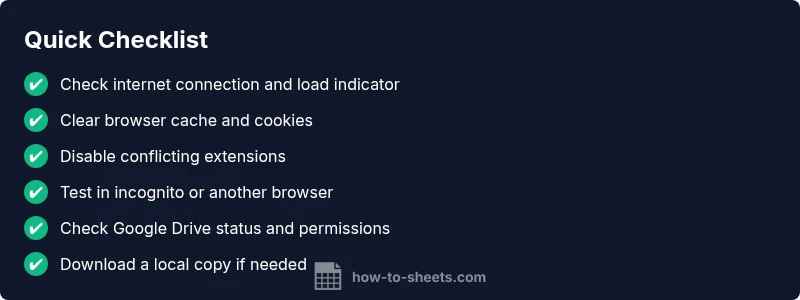
- Confirm network stability and retry loading the document
- Clear cache and cookies, then reopen Docs
- Disable problematic extensions and retry in incognito
- Attempt access from another browser or device
- Check Drive status and document permissions
- If edits are critical, download a local copy and work offline until the issue is resolved
Prevention: Keeping Google Docs Healthy
Preventive habits reduce future disruptions. Establish a routine that includes regular cache clearing, using a dedicated browser profile for Google Docs, and maintaining offline access for core documents. Encourage team members to refresh access tokens periodically and to monitor service statuses for outages. When sharing documents, set permissions carefully and enable version history so edits are recoverable even during outages. Finally, educate users to avoid editing in high-latency networks or on devices with flaky connections.
Advanced Tips: Troubleshooting Across Devices and Network
If you still face issues after the standard fixes, expand your testing scope. Try a different network (e.g., mobile hotspot), test across two or more devices (laptop, tablet, phone), and compare results. Enable offline mode on a few documents to ensure you can continue work even when the online service experiences hiccups. Keep your apps and browser updated to the latest versions, and verify that your Google Drive storage isn’t near capacity, which can trigger save errors. If the problem is persistent across environments, submit a detailed report to Google support with the steps you’ve taken and any error messages to expedite resolution.
Steps
Estimated time: 25-40 minutes
- 1
Verify connectivity
Check your internet connection; run a quick speed test to ensure stability. If you’re on Wi‑Fi, consider moving closer to the router or using a wired connection for consistent performance.
Tip: Stable, wired connections reduce intermittent errors. - 2
Refresh and reopen
Refresh the Google Docs tab, or close and reopen the browser with Docs loaded anew. If you’re editing a shared doc, confirm you’re on the correct version.
Tip: After refresh, wait a few seconds for autosave to resume. - 3
Clear cache and cookies
Clear your browser’s cache and cookies to remove corrupted data that can block loading or saving.
Tip: If you’re uncertain, back up essential data before clearing data. - 4
Disable extensions
Temporarily disable extensions that interact with web content, then reload Docs to test for interference.
Tip: Ad blockers and privacy tools commonly cause conflicts. - 5
Open in incognito/private mode
Launch an incognito window and open the document to rule out extension-based interference.
Tip: If it works in incognito, start disabling extensions one-by-one. - 6
Try another browser or device
Check if the issue persists on a different browser or device, which helps isolate the problem.
Tip: Cross-device testing is a powerful diagnostic step. - 7
Check Drive status and permissions
Confirm that Google Drive is operational and that you have edit permissions for the document.
Tip: Permissions changes can silently block edits even while the UI loads. - 8
Preserve edits locally if needed
If the document is at risk, download a local copy and work offline until the issue is resolved.
Tip: Version history is your friend during outages.
Diagnosis: Google Docs documents won't load, save, or sync; errors appear or editor is unresponsive.
Possible Causes
- highPoor or unstable internet connection
- mediumBrowser cache or cookies corruption
- mediumConflicting browser extensions or VPN/proxy interference
- lowGoogle Drive service outage or permission issues
Fixes
- easyCheck internet connection and switch networks if possible
- easyClear browser cache and cookies, then relaunch Google Docs
- easyDisable extensions or run in incognito to isolate interference
- easyTry a different browser or device; sign out and back in
- easyCheck Google Workspace Status Dashboard for outages; verify permissions
- easyIf needed, enable offline access or download a local copy to preserve edits
FAQ
What causes Google Docs to break unexpectedly?
Most issues stem from connectivity, cache problems, extensions, or temporary Google service outages. By systematically checking network status, clearing cache, and testing in a clean browser, you can usually pinpoint the cause and restore functionality.
Most problems come from connectivity or cache. Start with a quick network check and clear your browser data, then test in a clean browser.
Is it safe to sign out and sign back into Google Docs?
Signing out and back in can refresh authentication tokens and resolve permission or session issues. Do this on a trusted device, and ensure you know your login credentials before proceeding.
Signing out and back in can refresh your session. Do it on a trusted device with your credentials handy.
What should I do if a document won’t save but other Docs work?
Check the document's ownership and your permissions, verify that the file isn’t read-only, and try saving a local copy while you troubleshoot. Version History can help recover edits that didn’t save.
If a doc won’t save, check permissions and try saving a copy. Version History can help you recover unsaved edits.
Does Google Docs offline mode help during outages?
Yes. Enabling offline mode lets you continue editing to a local cache and sync later when connectivity is restored. It’s especially useful for critical documents.
Offline mode lets you keep working even if the internet drops, and then syncs when you’re back online.
When should I contact support for broken Google Docs?
If problems persist across devices and networks for more than an hour, or if you suspect a service outage, escalate to Google support or your IT team with details of the steps you tried.
If issues persist across devices for a while, reach out to support with details of the troubleshooting you've done.
Watch Video
The Essentials
- Identify symptoms quickly to choose the right fix
- Prioritize cache, connectivity, and permissions first
- Preserve data with offline copies and Version History
- Test across devices and networks to isolate causes