Troubleshooting Google Docs Problems Today
Urgent, step-by-step troubleshooting for problem with google docs today. Learn to diagnose outages, network, browser, and permission issues with a practical flow and actionable checklists for students, professionals, and small businesses.


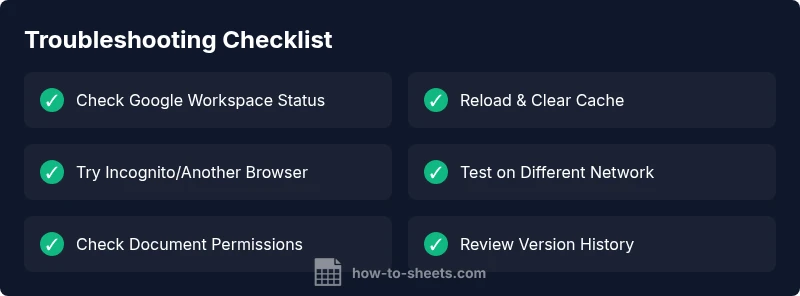
If you’re experiencing a problem with google docs today, start with fast, non‑invasive checks. First, verify whether Google Workspace is experiencing an outage via the Workspace Status Dashboard. If the service is up, reload the page, clear cache, and try an incognito window or another browser. If it persists, follow the diagnostic flow below for a deeper, methodical fix.
Immediate Quick Fixes for a problem with google docs today
If you’re facing a problem with google docs today, start with fast, non‑invasive checks. First, confirm whether Google Workspace is experiencing an outage by visiting the Google Workspace Status Dashboard. If the service is up but your document still won’t behave, try switching networks or devices to rule out local issues. Then perform a sequence of quick in-browser actions: reload the page, clear your browser cache, and disable extensions by opening an incognito window. If the problem remains, attempt a different browser or reboot the router. These steps fix the majority of urgent problems and give you time to diagnose deeper causes. How To Sheets emphasizes systematic troubleshooting for students, professionals, and small business owners following a structured workflow to stay productive when Google Docs hiccups hit.
Common Causes of Google Docs Problems Today
The factors behind Google Docs problems today are often a mix of external outages, local network problems, browser or extension conflicts, and account/share permissions. The How To Sheets analysis shows that outages and cache issues are frequent culprits, while misconfigured permissions or domain restrictions can mimic a docs failure. Common symptoms include slow loading, error messages on save, missing edits, or collaborators appearing offline. By mapping symptoms to likely causes, you can quickly choose the right fix instead of random trials. Intermittent issues may come from backend maintenance, which resolves within minutes to hours. A clear, stepwise approach saves time and keeps your work moving.
Connectivity and Network Checks for Google Docs
Poor network connectivity is one of the most frequent reasons Google Docs balks today. Start with the basics: test your internet speed, try loading other websites, and temporarily disable VPNs or firewalls that might throttle traffic to Google services. If possible, switch to a different network or use a mobile hotspot to rule out your primary connection. A quick DNS flush or router reboot can fix stubborn routing issues. Then reattempt Google Docs in a fresh tab or window. If other Google services also exhibit issues, the problem is almost certainly network or ISP level rather than your document. In that case, contact your ISP or network admin to restore full access.
Browser, Extensions, and Cache Troubleshooting
Browsers and extensions are frequent culprits for Google Docs problems. Ensure your browser is up to date, then disable all extensions and reload the doc to see if one is causing interference. If the issue disappears, enable extensions one by one to identify the offender. Clear the browser cache and cookies, or try a private/incognito window to eliminate cache and cookie issues. If you still see trouble, switch to another browser to isolate browser-specific quirks. For users who rely on Google Docs offline, ensure the Drive extension is current and permissions allow offline editing when you reconnect.
Document-Specific Issues: Sharing, Permissions, and Access
Sometimes the problem is tied to the document’s permissions rather than the app itself. Review who has access to the file, verify that no restrictive sharing settings block edits, and confirm the document is not owned by a different account or domain. If a document is shared with you but you lack edit permissions, ask the owner to grant access or transfer ownership. For teams, check admin console restrictions, domain sharing rules, and whether a document is in a restricted folder. Also consider that certain third‑party add‑ons or apps connected to Drive can impact permissions and saving behavior.
Real-Time Collaboration and Offline Mode Pitfalls
Real-time co-editing can yield sync glitches, especially in unstable networks. If collaborators report that changes disappear or appear late, refresh, and check that you are all on the latest version via Version History. When working offline, Google Docs requires you to stay online long enough to sync changes; if offline, edits may be queued but not saved until you reconnect. Relying on offline edits for critical documents without proper backup increases risk. Maintain a habit of syncing frequently and verifying changes after reconnecting to the network.
When to Escalate: Help from Google Support
If the issue persists after performing the above steps, escalate to Google support or your Google Workspace admin. Collect exact error messages, the document URL, the start time, your browser and version, and whether it occurs on multiple devices or networks. Provide a short reproducible scenario and attach screenshots if possible. Use the Google Workspace Status Dashboard and Admin Console alerts to inform support about ongoing outages. The How To Sheets team recommends documenting every step you’ve taken so support can triage quickly.
Proactive Prevention: Keep Google Docs Healthy
To reduce the chance of future problems with google docs today, adopt proactive habits: keep apps updated, minimize reliance on unchecked third‑party add‑ons, enable offline access only on trusted devices, and regularly review Version History. Create local backups of critical documents and enable automatic saving to Drive. Establish a simple, repeatable troubleshooting checklist for new issues and train team members to follow it. Stay informed about Google Workspace updates via official channels and admin notices to head off known issues before they disrupt work.
Steps
Estimated time: 25-40 minutes
- 1
Identify the symptom and reproduce
Note the exact error message, when it started, and whether it happens on multiple documents. Reproduce the issue on another file to confirm it is not document-specific.
Tip: Take a screenshot of any error messages to share with support. - 2
Check Google Workspace status
Open the Google Workspace Status Dashboard and look for outages impacting Docs. If there is a known incident, wait for Google to resolve it.
Tip: Bookmark the status page for quick checks during future issues. - 3
Test network and device
Switch networks, disable VPNs, and try a different device or browser to see if the problem follows the environment.
Tip: If other sites load slowly, focus on network fixes first. - 4
Isolate browser and extensions
Disable all extensions and reload, then reintroduce them one by one to identify the culprit.
Tip: Run in incognito mode to quickly isolate extension interference. - 5
Check permissions and sharing
Confirm you have edit access and that the document isn’t restricted by domain or ownership settings.
Tip: Ask the owner to regrant access if needed. - 6
Attempt offline and sync check
If working offline, ensure offline mode is properly configured and plan to sync when online.
Tip: Verify that Drive is set up to sync offline changes. - 7
Escalate if unresolved
If the issue continues after these steps, contact Google Support or your Workspace admin with a summary of steps taken.
Tip: Provide a reproducible scenario and attach screenshots.
Diagnosis: Document won’t load, save, or sync in Google Docs today
Possible Causes
- highGoogle Workspace outage or service disruption
- highLocal network or ISP issues affecting accessibility
- mediumBrowser compatibility or interfering extensions
- mediumDocument permissions or sharing restrictions
Fixes
- easyCheck Google Workspace Status Dashboard for outages
- easyRefresh the page, clear browser cache, and try incognito mode
- easyTest on a different browser or device to isolate the issue
- easyDisable extensions to identify any conflicts
- mediumVerify document sharing permissions and ownership
- easyRestart router or switch to a different network
FAQ
Why is Google Docs not loading or saving changes today?
Commonly caused by outages, network issues, or permissions. Start with the Workspace Status Dashboard, then test on another device and clear cache. If problems persist, follow the diagnostic flow.
If Docs won’t load, check the status page, try a different device, and clear cache. If it still doesn’t work, follow the troubleshooting flow.
How can I tell if the issue is on my end or Google’s side?
Test other Google services and try different networks. If Gmail or Drive work, the problem is likely with Docs or your device; otherwise it’s a broader outage.
If other Google apps work, the issue is probably with Docs; if not, it’s likely an outage.
Can extensions cause Google Docs problems?
Yes. Disable extensions to see if the issue resolves. Re-enable one by one to identify the culprit.
Extensions can cause problems. Disable them to test, then re-enable one by one.
What about offline mode issues?
Offline mode requires syncing when back online. Ensure offline is enabled in Drive and that you have stable internet when saving.
Offline mode needs a good connection to sync edits later.
When should I contact support?
If the problem persists after all steps, contact Google Support or your admin with details and screenshots to speed up triage.
If it still doesn’t work after trying all steps, reach out to Google Support.
How can I recover previous versions of a document?
Use Version History to restore earlier versions of the document. This is useful if edits are lost or corrupted.
You can revert to an earlier version from Version History if edits are lost.
Watch Video
The Essentials
- Check Google Workspace status first and rule out outages
- Isolate network, browser, and extensions before deep fixes
- Review document permissions and ownership for access issues
- Use the diagnostic flow and step-by-step fixes for faster resolution
- Escalate to support if unresolved after structured troubleshooting