Google Sheets and Docs Down: Urgent Troubleshooting Guide
Experiencing Google Sheets and Docs down? This comprehensive, urgent troubleshooting guide helps you diagnose outages, verify status, and recover quickly with practical steps, offline workarounds, and escalation tips.


Most likely, Google Sheets and Docs are down due to a regional outage or service interruption. Start with the Google Workspace Status Dashboard to confirm outages, check your internet connection, and try a different browser or incognito mode. If the issue persists, switch to offline mode or mobile data while you monitor updates.
Why google sheets and docs down matter
When google sheets and docs down, teams lose a critical channel for collaboration and data sharing. Reports, budgets, schedules, and project trackers often live in Sheets and Docs, so outages can stall decision-making across departments. In the moment, you may see error messages like “Something went wrong” or a blank page, or apps may fail to load entirely. Understanding the scope helps you pick the right workaround and communicate status to teammates.
According to How To Sheets analysis, outages frequently affect multiple Google Workspace services, not just a single app. While you wait for a fix, you can still work offline on local copies or switch to alternate tools for critical tasks. This guide walks you through practical steps to diagnose and recover quickly without losing data. Google Sheets and Docs down is frustrating, but a systematic approach reduces downtime.
Immediate checks you can perform now
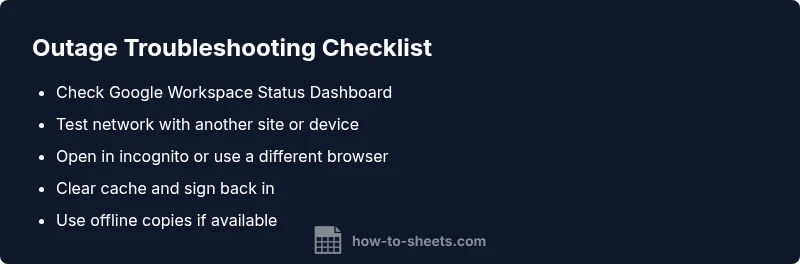
If you’re staring at a stalled Sheets or Docs interface, start with fast, low-effort checks. First, visit the Google Workspace Status Dashboard on another device to see if a published incident matches what you’re experiencing. Then verify your internet connection: try loading a few non-Google sites, restart your router if needed, and attempt to connect via a mobile hotspot to rule out local network issues. Next, test with a different browser or an incognito/private window to eliminate extensions or cached credentials as the culprit. Clear browser cache if the dashboard indicates caching issues. If you have admin access, check for any organization-wide alerts or policy changes that could impact access. Keep an eye on official channels for updates.
Common causes of outages: outages, networks, and devices
The most likely causes fall into a few buckets. Service outages on Google’s end affect many users, so even if your device is fine, Canvas-like issues can appear. Local network problems—DNS hiccups, firewall blocks, or VPN quirks—also disrupt access. On devices, stale credentials, signed-out sessions, or outdated apps may trigger repeated sign-in prompts or errors. Finally, organizational restrictions or account misconfigurations can block access to Sheets or Docs. Distinguish between a platform outage and a local issue by checking multiple devices and locations.
Diagnostic flow: from symptom to solution
Symptom: you cannot load or save in Google Sheets or Docs Diagnosis path:
- Check for a platform outage on the Workspace Status Dashboard (high likelihood if many users are affected)
- Rule out local network issues by testing other sites and trying a different connection
- Rule out browser or device problems by disabling extensions, clearing cache, or using another device
- If the issue is isolated to a single account, sign out and back in or test in an incognito session
- If none of the above helps, monitor official updates and consider switching to offline copies Possible outcomes: outage confirmed (apply status tracking and wait for remediation), network issue (adjust DNS, VPN, or firewall), device issue (update or reset), or account restriction (coordinate with admin)
Step-by-step: Most common fix when an outage is suspected (no data loss)
- Open the Google Workspace Status Dashboard and confirm the outage. If an incident is listed, note the service and region.
- Switch to a different network (e.g., mobile data) to verify the issue isn’t local.
- Try a different browser or open an incognito window to bypass extensions or cached credentials.
- Clear cache and cookies, then reattempt access.
- If possible, access offline copies stored on your device or via Google Drive offline mode.
- Check admin alerts for your organization and communicate with teammates about expected downtime.
- Monitor official channels for updates and avoid editing shared files during the outage to prevent sync conflicts. Tip: If you still cannot access after these steps, proceed to the escalation steps below.
Tips & warnings
- Pro tip: Enable offline mode in Google Sheets and Docs beforehand so you can continue basic work during outages.
- Warning: Avoid repeatedly refreshing a failing page; it can trigger rate limits or data conflicts when services return.
- Note: Keep local copies of critical files and inform collaborators about the outage window to prevent miscommunication.
Preventive steps to reduce downtime next time
While outages happen, you can reduce impact with a small set of habits: save critical documents locally, enable offline mode, and use alternative tools for urgent tasks. Set up status monitoring for your team, and prepare a short incident response plan so teammates know how to proceed during an outage. Regularly back up important data and ensure your browser and extensions are up to date.
When to escalate to admins and Google Support
If the outage extends beyond a reasonable window or affects sensitive work, involve your Google Workspace admin immediately. Check if service disruption is widespread and communicate estimated restoration times to stakeholders. Provide any incident IDs you see on the status page to Google Support to speed up diagnosis. For enterprise customers, your admin can contact Google Support directly through the Admin console.
What to monitor after the outage clears
When services resume, verify that all affected files loaded correctly and all edits have synced. Look for missing changes, duplicate edits, or conflicts in shared documents. If you had offline copies, compare versions to ensure consistency. Re-synchronize devices and remind teammates to refresh their caches and sign back into their accounts. Finally, document the incident in your team knowledge base to help prevent confusion in future outages.
Steps
Estimated time: 30-45 minutes
- 1
Check outage status
Open the Google Workspace Status Dashboard and look for any incidents affecting Sheets or Docs. Note the service and region, and check official social channels for updates.
Tip: Bookmark the status page for quick access during future outages - 2
Test network connectivity
Load a non-Google site to confirm general connectivity. If you’re on Wi-Fi, try a mobile hotspot to rule out local network issues.
Tip: If other sites fail, fix your network before blaming Google - 3
Try a different browser or mode
Open an incognito/private window or switch browsers to bypass extensions and cache. Sign in with a fresh session if needed.
Tip: Disable extensions that interfere with auth or scripts - 4
Clear cache and reattempt
Clear browser cache and cookies, then reload Sheets or Docs. If problems persist, log out/in and retry from a new session.
Tip: Clearing cookies can resolve stale session data - 5
Use offline copies if available
Access local copies or enable offline mode so you can continue critical work without live sync.
Tip: Keep offline edits minimal to reduce merge conflicts - 6
Coordinate with admins and monitor updates
If you’re in an organization, check admin alerts and inform teammates about expected downtime; monitor the status page for restoration times.
Tip: Document incident IDs and remediation steps for post-incident review
Diagnosis: Google Sheets or Google Docs won't load or save; errors observed
Possible Causes
- highService outage affecting Google Workspace
- mediumLocal network issues (DNS, VPN, firewall)
- lowBrowser or extension conflicts
- lowAccount/admin restrictions or sign-in problems
Fixes
- easyCheck Google Workspace Status Dashboard for incidents
- easySwitch networks or disable VPN to test connectivity
- easyOpen a private/incognito window and clear cache
- easySign out and back in or test with offline copies
- easyWait for official updates; escalate to admin if needed
FAQ
Why are Google Sheets and Docs down right now?
Outages are commonly due to service disruptions detected on the Google Workspace Status Dashboard. Always verify the incident and regional scope before assuming a local problem.
outages are usually listed on Google's status page; check there first.
How can I tell if the problem is local or a wider outage?
Test access from another network or device. If others report the same issue, it’s likely a broader outage; otherwise, your device or network may be at fault.
If other devices experience the same, it’s probably an outage.
What should I do to stay productive if Sheets/Docs are down?
Work on offline copies when possible, use alternate tools for urgent tasks, and communicate timelines to teammates.
Work offline and stay in touch with your team about timelines.
How long do outages typically last?
Outage duration varies; monitor the status page for updates and do not rely on workarounds indefinitely.
Check the status page for estimated restoration times.
When should I contact Google Support?
If outages persist beyond a reasonable window or involve admin-level access, contact Google Support via the Admin console or the support channel for your domain.
If it lasts longer than expected, reach out to Google Support.
Can I recover lost changes after an outage?
Yes, review version history after service restoration and reconcile offline edits with online copies to resolve conflicts.
Check the version history after the outage and merge edits carefully.
Should I notify my team about the outage?
Yes; provide an incident summary, affected files, and estimated restoration time to prevent duplicate work and confusion.
Let your team know what's affected and when you expect it to be fixed.
What should admins do during an outage?
Admins should monitor the Admin Console, check incident IDs, communicate with Google Support, and coordinate a client-facing status update.
Admins should coordinate with Google Support and keep everyone informed.
Watch Video
The Essentials
- Check status dashboards first before troubleshooting.
- Differentiate between global outages and local network issues.
- Use offline copies to preserve work during outages.
- Escalate to admins when outages exceed expected downtime.