Do You Need a Google Account to Edit Google Sheets
Explore whether signing in with a Google account is required to edit Google Sheets, how sharing permissions impact access, and practical editing workflows for students and professionals.


Do you need a google account to edit google sheets? Generally yes, editing requires signing into a Google account tied to Google Drive. Exceptions exist: if the sheet is shared with 'anyone with the link can edit', unauthenticated users can edit via the link. For most workflows, sign-in is the default.
do you need a google account to edit google sheets
In practice, the question often comes down to authentication and permissions. For most users, editing a Google Sheet requires a Google account that is linked to Google Drive. This ensures that edits are tracked, changes can be synchronized across devices, and access can be audited. The nuance is that the platform is designed around sign-in as the primary control mechanism. For a quick reference: do you need a google account to edit google sheets? The short answer is typically yes, especially in professional or classroom settings where access is managed centrally. Yet there are scenarios where you can edit without signing in if the owner enables broad link-based editing. In those cases, the browser does not prompt for a login, and edits are attributed to the session rather than a specific user. This distinction matters for accountability and version history, particularly in collaborative projects or regulated environments.
When a sheet is set up with explicit sharing permissions, you can tailor who can edit. If you are comfortable with open editing, you may allow unauthenticated edits; otherwise, require sign-in to maintain control. Remember that the default workflow for most teams and schools is sign-in-based editing, because this approach aligns access with user roles, reduces the risk of unexpected changes, and simplifies auditing.
Exceptions: when editing without signing in is possible
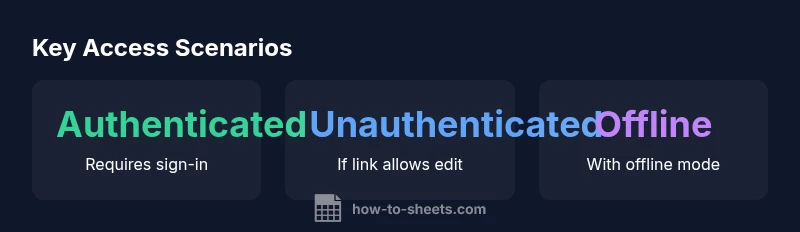
There are practical exceptions to the rule that you need a google account to edit google sheets. If the owner shares the sheet with the link in edit mode, anyone who has the link can edit—even without signing in. This capability is useful for quick collaborations with external partners or volunteers who do not have Google accounts. However, it also raises security concerns, such as accidental overwrites or unwanted edits. In such cases, you should routinely review who has access and consider switching to a more controlled sharing setup. For recurring collaborative tasks, a signed-in workflow provides clearer accountability and easier rollbacks if mistakes occur. The key is to balance convenience with governance, choosing the appropriate permission level for each project and revisiting those settings periodically.
How sharing settings shape editing access
The editing experience in Google Sheets is inseparable from sharing settings. The owner can grant viewing, commenting, or editing rights, and can permit or restrict access to specific people or anyone with the link. When you grant editing to specific people, users must sign in with their Google accounts to verify identity, ensuring that each change is associated with a user. Conversely, if you enable the broad 'Anyone with the link can edit' option, you remove the sign-in barrier, enabling faster onboarding of external contributors but increasing the risk of uncontrolled edits. For teams, classrooms, or client projects, it is usually best practice to grant edit access only to authenticated users and to rely on user-level auditing to monitor activity. This approach supports traceability and reduces the likelihood of data loss due to mis-edits. The guiding principle is to grant the minimum permissions necessary to achieve the task, and to document changes when multiple people contribute simultaneously.
In practice, do you need a google account to edit google sheets? If you opt for signed-in editing, you preserve control and accountability; if you choose link-based editing, you gain speed but must mitigate risk with clear governance and periodic reviews.
Cross-device editing: desktop, mobile, and offline scenarios
Google Sheets is designed for cross-device editing, but the login state can influence what you can do across platforms. On desktops and laptops, signed-in users can access full editing capabilities and take advantage of the version history, comments, and track changes. On mobile devices, the same sign-in requirement applies to obtain complete editing rights, though some limited edits can be made when the sheet is open in a web browser without sign-in if permissions allow. Offline editing adds another layer: you can edit while offline if you are signed in and offline mode is enabled. Edits queue locally and sync when you reconnect to the internet, preserving data integrity. However, if you are not signed in, offline editing is typically unavailable, since Google’s synchronization relies on your account status to manage changes across devices. The practical takeaway is to plan device- and permission-aware workflows, ensuring you have sign-in when you need robust editing features, and reserving link-sharing for lightweight, external collaborations.
Practical workflows for teams and education
For teams and classrooms, a structured approach to access helps prevent chaos. Use signed-in accounts for all core editors, and assign roles with precise permissions. When collaborating with external partners who do not have Google accounts, consider a controlled exception by enabling 'Anyone with the link can edit' for a limited time, coupled with a clear expiration date. Regularly audit who has access and review the sheet’s activity history to identify unexpected edits. In education settings, teachers often rely on sign-in-based editing to assign tasks, track progress, and ensure that answers are attributable to the correct student. Practical tips include setting up a dedicated shared drive for the project, using protected ranges to guard critical formulas, and employing version history to roll back changes when needed.
Security and privacy considerations: access control and auditing
Access control in Google Sheets hinges on the combination of sharing settings and user authentication. Always weigh the convenience of unauthenticated edits against the risk of data loss or leakage. When possible, prefer authenticated editing with fine-grained permissions (edit for specific people, not anyone with the link). Enable revision history to track changes, and regularly review
Checklists: quick steps to manage access
- Determine whether signed-in editing is required for your project. If security matters, restrict access to specific people.
- Avoid leaving documents open with 'Anyone with the link can edit' unless necessary for a limited window.
- Enable offline access only for users who will edit while disconnected and who sign in to Google.
- Use protected ranges and data validation to minimize accidental edits.
- Regularly review sharing settings and access logs to maintain governance.
Editing access scenarios for Google Sheets
| Scenario | Requires sign-in | Edit permission | Notes |
|---|---|---|---|
| Owner edits (signed-in) | Yes | Full edit | Creator or owner uses Google account |
| Guest edits via link (unauthenticated) | No | Full edit | Only if 'Anyone with the link can edit' is enabled |
| Collaborator (signed-in) | Yes | Full edit | Common in teams and classrooms |
| View-only or comment mode | Yes | View/Comment | Editing blocked unless given permissions |
FAQ
Do you need a Google account to edit Google Sheets?
In most cases, you need to sign in with a Google account to edit Google Sheets. If the owner enables 'Anyone with the link can edit', unauthenticated users may edit via the link. For controlled environments, sign-in remains the standard.
Usually you need a Google account to edit, unless the sheet is shared publicly with edit rights.
Can you edit a Google Sheet without signing in if it's shared via a link?
Yes, if the owner set the sharing to 'Anyone with the link can edit'. This bypasses sign-in but reduces access control.
Yes—only when the owner allows link-based editing.
How do I grant editing access without requiring others to have a Google account?
Share with specific people who have Google accounts and assign edit rights, or enable link-based editing for a temporary collaboration window.
Share with specific people or turn on link-based editing for a short time.
Is offline editing possible for Google Sheets?
Yes, if you are signed in and offline mode is enabled. Changes sync when you reconnect to the internet.
Yes, with offline mode and signing in.
What should teams consider when editing permissions?
Adopt least-privilege access, monitor sharing settings, and maintain an audit trail to track changes and responsibility.
Keep access tight and review it regularly.
What happens if the sheet owner revokes editing access?
Editors lose editing rights; they may still view the sheet depending on the permissions. They can request access again if needed.
Access can be revoked, and you may need to request access again.
“Access to edit Google Sheets is governed by explicit sharing settings; if you need control, require sign-in or assign precise edit rights.”
The Essentials
- Most editing requires sign-in by default.
- Link-sharing can bypass sign-in if allowed.
- Verify sharing settings before inviting collaborators.
- Consider offline editing needs with a Google account.