Sign in to Google Sheets: A Complete Step-by-Step Guide
Learn how to sign in to Google Sheets with a step-by-step guide. Find desktop and mobile sign-in tips, manage multiple accounts, and stay secure with practical best practices.


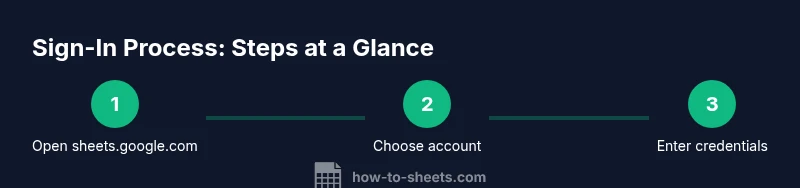
To sign in to google sheets, you’ll need a Google account and an internet connection. Open sheets.google.com, click Sign in, select the correct account, and complete any prompts (such as two‑factor verification). This quick flow unlocks access to your Drive-stored spreadsheets, templates, and real-time collaboration across devices. If you’re new, follow the steps below to start confidently.
Sign-in foundations and what you’ll accomplish
Signing in to google sheets is the gateway to creating, editing, and sharing spreadsheets stored in Google Drive. In this article, you’ll learn how to sign in to google sheets from desktop and mobile, how to handle multiple Google accounts without losing work, and how to protect your data during the login process. According to How To Sheets, a smooth sign-in flow reduces friction and helps you get to your data faster. We’ll cover prerequisites, common issues, and practical steps you can follow today, even if you’re new to Google Sheets. By the end, you’ll have confidence navigating the sign-in experience and know where to turn for help when things go wrong.
Prerequisites: accounts, devices, and browsers
Before you attempt to sign in to google sheets, assemble a few prerequisites that keep the process straightforward. You’ll need a Google account or the ability to create one, a device with internet access, and a modern web browser or the Google Sheets mobile app. Ensure your browser is up to date and that you’ve disabled any extensions that might block sign-in prompts. If you work in an organization, confirm whether you should use a corporate or personal account, as this affects how you access shared sheets. How To Sheets emphasizes starting with a clean slate—log out of other accounts if you’re unsure which one to use.
Desktop vs mobile sign-in flow
The sign-in experience on desktop generally starts with opening sheets.google.com or drive.google.com and selecting Sign in. On mobile, you’ll typically use the Google Sheets app or a browser, with the sign-in prompt appearing after you tap the app icon. The main difference is how credentials are stored and how you approve access (a saved password vs. a one-time code). On both platforms, you’ll be asked to pick an account or enter your email, followed by your password or biometric authentication. Planning for mobile data limits means enabling offline access in Sheets settings when appropriate.
Managing multiple Google accounts and switching
If you juggle multiple Google accounts for work, school, and personal use, sign-in can become confusing. Google supports quick account switching, but it can lead to the wrong sheet being opened or accidental edits. Start by keeping a dedicated account for each context and sign out of accounts you’re not using. Use your browser’s profile or separate apps to keep sessions isolated. When switching accounts, double-check the email address displayed in the top-right corner to confirm you’re on the correct account before opening critical documents.
Common issues and quick fixes
Sign-in problems usually fall into a few categories: wrong password, account locked, or network-related issues. For a password issue, use the Google account recovery page to reset credentials. If the account is locked due to suspicious activity, follow Google’s security prompts. Network problems can block sign-in; verify you have a stable connection and try a different network if necessary. Clearing cookies and cache can resolve stale sessions, while disabling VPNs or privacy extensions can help when prompts don’t load. If you’re using two-step verification, ensure you have access to your backup codes or authenticator app.
Security and privacy when signing in
Your sign-in is the first gate to your data, so security matters. Enable two-factor authentication (2FA) and keep recovery options up to date. Use a strong, unique password and consider a password manager to store credentials securely. Be cautious when signing in on shared or public devices—never save passwords and use “Guest” sessions when possible. Regularly review connected apps and devices in your Google account settings to revoke access from old or unused sessions. For added safety, rely on official security guidelines from recognized authorities.
Sign-in on a shared device: best practices
Shared computers, classroom kiosks, or library PCs demand extra caution. Always sign out when you finish, close browser windows, and avoid saving credentials locally. If the device supports it, enable a supervised or guest mode. For teams, enable centralized login policies and enforce MFA. These steps help prevent accidental data exposure and reduce the risk of unauthorized edits.
Forgotten password or account recovery steps
If you forget your password, use the Google account recovery flow. Start at accounts.google.com, provide the last password you remember, and answer security questions. If you no longer have access to your recovery email or phone, try alternate verification methods and update recovery options after regaining access. Keeping backup recovery options current is essential for uninterrupted access to Google Sheets.
Staying signed in and session management tips
Staying signed in can save time, but it also increases the risk of unauthorized access on shared devices. Use browser profiles, automatic sign-out after inactivity, and MFA where available. Consider configuring Google’s security checkups to review active devices and recent sign-ins. If you work across devices, enable offline access so you can edit cells while offline and sync later when online.
Authoritative sources and further reading
For deeper security guidance, refer to official publications from government and education sources. The National Institute of Standards and Technology (NIST) provides password and authentication recommendations, while the Federal Trade Commission offers consumer guidance on strong passwords and online security. The Cybersecurity and Infrastructure Security Agency (CISA) also publishes practical steps for safe online activity. While these sources aren’t Google Sheets docs, they reinforce the best practices you should apply when signing in and managing your Google accounts.
Tools & Materials
- Device with internet access(Desktop, laptop, or mobile device)
- Web browser or Google Sheets mobile app(Latest version of Chrome/Edge/Safari/Firefox or mobile Sheets app)
- Active Google account(Use the account you intend to work with)
- Two-factor authentication method(Authenticator app or trusted device)
- Password manager (optional)(Helps manage credentials securely)
Steps
Estimated time: 5-10 minutes
- 1
Open sheets.google.com
Launch a web browser and navigate to sheets.google.com or drive.google.com to reach the sign-in prompt. If you’re already logged into a Google account, you may be taken directly to the Sheets home screen. This step establishes the entry point for your session.
Tip: Bookmark sheets.google.com for quick access. - 2
Choose or add an account
If you’re signed into multiple Google accounts, select the account you want to use. If the desired account isn’t listed, add a new one by entering the email address and password. Using the correct account prevents confusion when saving or sharing sheets.
Tip: Use a dedicated work or personal account to avoid mixing data. - 3
Enter credentials or use 2FA
Enter your password or complete the biometric/2FA prompt if enabled. If you use 2FA, approve the sign-in on your authenticator app or approve via a security key.
Tip: Keep your authenticator handy and avoid sharing codes. - 4
Grant permissions if prompted
Sheets may request access to Drive or other Google services. Review the request carefully and grant only what is necessary for your workflow.
Tip: Only authorize permissions from trusted prompts. - 5
Verify sign-in success
You should see the Google Sheets dashboard or your recent files. Confirm you’re in the correct account by checking the email/profile icon in the top-right.
Tip: If you don’t see Sheets, refresh or reopen the site. - 6
Sign out on shared devices
On shared machines, sign out when finished and close the browser to prevent others from accessing your files.
Tip: Prefer private/incognito mode on shared devices if possible.
FAQ
What should I do if I forget my password?
Use Google’s account recovery flow at accounts.google.com to reset your password. Answer security questions and try alternate verification methods if needed.
Visit Google’s account recovery page to reset your password and verify your identity.
Can I stay signed in across devices?
Yes, you can stay signed in across devices by using MFA and device management, but be cautious on shared devices.
Yes, you can stay signed in across devices with MFA and careful device management.
What if I switch between multiple accounts often?
Use Google’s account switcher in the top-right corner to pick the right account before opening a sheet.
Switch accounts from the top-right corner to avoid opening the wrong sheet.
Is signing in on public devices safe?
Avoid saving passwords on public devices and sign out when finished. If possible, use a guest mode.
Don’t save credentials on public devices; sign out after use.
Where can I find help if sign-in fails?
Consult the Google Help Center and check account security settings for common issues and recovery options.
Check Google’s help guides and security settings for sign-in issues.
Watch Video
The Essentials
- Sign in to google sheets with a valid Google account and internet access.
- Use account switching carefully to avoid accessing the wrong sheet.
- Always enable MFA and review connected devices regularly.
- Sign out on shared devices to protect your data.