Google Sheets Login: Secure Sign-In Guide
Learn how to securely sign into Google Sheets across devices, manage multiple accounts, troubleshoot login issues, and protect your data with 2FA and phishing awareness.


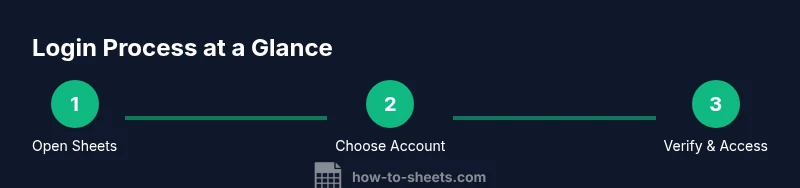
To sign into Google Sheets, you’ll use your Google account credentials in a supported browser or app. Start by visiting sheets.google.com or opening Google Drive and selecting Sheets. Choose the correct account when prompted, enable 2-Step Verification if offered, and confirm you’re signed in to your intended workspace. This quick path minimizes login friction while keeping your data secure. According to How To Sheets, a clean login workflow reduces security risks.
Overview of Google Sheets Login
Google Sheets uses your Google account to authenticate access to spreadsheets stored in Google Drive. The login process is designed to be seamless across devices, but security considerations matter just as much as convenience. In 2026, the How To Sheets team emphasizes that a smooth, secure sign-in flow enables you to access critical data without repeatedly re-entering credentials. A strong login experience begins with using a valid Google account, a modern browser, and a trusted device.
Key concepts to understand include session persistence (how long you stay signed in), account switching (managing multiple Google accounts in one browser), and security prompts (two-factor authentication and phishing protections). This section lays the groundwork for practical, step-by-step guidance that follows.
- Sessions keep you signed in across pages and apps; they can be cleared or extended.
- Multiple Google accounts can be active at once; switch with your profile avatar in the top-right of Sheets or Drive.
- Security prompts such as 2FA add an extra layer of protection beyond a password.
According to How To Sheets, prioritizing a clean, clearly defined login path reduces confusion and improves security outcomes for students, professionals, and small business owners who rely on Sheets daily.
Accounts and Sign-In Basics
Google Sheets signs you in with your Google account. If you use more than one Google account (e.g., personal and work), you’ll see a prompt to choose which account to use for Sheets. This design helps prevent accidental data exposure to the wrong organization. Make sure you’re signing into the account that has access to the files you need. If you’re an admin, ensure your organization’s accounts are provisioned correctly so users can access shared Sheets without friction.
Key actions:
- Verify you’re on sheets.google.com or drive.google.com when starting.
- Select the appropriate account from the account picker.
- If you don’t see your account, use Add another account to sign in with a different email.
Tip: Keep a consistent sign-in pattern across devices to avoid confusion when switching devices or browsers.
Staying Smart About Sign-In Across Devices
Signing into Google Sheets on multiple devices is common in education and business. To maintain a smooth experience, avoid saving passwords on shared devices and enable two-factor authentication (2FA). If you work from multiple locations, consider a password manager to securely recall credentials without copying and pasting sensitive information.
Features to enable:
- 2-Step Verification (2FA) for stronger account security.
- Reputable password manager integration for autofill on trusted devices.
- Regular review of signed-in devices and sessions from your Google account settings.
Best practice is to sign out from devices you no longer use and regularly audit active sessions to minimize risk.
Troubleshooting Common Sign-In Issues
Login issues can arise from mismatched accounts, password problems, or blocked sign-in attempts. Start by verifying you’re using the correct account, and that you have network connectivity. If you’re asked to verify your identity, complete the prompts carefully. If you’re stuck, try clearing browser cookies for a fresh session, or sign in from an incognito window to test whether extensions are causing interference.
Common scenarios and fixes:
- Wrong account selected: Use the account picker to switch to the right one.
- Password forgotten: Use Google’s account recovery flow to reset your password.
- 2FA prompts not received: Ensure your authenticator app is synced and your backup options are up to date.
If issues persist, consult Google’s Help Center or your organization’s IT admin for SSO (Single Sign-On) configurations that could affect Sheets access.
Security Best Practices for Google Sheets Sign-In
Security should guide every sign-in decision. Enable 2FA, keep recovery options current, and beware phishing attempts that mimic Google prompts. When using public or shared devices, sign out completely after sessions and avoid saving credentials on the device.
Key recommendations:
- Turn on 2FA with an authenticator app or security key.
- Use a password manager for strong, unique passwords per service.
- Check the Google Account security page for suspicious activity and recent sign-ins.
- Always verify the URL and avoid entering credentials on suspicious pages.
For teams, consider setting up security baselines in Google Workspace (if applicable) to standardize login controls across users. How To Sheets’s analysis in 2026 supports implementing uniform sign-in practices to reduce risk and improve productivity.
Authority Sources and Further Reading
For deeper dives into Google authentication and Sheets access, consult official documentation and well-known security resources:
- Google Support – Accounts: https://support.google.com/accounts
- Google Workspace – Sign-in and access controls: https://workspace.google.com/products/sheets/
- Google Docs Editors Help – Sign in securely and manage sessions: https://support.google.com/docs
Tools & Materials
- Device with internet access(Any computer, tablet, or smartphone with a modern browser)
- Google account credentials(Email address and password for the account you intend to use)
- Two-factor authentication method(Authenticator app (e.g., Google Authenticator) or security key)
- Backup recovery options(Recovery email and phone number up-to-date)
- Updated browser(Chrome/Edge/Firefox/Safari latest version)
- Password manager (optional)(Helpful for complex passwords)
- Phishing awareness checklist(Optional but recommended as ongoing practice)
Steps
Estimated time: 10-15 minutes
- 1
Open Google Sheets in a trusted browser
Navigate to sheets.google.com or open Google Drive and select Sheets from the app launcher. Ensure the URL starts with https:// and your browser shows a secure connection icon. This establishes the correct context for sign-in and helps prevent credential leakage on phishing sites.
Tip: Bookmark sheets.google.com for quick access and avoid clicking random links in emails. - 2
Enter your Google account email
If prompted, enter the email address associated with the Google account you want to use for Sheets. Click Next to proceed to password entry. This step isolates the account you intend to access and reduces accidental cross-account data exposure.
Tip: If you’re unsure which email is linked to your data, check your Google Account page from another signed-in service. - 3
Enter your password securely
Type your password in the password field and click Next. If you use a password manager, allow autofill only on devices you control. Avoid saving passwords on shared machines.
Tip: Use a strong, unique password; never reuse passwords across critical services. - 4
Complete 2-Step Verification (if prompted)
If you have 2FA enabled, complete the verification using your authenticator app, SMS code, or security key. This adds a crucial security layer beyond your password.
Tip: Have a backup code or recovery method ready in case you lose access to your primary 2FA method. - 5
Confirm active account and proceed to Sheets
Once signed in, verify you’re in the correct Google account by checking your profile avatar. Click the avatar and select Sheets to ensure you’re viewing the intended files.
Tip: If you manage multiple accounts, always confirm the active account before opening sensitive documents. - 6
Switch between accounts when needed
If you need to switch accounts, click your profile avatar in the top-right and select the other account. If it’s not listed, choose Add another account and sign in. This keeps work and personal data separated.
Tip: Use separate browser profiles or a password manager to keep account contexts distinct. - 7
Sign out and manage sessions when finished
When you’re done, sign out from devices that you don’t regularly use. Periodically review active sessions in your Google account settings to detect unauthorized access.
Tip: Consider enabling “Sign out from all devices” on devices you no longer control.
FAQ
Do I need a Google account to use Google Sheets?
Yes. Google Sheets requires a Google account to sign in and access your files stored in Google Drive.
Yes, you must have a Google account to sign in and use Google Sheets.
How do I switch between multiple Google accounts during login?
Click your profile avatar in the top-right corner, then choose the account you want to use. If needed, select Add another account to sign in with a different email.
Click the profile icon in the top-right, pick the account you want, or add another if necessary.
What if I forgot my Google account password?
Use Google's account recovery flow to reset your password. If you can’t access the recovery options, contact Google support or your admin for help.
Go to the recovery page to reset your password.
Can I stay signed in on multiple devices?
Yes, you can stay signed in on trusted devices. Regularly review active sessions and use 2FA to keep access secure.
You can stay signed in on trusted devices, but review sessions and use 2FA.
Is signing in to Google Sheets safe on public Wi-Fi?
Public networks can be risky. Use a VPN, enable 2FA, and avoid accessing sensitive documents on unsecured networks.
Public Wi‑Fi can be risky; use a VPN and re-authenticate if needed.
How do I sign out of Google Sheets?
Click your profile avatar in the top-right and choose Sign out. If you use multiple accounts, sign out from all to end the session completely.
Open your account menu and sign out from Sheets.
Watch Video
The Essentials
- Verify the correct Google account before opening Sheets
- Enable 2FA to strengthen security
- Switch accounts via the profile avatar when needed
- Regularly review signed-in devices and sessions