Locking Sheets in Google Sheets: A Practical Guide to Protecting Data
Discover how to lock a sheet in Google Sheets using Protect Sheets and Ranges, manage collaborator permissions, and avoid common mistakes while preserving collaboration.


Yes. Locking a sheet in Google Sheets is possible by protecting the sheet or selected ranges and restricting edits to specific collaborators. Password protection is not available; permissions are set per user via Protect sheets and ranges. This keeps the data visible to all while preventing unintended edits by non-authorized users.
What locking a sheet accomplishes in Google Sheets
If you’re asking google sheets can you lock a sheet, the answer is yes, and it’s a fundamental tool for team collaboration. Locking a sheet means applying protection so that only designated people can edit. This does not hide the data; it prevents accidental edits. You can protect an entire sheet or limit edits to specific ranges within the sheet. Google Sheets informs all editors that the content is protected, and you will see a shield icon when you select protected areas. In practice, sheet protection helps maintain data integrity during joint work, audits, and when shared templates flow through multiple teammates. The protection settings are found in the Data menu under Protect sheets and ranges, where you can choose between protecting the entire sheet or a portion of it. When used correctly, it reduces the risk of accidental changes while preserving the ability to view and comment for most collaborators. If you’re new to Google Sheets, start by protecting a small range to understand how permissions propagate, then move to locking whole sheets for critical documents.
When to lock a sheet vs a range
Locking decisions hinge on scope and risk. If the entire sheet contains sensitive financials, forecasts, or master templates, protect the entire sheet and designate a small group of editors. For dashboards or shared data entry forms where most users should see content but only a few should modify certain fields, protect only the necessary ranges. Range protection is especially useful for headers, formulas, or critical input cells that should not be altered by routine edits. Remember that protecting a range does not prevent someone from editing unprotected areas, so plan protection in layers. If you have multiple collaborators with different roles, consider grouping permissions and applying protection at both sheet and range levels for maximum control.
Step-by-step: protect an entire sheet
Protecting an entire sheet creates a single barrier that prevents edits by everyone except authorized editors. Start by selecting the sheet tab, opening Data > Protect sheets and ranges, and choosing the target sheet. In the protection pane, you’ll specify who can edit. After saving, test the protection by attempting to edit from a non-editor account. This helps ensure the correct people have access and that the protection is functioning as intended. Regular audits of editor lists are recommended to keep protection aligned with team changes.
Step-by-step: protect a specific range
To lock only certain cells, select the range first, open Data > Protect sheets and ranges, and choose the selected range as the target. Set permissions for who may edit that range, leaving other parts of the sheet editable if needed. This approach works well for templates where headers or calculation areas must remain intact while users update other cells. After applying, verify that changes to the protected range are blocked and that unprotected areas remain usable.
Managing permissions and sharing after locking
Protection is most effective when paired with thoughtful sharing settings. Use the Protect sheets and ranges dialog to add editors who can modify protected areas and keep others as viewers or commenters. For larger teams, consider creating a “trusted editors” group in your Google Workspace domain to simplify management. Periodically review the editors list, especially when roles change or projects end. Document who has access and why, so future audits run smoothly.
Common mistakes and troubleshooting
A common pitfall is overprotecting or underprotecting, which can disrupt workflow or expose data to unintended edits. Avoid protecting the entire workbook unintentionally; instead, target specific sheets or ranges. Remember that protection does not hide data from viewers, so rely on editor permissions rather than privacy as a security measure. If protection doesn’t seem to apply, recheck the target selection, ensure you saved the policy, and confirm you have sufficient privileges. Finally, communicate protection changes to your team to minimize confusion.
Version history and ongoing maintenance
Protection settings should be reviewed at least quarterly or when team structures change. Each time a member joins or leaves a project, adjust the editors list accordingly. When you update a protected range or sheet, consider maintaining a changelog that includes who approved the change and the date. This practice helps with accountability and simplifies future resets if someone needs access restored. Consider backing up the file or exporting a version history for critical documents.
Templates and real-world scenarios
Small businesses often use protected templates for invoices, budgets, and project trackers. In these templates, protect headers and formulas while allowing data entry on other cells. For shared dashboards, protect the underlying calculations and allow view-only access to recipients. Real-world scenarios also include departmental budgets where only finance leads edit cells, while department heads can view and comment. Applying these practices will reduce errors and improve consistency across documents.
Next steps and maintenance tips
After you’ve set protections, create a simple governance guide for your team describing who can edit what and under which circumstances. Keep a log of protection changes and review permissions during major project milestones. As Google Sheets evolves, stay updated on new protection features that might simplify management further. Remember: effective protection balances data integrity with collaboration.
Tools & Materials
- Computer or device with internet access(Stable connection; modern browser (Chrome recommended))
- Google account with edit access to the spreadsheet(You must be an editor or owner to set protections)
- Target Google Sheets document(Open the file you want to protect)
- Optional: editor management policy(Useful for teams to standardize protections)
- Optional: change log template(For auditing protection changes)
Steps
Estimated time: 5-15 minutes
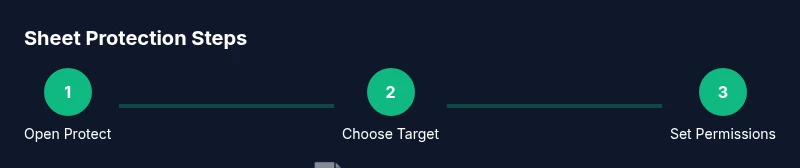
- 1
Open Protect sheets and ranges
From the menu, select Data > Protect sheets and ranges. This opens the protection pane where you can choose what to protect.
Tip: If you don’t see Protect sheets and ranges, check your privileges and ensure you’re using a supported browser. - 2
Choose the target (sheet or range)
Click the tab name to protect an entire sheet, or select a specific range within a sheet.
Tip: For a range, first select the cells you want to lock to ensure correct coverage. - 3
Set permissions
In the protections pane, choose who can edit. You can add individuals or groups and decide if they can edit or only view.
Tip: Limit editors to a small list to reduce risk of accidental edits. - 4
Save and confirm
Click 'Done' to apply protection. Review the protected area in the sheet to verify limits.
Tip: Test with a non-editor account to confirm the restrictions work. - 5
Optionally protect ranges
Repeat steps to protect ranges for granular control over specific cells or columns.
Tip: Protecting ranges is useful for templates with essential headers. - 6
Review and adjust over time
Periodically review editor lists and adjust as team members change roles or projects.
Tip: Document changes and keep a changelog.
FAQ
Can I password protect a sheet in Google Sheets?
No. Google Sheets does not support password-based protection. Use Protect sheets and ranges to assign per-user editing permissions.
No, password protection isn't available in Google Sheets. Use per-user editing permissions instead.
Will protecting a sheet hide data from non-editors?
No. Protected sheets still show data; protection only limits edits, not viewing access.
Protections stop edits but don’t hide data from viewers.
Can I protect only certain cells?
Yes. Protect a range to lock specific cells, while leaving the rest of the sheet editable.
Yes, you can lock specific cells by protecting a range.
What happens if a collaborator with edit access leaves?
You should regularly review the editors list and remove or reassign access as needed to maintain control.
Regularly review editor access and adjust as roles change.
How do I unprotect a sheet?
Open Protect sheets and ranges, select the protected item, and delete the protection to restore editing.
Open protections and remove the protection to regain edits.
Does protection work on mobile devices?
Yes, you can view protected sheets on mobile, but editing is still governed by the same permissions.
Mobile users see protections; edits follow the same rules.
Can I protect multiple sheets at once?
Google Sheets allows protecting individual sheets or ranges; you must set protections for each target separately.
You need to set protections per sheet or range.
Watch Video
The Essentials
- Protect sheets to guard critical data.
- Use range protection for granular control.
- Test protections with non-editors to verify behavior.
- Document edits and protect lists for accountability.