Google Sheets Permissions Changed? Troubleshooting Guide
Learn how to diagnose and fix the issue when google sheets your permissions have changed. This urgent guide covers quick checks, a diagnostic flow, step-by-step fixes, and prevention tips to restore access fast.


Most often, google sheets your permissions have changed because the file owner removed your access or updated your role. The quick fix is to confirm you’re signed into the correct Google account, then request access or have the owner regrant Editor or Viewer rights. If access remains blocked, check if the sheet sits in a restricted Drive or a domain policy that blocks external invites.
Why permissions change in Google Sheets happen
If you see a permission error, google sheets your permissions have changed due to ownership or sharing changes. In practice, most changes occur when the file owner edits sharing settings, moves the sheet to a different Drive, or updates your role from Viewer to Editor or removes you entirely. Organizational policies can also restrict access for specific domains or external collaborators. When permission status shifts, you may notice prompts like "You need access" or a warning that you no longer have permission to view or edit. Understanding these triggers helps you act quickly rather than wasting time chasing a non-existent bug. Remember: permissions are a balance between collaboration needs and security controls, not a random fault in Google Sheets.
Immediate checks you should perform
Before diving into complex fixes, perform quick, concrete checks:
- Confirm you’re signed into the correct Google account by opening a fresh incognito window and reattempting access.
- Open the sheet’s sharing settings to see whether your email is listed with Editor/Commenter/Viewer; if not, request access from the owner.
- Check if the file sits in a restricted folder or Shared Drive, where different permission inheritance can block access for non-members.
- Verify whether a Google Workspace admin or domain policy could be blocking external invites or certain domains. If in doubt, contact the owner or your admin for clarification.
Common culprits behind permission changes
Several typical causes recur across teams:
- Ownership transfer: The owner relocates the file or changes ownership, which often revokes prior permissions.
- Shared drives: Files inside Shared Drives inherit drive-level permissions; a change there can ripple to individual files.
- Domain restrictions: Admins can block external sharing or restrict access for certain domains, affecting collaborators unexpectedly.
- Workflow shifts: A project moves to a different folder, or the sheet is duplicated without mapping original permissions.
- Time-based access: Some teams grant temporary access that expires, or use automation to adjust rights when milestones are hit. Understanding these can help you anticipate access changes and plan mitigations.
How to verify which account is active and who has access
Account management is a common snag. Start by checking the Google account in the profile menu (top-right avatar), then switch accounts to confirm you’re using the one with permissions. In the sheet’s Share dialog, review the list of people and groups with access; confirm your email appears with the intended permission level. If the sheet is in a Shared Drive, inspect drive-level permissions and check whether you’re a member of the drive or a group that the drive trusts. Finally, examine recent activity via Drive's activity pane to spot when permissions may have changed and by whom.
Using Google Drive and Shared Drives: what to look for
Many permission issues originate in Drive structure rather than the sheet itself. Look for the following:
- The file's location: Is it in a personal Drive, shared with me, or a Shared Drive? Inheritance rules differ by location.
- Drive permissions: If you lack access to the parent folder or Shared Drive, you won’t be able to access child files even if you appear on the sheet’s share list.
- Group memberships: Some permissions rely on Google Groups; verify that your user is part of the relevant group and that the group hasn’t been removed from the drive.
- Domain policies: Admins may restrict access for certain external domains or enforce 2-step verification, which can affect access without direct sheet changes.
Recovery workflow: step-by-step to regain access
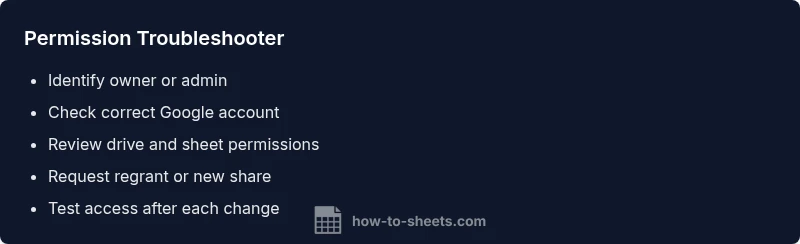
If standard fixes fail, follow a structured recovery workflow: identify the owner or admin, request explicit re-grant of Editor/Viewer role, verify the correct account is used, confirm the sheet’s location and drive permissions, and document the request. If the owner is unavailable, escalate to the domain admin or IT support with the exact sheet link and recipient email, including a timestamp of when access was last working. Always test access after each change.
Coordinating with owners and admins when access is blocked
Proactive coordination reduces downtime. Reach out to the sheet owner with a concise summary of the issue and the exact access you require. If multiple collaborators are affected, propose a shared calendar window for permission re-issue and request a formal audit trail. For admins, provide the sheet link, your user email, current account in use, and any error messages. Establish a clear turnaround time and follow up if access hasn’t been restored within that window.
Best practices to prevent future permission surprises
Prevention is cheaper than cure. Adopt these practices: set clear ownership for all critical sheets; use Google Groups for team access rather than individual emails; schedule quarterly permission audits; document who has access and why; enable version history and change alerts to monitor permission changes. When sharing externally, set expiration dates or access scopes and routinely review invited collaborators.
Final quick check: what to do today
If you’re stuck, attempt these quick steps in order: (1) switch to the account with prior access, (2) have the owner re-share or regrant, (3) verify drive and domain policies, (4) test access across devices, and (5) contact admin if necessary. Acting in a structured, documented way will reduce downtime and protect data security.
Steps
Estimated time: 60-90 minutes
- 1
Verify account and access
Open the sheet in an incognito window to rule out cached credentials. Confirm you are signed into the exact Google account that previously had access. If not, sign in with the correct account and retry.
Tip: Tip: Use the account switcher in the top-right profile menu to avoid confusion. - 2
Check sharing settings
Open the sheet’s Share dialog and verify your email appears with the intended permission. If missing or set to Viewer/Commenter only, request an upgrade to Editor or re-send the invite.
Tip: Pro-tip: If you can’t see the Share dialog, you may lack access to change permissions—ask the owner for help. - 3
Inspect Drive location
Determine whether the file sits in My Drive, a Shared Drive, or a restricted folder. Inheritance can block access when the parent folder has tighter permissions than the sheet itself.
Tip: Tip: Try accessing the file from Drive's Left panel to see its location hierarchy clearly. - 4
Consult domain/admin policies
If you’re on a Google Workspace account, check with your IT admin whether external sharing or domain restrictions are affecting access. They can adjust policies or reassign your group membership.
Tip: Pro-tip: Keep a record of the policy name and the dates of any changes for future reference. - 5
Request re-share vs. regrant
If the owner has moved ownership, request a direct regrant or ask them to share again with your account. Avoid duplicating links; explicit permissions are more reliable.
Tip: Pro-tip: If you’re a team lead, set ownership for critical sheets to avoid this issue. - 6
Test access after changes
After each change, close and reopen the sheet, then attempt to access from multiple devices or networks to confirm the fix holds broadly.
Tip: Pro-tip: Use a test account to verify permissions without impacting others.
Diagnosis: Google Sheets document shows 'You need permission' or a message indicating you’ve been removed from the sheet
Possible Causes
- highOwnership change by the document owner
- mediumSheet moved to a folder or Shared Drive with different permissions
- mediumDomain policy or admin restrictions blocking access
- lowYou are logged into a different Google account than the one granted access
Fixes
- easyConfirm you’re signed into the correct Google account and switch if needed
- easyAsk the owner to regrant Editor/Viewer rights or share the sheet again
- easyCheck the file’s location (Drive vs Shared Drive) and review drive-level permissions
- mediumIf on a Google Workspace domain, contact the admin to confirm or adjust domain restrictions
- easyRequest a formal access audit from the admin and document all changes for future reference
FAQ
What does it mean when Google Sheets shows 'You need permission'?
It means your user account lacks the necessary access rights. The sheet owner or admin has restricted your role, and you need to be re-added or upgraded in the sharing settings.
You see a permission error that indicates your access rights were changed or removed; you’ll need the owner to re-add you or upgrade your access.
Who can regrant access to a Google Sheet?
Typically the file owner or a user with editing rights on the sheet or its parent Drive/folder can regrant access. If the owner is unavailable, a domain admin can assist.
The owner or someone with editing rights can regrant access; if needed, contact your domain admin.
Can I access a sheet if it's in a Shared Drive but I’m not a member?
No. Shared Drive permissions apply to all files within the drive. You need membership or explicit access granted by the drive admin or the file owner.
If you’re not a member of the Shared Drive, you won’t access the files inside it.
What if my access changed after a domain policy update?
Domain policy updates can affect external sharing and some groups. Check with your IT admin to confirm what changed and how to restore access.
Domain policy changes can restrict access; contact your admin to review permissions.
Why do permission changes sometimes occur without a direct owner action?
Automations, ownership transfers, or drive policy updates can trigger permission changes. Always review both the sheet and drive permissions when troubleshooting.
Automations or policy updates can alter permissions; check both file and drive settings.
How can I prevent future permission surprises?
Establish clear ownership, assign groups instead of individuals, audit permissions regularly, and keep a record of access changes. Use documented procedures for granting/revoking rights.
Set up ownership, group-based access, and periodic audits to avoid surprises.
Watch Video
The Essentials
- Act quickly by verifying the correct account and regranting access.
- Check both file and drive permissions to locate the source.
- Coordinate with owners/admins for domain policy issues.
- Set up clear ownership and regular access audits.
- Document changes to prevent repeat issues.