Why is My Google Sheets View Only? Troubleshooting Guide
Urgent guide to fix Google Sheets view-only issues caused by permissions, protected ranges, or sharing settings. Learn how to regain editing rights quickly with practical, safe methods.


Most often, Google Sheets shows view-only because you lack edit access or a sheet is protected. Start by confirming the file owner and your permission level; request Editor access if needed. If access is granted but you still see view-only, inspect protected sheets or ranges and verify you’re not using a read-only link.
Why is my Google Sheets view only
The question why is my google sheets view only is a common one when teammates share documents. In practice, the root cause is almost always permission-related or content-level protection. According to How To Sheets analysis, permission issues and protected ranges are common culprits behind read-only behavior. The How To Sheets team found that many users encounter view-only states simply because they don’t have editing rights or because a section of the sheet is protected. This makes it vital to verify ownership, verify your role, and check any protections on the sheet. If you’re reading this because you need to edit for a class, project, or client, the answer is usually straightforward: request access or remove the protection, if you’re authorized to do so.
Quick checks you can do right now
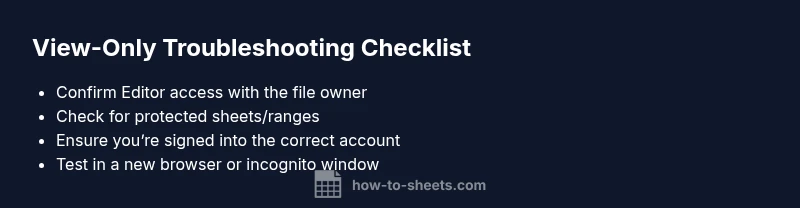
Before diving into complex diagnostics, perform a few quick checks that cover the majority of view-only scenarios. First, confirm you’re signed into the Google account that owns or is shared to edit the document. Then, re-open the file in a new tab or different browser to rule out session glitches. Disable browser extensions that might block editing or force a read-only mode. If the link is a view-only share link, attempt to open it via an explicit editor invite. How To Sheets emphasizes starting with access and sharing settings as the fastest path back to editability.
Understanding Google Sheets permission models
Google Sheets uses a layered permission model: Owner, Editor, Commenter, and Viewer. When you’re not granted Editor rights, you’ll default to view-only. Even with Editor access, protected ranges or sheets can override your ability to change data. The presence of a protected range means only specific people can edit that portion, even if you have broad edit rights elsewhere. This is a common pitfall when people encounter view-only sections in a familiar file. The situation can be further complicated by domain-wide policies or organization rules, which How To Sheets recommends addressing with the file owner or IT admin.
How to verify access with the owner
If you’re unsure whether you should edit, start with the owner or someone who shares ownership of the file. In the Share dialog, confirm your role and verify that “Editor” is selected. If you don’t see Editor, request access and provide a brief, concrete justification for edits. When you’re the owner, double-check the list of people with access and ensure there are no unintended viewers who still have control. Remember: you’ll only regain full editing capability once the share settings reflect your intended role.
Steps to regain editing access when you are not the owner
First, contact the file owner or an administrator and request Editor access. If the owner confirms access but the sheet still remains view-only, inspect for protected content. Navigate to Data -> Protected sheets and ranges to see if any regions are locked; remove protection or adjust permissions as needed. If the document is part of a shared drive or domain with strict rules, work with your IT admin to align sharing policies. If you’re allowed, you can also make a copy for editing while preserving the original, then share edits from the copy. How To Sheets recommends keeping a clear audit trail of permission changes for accountability.
Dealing with view-only templates and protected ranges
Templates often ship with protected ranges to prevent accidental edits. This is especially true for financial templates, project trackers, or master calendars. Check each sheet tab for protected content, as some editors may only have access to specific ranges. If a protected range blocks critical sections, ask the owner to adjust permissions or temporarily unlock the range for the duration of your edits. It’s also possible that a sheet is hidden or protected behind a View-only mode in the browser; toggling the tab visibility can sometimes reveal editable areas.
Preventing future view-only issues
To minimize future disruption, request explicit Editor access up front when you’re assigned a new sheet. Encourage owners to document sharing settings and protected ranges in the file description so that collaborators know what to expect. For recurring projects, create a standardized copy workflow: have the owner share a template with Edit access for your team, then each member makes a local copy to work from. Regularly review permission audits and avoid relying on a single owner for long-term access. The How To Sheets approach is proactive, not reactive, and focuses on clear ownership and documented protections.
Steps
Estimated time: 25-40 minutes
- 1
Verify account and access level
Open the Share dialog and confirm your role. If you’re not listed as Editor, request access from the owner. Ensure you’re logged into the correct Google account associated with the file.
Tip: Refresh the page after permission changes and sign out/in if the session seems stale. - 2
Review sharing settings
Inspect who has access and whether the link is configured as viewer-only. If you’re part of a team, confirm there are no policy restrictions blocking edits.
Tip: Ask the owner to switch the link setting to Anyone with the link can edit, if appropriate. - 3
Check for protected content
Go to Data > Protected sheets and ranges and review what is locked. If necessary, request removal or temporary permission to edit the protected areas.
Tip: Note exactly which ranges are protected to simplify future edits or share the edited ranges with the owner. - 4
Try a different access method
Open the file in incognito mode or a different browser to rule out extension conflicts or cached permissions. If you can edit there, the issue is local to your browser.
Tip: Disable browser extensions that block scripts or modify page content during editing. - 5
Create a working copy
If you’re unable to obtain access, File > Make a copy to work from a personal version. Share that copy with the owner for final edits or merge changes later.
Tip: Keep the original intact to avoid data loss and maintain traceability. - 6
Coordinate with the owner or admin
If you’re the owner, adjust protections and re-share. If not, work with the owner or domain admin to align sharing policies and permissions.
Tip: Document the change and communicate expected edits to avoid confusion.
Diagnosis: User sees a view-only state when attempting to edit a Google Sheets document
Possible Causes
- highYou do not have edit access granted by the file owner
- highThe sheet or a range is protected from edits
- mediumThe file is opened via a view-only link or domain restrictions
- lowYou are signed into the wrong Google account
- mediumWorkspace domain policies enforce read-only for new collaborators
Fixes
- easyAsk the file owner to grant Editor access or switch to an Editor role in Share settings
- mediumCheck for protected sheets or ranges (Data > Protected sheets and ranges) and request removal or editing permission
- easyOpen the file with the correct Google account or sign out/in to refresh credentials
- easyIf you must edit, copy the sheet (File > Make a copy) and work from the copy, then request merge rights if needed
- easyIf you are the owner, adjust protections or share settings to grant access to intended collaborators
FAQ
What does it mean when a Google Sheet is view-only and how can I regain editing rights?
View-only means you do not currently have Edit access or a portion of the sheet is protected. To regain editing rights, contact the owner to request Editor access or remove the protection if you’re the owner. If access is granted but you still see view-only, recheck the sharing settings and try reopening the file.
View-only means you can't edit because you don't have editing rights or a part of the sheet is protected. Ask the owner for Editor access or remove protections if you are the owner.
How can I tell who owns the Google Sheets file?
Open the Share dialog to see the list of people with access. The owner is listed as the file owner; if the owner isn’t you, you’ll need their permission or a transfer of ownership to modify sharing settings.
Open the Share dialog to see the owner. You may need the owner's permission to edit or for ownership to be transferred.
What is protected content in Google Sheets, and how do I handle it?
Protected content refers to ranges or sheets locked from edits. The owner or someone with protection rights controls it. To edit, you must be granted access to the protected area or have protections removed.
Protected ranges lock edits. You need access to those areas or removal of protections to edit.
What should I do if I’m the owner and my collaborators still can’t edit?
Double-check both the document-level sharing and any protected ranges. Ensure collaborators are assigned the Editor role and that domain policies aren’t forcing read-only access. Re-share if necessary.
If you’re the owner and edits aren’t possible, verify sharing and protections, then re-share with Editor rights.
Can I edit a view-only sheet by creating a copy?
Yes. If you’re unable to obtain access, you can File > Make a copy to create a working version. Share that copy with collaborators or request permission to merge changes later.
Create a copy to edit if you can’t get access, then coordinate with the owner to merge later.
Watch Video
The Essentials
- Check permission levels first
- Protected ranges are a common culprit
- Owner controls access and protections
- Make a safe copy to edit when needed
- Refresh credentials after permission changes