How to Check If a Google Sheet Is Protected
Learn exactly how to verify protection status in Google Sheets, including how to view protected sheets and ranges, review editors, and adjust permissions safely. This educational guide is ideal for students, professionals, and small business owners seeking practical, step-by-step instructions.


You will learn how to check if a Google Sheet is protected by inspecting protections on sheets and ranges, reviewing editors, and confirming who can edit. Start by opening the file, then choose Data > Protected sheets and ranges to locate protections. If you can't modify protections, you may lack edit rights or be restricted by the owner.
What a protected sheet means for collaboration
In Google Sheets, protection is a mechanism to safeguard sensitive data or formulas from accidental edits. A protected sheet can restrict edits to certain users, while protected ranges lock specific cells within any sheet. Understanding these protections is essential for teams that share documents with clients, students, or stakeholders. In practice, protection helps prevent accidental data loss, preserves complex calculations, and enforces governance policies when multiple editors are involved. If you’re unsure whether a given file has protection, start by looking for visual cues and then verify in the protection manager. According to How To Sheets, the most common scenario is a sheet owner who has protected a tab to keep formulas intact while allowing collaborators to edit other areas. This approach supports safe collaboration without blocking legitimate work. This section will guide you through recognizing sheet protection and differentiating between sheet-level and range-level protections. You’ll also learn how protections appear in the UI and what to do if you need access changes.
The different layers of protection in Google Sheets
Google Sheets offers multiple layers: protected sheets, protected ranges, and restrictions applied to entire documents via sharing settings. A protected sheet locks all cells in a tab to prevent edits except for designated editors. Protected ranges lock select cells; editors can still interact with unprotected areas. Owners can set these protections and designate who can edit each segment. It's common for a workbook to have one or more protected sheets and several protected ranges scattered across tabs. The distinction matters: protecting a sheet is a broader blanket, while protecting a range targets critical rows or columns. When planning a workflow, map out which users need edit access and for which sections. This mapping helps you avoid over-restrictive settings that impede legitimate work. In many teams, protecting only the essential cells or formulas is sufficient, while other areas remain open to collaboration. How To Sheets emphasizes that clear protection maps reduce friction during audits and reviews and simplify onboarding new collaborators.
Using the UI to spot protections
To locate protections visually, open the target Google Sheet and inspect each tab for indicators of protection. Start by navigating to Data > Protected sheets and ranges. The protection pane lists each protected sheet or range, along with the current editors. If a sheet or range is protected, you’ll see a lock icon or a labeled entry in this pane. You can click an entry to view the exact range and the editors who can modify it. If you don’t see Protected sheets and ranges, the sheet may be unprotected or you have limited permissions to view protections. In that case, request access from the file owner or a project administrator. When you confirm protections, note the sheet/tab name, the protected range, and the editors allowed to edit. This information helps you plan how to collaborate without accidentally bypassing safeguards.
Verifying editors and permissions
After identifying protection, the next step is to review editor permissions. Click into a protected area to reveal the list of editors who can modify it. If your account is listed, you can edit; if not, you’ll need to request permission from the owner or someone with edit rights. Remember that editors can be granted different levels of access: full edit, comment, or view only. If you are the sheet owner, you can adjust these permissions directly from the protection details panel. If you cannot modify protections even as an owner, check for domain-based restrictions or inherited protections from the spreadsheet’s sharing settings. In many organizations, domain administrators apply policies that influence protection behavior. In such cases, coordinate with your IT administrator to align protections with governance requirements.
Troubleshooting when protections are unclear
If protection settings are unclear or you still cannot edit, consider these steps: verify you are logged into the correct Google account; reopen the sheet in a private/incognito window to rule out cached permissions; look for protected ranges on each tab; review the sheet’s sharing settings to see if you’re blocked by viewer-only or commenter roles. If protections are inherited, there may be a master sheet or template that applies protections to newly created sheets; locate the template and examine its protection rules. When in doubt, consult the sheet owner and document the required access changes to maintain transparent governance. How To Sheets's guidance recommends documenting permission requests to avoid repeated back-and-forth.
A practical workflow: from discovery to adjustment
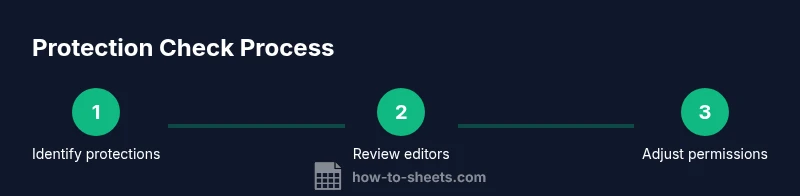
Workflows begin with discovery of protections, followed by permission checks and adjustments. Start by listing protected sheets and ranges, then confirm who can edit. If you have rights, decide whether a protection is still needed; if not, remove or loosen it for the appropriate audience. Always test edits on a copy first to prevent data loss. Finally, update the protection map and share the new guidance with your team to prevent confusion.
Tools & Materials
- Google account with appropriate access(Must have at least view access to review protection settings; editing access for permission changes if needed)
- Device with internet access(Laptop/desktop or mobile; stable connection)
- Google Sheets app or browser(Ensure you are signed in to the correct Google account)
- Notepad or note-taking app(Optional for recording editor changes or steps)
- Screenshot tool(Optional to document protection settings)
- Screen-capture or printer(Optional for sharing with collaborators)
Steps
Estimated time: 15-25 minutes
- 1
Open the target Google Sheet
Launch Google Sheets in your browser or mobile app and open the file you want to inspect. Ensure you are signed in with the account that owns or collaborates on the sheet. This initial step sets the stage for accuracy as you verify any protections.
Tip: If the sheet is in a shared drive, switch to the exact file to avoid checking a copy. - 2
Navigate to protection settings
Go to Data > Protected sheets and ranges to access the protection panel. This panel lists protected sheets or ranges and their editors. If you don’t see anything listed, the sheet may be unprotected or you lack permissions to view protections.
Tip: If you don’t see the option, you may not have edit rights on the file. - 3
Identify protected sheets or ranges
Review the list to identify which tabs or ranges are protected. Note the exact range and the sheet/tab name. This clarity helps you plan edits without triggering protections unintentionally.
Tip: Take a screenshot for your records if you need to escalate access requests. - 4
Check editors and permissions
Click each protected item to view editors. Confirm whether your account appears in the editors list and understand the access level granted.
Tip: Remember, editors can include individuals or groups; permissions can vary by item. - 5
Assess owner or admin controls
If protections seem restrictive, determine whether the sheet owner or domain admin controls the policy. In many organizations, protections are governed at the domain level and require administrative changes.
Tip: Coordinate with IT or project leads before altering protections. - 6
Adjust or request access if needed
If you have rights, consider whether a protection is still necessary and adjust or remove it accordingly. If you don’t have rights, submit a formal access request to the owner or admin.
Tip: Always test changes on a copy to avoid affecting live data.
FAQ
How do I know if a single cell is protected?
Protected ranges are the mechanism for locking specific cells. Open the protection pane via Data > Protected sheets and ranges to see which cells are included in a protected range and which editors are allowed.
Protected ranges lock specific cells; check the protection pane to see which cells and editors are involved.
Can I edit a protected sheet if I’m not the owner?
You can only edit protected content if you are listed as an editor in the protection settings or you have the owner’s permission. Otherwise, edits will be blocked.
You need to be listed as an editor or have owner permission to edit protected areas.
What’s the difference between protecting a sheet and protecting a range?
Sheet protection locks the entire tab, while range protection restricts only specific cells within a sheet. Both require designated editors to modify the protected content.
Sheet protection locks the whole tab; range protection locks just certain cells.
I can’t view protection settings. What should I do?
Ask the file owner for access or request permission to view protections. If you’re on an organization account, you may also need domain-level permissions.
Ask the owner or admin for access to protection details.
Is protection the same as sharing permissions?
No. Protection governs who can edit content; sharing controls who can view or edit the file overall. They work together but are configured separately.
Protection locks edits; sharing controls access levels.
How do I remove protection as the owner?
Open the protection settings, select the protected item, and delete or modify the protection to remove restrictions. Always test changes first.
If you’re the owner, you can remove protections in the protection settings.
Watch Video
The Essentials
- Identify whether a sheet or range is protected before editing
- Open Data > Protected sheets and ranges to locate protections
- Review editors to ensure proper access for all collaborators
- Document changes to maintain governance and transparency