How to Unprotect Google Sheets: A Practical Guide
Learn how to remove protections from Google Sheets, ranges, or cells safely. This practical, step-by-step guide covers permissions, passwords, and best-practice tips for collaborative work.


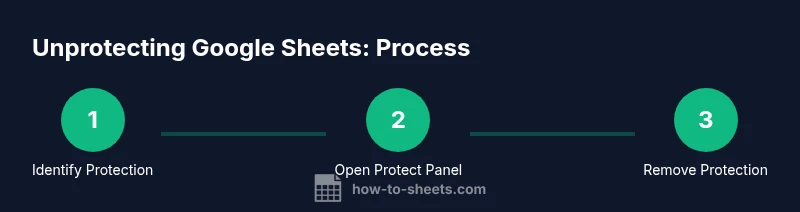
If you’re wondering how to unprotect google sheets, begin by identifying whether the protection applies to the sheet, a specific range, or the entire workbook. Open Data > Protect sheets and ranges to view protections, then remove them with editor rights or after obtaining permission from the owner. This quick guide is followed by a detailed, step-by-step workflow.
Why unprotect Google Sheets matters
Protecting data in Google Sheets helps teams collaborate safely by restricting edits to sensitive areas. However, when you legitimately need to modify content, knowing how to unprotect google sheets is essential. According to How To Sheets, many users run into friction because protections are not always obvious. The most common scenarios involve protected sheets, protected ranges, or workbook-level protections that block edits even for trusted editors. By understanding the different protection scopes and the right sequence to remove them, you can restore editing access without compromising governance. This section lays the foundation for safe, auditable changes and helps you plan before attempting any unprotect action.
Beyond individual worksheets, protections can be set at the range level or for entire sheets. In practice, you may be granted access in one project but restricted in another. The How To Sheets team emphasizes the importance of confirming your permissions with the sheet owner before attempting to unprotect. When in doubt, start with the least intrusive protection (a single range) and test edits in a non-critical area to verify that access has been updated correctly. This mindset reduces the risk of unintended data exposure and preserves audit trails for future reviews.
Understanding protection in Google Sheets
Google Sheets uses a robust set of protections to control who can edit what. At a high level, protections can apply to:
- A single range: selecting a cell block and choosing Protect ranges, then limiting who can edit that block.
- An entire sheet: protecting all cells in a tab so only certain users can modify content.
- The whole workbook: fewer common, but possible if the Admin or owner enables broad restrictions.
When a user encounters a protected area, Google Sheets will prompt for permission or display a warning that edits are blocked. The distinction between range protection and sheet protection matters because the removal process differs: ranges can be unprotected individually, while sheets require removing or adjusting sheet-level permissions. The genus of protection is essential for diagnosing why you cannot edit and for choosing the correct unprotect path. As you move through the steps, you’ll see how these layers interact and why some protections persist even after you log in with a familiar account.
Pre-unprotect checklist
Before attempting to unprotect, verify that you have the correct access grant. The most reliable approach is to:
- Confirm that you have editor rights on the sheet or are the sheet owner.
- Check if a data range is protected or if a sheet-level protection exists.
- Review any third-party add-ons or scripts that might re-apply protections after edits.
- Have a backup plan: copy essential data to a new sheet if needed to preserve integrity during edits.
If you don’t have permission, contact the owner or an admin. The How To Sheets approach recommends documenting the protection scope and any requests you’ve made, so you can follow up if the owner cannot grant access immediately. Quick coordination saves time and reduces the risk of accidental data loss during edits.
Step-by-step overview to unprotect google sheets
Even though a dedicated step-by-step section follows, here’s a high-level overview to orient you:
- Open the protected sheet and locate the protection setting in Data > Protect sheets and ranges.
- Identify whether the obstruction is at the range level or the entire sheet.
- If you have edit rights, select the protected item and remove or adjust the permission.
- Save changes and test edits in a safe area to ensure access is restored.
- If you lack permission, escalate to the sheet owner or admin.
This overview prepares you for the formal, itemized steps that follow, ensuring you understand the decision tree and common pitfalls. You’ll also see how to verify edits after protection is removed and how to minimize future friction by applying targeted protections rather than broad locks.
Troubleshooting common issues
If unprotecting a Google Sheet fails, consider these common culprits and fixes:
- Password prompt appears unexpectedly: ensure you’re using the right account with editor permissions, and confirm whether a password is required for certain protected ranges.
- The protection reappears after edits: some scripts or add-ons re-apply protections automatically; disable or review these automations and recheck permissions.
- You don’t see “Protect sheets and ranges” in the Data menu: you might not have sufficient rights or the sheet is protected at the workbook level; contact the owner for escalation.
- Edits are blocked on multiple tabs: some sheets implement multi-tab protections; repeat the unprotect steps for each protected tab.
- You cannot identify the protected elements: use the Protect sheets and ranges panel to highlight every protected item and review who has access to each one. When in doubt, request documentation from the owner about how protections were configured.
Best practices after unprotecting
Once protections are lifted, adopt safeguards to preserve data integrity while enabling collaboration:
- Reconsider protections: apply them only to critical ranges, not entire sheets, to limit risk while keeping collaboration flowing.
- Notify collaborators: communicate which sections are editable and which remain restricted to reduce confusion.
- Document changes: note the rationale for unprotecting and who was granted access for future audits.
- Create a revision plan: set up version history snapshots before making significant edits.
- Schedule periodic reviews: regularly review protections to ensure they still align with project governance.
In line with best practices, the How To Sheets team suggests recording the change and retaining a minimal protection footprint to balance security with productivity.
Safety, security, and audit trails
Security considerations go beyond simply removing protections. Always ensure that sensitive data remains shielded from unauthorized edits and that edits are auditable. For larger teams, linking unprotect actions to an approval workflow can help maintain governance. If you must temporarily unprotect to perform a critical update, plan a fixed window after which protections are re-applied. This minimizes risk while supporting urgent work. The goal is to maintain a clear audit trail and a documented reason for each change, so future reviews are straightforward.
Additional tips for collaborative editing
- Use protected ranges sparingly and clearly label them so future editors know what’s restricted.
- Consider protecting only the content that absolutely requires protection rather than entire sheets.
- Regularly back up critical data before removing protections, especially in complex workbooks with formulas and references.
- Leverage comments and notes to guide collaborators on what edits are permitted in sensitive regions.
- Schedule periodic checks of permissions to adapt to team changes or new members.
Tools & Materials
- Computer or device with internet access(Ensure a modern browser (Chrome/Edge/Firefox) with up-to-date security patches)
- Google account access(Editor rights or ownership required to unprotect ranges or sheets)
- Target Google Sheet(Open the sheet in question and locate protections)
- Password (if prompted)(Some protections may prompt for a password or confirmation from the owner)
- Backups(Prepare a backup copy if you are removing protections from a large or complex sheet)
Steps
Estimated time: 5-15 minutes
- 1
Open the protected sheet
Navigate to the Google Sheet in your browser and ensure you are signed in with an account that has editing rights. If you are unsure, verify your permissions with the sheet owner. This initial step confirms you’re targeting the correct document.
Tip: If you can’t locate the sheet in Drive, use the search feature and sort by last modified. - 2
Access Protect sheets and ranges
From the menu, go to Data > Protect sheets and ranges to view all protected objects. This panel lists protected sheets and ranges, along with who can edit what.
Tip: Use the search box in the panel to quickly locate the protected area by name or range. - 3
Select the protection to remove
Click the protected item (sheet or range) you want to unprotect. Review the permissions tied to that item to confirm you are authorized to modify or remove it.
Tip: If you see multiple protections, plan to remove them one by one to avoid unintended edits. - 4
Remove or adjust permissions
In the protection settings, choose Remove protection or adjust the allowed editors. If prompted for a password or confirmation, provide it or obtain permission from the owner.
Tip: Document any changes in a comments log or your project notes. - 5
Save changes and test edits
Click Done or Save, then attempt edits in the previously protected area to confirm access is restored. Validate formulas, data connections, and references as needed.
Tip: Test on a non-critical cell first to avoid impacting essential data. - 6
Escalate if you lack permission
If you cannot remove protection due to insufficient rights, contact the sheet owner or administrator with a clear request and a justification.
Tip: Offer a temporary access window or a defined protection scope to facilitate quick approval. - 7
Reassess protection strategy
After unprotecting, evaluate whether full or partial protections are still necessary. Aim for minimal, clearly labeled protection to balance security with collaboration.
Tip: Create a short policy for future edits to reduce repeated permission requests. - 8
Document the change
Record what was unprotected, who approved it, and the date. Include any follow-up actions and reapplication plan if needed.
Tip: Keep a changelog attached to the sheet for future audits.
FAQ
What does it mean when a Google Sheet is protected?
Protection restricts edits to certain users or areas. It can apply to a specific range, an entire sheet, or the workbook. You’ll need the appropriate permissions to make changes.
A protected sheet restricts edits to specific people or areas. You’ll need permission to modify it.
I can’t unprotect because I don’t have the password.
If a password is required, contact the sheet owner or admin to grant you access or provide the password. Without the right permissions, you cannot remove protection.
If you don’t have the password, ask the owner for access or the password.
Can I unprotect a single range without affecting others?
Yes. Use Protect sheets and ranges to view protections, then remove or edit the specific range. Other protections remain intact.
Yes. You can adjust one range without touching other protections.
What should I do if I still can’t edit after unprotecting?
Double-check that all related ranges or sheets are unprotected, refresh the page, and verify you’re editing with the correct account. If issues persist, escalate to the owner.
If edits still fail, verify accounts and protections, then ask the owner for help.
Is unprotecting safe for collaborative sheets?
Unprotecting should be done with purpose and a plan. Reapply protections after edits and document the changes to maintain accountability.
Unprotect with a plan, then reapply protections and keep a log.
Do protections apply to formulas or references?
Protecting cells can prevent edits that would affect formulas or references. After unprotecting, recheck any formulas that rely on the protected areas.
Protections can affect formulas; recheck formulas after unprotecting.
Watch Video
The Essentials
- Identify whether protection is at range, sheet, or workbook level
- Obtain appropriate permissions before unprotecting
- Test edits in a safe area after removal to verify access