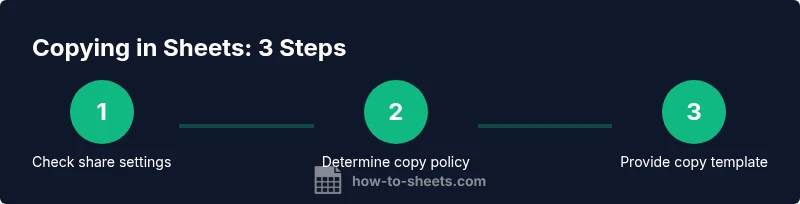
Can Viewers Copy Google Sheets? A Practical How-To Guide
Discover if viewers can copy Google Sheets and how to control copy permissions. This guide explains view-only vs. edit sharing, how 'Make a copy' works, and best practices for secure collaboration.


Can viewers copy a Google Sheet? Yes, but only if the file’s sharing settings allow it. The owner controls this by choosing Viewer, Commenter, or Editor roles and by whether link-sharing is restricted. In most cases, a viewer can make a copy using File > Make a copy only when the owner’s settings permit copying. This quick answer sets the stage for the step-by-step guidance that follows.
Why this question matters
In Google Sheets, can viewers make a copy? The answer affects collaboration: it determines whether people can originate their own version for offline use, data analysis, or sharing without altering the original sheet. According to How To Sheets, understanding copy permissions helps you balance openness with control while keeping data secure. This guide walks through the mechanics, differences across roles, and practical steps to manage copying in real projects.
How Google Sheets sharing works
Sharing settings in Google Sheets drive what others can do with a file. When you click Share, you choose viewers, commenters, or editors. Each role has a distinct set of allowed actions, including viewing, commenting, editing, and, in some cases, creating copies. The key takeaway is that the ability to copy is not universal; it is governed by link settings and the file’s ownership. If you share via a link set to 'Viewer', some users may still copy the file by using 'Make a copy' from the menu, but this depends on the configuration. By the end of this section you’ll know which combinations let viewers duplicate your data and under what constraints.
Viewer vs. commenter vs. editor permissions
Different roles change what someone can do in a file. Viewers can see content, but sometimes can’t copy if the owner disables that option. Commenters can leave feedback but typically can’t make changes or copies unless the owner granted broader permissions. Editors can do almost anything, including copying, editing, and resharing. If you specifically want to allow a viewer to make a copy without giving edit access to the master, you’ll need to inform them to use 'Make a copy' on their own copy, or provide a shareable link with the appropriate access. This section clarifies when and how each role affects copying.
How to enable 'Make a copy' for viewers
If your goal is to let viewers create their own version, you must structure sharing thoughtfully. One approach is to share the file with View access and provide a clear instruction that recipients can click File > Make a copy. Another method is to publish to the web or send a link to a temporary copy, though that may bypass access controls. The safest approach is to use a bound copy workflow: provide a template sheet that users can copy, while leaving the original intact and uneditable.
Security and best practices when sharing
Always audit who has access. Use protected ranges to prevent accidental edits on critical formulas, and consider using suggested edits for collaboration. If you rely on sensitive data, avoid giving even 'View' access to people outside your organization; instead, share a sanitized version or a templated copy. When instructing users to 'Make a copy', remind them that the copied file is independent of the original, and any updates to the source won’t propagate.
Common pitfalls and troubleshooting
Problems like disabled copying can surprise recipients. If viewers can’t copy, check the owner’s sharing settings, whether the file is part of a team drive, and if the link was restricted. Sometimes a browser extension or account policy blocks copies. Also, remember that copying creates a separate file; formulas referencing external sheets may break until reconnected. This section lists quick checks to diagnose why a copy isn’t appearing.
Real-world scenarios and templates
Consider a classroom template where teachers want students to practice with a copy without altering the original lesson. Or a project tracker where clients must receive a copy with no access to the master data. How To Sheets offers practical templates and step-by-step instructions to implement copy-friendly sharing, including naming conventions, version control, and a sample copy workflow you can adapt to your needs.
Tools & Materials
- Google account(You must be signed in to access sharing settings.)
- Link to the Google Sheet(Ensure you have the correct URL and access.)
- Web browser or Google Apps access(Chrome/Edge/Firefox with up-to-date version.)
- Notes template or checklist(Optional for recording steps and outcomes.)
Steps
Estimated time: 5-15 minutes
- 1
Open the file and review permissions
Open the Google Sheet, click Share, and verify current access levels. Confirm whether viewers have 'Can view' access and if copying is allowed by link settings.
Tip: If copying is blocked, record the exact setting to adjust later. - 2
Decide sharing configuration
Choose whether to give viewers view-only or allow them to copy by providing a template or a copyable link. Consider the risk and intended use of the copied file.
Tip: Prefer view-only for sensitive data and provide a separate template for copies. - 3
Explain how viewers can make a copy
Tell recipients to use File > Make a copy, or provide a ready-made copy template. Remind them the copy is independent of the original.
Tip: Provide step-by-step notes in a readme to reduce support requests. - 4
Provide a template copy workflow
Create a template sheet that users can copy; avoid distributing the live dataset. Include naming conventions to avoid confusion between original and copies.
Tip: Use a clear template name like 'Template – Copy'. - 5
Verify the copied file
Open the new copy to verify it contains expected data and that links to external sources still work. Rename and save in a designated folder.
Tip: Check formulas that reference external sheets and update as needed. - 6
Document the process
Add a short readme explaining how to copy, naming rules, and how to report issues. Store it with the template copy.
Tip: Keep the documentation visible in the copied file.
FAQ
Can viewers make a copy of a Google Sheets file?
Yes, if the owner allows copying via sharing settings. Some configurations prevent copies, so check the file's permissions.
Yes, copying is possible when the owner permits it; otherwise it's blocked.
What settings control copy permissions?
Copy permissions depend on the viewer role and the link-sharing configuration chosen by the owner.
It depends on roles and link sharing.
Will copying affect the original file?
No. A copied file is a separate file and edits do not propagate to the original.
No, copies are independent.
How can I create a template for copies?
Create a standalone template file, share it with View access, and instruct users to Make a copy.
Make a copy from a template file.
What if the owner revokes access after someone copies?
Revoking access stops viewing the original, but does not delete or affect copies already created.
Copies remain safe and independent.
Are there privacy concerns when copies are made?
Yes. Ensure data is sanitized and avoid including sensitive information in copy-enabled sheets.
Be mindful of sensitive data in copies.
Watch Video
The Essentials
- Know the copy policy before sharing.
- Use templates to protect original data.
- Tell viewers how to make a copy and what to expect.
- Audit access to prevent data leakage.