How to Get Google Sheets Out of View Only
Learn practical steps to remove view-only restrictions in Google Sheets. From checking permissions to making a copy or requesting access, master editing quickly with clear, step-by-step guidance.


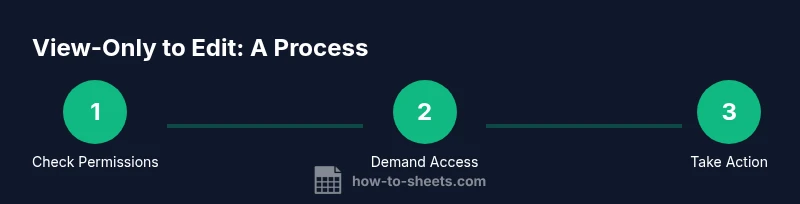
To get Google Sheets out of view-only, you must gain editing access or have the owner grant it. Start by checking the file’s Share settings to confirm your permission. If you’re the owner, adjust sharing to Editor for relevant people. If not, request access and, if needed, create a personal copy to edit while preserving the original.
What 'view only' means in Google Sheets
In Google Sheets, 'view only' is a permission level that prevents you from editing a file. When a sheet is shared with you as a viewer, you can see data and formulas, but you cannot change values, add rows, or modify formatting. The exact capabilities depend on how the owner configured sharing and which Google Workspace settings apply to your organization. Understanding these boundaries helps you choose the right path to regain editing power. According to How To Sheets, the quickest way to move from view-only to editing is often to either request access or create a personal copy that you can edit without altering the original. Before taking action, inspect the current settings, confirm your role, and plan the next steps based on your needs and your relationship to the document. If the document contains sensitive data, owners might restrict access more tightly, and you’ll need to provide a legitimate reason or demonstrate need-to-know. This section lays the groundwork for practical remedies that don’t surprise you with unexpected limitations.
Check your current permissions and ownership roles
To determine whether you can edit, open the file and look for the Share option. The sharing dialog shows who has access and what role they carry (Owner, Editor, Commenter, Viewer). If you’re listed as Viewer or Commenter, you’ll need to request additional permissions. If you don’t see the Share button, you may not have permission to modify access, which means you’ll need the owner or an administrator to adjust it for you. In organizational contexts, domain restrictions or policy settings may also affect what you can do, even when you technically have a link to the file. This block helps you confirm your standing before proceeding with a fix or a request. How To Sheets suggests verifying your position and preparing a concise justification if you plan to ask for access.
The quick path: make a copy to edit
If you only need to edit data for your own use, creating a personal copy is often the simplest route. In Google Sheets, go to File > Make a copy, choose the destination in your Google Drive, and rename the file. The copy becomes a standalone document that you can edit without impacting the original. Be aware that formulas referring to the original may break, and you won’t automatically receive future updates from the source unless you re-link data. This option is ideal for data analysis, experimentation, or when you need an offline backup. If your organization relies on live collaboration, use this as a temporary workaround while arranging proper access.
How to request edit access from the owner
If you’re not the owner, send a clear access request from the sheet’s Share dialog or a direct message. Include a brief reason for needing editing rights and any deadlines. The owner can grant Editor permissions to individuals or to specific groups. If you work within a team, suggest adding the user to a shared drive or group with appropriate rights to streamline future access requests. While waiting, you can prepare your edits in a separate document or in a local draft to minimize disruption once access is granted.
If you are the owner: grant access
Owners can change who can edit by opening the Share dialog and adding people with the Editor role. You can also switch the link sharing to allow anyone with the link to edit, if your policy allows it. For sensitive data, consider restricting sharing to specific people and enabling protected ranges or sheet-level permissions to maintain control. After granting access, remind recipients to refresh the document and confirm that edits appear as expected. This approach helps teams stay productive without compromising data security.
Best practices to avoid future view-only blockers
Proactively manage access by using groups, not individual emails, and establish a clear ownership plan for critical documents. Regularly audit sharing settings, especially after project handoffs or role changes. Consider adding protected ranges for sensitive sections so collaborators can edit non-critical areas without risking core data. Finally, encourage contributors to use the “Make a copy” workflow sparingly and only when appropriate to preserve the integrity of the original. Consistency in access control reduces friction and protects your data over time.
Alternatives and considerations
If traditional sharing channels are blocked due to policy or domain restrictions, explore alternatives such as exporting data to a new sheet where you have full control, or using App Script to produce a read/write interface for specific users. In corporate environments, always check with IT or your admin before bypassing standard sharing controls. Remember that maintaining a balance between collaboration and security is essential for long-term productivity and compliance.
Tools & Materials
- Stable internet connection(Reliable network to avoid interruptions during sharing actions or permission checks)
- Google account with access(Used to log in and manage sheet permissions)
- File to be edited or the link(The sheet you’re trying to move from view-only to editing)
- Owner contact info (if applicable)(Only needed to request access when you’re not the owner)
- Draft message for access request(Prep a short, respectful message outlining reason and timelines)
Steps
Estimated time: 5-15 minutes
- 1
Identify your current permission
Open the Google Sheet and click the Share button to view your current access level. Confirm whether you’re a Viewer, Commenter, Editor, or Owner. This determines your next actionable step.
Tip: If you can’t see Share, you likely lack permission to modify access; skip to requesting access or contacting the owner. - 2
Decide on the best path forward
If you only need editing for your use, consider making a copy. If you require collaboration on the original, request Editor access from the owner. Your choice depends on whether you must preserve the source or work independently.
Tip: Make a quick pros/cons note to avoid unnecessary copies. - 3
Make a copy to edit (if appropriate)
From the menu, select File > Make a copy, choose a destination in Drive, and rename the file. Open the copy and verify edits won’t affect the original.
Tip: Keep the original intact; the copy is your sandbox for changes. - 4
Request edit access from the owner
Open Share, enter the owner’s email or group, choose Editor, and add a concise message about why you need access and any deadlines.
Tip: Attach a brief justification to speed up approval. - 5
Owner grants access or adjusts sharing
The owner or admin receives the request and can grant Editor rights or adjust link settings. After approval, refresh the sheet and confirm you can edit.
Tip: If access isn’t granted promptly, follow up politely. - 6
Verify and begin editing
Open the sheet, test editing a cell, and save your changes. Communicate with collaborators about edits if needed.
Tip: Do a quick test edit on a non-critical cell first.
FAQ
What does 'view only' indicate in Google Sheets?
View-only means you can see the data but cannot edit or restructure the sheet. Your exact abilities depend on the owner’s sharing settings and any organizational policies in place.
View only means you can view data but not edit; you’ll need permission from the owner to edit.
Can I edit a sheet if I can only view it?
Yes, you can edit if you create a personal copy or if the owner grants you Editor access. Creating a copy preserves your changes separately from the original.
You can edit by making a copy, or by getting editor access from the owner.
How long does it take for access to be granted after requesting?
Approval times vary by owner and organization policy. It can be immediate or take a few hours to a couple of days.
Approval times vary; it could be immediate or take a bit of time depending on the owner.
What should I include in an access request message?
Explain why you need access, how you’ll use the data, and any deadlines. A concise, respectful message accelerates review.
Mention why you need access and any deadlines to help the owner decide quickly.
What if the owner is not responsive?
If there’s no reply, consider sending a polite follow-up or asking an alternate editor or admin for assistance within policy guidelines.
If there’s no reply, send a courteous follow-up or contact an admin for help.
Watch Video
The Essentials
- Verify your permission before acting
- Use Make a copy to edit when appropriate
- Ask for owner approval for collaborative edits
- Apply best practices to prevent future view-only blocks