Data Validation in Excel vs Google Sheets: A Practical Guide
A comprehensive, analytical comparison of data validation in Excel vs Google Sheets, covering rules, lists, error handling, cross-document sources, and practical migration steps for students and professionals.


Excel and Google Sheets both offer data validation features, but they differ in how lists are managed, how references are stored, and how validation updates propagate across workbooks. This quick comparison highlights the key strengths and limits of each platform, helping students and professionals decide where to implement controls and how to migrate rules between Excel and Sheets.
Understanding data validation in Excel and Google Sheets
Data validation is a guardrail for data integrity. It restricts what a user can type into a cell, ensuring inputs conform to a list, a numeric range, a date format, or a custom calculation. Across Excel and Google Sheets, data validation serves common goals: prevent errors, guide data entry, and simplify downstream analysis. In the context of data validation in excel vs google sheets, you're comparing two ecosystems with similar capabilities but different workflows, sharing models, and scripting support. Excel's desktop-first mindset emphasizes depth, offline reliability, and complex rule-building across multiple worksheets and workbooks. Google Sheets emphasizes real-time collaboration, cloud storage, and seamless cross-device access. When planning validation rules, you should map your data quality goals, determine list sources (static vs dynamic), decide how to notify users of invalid input, and consider how rules will be maintained as the workbook grows. This section sets the stage for practical, side-by-side evaluation of capabilities, limitations, and migration considerations.
Data validation features in Excel: constraints, dropdowns, and error alerts
Excel’s Data Validation tool is a mature, feature-rich component of the desktop application. It supports a variety of rule types, including whole numbers, decimals, dates, text length, lists, and custom formulas. You can create in-cell dropdowns, require that entries match a named range, and tailor both an input message and a detailed error alert. Excel also supports dynamic lists via named ranges and formulas like OFFSET, which allows lists to grow as data expands. Advanced users leverage VBA to create complex validation behaviors or to automatically refresh lists. However, cross-workbook references for validation lists are often limited to named ranges within the same workbook, making large-scale cross-file governance more cumbersome. In short, Excel excels at granular, offline control and deep rule customization for intricate datasets.
Data validation features in Google Sheets: constraints, dropdowns, and error alerts
Google Sheets offers a lighter, cloud-first approach to data validation. Accessed through Data > Data validation, it supports criteria including lists, range references, and custom formulas. The dialog emphasizes simplicity: show a dropdown in-cell, reject invalid entries, or warn users with an optional help text. Google Sheets shines with real-time collaboration—multiple users can see changes instantly, and revisions are automatically saved in the cloud. Lists can be sourced from named ranges within the same spreadsheet, or sourced from other spreadsheets via IMPORTRANGE, enabling dynamic cross-file validation with proper permissions. While Sheets provides robust basics, some of the deeper customization available in Excel—such as extensive input message customization and certain complex array formulas—requires workarounds or Apps Script. Overall, Sheets prioritizes accessibility and collaboration without sacrificing essential validation controls.
Cross-platform differences: formulas, references, and list sources
The core concept of data validation is the same across platforms, but the implementation diverges in practice. Excel stores validation rules within a workbook, often relying on named ranges and dynamic lists created with OFFSET or similar functions, and it supports bespoke input messages and detailed error alerts. Sheets emphasizes cloud-based lists, easier cross-document sharing via IMPORTRANGE, and collaboration-friendly defaults. References to data sources can be straightforward within one file in Sheets, yet moving rules between platforms frequently requires re-creating the rules and re-pointing sources. Formulas used for validation also differ in behavior, especially with locale-specific functions and date handling. When migrating from Excel to Sheets, plan to rebuild complex rules in the Sheets syntax and test with representative data to catch edge cases. Conversely, moving from Sheets to Excel may involve exporting lists to a named range in the destination workbook and adjusting references accordingly.
Practical steps: migrating a data validation setup from Excel to Sheets
Migration starts with inventory. List every validation rule, including type, source of the list, and any custom formula. Next, create a dedicated area in the target Sheets document to host lists, or use IMPORTRANGE to bring in lists from other workbooks with the required permissions. Re-create dropdowns by selecting the target range, choosing Data validation, and pointing to the appropriate source—either a range in the same sheet or a named range. For custom formulas, translate Excel syntax to Sheets-compatible equivalents, paying attention to absolute vs relative references. Test with a small subset of data before scaling. Finally, document the new rules for teammates and schedule a validation audit to catch discrepancies that arise from formatting, locale, or date handling differences. By approaching migration in stages, you reduce downtime and preserve data integrity.
Common pitfalls and how to troubleshoot
Pitfalls often revolve around source data drift, locale differences, and differences in date or time handling between Excel and Sheets. If a validation rule relies on a named range, ensure the range exists in the destination file and that the range expands as new data is added. When using custom formulas, verify the syntax and cell references in the Sheets environment; Excel-style references may need adjustment (e.g., $A$1 vs A1). If cross-document references are employed, confirm permissions and ensure IMPORTRANGE connections are authorized. Always run a data-sanity check with a controlled sample to verify that invalid inputs are rejected and valid entries are accepted. Keep a change log for updates to rules, and consider creating a lightweight test plan that includes representative edge cases (dates, numbers, text length, and lists). Regular audits help maintain data integrity as the workbook evolves.
Performance and collaboration implications
Performance considerations differ between Excel and Google Sheets. Large, formula-heavy workbooks in Excel can become unwieldy and require optimization or desktop resources, while Sheets scales with cloud infrastructure and real-time collaboration can occasionally introduce latency for very large datasets. Collaboration is a core strength of Google Sheets; multiple editors can work concurrently, and change history is readily accessible. However, this cloud-first approach can introduce synchronization nuances, especially when validation sources rely on external connections or cross-document imports. For teams, understanding where data validation lives (local vs shared) matters for governance, change control, and auditability. If governance and offline access are priorities, Excel may be preferable; for distributed teams and quick iteration, Sheets often provides a better fit. In practice, many teams blend both tools, using Sheets for collaboration on clean, centralized data inputs and Excel for heavy, offline data processing and rule-heavy validation that requires advanced modeling.
A practical decision framework: when to rely on Excel vs Google Sheets
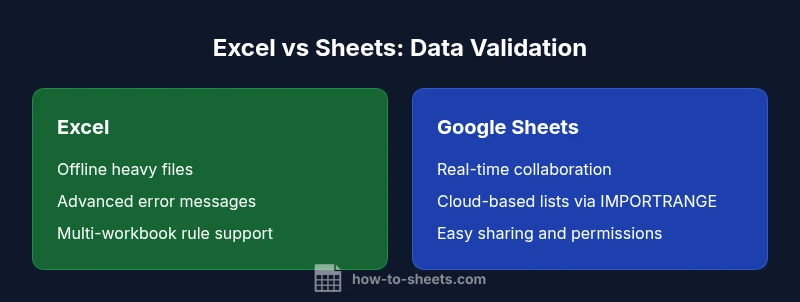
The choice between Excel and Google Sheets for data validation hinges on workflow, collaboration needs, and offline requirements. If your work requires multi-workbook validation, highly customized error messages, and offline reliability, Excel remains strong, particularly in environments with established desktop ecosystems. If your team relies on real-time collaboration, cloud accessibility, and straightforward sharing, Google Sheets offers compelling, scalable validation workflows. Consider a hybrid approach: use Sheets for data collection and initial validation in collaborative environments, then export to Excel for advanced modeling, large-scale validation, and formal auditing. Regardless of the platform, invest in documenting rules, pilot-testing migrations, and defining governance standards. This reduces risk and accelerates adoption across teams.
Comparison
| Feature | Excel | Google Sheets |
|---|---|---|
| List handling | Local lists within a workbook | Cloud-based lists shared across users |
| Dropdown flexibility | Dropdowns reference a single workbook/worksheet | Cross-sheet references via named ranges and IMPORTRANGE where appropriate |
| Error message customization | Custom input messages and detailed error alerts | Basic messages with option to Show warning or Reject input |
| Automation and scripting | VBA/macros can extend validation (offline-heavy) | Apps Script can extend validation but with cloud-centric limitations |
| Cross-document references | Supports external references within the same workbook | Cross-document linking via IMPORTRANGE or add-ons |
| Best use case | Offline, complex multi-workbook controls | Collaborative cloud-based validation |
The Good
- Clarifies platform strengths for data integrity
- Helps teams choose tools aligned with collaboration needs
- Highlights migration considerations and training needs
- Provides a framework for evaluating offline vs online workflows
The Bad
- Precise feature parity can be hard to achieve
- Migration may require workarounds for advanced validation
- Cloud-only dependencies can affect performance and privacy
- Documentation gaps in cross-platform behavior
Excel is the stronger choice for offline, multi-workbook validation; Google Sheets excels in real-time collaboration and cloud-based lists.
Choose Excel for complex, offline validation and cross-workbook rules. Choose Sheets when collaboration and quick deployment across devices are your priorities; migration should be planned with rule re-creation and source linking in mind.
FAQ
Can you create dropdown lists in both Excel and Sheets?
Yes. Both platforms support dropdown lists via data validation. Excel offers more extensive input message customization, while Sheets emphasizes cloud-based sharing and cross-document sourcing.
Both Excel and Sheets support dropdown lists via data validation. Excel gives more customization options, while Sheets shines for cloud-based collaboration.
How do you reference named ranges across sheets or workbooks?
In Excel, you can reference named ranges within the same workbook or across workbooks if properly defined. In Sheets, named ranges are scoped to a single spreadsheet and cross-document references often require IMPORTRANGE or Apps Script.
Named ranges work within the same file in Sheets, and across workbooks in Excel with proper setup.
Is there support for dynamic lists in both platforms?
Both platforms support dynamic lists, but the mechanisms differ. Excel uses formulas like OFFSET within named ranges; Sheets can use ranges that expand via IMPORTRANGE or Apps Script to mimic dynamic behavior.
Dynamic lists are possible in both, but the methods differ—OFFSET in Excel vs IMPORTRANGE and scripts in Sheets.
What are common limitations when migrating rules between Excel and Sheets?
Common limits include differences in formula syntax, date handling, and how custom messages are displayed. Cross-document references may require re-creating sources and adjusting named ranges to fit the target platform.
Migration often needs rule re-creation and source adjustment due to syntax and feature differences.
How can I validate data efficiently in large Sheets workbooks?
Use modular rules, limit complex formulas in validation, and consider separating input data from validation logic. Regularly audit rules and test with representative datasets to maintain performance and accuracy.
For large Sheets, keep rules simple and test with real data to maintain performance.
Are there any security considerations with validation rules?
Validation rules themselves are generally not secure gates; sensitive validation sources should be protected (e.g., permissions on shared lists). Consider using protected ranges and controlled access for sensitive sources.
Protect lists and sources; validation rules alone aren’t a security barrier.
The Essentials
- Assess where you work: offline vs cloud
- Pilot validation rules before full migration
- Document every rule for audits and teams
- Use IMPORTRANGE or named ranges to enable cross-document sources
- Plan for edge cases (dates, locale, and text lengths)