Google Sheets vs Excel Formulas: A Practical Comparison
A rigorous, analytical comparison of google sheets vs excel formulas, covering syntax, function parity, array handling, error management, and cross-platform migration for students, professionals, and small businesses.


Google Sheets formulas and Excel formulas share many core functions, but notable differences affect reliability, syntax, and collaboration. If you mainly work in a cloud-based environment, Sheets shines with live sharing and ARRAYFORMULA. Excel offers deeper data modeling, advanced functions, and stronger offline support. According to How To Sheets, the practical takeaway is to match your workflow to the tool’s strengths, not force parity.
Overview: The Formula Landscape for google sheets vs excel formulas
Formulas are the powerhouse of modern spreadsheets, translating data into decisions. In the 2026 landscape, professionals increasingly juggle two dominant platforms. The guide that follows focuses on google sheets vs excel formulas, examining where each shines, where they diverge, and how teams can plan migrations with minimal disruption. The How To Sheets team emphasizes starting from workflow needs rather than chasing parity. For students, professionals, and small business owners, this means prioritizing features that align with collaboration, accessibility, and scale.
This section sets the stage for a nuanced discussion. We’ll look at syntax, function libraries, and common pitfalls, with practical examples you can test in either environment. By grounding recommendations in real-world scenarios, we can avoid overgeneralizations and help readers map formulas across platforms when project requirements change. Think about the work you do most often: budgeting, data cleaning, reporting, or forecasting—and then evaluate how each platform handles those tasks.
Core Concepts: Relative and Absolute References
In both Google Sheets and Excel, cell references can be relative, absolute, or mixed, and the choice affects how formulas copy across ranges. A common starting point is understanding $A$1 versus A$1 versus $A1. Relative references adjust as you fill formulas across rows or columns; absolute references lock a position so that dragging a formula across a range preserves a specific cell. A robust cross-platform strategy uses explicit references when copying across blocks and prefers named ranges when possible to improve readability and maintainability. How To Sheets analysis shows that teams that document their use of absolute references tend to reduce cross-tool errors during migrations. Practically, create a short reference sheet that lists how you prefer to lock references for typical tasks such as revenue calculations, tax calculations, or customer lookup tables.
Syntax and Function Naming Conventions
Even when two platforms offer similar functions, syntax and name conventions can differ. In Google Sheets, you’ll often see ARRAYFORMULA used to apply a formula to a range, REGEX functions for pattern matching, and FILTER for dynamic subsets. Excel, on the other hand, frequently relies on LET and LAMBDA for advanced logic, with XLOOKUP providing a modern replacement for VLOOKUP. Regional settings can also influence argument separators (comma vs semicolon) and decimal symbols. Developers who standardize a subset of core functions—such as VLOOKUP/LOOKUP, IF/IFS, and basic aggregation—tave a smoother transition when moving formulas between platforms. The key is to learn one or two “bridge” patterns that translate well across both environments.
Common google sheets vs excel formulas Differences
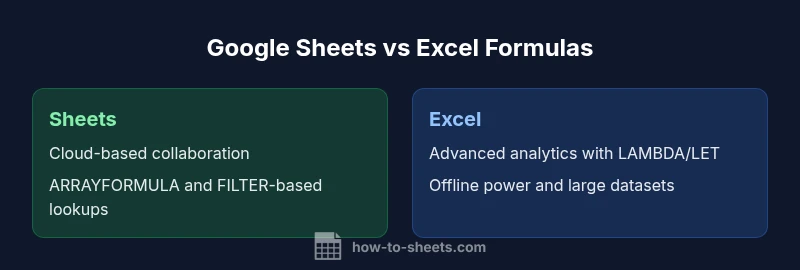
When comparing google sheets vs excel formulas specifically, the most visible gaps appear in dynamic array behavior, advanced lookup constructs, and integration with external data sources. Google Sheets emphasizes cloud-based collaboration and lightweight automation, whereas Excel emphasizes deep data modeling, performance with large datasets, and offline work. If you’re building a dashboard shared across teams, you’ll likely lean on Sheets for quick collaboration; if you model complex scenarios with large datasets, Excel’s desktop environment often yields faster iterations and richer analytics via tools like Power Pivot and Power Query. The differences matter because they drive how you structure formulas, organize data, and plan maintenance across teams.
Dynamic Arrays and Array Formulas: Parallel Paths
Array formulas enable powerful data transformations, and both platforms support them, albeit through different mechanisms. Google Sheets relies on ARRAYFORMULA to apply a single formula to a whole range, often in conjunction with FILTER, QUERY, or REGEX-based functions. Excel introduced native dynamic arrays with functions such as SEQUENCE, FILTER, UNIQUE, and SORT, which spill results into adjacent cells automatically. For day-to-day work, this means Sheets can be intuitive for quick data expansions, while Excel offers a more scalable and consistent approach to complex array logic, especially in professional analytics workflows. A practical tip is to segment array-heavy logic into named ranges in both environments to reduce maintenance overhead.
Lookup and Reference Functions: Bridges and Gaps
Lookup functions underpin many business tasks, from joining tables to fetching rates or statuses. Google Sheets provides VLOOKUP/HLOOKUP, LOOKUP, and increasingly powerful FILTER-based lookups that support more dynamic criteria. Excel’s modern toolkit includes XLOOKUP, XMATCH, and dynamic array-friendly forms that simplify multi-criteria lookups and reverse lookups. If you rely on cross-platform work, aim to implement equivalent patterns: for example, use INDEX/MATCH in Sheets as an alternative to XLOOKUP when your sheets must be portable. The differences here matter for migration: you may need to rewrite some lookup formulas or adopt helper columns to preserve performance and reliability.
Error Handling and Diagnostics
Both platforms surface common errors like #N/A, #REF!, or #VALUE!, but the debugging aids differ. Google Sheets offers real-time collaboration indicators; Excel provides more granular toolsets for auditing, such as Evaluate Formula and Error Checking options. A disciplined approach is to isolate the root cause of errors by testing formulas on small ranges, then gradually expanding the scope. Keeping a shared library of tested equivalents for key tasks—such as lookups, date calculations, and text parsing—helps reduce the friction of cross-platform work. The How To Sheets team recommends documenting any edge-case behavior observed when formulas translate between Google Sheets and Excel.
Performance and Large Datasets: Practical Limits
When datasets grow, performance becomes a practical concern. Google Sheets performance is influenced by browser performance and network conditions and can handle sizable datasets in collaborative environments, but extremely large data models may slow down in real-time editing. Excel, particularly on local machines with ample RAM, can handle larger data models and more complex calculations with faster response times. For teams, the choice often hinges on whether concurrent editing or raw computational throughput matters more. Planning a hybrid workflow with batch processing in Excel and lightweight dashboards in Sheets can balance speed and collaboration.
Practical Scenarios: Budgeting, Cleaning, and Reporting
Real-world use cases—such as budgeting templates, data cleaning pipelines, and executive dashboards—illustrate the strengths and limitations of each platform. Sheets excels at sharing live budgets, multi-user input, and lightweight automation via Apps Script. Excel shines in forecasting with large transactional datasets, complex modeling, and offline analysis. A pragmatic approach is to map your critical formulas to a single canonical representation first, then create platform-specific wrappers that preserve outcomes. The How To Sheets team highlights that documenting these mappings reduces drift during cross-platform work.
Getting Started: Migration Playbook and Best Practices
A practical migration starts with inventorying your most-used formulas, then selecting a small subset to translate first. Build translation rules, such as “replace XLOOKUP with INDEX/MATCH in Sheets” or “rewrite array formulas with ARRAYFORMULA + FILTER” where necessary. Establish a versioned change log and maintain a central repository of cross-platform formula equivalents. Encourage team members to test results in both environments to identify edge cases early. Finally, implement standardized naming conventions and comments to improve maintainability when formulas move between Google Sheets and Excel.
Practical Guidance: Making the Right Choice for Your Team
The decision between Google Sheets and Excel should align with your team’s core workflows. If live collaboration, accessibility, and lightweight automation rank higher, Sheets is a natural fit. If offline access, advanced analytics, and large-scale data modeling are paramount, Excel is typically preferable. For many teams, a hybrid approach—using Sheets for collaborative data collection and Excel for heavy analysis—offers the best balance. The How To Sheets team suggests documenting cross-tool mappings and training users to think in terms of equivalent functions across platforms to minimize friction during transitions.
Comparison
| Feature | Google Sheets | Excel |
|---|---|---|
| Function library coverage | Cloud-native functions (FILTER, ARRAYFORMULA, REGEXMATCH); strong collaboration | Extensive analytics functions, including XLOOKUP, LET, LAMBDA, and dynamic arrays |
| Syntax and locale behavior | Comma/semicolon separators depend on locale; straightforward syntax in many regions | Locale-aware separators; broader language support and naming quirks in some environments |
| Dynamic arrays / array handling | ARRAYFORMULA and related functions; results spill to adjacent cells | Native dynamic arrays (SEQUENCE, FILTER, UNIQUE, SORT) with clear spill behavior |
| Lookup and reference functions | VLOOKUP/HLOOKUP; dynamic lookups via FILTER-based methods | XLOOKUP, XMATCH; robust multi-criteria lookups and direct array-based approaches |
| Error handling and diagnostics | #N/A • #VALUE! common; real-time collaboration aids debugging | #N/A • #REF! common; comprehensive auditing and error-handling features |
| Offline access and collaboration | Web-based with offline mode available; strong real-time collaboration | Desktop-first with offline robustness; advanced modeling and performance |
| Data integration and automation | Google Apps Script integration; easy sharing in the cloud | Power Query / Power Automate integration; strong enterprise workflow support |
The Good
- Promotes real-time collaboration and easy sharing
- Low barrier to entry and quick onboarding for teams
- Excellent cloud access and cross-device compatibility
- Lightweight automation options for common tasks
The Bad
- Parity gaps for advanced analytics and modeling
- Migrating formulas between platforms can introduce errors
- Sheets may rely on internet connectivity for best performance
Neither is universally better; choose based on workflow—Sheets for collaboration and cloud access, Excel for advanced analytics and offline power.
Sheets suits teams prioritizing live, shared work; Excel is preferable for heavy data modeling and offline work. For mixed environments, document cross-tool mappings and plan staged migrations to minimize formula drift. The How To Sheets team recommends a hybrid approach when your needs span both platforms.
FAQ
What are the core differences in google sheets vs excel formulas?
Both platforms share many common functions, but their emphasis differs. Sheets focuses on collaboration and cloud-native features, while Excel emphasizes advanced analytics and offline power. Expect different syntax choices, function availability, and array handling patterns.
Core differences: Sheets prioritizes collaboration and cloud features; Excel prioritizes advanced analytics and offline performance.
Can Google Sheets formulas match Excel's advanced functions?
Short answer: many advanced functions require workarounds in Sheets. Functions like XLOOKUP exist in Excel but equivalent patterns in Sheets use VLOOKUP, INDEX/MATCH, or FILTER-based lookups. Planning cross-platform equivalents is essential for migrations.
Advanced functions often require workarounds in Sheets; plan cross-platform equivalents when migrating.
Is XLOOKUP available in Google Sheets?
XLOOKUP is not available in Google Sheets. Use alternatives such as VLOOKUP, LOOKUP, INDEX/MATCH, or FILTER-based approaches to achieve similar results.
XLOOKUP isn’t in Sheets; use VLOOKUP or INDEX/MATCH with FILTER for similar results.
How should I migrate formulas between Sheets and Excel?
Start with an inventory of key formulas, map each to a cross-platform equivalent, and test on small datasets. Pay attention to regional settings, dynamic array behavior, and data source connections. Maintain a changelog for traceability.
Migrate by mapping formulas, test on small datasets, and track changes with a changelog.
Do Sheets formulas support arrays the same as Excel?
Sheets uses ARRAYFORMULA for array expansion and supports many dynamic operations via FILTER. Excel delivers stronger native dynamic array support and spill behavior with SEQUENCE, FILTER, and related functions. Expect translation when moving heavy array logic.
Sheets uses ARRAYFORMULA; Excel has robust dynamic arrays with spill behavior.
Can I work offline with both Sheets and Excel?
Excel generally provides stronger offline analysis on desktop. Google Sheets supports offline mode in the browser, but performance and feature availability can vary compared to its online mode. Plan for offline contingencies when relying on Sheets.
Excel offers strong offline use; Sheets supports offline mode with some limitations.
The Essentials
- Assess your primary workflow: collaboration vs. complex analytics
- Test critical formulas across both environments to catch edge cases
- Document cross-tool mappings to reduce migration errors
- Leverage platform strengths: Sheets for collaboration, Excel for large-scale modeling
- Plan a phased migration with a shared formula repository